
Introduction
This manual provides comprehensive instructions for setting up, operating, and maintaining your Porik SP01 Smart Plug. The Porik SP01 is a Wi-Fi enabled smart plug designed to integrate with smart home ecosystems like Alexa, Google Assistant, and SmartThings, offering remote control, voice control, and scheduling capabilities for your appliances.

Image: Front and side view of the Porik SP01 Smart Plug, showcasing its compact design and power button.

Image: The Porik SP01 Smart Plug surrounded by icons illustrating its key features, including 2.4GHz Wi-Fi connection, scheduling, voice control, device sharing, app remote control, security, and compatibility with various appliances like lamps, coffee makers, fans, air purifiers, humidifiers, and heaters.
Setup Instructions
Follow these steps to set up your Porik SP01 Smart Plug and connect it to the Osaio or Smart Life app.
- Download the App: Download the 'Osaio' or 'Smart Life' app from your smartphone's app store.
- Register/Log In: Sign up for a new account or log in if you already have one.
- Plug In: Insert the Porik SP01 Smart Plug into a standard electrical outlet. Ensure the indicator light on the plug is flashing. If not, long-press the power button for 5 seconds until it flashes rapidly (twice per second) for EZ Mode, or slowly (once every 3 seconds) for AP Mode.
- Add Device: In the app, tap the '+' icon to add a new device. Select 'Electrical' then 'Plug'.
- Connect to Wi-Fi: Follow the in-app instructions to connect the smart plug to your 2.4GHz Wi-Fi network. Ensure your phone is within 1 meter of the plug during connection. Note: The smart plug only supports 2.4GHz Wi-Fi.
- Name Your Device: Once connected, name your smart plug for easy identification and control.

Image: A visual representation of the three-step setup process: 1. Download the 'Smart Life' app, 2. Plug the SP01 into a socket, and 3. Follow the instructions within the app.

Image: A smartphone displaying the Osaio app interface, with options to download from the App Store and Google Play, indicating the primary application for controlling the smart plug.
Video: How to Set Up Porik Smart Plugs with Osaio App
Video: A step-by-step guide demonstrating how to set up Porik Smart Plugs using the Osaio application, covering account creation, device addition, and Wi-Fi connection.
Operating Instructions
Remote Control
Control your appliances from anywhere using the Osaio or Smart Life app on your smartphone. Simply open the app, select the smart plug, and toggle the power on or off.

Image: A woman remotely turning on a heater using her smartphone, demonstrating the convenience of the smart plug's remote control feature.
Voice Control
The Porik SP01 Smart Plug is compatible with Amazon Alexa, Google Assistant, and SmartThings. Link your Osaio/Smart Life account to your preferred voice assistant app to enable voice commands.
- For Alexa: Say "Alexa, turn on [device name]" or "Alexa, turn off [device name]".
- For Google Assistant: Say "Hey Google, turn on [device name]" or "Hey Google, turn off [device name]".

Image: A smart speaker (Google Home Mini) and a humidifier, illustrating how voice commands can control connected devices like turning on a humidifier or Christmas tree lights.

Image: A woman in a kitchen using an Alexa voice command to turn on an electric kettle, demonstrating hands-free control of appliances.
Video: How to Connect Porik Smart Plug with Alexa?
Video: A tutorial on connecting the Porik Smart Plug with Amazon Alexa, including linking accounts and enabling voice control.
Timer and Schedule Functions
Set schedules, timers, random timers, or circulate timers to automate your devices. This is useful for daily routines, security, or energy saving.
- Schedule: Set specific times for devices to turn on/off (e.g., bedside lamp 10:00 PM On, 7:00 AM Off).
- Timer: Set a countdown for a device to turn off after a set period (e.g., cell phone charger countdown to 2 hours off).
- Random: Turn devices on/off randomly within a set period to simulate occupancy.
- Circulate: Repeat on/off cycles (e.g., air purifier on for 20 minutes every half hour).
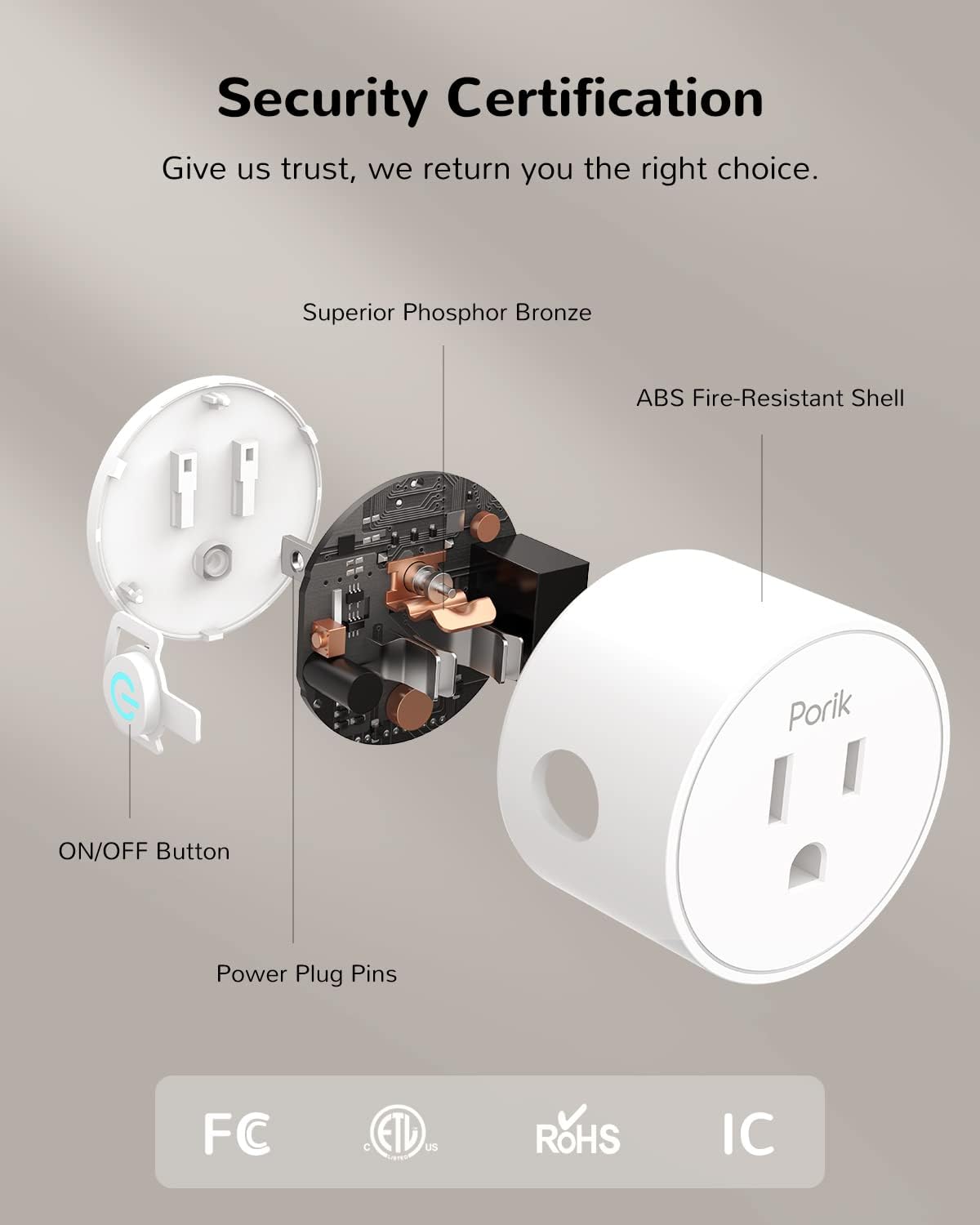
Image: Four examples of timer and schedule settings: a bedside night lamp, a cell phone charger with a countdown, a coffee machine with a daily schedule, and an air purifier with a circulating timer.

Image: A living room scene with a Christmas tree and a floor lamp, demonstrating how to set schedules for devices, such as turning on Christmas tree lights at 6:00 PM and turning off a floor lamp at 10:00 PM.
Diversified Scene Setting
Create custom scenes in the app to control multiple devices with a single command. For example, an "Away Mode" can turn off all smart plug-controlled appliances when you leave home.
Device Sharing
Share control of your smart plugs with family and friends through the app, allowing multiple users to manage connected devices.

Image: A family sharing control of smart devices via a smartphone app, illustrating the device sharing feature.
Grouping Management
Group multiple smart plugs together to control them simultaneously with one tap or voice command.

Image: A living room with various appliances connected to smart plugs, demonstrating the grouping management feature for simultaneous control.
Maintenance
To ensure optimal performance and longevity of your Porik SP01 Smart Plug, follow these general maintenance guidelines:
- Keep the device clean and dry. Avoid exposure to moisture or extreme temperatures.
- Do not attempt to disassemble or repair the smart plug yourself. This may void the warranty and pose safety risks.
- Ensure the plug is securely inserted into the outlet and that connected appliances do not exceed the maximum load capacity.
Troubleshooting
If you encounter issues with your Porik SP01 Smart Plug, try the following solutions:
- Device Not Connecting to Wi-Fi:
- Ensure your Wi-Fi network is 2.4GHz. The plug does not support 5GHz networks.
- Verify your Wi-Fi password is correct.
- Make sure the smart plug is within range of your Wi-Fi router.
- Try resetting the smart plug by unplugging it and plugging it back in, then re-attempt the connection process.
- If EZ Mode fails, try AP Mode (long press the power button until the indicator light flashes slowly).
- Voice Control Not Working:
- Confirm that your Osaio/Smart Life account is correctly linked to your Alexa, Google Assistant, or SmartThings app.
- Check that the device name in the Osaio/Smart Life app matches the name used in your voice commands.
- Ensure your voice assistant device is online and functioning correctly.
- App Control Issues:
- Check your internet connection.
- Ensure the Osaio/Smart Life app is updated to the latest version.
- Restart the app or your smartphone.
Specifications

Image: The Porik SP01 Smart Plug displayed alongside its technical specifications, including model number, input voltage, maximum load, and Wi-Fi frequency.
| Feature | Detail |
|---|---|
| Model Number | PSP01-2 (SP01) |
| Brand | Porik |
| Input Voltage | 120 Volts (AC) |
| Max. Load | 10A Resistive |
| Max. Load Power | 1200W |
| AC Frequency | 50/60Hz |
| Working Temperature | -10℃ to 50℃ |
| Wi-Fi Frequency | 2.4GHz (Only) |
| Connector Type | Plug-in |
| Material | Acrylonitrile Butadiene Styrene (ABS), Aluminum, Plastic |
| Product Dimensions | 0.02 x 0.02 x 0.02 inches |
| Item Weight | 4.2 ounces |
| Certifications | FCC, ETL, IC, RoHS |
| UPC | 794775739950 |
Warranty and Support
The Porik SP01 Smart Plug comes with a 24-month warranty period. If you encounter any problems while using the smart plug, please contact our customer service for assistance. We are committed to resolving any issues you may experience as quickly as possible.


