
1. Introduction
This manual provides comprehensive instructions for the Earto iPad Pro 12.9 Keyboard Case. It covers product features, compatibility, setup procedures, operating guidelines, maintenance tips, and troubleshooting solutions to ensure optimal use of your device.

2. Product Overview and Features
The Earto iPad Pro 12.9 Keyboard Case combines a protective cover with a functional keyboard and trackpad, transforming your iPad into a versatile workstation. Key features include:
- Smart Trackpad with Multi-Touch Gestures: Navigate your iPad with precision using the integrated trackpad, supporting various multi-touch gestures for efficient operation.
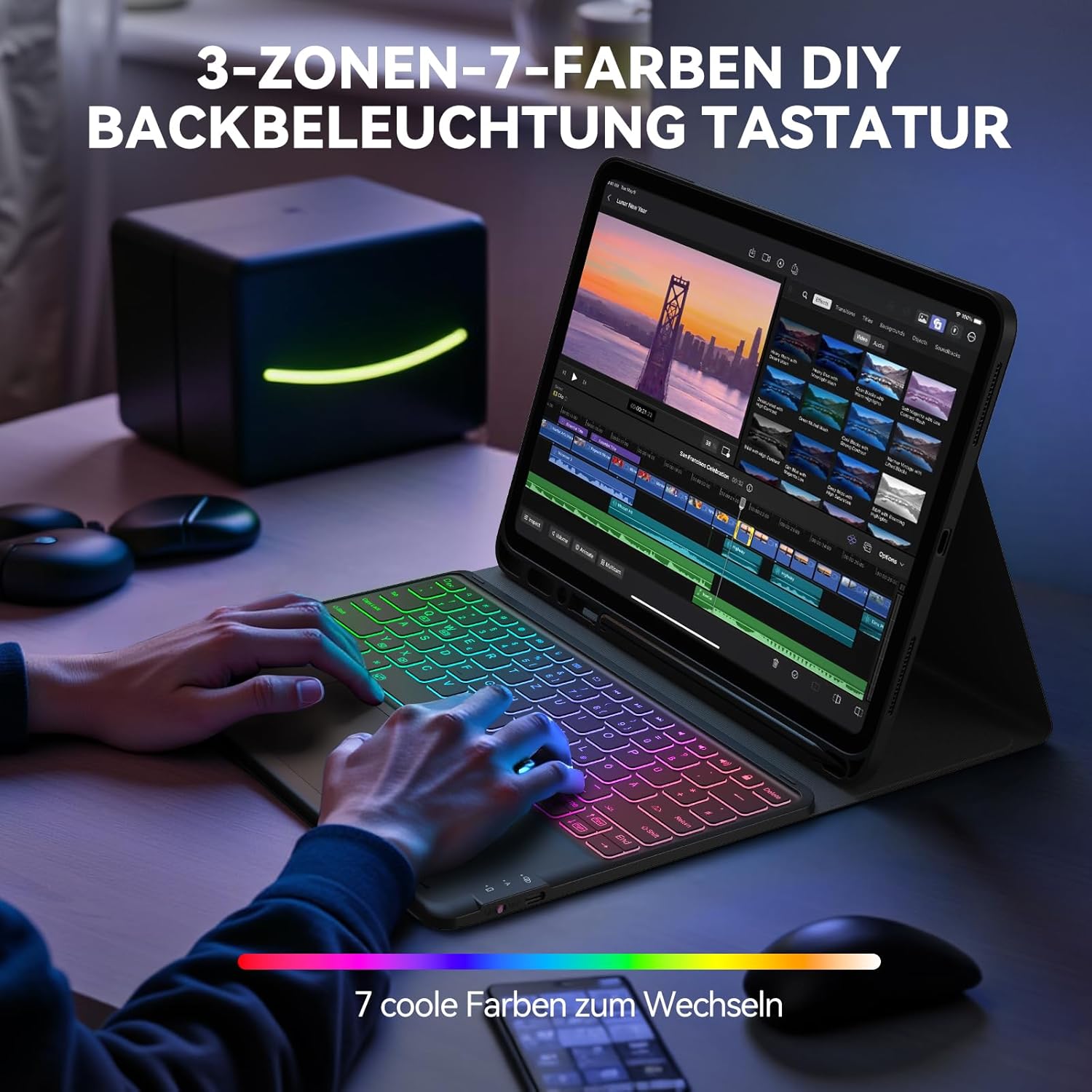
- 7-Color 3-Zone Backlight: Customize your typing experience with a unique three-zone backlight design, offering 7 colors per zone and adjustable brightness levels for comfortable use in any lighting condition.
- Adjustable Viewing Angle: The case features an adjustable slot, allowing you to set your iPad at optimal viewing angles for typing, watching, or drawing.
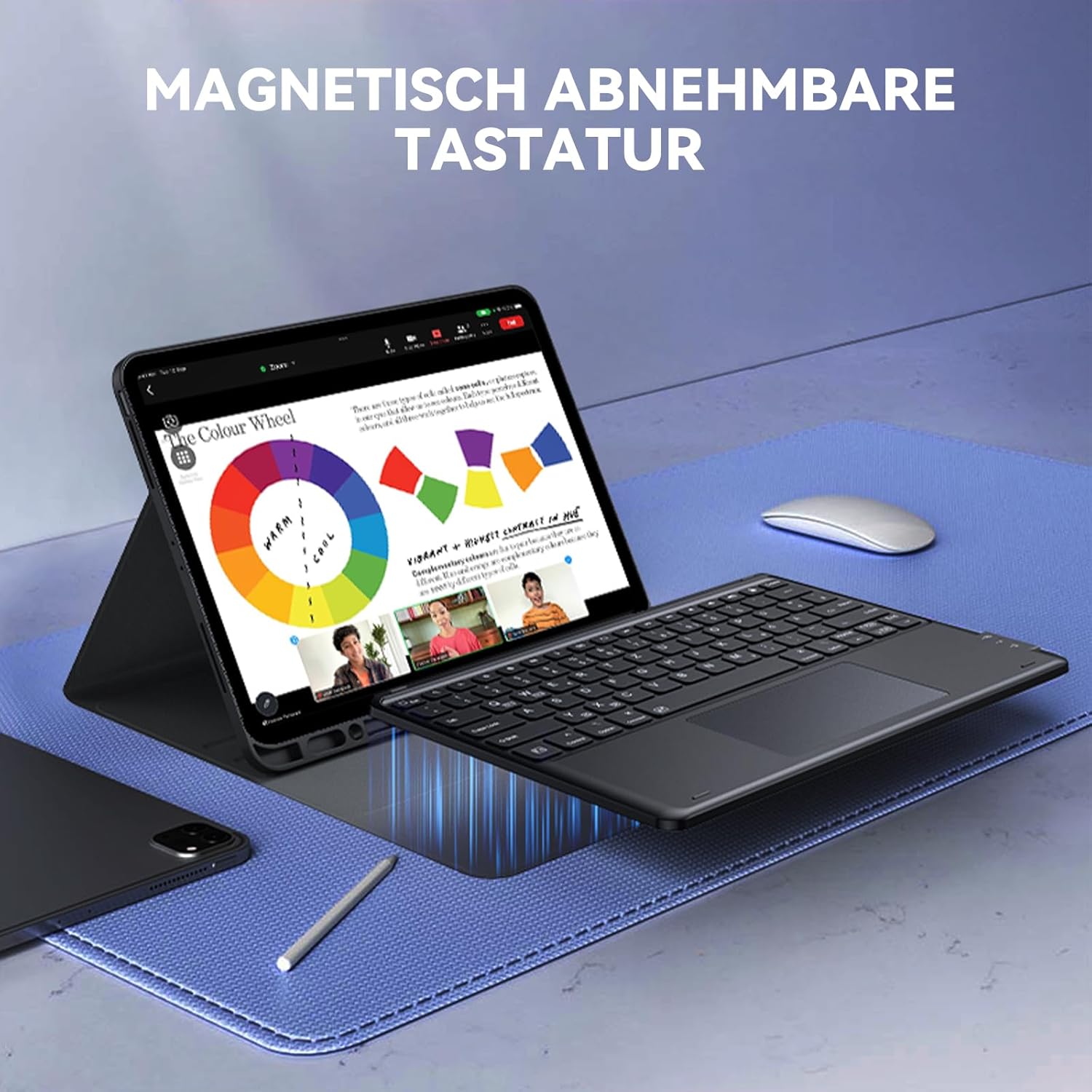
- Magnetic Detachable Keyboard: The keyboard can be magnetically attached or detached from the case, offering flexibility for different usage scenarios.
- Bluetooth Connectivity: Connects wirelessly to your iPad via Bluetooth for a seamless typing experience.
- Integrated Pencil Slot: A dedicated slot for storing and charging your Apple Pencil.


3. Compatibility
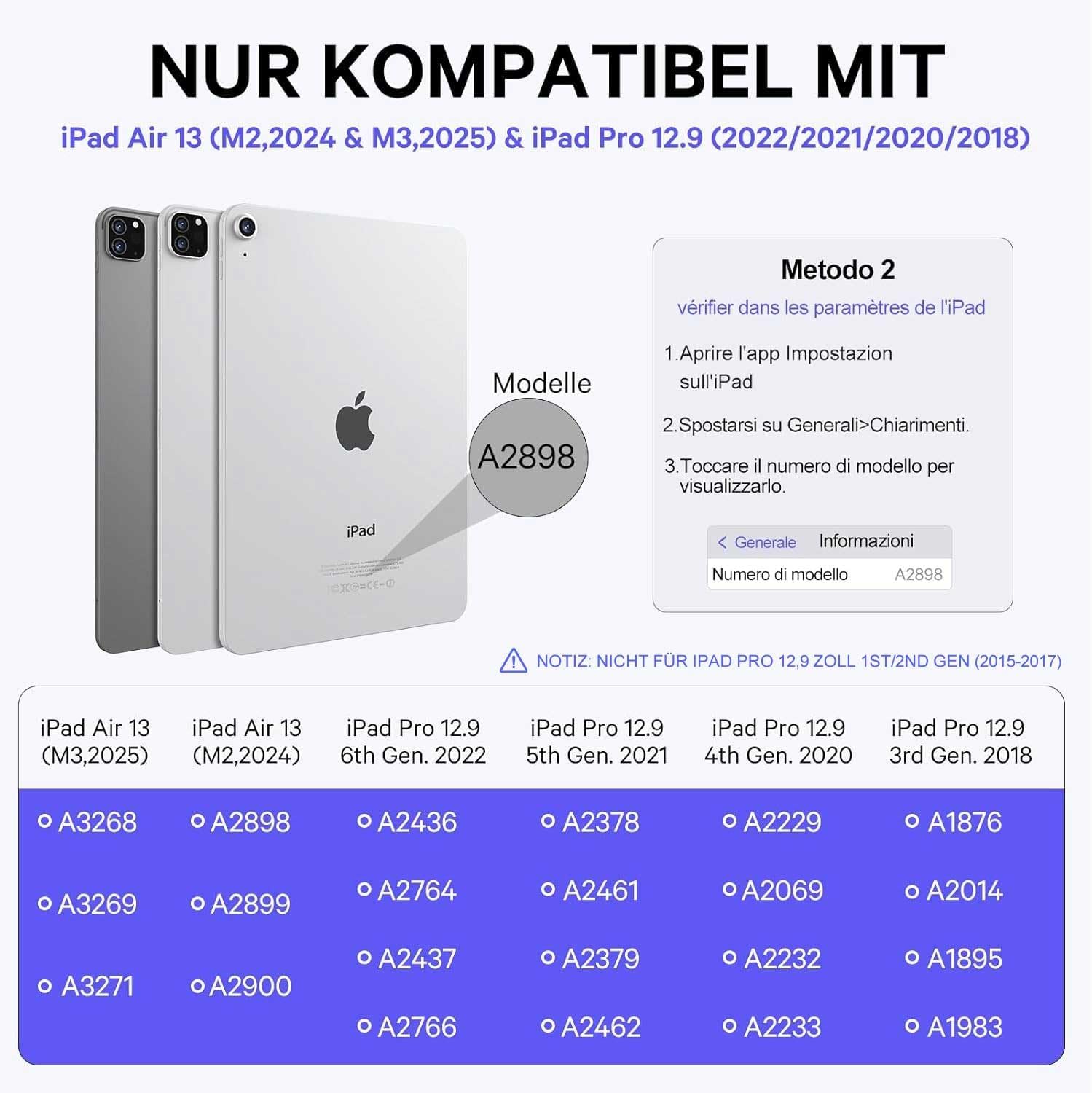
This keyboard case is compatible with the following iPad Pro 12.9-inch models:
- iPad Pro 12.9-inch (6th Generation 2022): Models A2436, A2437, A2764, A2766
- iPad Pro 12.9-inch (5th Generation 2021): Models A2378, A2461, A2379, A2462
- iPad Pro 12.9-inch (4th Generation 2020): Models A2229, A2069, A2232, A2233
- iPad Pro 12.9-inch (3rd Generation 2018): Models A1876, A2014, A1895, A1983
Note: This case is NOT compatible with iPad Pro 12.9-inch (2nd Generation 2017) or (1st Generation 2015). Please verify your iPad model number on the back of your device before use.
4. Setup Instructions
4.1. Charging the Keyboard
Before initial use, ensure the keyboard is fully charged.
- Locate the Type-C charging port on the side of the keyboard.
- Connect the provided Type-C charging cable to the keyboard and a power source.
- The charging indicator light will illuminate. A full charge typically takes approximately 2.5 hours.
- Once fully charged, the keyboard can operate for up to 50 hours without backlight.

4.2. Bluetooth Pairing
Follow these steps to connect your keyboard to your iPad via Bluetooth:
- Turn on the power switch of the keyboard. The power switch is usually located on the side or back of the keyboard.
- Press the Fn key and the C key simultaneously to enter Bluetooth pairing mode. The Bluetooth indicator light will start blinking.
- On your iPad, go to Settings > Bluetooth and turn on Bluetooth.
- In the list of available devices, select "Bluetooth 5.1 Keyboard" to complete the pairing process. The indicator light on the keyboard will stop blinking once connected.

5. Operating Instructions
5.1. Keyboard Backlight Control
The keyboard features a 3-zone, 7-color backlight system with adjustable brightness.
- To turn the backlight on/off or adjust brightness, press the 💡 key.
- To change the color of the left backlight zone, press Fn + A.
- To change the color of the middle backlight zone, press Fn + S.
- To change the color of the right backlight zone, press Fn + D.

5.2. Trackpad Gestures
The integrated trackpad supports various multi-touch gestures for intuitive navigation. Refer to your iPad's operating system documentation for a full list of supported gestures.

5.3. Multi-Device Connection
The keyboard can connect to two devices simultaneously, allowing for easy switching between them.
- Pair the keyboard with your first device (e.g., iPad) using the Bluetooth pairing instructions (Section 4.2).
- To pair with a second device, repeat the Bluetooth pairing process. The keyboard will remember both connections.
- Use the designated function keys (e.g., Fn + 1, Fn + 2) to switch between connected devices. (Specific keys not provided, assuming standard functionality).

5.4. Adjustable Viewing Angles
The case design allows for multiple viewing angles to suit various activities such as typing, watching videos, or browsing.
- Position the iPad in the case's adjustable slot to achieve your desired angle.
- The magnetic attachment of the keyboard allows for slight adjustments to optimize comfort.

5.5. Detachable Keyboard
The keyboard can be easily detached from the case for standalone use or when only the protective case is needed.
- Gently pull the keyboard away from the magnetic base of the case.
- To reattach, align the keyboard with the magnetic strip in the case until it snaps into place.
6. Maintenance
To ensure the longevity and optimal performance of your Earto iPad Pro 12.9 Keyboard Case, follow these maintenance guidelines:
- Cleaning: Use a soft, damp cloth to wipe the exterior of the case and keyboard. Avoid harsh chemicals or abrasive materials.
- Storage: When not in use, store the keyboard case in a cool, dry place away from direct sunlight and extreme temperatures.
- Liquid Exposure: Avoid exposing the keyboard to liquids. In case of accidental spills, immediately power off the keyboard and allow it to dry completely before reuse.
- Handle with Care: Do not drop or apply excessive force to the keyboard or case, as this may cause damage.
7. Troubleshooting
If you encounter issues with your Earto iPad Pro 12.9 Keyboard Case, refer to the following common problems and solutions:
- Keyboard not connecting via Bluetooth:
- Ensure the keyboard is powered on and fully charged.
- Make sure Bluetooth is enabled on your iPad.
- Re-enter pairing mode on the keyboard (Fn + C) and re-select "Bluetooth 5.1 Keyboard" on your iPad.
- If previously paired, try forgetting the device on your iPad and re-pairing.
- Keys not responding:
- Check if the keyboard is charged.
- Ensure the Bluetooth connection is stable.
- Restart both the keyboard and your iPad.
- Trackpad not working:
- Ensure the keyboard is connected via Bluetooth.
- Check iPad settings for trackpad functionality (Settings > Accessibility > Touch > AssistiveTouch).
- Clean the trackpad surface to remove any debris.
- Backlight not working or changing colors:
- Ensure the keyboard is sufficiently charged.
- Press the 💡 key to cycle through brightness levels or turn on the backlight.
- Use Fn + A/S/D to change zone colors.
If the issue persists after trying these steps, please contact Earto customer support for further assistance.
8. Specifications
| Feature | Detail |
|---|---|
| Brand | Earto |
| Color | Black |
| Connectivity Technology | Bluetooth |
| Special Features | Trackpad, Backlit Keyboard (7 colors, 3 zones) |
| Compatible Devices | iPad Pro 12.9 (3rd, 4th, 5th, 6th Generation) |
| Battery Composition | Lithium Polymer (1 included) |
| Keyboard Description | Flexible |
| Recommended Product Use | Office |
| Keyboard Backlight Color Management | RGB |
| Product Dimensions | 28.5L x 24.5W x 1.7H centimeters |
9. Warranty and Support
Information regarding product warranty and availability of spare parts is not provided in the product data. For any support inquiries or warranty claims, please refer to the Earto official website or contact their customer service directly.


