
Qubo 2MP
Qubo Smart CCTV Camera 360° 2MP User Manual
Model: 2MP
Introduction
The Qubo Smart Cam 360 is an advanced AI-powered wireless security camera designed to provide comprehensive surveillance for your home or office. It offers 24/7 monitoring with features like 360-degree pan and tilt, AI person detection, motion tracking, and two-way audio communication. This manual provides detailed instructions for setting up, operating, and maintaining your Qubo Smart Cam 360 to ensure optimal performance and security.
What's in the Box
Please check the package contents carefully. If any items are missing or damaged, contact Qubo customer support.
- Qubo Smart Cam 360 Camera
- Power Adapter
- USB Power Cable
- Quick Start Guide
- Mounting Screws and Wall Plugs (for wall mounting)

Image: The Qubo Smart Cam 360, a white dome-shaped camera with a black lens, standing upright.
Setup Guide
Follow these steps to set up your Qubo Smart Cam 360.
- Download the Qubo App: Search for "Qubo" in the Apple App Store (for iOS) or Google Play Store (for Android) and download the official Qubo application.
- Create an Account: Open the Qubo App and follow the on-screen instructions to create a new user account or log in if you already have one.
- Power On the Camera: Connect the provided USB power cable to the camera's power port and plug the power adapter into a wall outlet. The camera will power on and indicate its status (e.g., blinking LED).
- Add Device in App: In the Qubo App, tap on the "Add Device" or "+" icon. Select "Smart Cam 360" from the list of devices.
- Connect to Wi-Fi: Follow the app's instructions to connect your camera to your 2.4GHz Wi-Fi network. Ensure your Wi-Fi password is correct. The camera will confirm successful connection.
- Placement: Place the camera on a flat surface or mount it on a wall using the provided screws. Ensure it has a clear view of the area you wish to monitor.
- Insert SD Card (Optional): For local storage, insert a compatible MicroSD card (up to 1TB, not included) into the camera's SD card slot. Refer to the "Expandable Storage" section for supported card types.

Image: A smartphone displaying the Qubo app interface, showing a live monitor view of a room and a list of detected events.
Operating Instructions
Understand the key features and how to operate your Qubo Smart Cam 360.
360° Pan & Tilt Motion Tracking
The camera features a motorized head allowing for 360° horizontal and 90° vertical movement. Use the Qubo App to remotely control the camera's viewing angle. The motion tracking feature automatically follows detected movement within its field of view.

Image: The Qubo Smart Cam 360 with arrows indicating its 360-degree pan and tilt capabilities, highlighting its full room coverage.

Image: An illustration demonstrating the camera's motion tracking ability, showing a figure moving across the frame with the camera following.
AI-Powered Person Detection & Intruder Alarm
The camera's advanced AI can differentiate between human movement and other motion, reducing false alerts. When a person is detected, you will receive instant smart notifications on your Qubo App. You can also configure the system to trigger a loud intruder alarm directly from the camera.

Image: A screenshot showing the Qubo app interface with a "Person detected" alert overlaying a live view of a person in a room, indicating the AI detection feature.
NightPulse Vision (Night Vision)
Equipped with high-performance IR LEDs, the Qubo Smart Cam 360 provides clear and sharp visibility even in complete darkness, ensuring continuous 24x7 monitoring.

Image: A comparison showing a scene in normal lighting and the same scene in low light with the camera's enhanced night vision, demonstrating clear visibility in darkness.
Two-Way Talk with Noise Reduction
The built-in speaker and noise-reducing microphone allow for clear two-way communication. You can speak to family members, pets, or visitors through the camera using the Qubo App, no matter your location.

Image: A split image showing a child playing and an adult using a smartphone, illustrating the two-way talk functionality of the camera.
Recording Options (Continuous & Event-Based)
The camera supports both continuous recording (with an SD card or cloud subscription) and event-based capture. You can configure recording settings via the Qubo App to record only when motion or a person is detected.

Image: A smartphone screen displaying the recording settings within the Qubo app, showing options for continuous recording and event-triggered recording.
Storage Options (SD Card & Cloud)
Store your video footage locally on an SD card (up to 1TB, not included) or securely back it up to cloud servers (cloud subscription sold separately). The Qubo App provides access to your stored footage.

Image: A diagram illustrating various supported and unsupported SD card brands and capacities for the Qubo Smart Cam 360, highlighting storage compatibility.
Voice Assistant Compatibility
The Qubo Smart Cam 360 is compatible with Amazon Alexa and Google Assistant, allowing for hands-free voice control and live view on supported smart displays.

Image: Logos for "Works with Alexa" and "Works with Ok Google", indicating compatibility with popular voice assistants.
Maintenance
Proper maintenance ensures the longevity and optimal performance of your Qubo Smart Cam 360.
- Cleaning: Use a soft, dry cloth to clean the camera lens and body. Do not use liquid cleaners or abrasive materials, as they may damage the device.
- Placement: Avoid placing the camera in direct sunlight, near heat sources, or in areas with high humidity. Ensure it is placed on a stable surface or securely mounted.
- Software Updates: Regularly check for and install firmware updates through the Qubo App. Updates often include performance improvements and security enhancements.
- Power Supply: Always use the original power adapter and cable provided with the camera to prevent damage.
- Storage: If storing the camera for an extended period, disconnect it from power, remove the SD card (if inserted), and store it in a cool, dry place.
Troubleshooting
This section addresses common issues you might encounter with your Qubo Smart Cam 360.
| Problem | Possible Cause | Solution |
|---|---|---|
| Camera not powering on | Power adapter or cable issue; power outlet problem. | Check power connections. Try a different power outlet. Ensure the adapter and cable are not damaged. |
| Cannot connect to Wi-Fi | Incorrect Wi-Fi password; camera too far from router; 5GHz network selected. | Verify Wi-Fi password. Move camera closer to router. Ensure you are connecting to a 2.4GHz Wi-Fi network. Restart router and camera. |
| Poor video quality | Weak Wi-Fi signal; dirty lens. | Improve Wi-Fi signal strength. Clean the camera lens with a soft, dry cloth. |
| No notifications received | App notification settings disabled; camera offline; incorrect detection settings. | Check Qubo App notification settings and phone's system notification settings. Ensure camera is online. Adjust detection sensitivity and areas in the app. |
| SD card not recording | Incompatible SD card; card full or corrupted; recording settings incorrect. | Use a supported SD card (up to 1TB). Format the SD card in the app. Check recording settings (continuous/event-based). |
Specifications
Detailed technical specifications for the Qubo Smart Cam 360.
| Feature | Detail |
|---|---|
| Model Name | 2MP |
| Resolution | 2MP Full HD (1080p) |
| Pan/Tilt Coverage | 360° Horizontal Pan, 90° Vertical Tilt |
| Connectivity | 2.4GHz Wi-Fi (Wireless) |
| Night Vision | NightPulse Vision (High-performance IR LEDs) |
| Audio | Two-Way Talk with Noise Reduction |
| AI Features | AI-Powered Person Detection, Motion Tracking, Intruder Alarm |
| Storage Options | Local (up to 1TB MicroSD card, not included), Cloud Backup (subscription sold separately) |
| Compatible Devices | Smartphone (iOS/Android) |
| Voice Assistant Support | Amazon Alexa, Google Assistant |
| Power Source | Corded Electric |
| Indoor/Outdoor Usage | Indoor |
| Product Dimensions | 10.4 x 7 x 7 cm |
| Item Weight | 180 g |
| Country of Origin | China |
| Manufacturer | Hero Electronix Pvt. Ltd. |
Warranty and Support
Qubo products are backed by a commitment to quality and customer satisfaction.
Warranty Information
The Qubo Smart Cam 360 typically comes with a 1-year manufacturer's warranty from the date of purchase, covering defects in materials and workmanship. Please retain your purchase receipt as proof of warranty. For specific warranty terms and conditions, refer to the warranty card included with your product or visit the official Qubo website.
Customer Support
For any technical assistance, troubleshooting, or warranty claims, please contact Qubo customer support:
- Online Support: Visit the official Qubo website for FAQs, support articles, and online chat options.
- Email Support: Refer to your Quick Start Guide or the Qubo website for the dedicated support email address.
- Phone Support: Contact the Qubo customer service hotline, details of which can be found on the official Qubo website or in your product documentation.
Qubo also offers guided DIY installation support and has a wide after-sales service network.
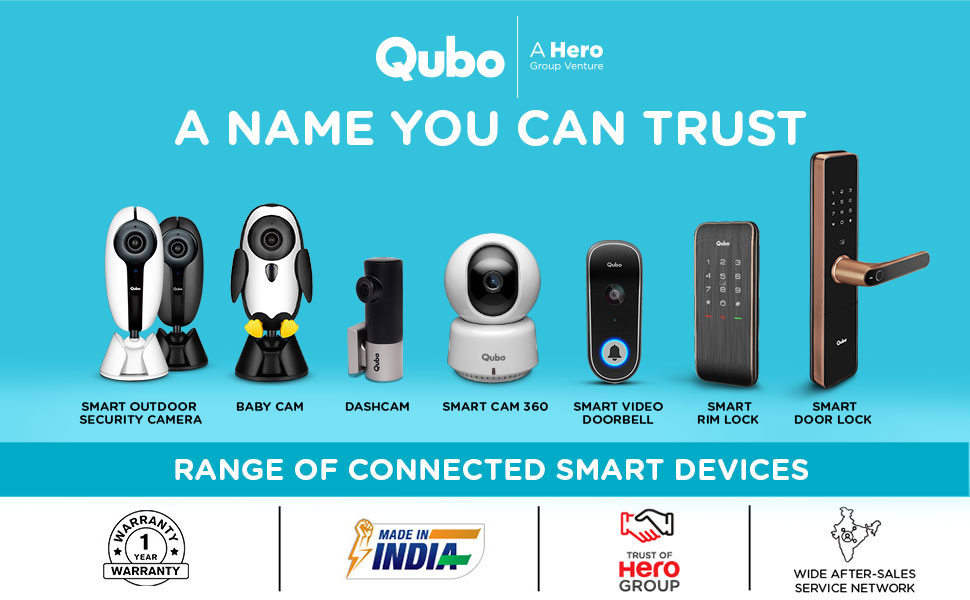
Image: A collage showcasing various Qubo smart home devices, including cameras, doorbells, and locks, emphasizing the brand's range and reliability.
Related documents2MP


Ask a question about this manual
Ask about setup, troubleshooting, compatibility, parts, safety, or missing instructions. Manuals+ will review the question and use this page’s manual context to help answer it.