
1. Product Overview
The FCXJTU Digital Chess Clock Timer is designed for various board games including International Chess, Chinese Chess, and Go. It features a large, high-definition display, accurate timing, and multiple timing modes to enhance your game experience.

Image: The FCXJTU Digital Chess Clock Timer displayed alongside chess pieces on a chessboard, illustrating its use in board games.
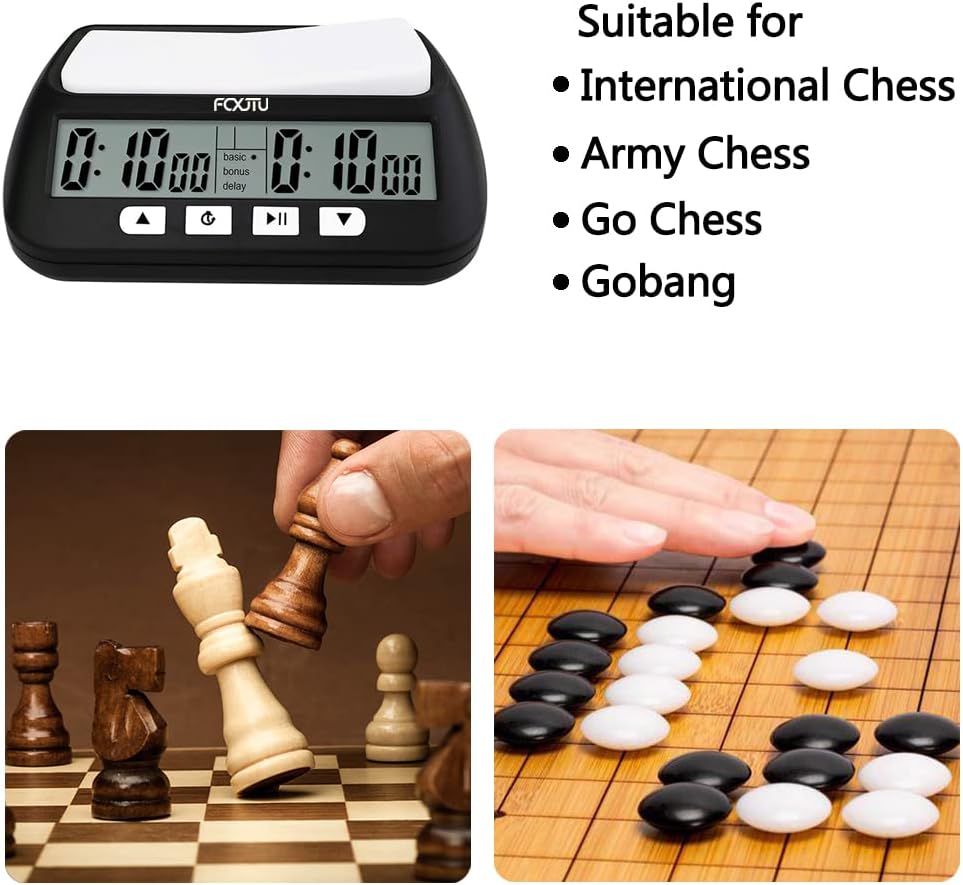
Image: The chess clock timer with text indicating its suitability for International Chess, Army Chess, Go Chess, and Gobang, accompanied by images of chess and Go boards.
2. Package Contents
Upon opening the package, ensure all items are present:
- 1 x FCXJTU Digital Chess Clock Timer
- 2 x AA Batteries
- 1 x User Manual

Image: The FCXJTU Digital Chess Clock Timer shown with its packaging box and two AA batteries, indicating included accessories.
3. Setup
3.1 Battery Installation
- Locate the battery compartment on the bottom of the chess clock.
- Slide open the battery compartment cover.
- Insert two AA batteries, ensuring correct polarity (+/-).
- Close the battery compartment cover securely.

Image: The underside of the FCXJTU Digital Chess Clock Timer, highlighting the battery compartment and the ON/OFF/Mute switch.
3.2 Power On/Off and Mute Function
On the bottom of the clock, you will find a switch with three positions:
- ON: Powers on the device.
- OFF: Powers off the device.
- MUTE: Disables sound alerts while the clock is on.
To power on, slide the switch to the 'ON' position. To mute the alarm, slide the switch to the 'MUTE' position.
Video: A demonstration of the FCXJTU Digital Chess Clock Timer's ON/OFF and Mute functions, showing how to operate the switch on the bottom of the device.
4. Operating Instructions
4.1 Button Functions
The clock features four main function buttons on the front panel:
- Up (▲): Increases values during setting, navigates up.
- Set/Reset/Confirm (⚙/🔊): Enters setting mode (long press), confirms selections, or resets.
- Start/Stop/Next (►/▮▮): Starts or stops the timer, moves to the next setting parameter.
- Down (▼): Decreases values during setting, navigates down.
Image: A close-up of the FCXJTU Digital Chess Clock Timer's front panel, with arrows and text labels indicating the function of each button (Up, Set/Reset/Confirm, Start/Stop/Next, Down).
4.2 Selecting Timing Modes
The clock supports multiple timing modes. To select a mode:
- Ensure the clock is powered on.
- Use the Up (▲) or Down (▼) buttons to cycle through the available timing modes. The current mode will be displayed on the screen.
- Once your desired mode is displayed, press the Set/Reset/Confirm (⚙/🔊) button to confirm your selection.
Video: A demonstration of how to select different timing modes on a digital chess clock, showing the use of Up and Down buttons to cycle through options and the Set/Confirm button to finalize the choice.
4.3 Setting Time for Basic Mode
To set the time for the Basic Timing Mode:
- Select the Basic Timing Mode as described above.
- Long press the Set/Reset/Confirm (⚙/🔊) button to enter time setting mode. The hour digits will flash.
- Use the Up (▲) or Down (▼) buttons to adjust the hour.
- Press the Start/Stop/Next (►/▮▮) button to move to the minute digits, then adjust with Up (▲) or Down (▼).
- Repeat for seconds.
- Once all time segments are set for the left player, the right player's time will automatically mirror the left player's settings.
- Press the Set/Reset/Confirm (⚙/🔊) button to save and exit the setting mode.
Video: A detailed guide on how to set the Basic Timing Mode on a digital chess clock, demonstrating the adjustment of hours, minutes, and seconds for each player.
4.4 Starting and Pausing a Game
- After setting the desired timing mode and time, press the Start/Stop/Next (►/▮▮) button to start the game.
- To pause the game at any time, press the Start/Stop/Next (►/▮▮) button again. The timer will freeze.
- To resume, press the Start/Stop/Next (►/▮▮) button once more.
Video: A demonstration of starting and pausing a game using the FCXJTU professional chess clock timer, highlighting the use of the Start/Stop button.
5. Advanced Timing Modes
The FCXJTU Digital Chess Clock Timer offers several advanced modes for varied gameplay:
5.1 Bonus Mode
In Bonus Mode, a set amount of time is added to a player's clock after each move. This is often used in competitive play to prevent players from running out of time.
5.2 Delay Mode
Delay Mode introduces a short delay before a player's clock starts counting down after their opponent makes a move. This allows players a brief moment to consider their next move without consuming their main time.
Video: A demonstration of setting and using Bonus and Delay timing modes on a digital chess clock, illustrating how extra time is added or a delay is applied per move.
6. Specifications
- Brand: FCXJTU
- Model Number: 902
- Colour: Black
- Product Dimensions: 8.9 x 3.81 x 4.6 cm
- Item Weight: 190 g
- Material: Acrylonitrile Butadiene Styrene (ABS), Plastic
- Display Type: Digital
- Special Feature: Alarm
- Power Source: 2 x AA Batteries (Included)

Image: The FCXJTU Digital Chess Clock Timer shown with its dimensions labeled in inches and centimeters, providing a clear visual of its size.
7. Troubleshooting
7.1 Display Issues or Malfunctions
- Symptom: Clock makes a repetitive ticking noise, display turns off, or other unexpected behavior.
- Solution: This may indicate a temporary software glitch or low battery. Try turning the clock OFF and then ON again. If the issue persists, replace the batteries.
7.2 Difficulty Setting Time
- Symptom: Unable to adjust time settings or confirm selections.
- Solution: Ensure you are in the correct setting mode by long-pressing the Set/Reset/Confirm (⚙/🔊) button. Follow the steps in section 4.3 carefully. If the display is flashing, you are in setting mode.
8. Maintenance
- Keep the chess clock clean by wiping it with a soft, dry cloth.
- Avoid exposing the device to extreme temperatures, direct sunlight, or moisture.
- Remove batteries if the clock will not be used for an extended period to prevent leakage.
9. Warranty and Support
For warranty information or technical support, please refer to the contact details provided with your purchase or visit the official FCXJTU website. Keep your purchase receipt as proof of purchase.