
1. Important Safety Information
Please read this manual carefully before using the eMylo Smart Zigbee 3.0 Hub Gateway. Keep it for future reference.
- This device is designed for indoor use only.
- Do not expose the device to water, moisture, or extreme temperatures.
- Ensure the power supply meets the device's specifications (5V/1A).
- Do not attempt to disassemble or repair the device yourself. Contact customer support for assistance.
- Keep out of reach of children.
2. Package Contents
Verify that all items are present in your package:
- eMylo Smart Zigbee 3.0 Hub Gateway
- USB Power Cable
- User Manual
3. Product Overview
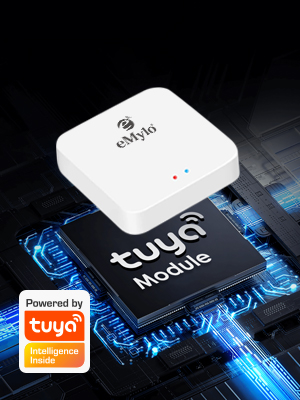
The eMylo Smart Zigbee 3.0 Hub Gateway serves as the central control unit for your Tuya Zigbee smart home devices. It enables seamless communication between various Zigbee devices and allows for remote control and automation through the Tuya Smart App, as well as voice control via Amazon Alexa and Google Assistant.

Key Features:
- Zigbee 3.0 Connectivity: Supports a wide range of Tuya Zigbee smart devices.
- Remote Control: Manage devices from anywhere using the Tuya Smart App.
- Voice Control: Compatible with Amazon Alexa and Google Assistant for hands-free operation.
- Home Automation: Create smart scenes and routines for enhanced convenience and security.
- Compact Design: Small and unobtrusive, fitting easily into any home environment.

4. Setup Guide
4.1. Powering On the Hub
- Connect the provided USB power cable to the hub's Micro USB port.
- Plug the other end of the USB cable into a 5V/1A USB power adapter (not included) and then into a power outlet.
- The indicator lights on the hub will illuminate, indicating it is powered on.
4.2. App Installation
Download the Tuya Smart or Smart Life app from your mobile device's app store (App Store for iOS or Google Play Store for Android).
4.3. Adding the Hub to the App
- Ensure your smartphone is connected to a 2.4GHz Wi-Fi network. The hub does not support 5GHz Wi-Fi.
- Open the Tuya Smart or Smart Life app and log in or register for a new account.
- Press and hold the reset button on the hub for approximately 5-10 seconds until the LED indicator light changes to a fast flashing status. This indicates the hub is in pairing mode.
- In the app, tap the "+" icon in the top right corner to add a device.
- Select "Gateway" or "Control Hub" from the device list, then choose "Wireless Gateway (Zigbee)".
- Follow the on-screen instructions in the app to complete the pairing process.

4.4. Pairing Zigbee Devices
Once the hub is successfully added to the app, you can begin adding your Zigbee smart devices:
- In the Tuya Smart app, navigate to the eMylo Zigbee Hub Gateway's control interface.
- Tap "Add sub device" or a similar option to initiate the device search.
- Put your Zigbee device into pairing mode (refer to the device's specific manual for instructions).
- The app will detect and add the new Zigbee device. Rename it for easy identification.

5. Operation
5.1. Remote Control via Tuya App
The Tuya Smart App allows you to control all connected Zigbee devices remotely from anywhere with an internet connection. You can turn devices on/off, adjust settings, and monitor their status.

5.2. Home Automation and Device Management
Utilize the Tuya Smart App to create automated scenes and routines. For example, you can set lights to turn on when a motion sensor is triggered, or receive alerts from water leak detection sensors.


5.3. Voice Control Integration
Integrate your eMylo Zigbee Hub Gateway with Amazon Alexa or Google Assistant for convenient voice control of your connected devices. Follow the instructions in the respective voice assistant app to link your Tuya Smart account.

5.4. Device Sharing
Share control of your smart home devices with family members. In the Tuya Smart App, navigate to the device settings and select the sharing option to invite others to manage your smart home.
6. Maintenance
To ensure optimal performance and longevity of your eMylo Smart Zigbee 3.0 Hub Gateway:
- Cleaning: Wipe the device with a soft, dry cloth. Do not use liquid cleaners or aerosols.
- Firmware Updates: Periodically check the Tuya Smart App for available firmware updates to ensure your hub has the latest features and security enhancements.
- Placement: Place the hub in a central location within your home to maximize Zigbee signal coverage to all connected devices.
7. Troubleshooting
Common Issues and Solutions:
- Hub not connecting to Wi-Fi:
- Ensure your Wi-Fi network is 2.4GHz. The hub does not support 5GHz.
- Check Wi-Fi signal strength. Move the hub closer to your router if necessary.
- Verify correct Wi-Fi password entry in the app.
- Restart your Wi-Fi router and the hub.
- Zigbee devices not pairing:
- Ensure the Zigbee device is in pairing mode (refer to its specific manual).
- Make sure the device is within range of the eMylo hub.
- Reset the Zigbee device and try pairing again.
- Check if the hub has reached its maximum device limit (up to 55 devices).
- Voice control not working:
- Confirm that your Tuya Smart account is correctly linked to Alexa or Google Assistant.
- Ensure the device names in the Tuya app are clear and easily recognizable by voice commands.
- Check your internet connection.
- Hub indicator lights not behaving as expected:
- If no lights, check power connection.
- If solid, it's connected. If flashing slowly, it's trying to connect. If flashing quickly, it's in pairing mode.
8. Specifications
| Brand | eMylo |
| Model | Zigbee Hub Gateway |
| Connectivity Protocol | Wi-Fi (2.4GHz), ZigBee 3.0 |
| Control Method | App, Remote, Voice |
| Controller Type | Amazon Alexa, Google Assistant |
| Operation Mode | ON-OFF |
| Mounting Type | Wall Mount (implied by design, though typically placed on surface) |
| Power Input | 5V/1A (via Micro USB) |
| Dimensions | 2.52 x 2.48 x 1.73 inches (6.4 x 6.3 x 4.4 cm) |
| Weight | 2.08 ounces (59 grams) |
| Max Connected Devices | Up to 55 Tuya Zigbee smart devices |

9. Warranty and Support
eMylo products come with a standard manufacturer's warranty. For specific warranty details, please refer to the warranty card included with your product or visit the official eMylo website. If you encounter any issues or have questions regarding your eMylo Smart Zigbee 3.0 Hub Gateway, please contact eMylo customer support through their official channels.
Contact Information: Please refer to the eMylo official website or your purchase platform for the most up-to-date customer support contact details.