
1. Product Overview
The Generic Smart Outdoor Wireless PTZ Surveillance Camera (Model: CM30-35H-20HS300) is designed for comprehensive outdoor monitoring. It features a 3.0 Megapixel sensor for clear 1080p video, Pan-Tilt-Zoom (PTZ) functionality for wide area coverage, and both wireless (Wi-Fi) and wired connectivity options. The camera includes a built-in microphone and speaker for two-way audio, infrared night vision with LED lights for low-light recording, and motion detection capabilities. Its robust IP66 rating ensures durability in various outdoor conditions.
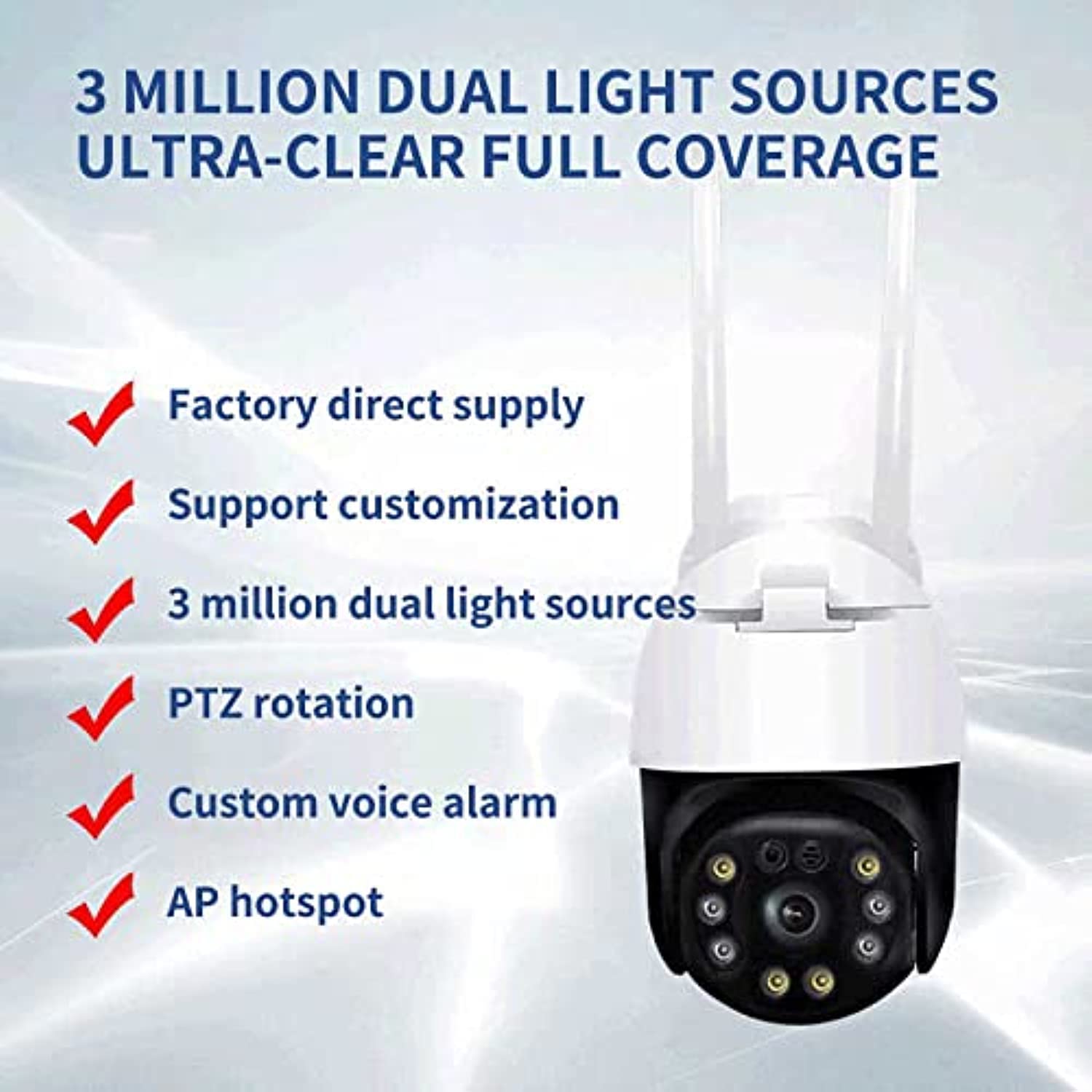
Figure 1.1: Front view of the Generic Smart Outdoor Wireless PTZ Surveillance Camera.
Key Features:
- 3.0 Megapixel 1080p Video Resolution
- Pan-Tilt-Zoom (PTZ) Functionality
- Wireless (Wi-Fi) and Wired Connectivity
- Two-Way Audio Communication (Microphone & Speaker)
- Infrared Night Vision with LED Lights
- Motion Detection and Alerts
- IP66 Weatherproof Rating
- Compact and Optimal Design
2. Package Contents
Please check the package carefully to ensure all items are present and in good condition. If any items are missing or damaged, contact your retailer.
- Generic Smart Outdoor Wireless PTZ Surveillance Camera
- Power Adapter
- Mounting Screws and Wall Plugs
- Waterproof Kit for Network Cable (if applicable)
- Quick Start Guide
3. Setup
3.1 Physical Installation
Choose a suitable location for your camera, ensuring it has a clear view of the area you wish to monitor and is within range of your Wi-Fi network (if using wireless). The camera is designed for wall mounting.
- Mark the drilling points on the wall using the camera's base as a template.
- Drill holes and insert the wall plugs.
- Secure the camera base to the wall using the provided screws.
- Adjust the camera angle as needed after mounting.
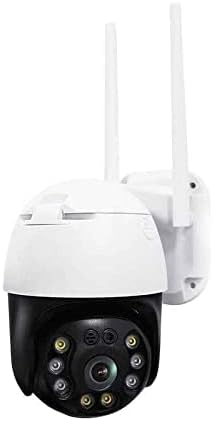
Figure 3.1: Example of the camera mounted on a wall.
3.2 Power Connection
Connect the provided power adapter to the camera's power input port and then plug it into a standard electrical outlet. Ensure the connection is secure and protected from weather elements if installed outdoors.
3.3 Network Connection
The camera supports both wireless (Wi-Fi) and wired (Ethernet) connections.
Wireless (Wi-Fi) Connection:
- Ensure your Wi-Fi router is powered on and broadcasting a 2.4GHz network.
- Follow the instructions in the mobile application to connect the camera to your Wi-Fi network. This usually involves scanning a QR code or entering Wi-Fi credentials.
Wired (Ethernet) Connection:
- Connect an Ethernet cable from your router to the camera's Ethernet port.
- Use the waterproof kit to protect the Ethernet connection if installed outdoors.
3.4 App Installation & Pairing
Download the recommended mobile application (refer to the Quick Start Guide for the app name) from your smartphone's app store (iOS or Android).
- Register an account and log in.
- Tap 'Add Device' or the '+' icon.
- Select your camera model or scan the QR code on the camera/packaging.
- Follow the on-screen prompts to complete the pairing process.
4. Operating Instructions
4.1 Live View
Open the mobile application and select your camera from the device list to access the live video feed. You can view real-time footage from your camera.
4.2 Pan/Tilt/Zoom (PTZ) Control
On the live view screen, use the directional controls (usually arrows or a joystick icon) to pan (move horizontally) and tilt (move vertically) the camera lens. Digital zoom may also be available through pinch-to-zoom gestures.

Figure 4.1: The camera's PTZ capabilities allow for a wide viewing angle.
4.3 Two-Way Audio
Tap the microphone icon in the app to speak through the camera's speaker. Tap the speaker icon to listen to audio from the camera's microphone. This allows for real-time communication with individuals near the camera.
4.4 Recording & Playback
The camera supports continuous recording or event-triggered recording (e.g., motion detection). Recordings are typically stored on a microSD card (not included) or cloud storage (subscription may be required). Access recorded footage through the 'Playback' section of the app.
4.5 Motion Detection & Alerts
Configure motion detection sensitivity and alert settings within the app. When motion is detected, the camera can send push notifications to your smartphone and/or begin recording.
4.6 Night Vision
The camera automatically switches to infrared night vision in low-light conditions, providing clear black-and-white or color night vision footage. Ensure the LED lights are not obstructed for optimal performance.
5. Maintenance
5.1 Cleaning
Periodically clean the camera lens and housing with a soft, damp cloth. Do not use harsh chemicals or abrasive cleaners, as these can damage the camera's finish or lens coating.
5.2 Firmware Updates
Check the mobile application regularly for available firmware updates. Keeping your camera's firmware up-to-date ensures optimal performance, security, and access to new features.
5.3 Storage Management
If using a microSD card, periodically check its status and manage recorded footage through the app. Ensure sufficient storage space is available for new recordings.
6. Troubleshooting
If you encounter issues with your camera, refer to the following common problems and solutions:
- Camera Offline:
Check power connection. Ensure Wi-Fi signal is strong or Ethernet cable is securely connected. Restart the camera and your router. - No Live View:
Verify internet connection on your smartphone. Ensure the camera is online in the app. - Poor Video Quality:
Check network bandwidth. Ensure the lens is clean and free from obstructions. Adjust camera placement for optimal lighting. - Motion Detection Not Working:
Verify motion detection settings are enabled in the app. Adjust sensitivity levels. Ensure the camera's view is not obstructed. - Two-Way Audio Issues:
Check volume settings on your phone and in the app. Ensure microphone and speaker are not obstructed.
If problems persist, consult the app's help section or contact customer support.
7. Specifications
| Feature | Specification |
|---|---|
| Brand Name | Generic |
| Model Number | CM30-35H-20HS300 |
| Connectivity Technology | Wireless (Wi-Fi) |
| Special Features | PTZ Technology |
| Power Source | Corded Electric |
| Mounting Type | Wall Mount |
| Video Capture Resolution | 3.0 Megapixel |
| Color | Multi |
| Number of Channels | 1 |
| Wireless Communication Technology | Wi-Fi |
| Form Factor | Dome |
| Alert Type | Motion Only |
| Room Type | Nursery |
| Light Source | Infrared |
| International Protection Rating | IP66 |
| Image Sensor Technology | CMOS |
| Night Vision | Color Night Vision |
8. Warranty and Support
8.1 Warranty Information
This product comes with a standard manufacturer's warranty. Please refer to the warranty card included in your package or contact your retailer for specific warranty terms and conditions. Keep your purchase receipt as proof of purchase.
8.2 Customer Support
For technical assistance, troubleshooting, or any product-related inquiries, please contact the retailer or manufacturer's customer support. Contact details can typically be found on the product packaging, the manufacturer's website, or in the Quick Start Guide.


