
MINLOVE PJ118S
MINLOVE PJ118S Projector User Manual
Model: PJ118S | Brand: MINLOVE
1. Introduction
Thank you for choosing the MINLOVE PJ118S Native 1080P WiFi Bluetooth Projector with Built-in DVD Player. This projector is designed to provide a versatile and immersive home theater experience, offering high-definition visuals, robust connectivity, and the convenience of an integrated DVD player. This manual will guide you through the setup, operation, maintenance, and troubleshooting of your new device.

Figure 1.1: MINLOVE PJ118S Projector highlighting its key features.
2. What's in the Box
Please check the package contents to ensure all items are present:
- Projector (x1)
- Carrying Bag (x1)
- Remote Control (x1)
- Tripod (x1)
- AV Cable (x1)
- HDMI Cable (x1)
- Power Cord (x1)
- Projector Lens Cover (x1)
- User Manual (x1)
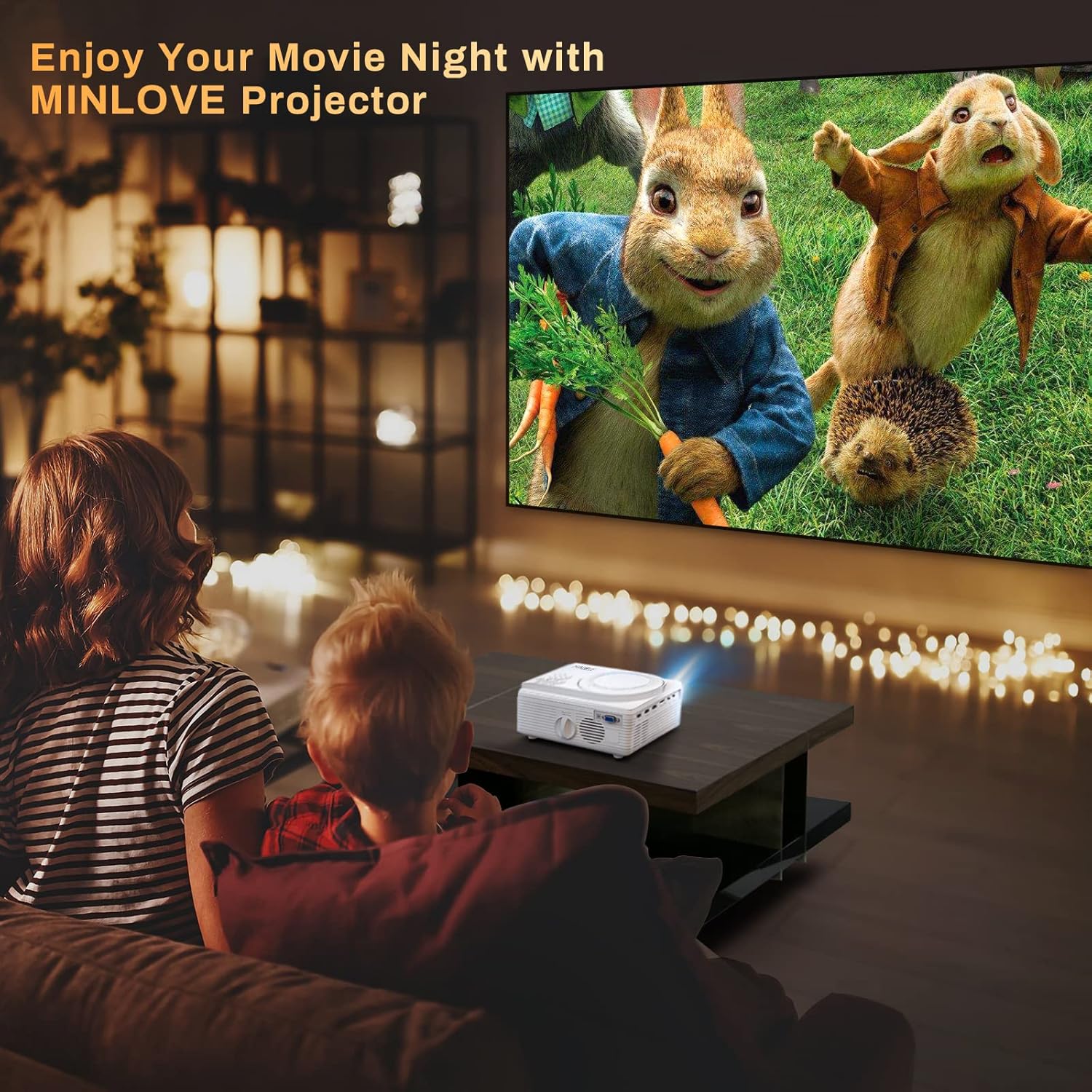
Figure 2.1: All items included in the MINLOVE PJ118S Projector package.
3. Setup Guide
3.1 Unpacking and Placement
- Carefully remove the projector and all accessories from the packaging.
- Place the projector on a stable, flat surface. For optimal viewing, position it directly in front of your projection screen or wall.
- Ensure there is adequate ventilation around the projector to prevent overheating.
3.2 Power Connection
- Connect the power cord to the projector's power input port.
- Plug the other end of the power cord into a standard electrical outlet.
3.3 Lens Cap Removal
Before powering on the projector, ensure you remove the lens cap.

Figure 3.1: Remove the lens cap before operating the projector.
3.4 Focus and Keystone Adjustment
After powering on, adjust the focus and keystone correction for a clear, rectangular image.
- Focus Ring: Rotate the focus ring on the projector lens until the image appears sharp and clear.
- Keystone Correction: Use the keystone adjustment knob (usually located near the lens) to correct any trapezoidal distortion, ensuring the image is perfectly rectangular. The projector supports ±15° keystone correction.

Figure 3.2: Adjusting keystone correction for a perfect image.
4. Operating Instructions
4.1 Basic Operation
Use the included remote control or the buttons on the projector to navigate menus, select input sources, and adjust settings.
4.2 Built-in DVD Player
The MINLOVE PJ118S features an integrated DVD player, allowing you to play your favorite discs directly.
- Open the DVD tray located on top of the projector.
- Gently place a DVD or CD onto the spindle, ensuring it is seated correctly.
- Close the DVD tray. The projector will automatically detect the disc and begin playback.

Figure 4.1: The projector's built-in DVD player in action.
4.3 Wireless Connectivity (WiFi & Bluetooth)
The projector supports WiFi for screen mirroring and Bluetooth for audio output.
4.3.1 WiFi & Screen Mirroring
Connect your iOS or Android device wirelessly to mirror its screen content.
- For iOS Devices (Airplay Mode):
- Connect your iPhone/iPad to the projector's WiFi network (e.g., "MINLOVE-xxx").
- On your iPhone/iPad, open Control Center and tap "Screen Mirroring".
- Select "MINLOVE-xxx" from the list of devices.
- For Android Devices (Miracast Mode):
- On your Android phone, enable the "Miracast Function" (or similar, e.g., "Wireless Display", "Smart View").
- Select "MINLOVE-xxx" from the available devices.

Figure 4.2: Screen mirroring setup for iOS and Android devices.
4.3.2 Bluetooth Connection
Connect external Bluetooth speakers or headphones for enhanced audio.
- Ensure your Bluetooth audio device is in pairing mode.
- On the projector, navigate to the Bluetooth settings.
- Select your device from the list to pair.

Figure 4.3: Connecting Bluetooth audio devices.
4.4 Connecting External Devices
The projector offers multiple ports for connecting various devices:
- HDMI (x2): Connect TV Box, Chromebook, PC, Laptop, Tablet, Blue-ray DVD player, Game Consoles (PS5, Xbox).
- USB: Connect USB Flash Drives for media playback.
- AV: Connect older devices using the included AV cable.
- VGA: Connect computers or laptops.
- Micro SD Card: Insert Micro SD cards for media playback (supports up to 32GB; 64GB high-speed flash memory cards are not supported).

Figure 4.4: Various input ports and compatible devices.
4.5 Audio Settings for Fire TV Stick
If using a Fire TV Stick, you may need to adjust audio settings for optimal sound output, especially for copyrighted content.
- Click the "Setting" button on your Fire TV Stick remote.
- Choose "Display & Audio".
- Click "Audio".
- Click "Surround Sound", then select "PCM".
Note: Due to Netflix copyright protection, the sound of some Netflix videos may not play normally. Turning off Dolby sound (by selecting PCM) can resolve this. The WiFi feature does not support copyrighted smartphone apps such as Netflix, Amazon Prime Video, and Hulu directly; these can be played via HDMI connection.

Figure 4.5: Steps to adjust Fire TV Stick audio settings.
5. Maintenance
Proper maintenance ensures the longevity and optimal performance of your projector.
- Cleaning the Lens: Use a soft, lint-free cloth specifically designed for optical lenses. Do not use abrasive cleaners or cloths that could scratch the lens.
- Cleaning the Projector Body: Wipe the exterior with a soft, dry cloth. For stubborn dirt, a slightly damp cloth can be used, followed by a dry one.
- Ventilation: Regularly check that the ventilation ports are clear of dust and debris to ensure proper airflow and prevent overheating.
- Storage: When not in use for extended periods, store the projector in its carrying bag in a cool, dry place, away from direct sunlight and extreme temperatures.
6. Troubleshooting
If you encounter issues with your projector, refer to the following common problems and solutions:
| Problem | Possible Cause | Solution |
|---|---|---|
| No image or blurry image | Lens cap on, out of focus, incorrect keystone, incorrect input source. | Remove lens cap, adjust focus ring, adjust keystone, select correct input source. |
| No sound or low sound | Volume too low, incorrect audio output settings, incompatible audio format (e.g., Dolby for Netflix). | Increase volume, check projector's audio settings, adjust external device audio settings (e.g., Fire TV Stick to PCM), connect external speakers. |
| WiFi/Screen Mirroring issues | Incorrect network connection, device compatibility, app copyright restrictions. | Ensure correct WiFi connection, verify device compatibility, use HDMI for copyrighted streaming apps. |
| Projector overheating | Blocked ventilation, prolonged use. | Ensure vents are clear, turn off projector and allow to cool, operate in a well-ventilated area. |
| Remote control not working | Dead batteries, obstruction, too far from projector. | Replace batteries, remove obstructions, ensure line of sight to IR receiver. |
7. Specifications
| Feature | Detail |
|---|---|
| Model Number | PJ118S |
| Native Resolution | 1920 x 1080P (Full HD) |
| Brightness | 8000 Lumens (approx. 75% higher than similar projectors) |
| Contrast Ratio | 10000:1 |
| Connectivity Technology | WiFi, Bluetooth 5.0 |
| Input Ports | 2x HDMI, USB, AV, VGA, Micro SD Card |
| Built-in Features | DVD Player, Stereo Speaker |
| Max Projection Screen Size | 250 inches |
| Keystone Correction | ±15° |
| Lamp Life | Up to 60,000 hours |
| Item Weight | 5.19 pounds |
| Product Dimensions | 8.67 x 7.3 x 3.9 inches |
8. Warranty and Support
The MINLOVE PJ118S Projector comes with a 1-year warranty. For any questions, technical assistance, or support, please contact our customer service team. We offer 7*24 after-sales service to provide satisfactory solutions as soon as possible.
For additional resources, you may refer to the official user manual PDF: MINLOVE PJ118S User Manual (PDF)
Related documentsPJ118S


Ask a question about this manual
Ask about setup, troubleshooting, compatibility, parts, safety, or missing instructions. Manuals+ will review the question and use this page’s manual context to help answer it.