
1. Introduction
This manual provides essential information for the safe and effective use of your Canon PowerShot G1 X Mark III Digital Camera. Please read this manual thoroughly before using the camera and retain it for future reference.

Figure 1.1: Front view of the Canon PowerShot G1 X Mark III Digital Camera with the lens extended. This image displays the camera's compact body, the integrated zoom lens, and the Canon branding.
The PowerShot G1 X Mark III is an advanced compact camera featuring a 24.2MP APS-C CMOS sensor and a DIGIC 7 image processor. It is designed for high-quality still photography and Full HD video recording, offering a versatile 3x optical zoom lens and Dual Pixel CMOS AF for precise focusing.
2. What's in the Box
Verify that all the following items are included in your package:
- Canon PowerShot G1 X Mark III Digital Camera
- Canon NB-13L Lithium-Ion Battery Pack (3.6V, 1250mAh)
- Canon CB-2LH Battery Charger for NB-13L Li-Ion Batteries
- Lens Cap
- Lens Cap String
- NS-DC12 Neck Strap
- Strap Adapter for NS-DC12
- Micro HDMI Cable
3. Setup
3.1. Charging and Installing the Battery
- Insert the NB-13L battery into the CB-2LH charger.
- Plug the charger into a power outlet. The charging indicator will illuminate.
- Once charging is complete, the indicator will change or turn off. Remove the battery.
- Open the battery compartment cover on the camera.
- Insert the charged battery into the camera, ensuring correct orientation. Close the cover securely.
3.2. Inserting a Memory Card
The camera supports SD, SDHC, and SDXC memory cards. For optimal performance, especially with video recording and continuous shooting, use a UHS Speed Class 3 (U3) card.
- Open the memory card slot cover.
- Insert the memory card with the label facing the front of the camera until it clicks into place.
- Close the memory card slot cover securely.
3.3. Attaching the Neck Strap
Thread the NS-DC12 neck strap through the strap adapters and then through the camera's strap mounts. Ensure both ends are securely fastened to prevent accidental drops.
3.4. Initial Power On and Basic Settings
Press the ON/OFF button to power on the camera. Follow the on-screen prompts to set the date, time, and language. These settings are crucial for proper image file management.
4. Operating the Camera
4.1. Camera Controls Overview

Figure 4.1: Top view of the camera, illustrating the mode dial, hot shoe, and various control dials for quick adjustments.

Figure 4.2: Rear view of the camera, highlighting the LCD screen, electronic viewfinder, and the arrangement of control buttons for menu navigation and settings.
Familiarize yourself with the camera's buttons and dials. The mode dial on the top allows selection of various shooting modes, including Program AE, Shutter-priority AE, Aperture-priority AE, Manual, and Automatic modes. Dedicated dials provide direct adjustment of exposure compensation and other settings.
4.2. Basic Photography
To take a picture:
- Turn the mode dial to your desired shooting mode (e.g., AUTO for automatic settings).
- Frame your subject using the electronic viewfinder or the LCD screen.
- Press the shutter button halfway down to focus. The camera uses Dual Pixel CMOS AF for fast and accurate phase-detection autofocus.
- Press the shutter button fully to capture the image.
4.3. Video Recording
The camera supports Full HD 1080p video recording at up to 60 frames per second in MP4 format.
- Set the camera to video recording mode (if applicable, or press the dedicated video record button).
- Press the video record button to start recording.
- Press the button again to stop recording.
4.4. Using the LCD Monitor and Electronic Viewfinder

Figure 4.3: Side view of the camera with the vari-angle touchscreen LCD extended, demonstrating its flexibility for various shooting angles.
The camera features a 3.0-inch vari-angle touchscreen LCD, allowing for flexible shooting angles and intuitive control. You can also use the built-in 2.36m-dot OLED electronic viewfinder for a clear view, especially in bright conditions.
4.5. Built-in Flash
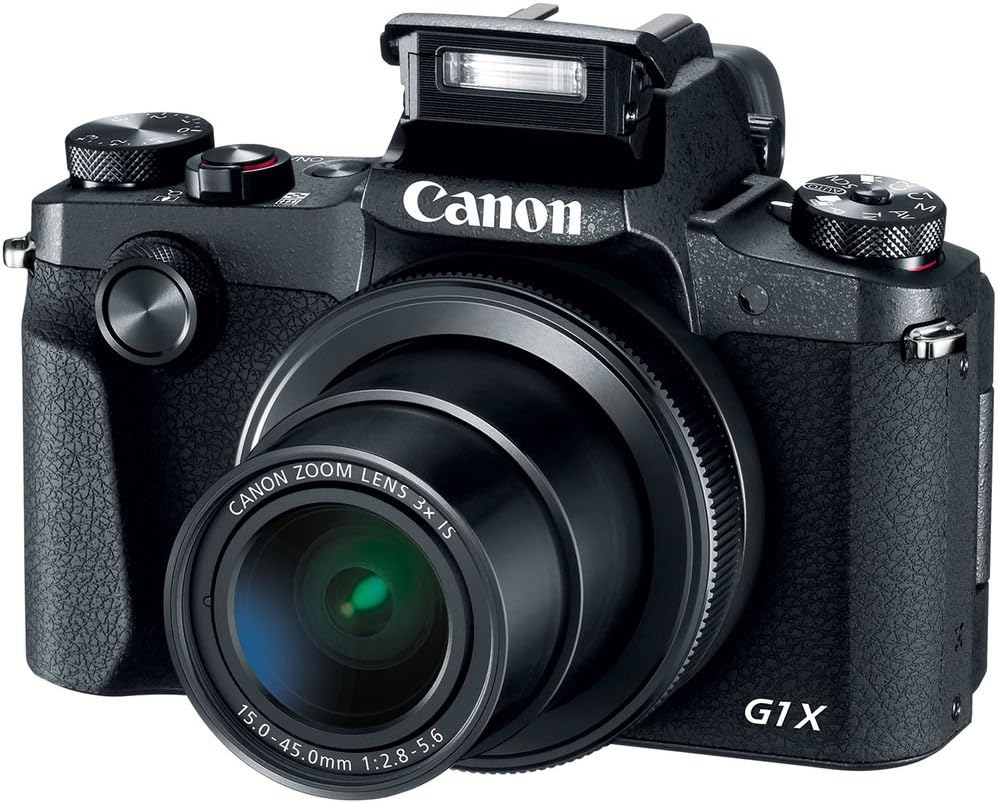
Figure 4.4: Front view of the camera with the pop-up flash in the raised position, ready for use in low-light conditions.
The camera includes a built-in pop-up flash. To activate it, press the flash release button. Flash modes include Auto, On, Slow Synch, and Off. The hot shoe allows for external flash units.
4.6. Connectivity
The PowerShot G1 X Mark III offers Wi-Fi, NFC, and Bluetooth connectivity for transferring images to smart devices and remote control. Refer to the camera's menu for pairing instructions.
5. Maintenance
5.1. Cleaning the Camera
- Use a soft, lint-free cloth to clean the camera body.
- For the lens and LCD screen, use a specialized lens cleaning cloth and solution. Avoid harsh chemicals.
- Use a blower brush to remove dust from the lens and sensor area (when exposed).
5.2. Battery Care
- Charge the battery fully before each use.
- Store batteries in a cool, dry place when not in use.
- Avoid exposing batteries to extreme temperatures.
5.3. Storage
When storing the camera for extended periods, remove the battery and memory card. Store the camera in a dry, dust-free environment, preferably in a camera bag.
6. Troubleshooting
| Problem | Possible Cause / Solution |
|---|---|
| Camera does not power on. | Battery may be depleted or incorrectly inserted. Ensure battery is charged and properly seated. |
| Cannot take pictures. | Memory card may be full, locked, or not inserted. Check card status and free space. |
| Images are blurry. | Check focus settings. Ensure sufficient light. Use image stabilization or a tripod if necessary. |
| Flash does not fire. | Flash may be set to 'Off' or in a mode where it does not fire automatically. Check flash settings. |
7. Specifications
- Sensor: 24.2 MP APS-C CMOS Sensor
- Image Processor: DIGIC 7
- Lens: 24-72mm (35mm Equivalent) 3x Optical Zoom, f/2.8-5.6
- Image Stabilization: Optical
- Autofocus: Dual Pixel CMOS AF (Phase Detection)
- ISO Range: 100-25600 (Expanded)
- Continuous Shooting: Up to 9 fps
- Video Recording: Full HD 1080p at 60 fps (MP4)
- Viewfinder: 2.36m-dot OLED Electronic Viewfinder
- LCD: 3.0" Vari-Angle Touchscreen LCD (1280 x 720 resolution)
- Connectivity: Built-In Wi-Fi, NFC, Bluetooth, Micro HDMI
- Storage Media: SD, SDHC, SDXC (UHS-I compatible)
- Battery: NB-13L Lithium-Ion
- Dimensions (Approx.): 4.53 x 3.00 x 2.36 inches (115 x 76 x 60 mm)
- Weight (Approx.): 14.0 oz (399 g) with battery and memory card
- Construction: Dust- and Water-Resistant
8. Warranty and Support
This product is covered by a 90-day limited warranty. For warranty claims or technical support, please refer to the official Canon support channels or contact your retailer.


