
Pyle PLINTBL7
Pyle Double DIN Car Stereo Receiver User Manual
Model: PLINTBL7 | Brand: Pyle
Introduction
This manual provides comprehensive instructions for the installation, operation, and maintenance of your Pyle Double DIN Car Stereo Receiver. Featuring a 7-inch 1080P HD touchscreen, Bluetooth connectivity, in-dash GPS navigation, and mirror link capabilities for Android and iPhone devices, this unit offers a versatile car audio experience. Please read this manual thoroughly before use to ensure proper functionality and safety.

Figure 1: Front view of the Pyle Double DIN Car Stereo Receiver, showcasing its 7-inch HD digital display and user interface.
Setup and Installation
Proper installation is crucial for optimal performance. It is recommended to have this unit installed by a professional car audio technician.
Package Contents
Before beginning installation, verify all components are present:
- 7 Inch Android Car Stereo
- GPS Antenna
- External Microphone
- 2x USB Adapter Cables
- 2x Installation Brackets
- RCA Cables
- Universal Power Cord
- ISO Power Cord

Figure 2: Illustration of the Pyle Double DIN Car Stereo Receiver and its included accessories, along with approximate dimensions.
Wiring Diagram
Refer to the detailed wiring diagram for correct connections. Ensure all connections are secure before powering on the unit.

Figure 3: Rear view of the Pyle Double DIN Car Stereo Receiver showing the various input and output ports, including power, radio, GPS antenna, and RCA connections.
Physical Installation
- Carefully remove the existing car stereo from your vehicle's dashboard.
- Connect the provided wiring harnesses to the corresponding ports on the Pyle unit and your vehicle's wiring.
- Secure the unit into the double DIN slot using the included installation brackets.
- Connect the GPS antenna and external microphone to their respective ports. Position the GPS antenna in a location with clear sky view for optimal signal reception.
- Test all functions before fully reassembling the dashboard.
Operating Instructions
Touch Screen Operation
The unit features a responsive 7-inch HD digital display. Navigate through menus and applications by tapping and swiping on the screen. The user-friendly control interface provides easy access to all functions.

Figure 4: The 7-inch HD digital display showing the Android GPS navigation interface, indicating clear visibility and ease of use while driving.
Bluetooth Connectivity
Pair your Bluetooth-enabled device (iPhone, Android, smartphone, iPad, tablet, etc.) to the receiver for wireless music streaming and hands-free calling. The built-in microphone ensures clear communication during calls.
- Access the Bluetooth menu from the main screen.
- Enable Bluetooth on your mobile device and search for available devices.
- Select "Pyle" or the device name displayed on the stereo to pair.
- Confirm the pairing code if prompted.

Figure 5: A user interacting with the Pyle Double DIN Car Stereo Receiver's touchscreen while driving, highlighting the intuitive interface for navigation and media control.
Mirror Link Function
The mirror link feature allows you to display your smartphone's screen directly on the receiver's display via USB connection. This is compatible with most Android and iOS phones.
- Connect your smartphone to the unit using a USB cable.
- On your mobile device, enable "EasyCon" or similar screen mirroring/USB debugging options as per your phone's settings.
- Select the "EasyConnect" application on the stereo to initiate the mirror link.
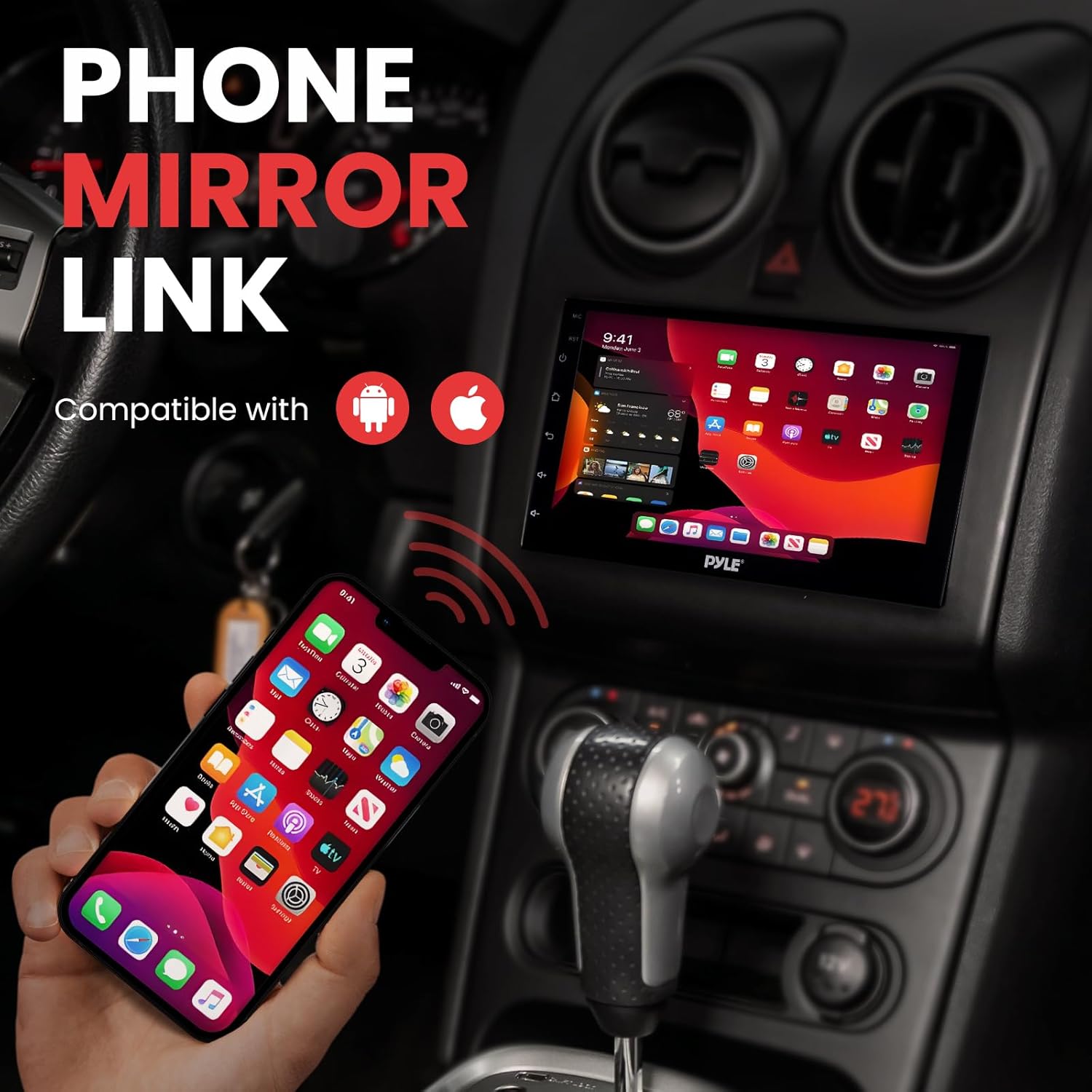
Figure 6: Demonstration of the Phone Mirror Link feature, showing a smartphone's screen mirrored onto the Pyle Car Stereo's display, compatible with both Android and Apple devices.
GPS Navigation
The unit comes with Android 8.1 GPS navigation. Access navigation applications directly from the main menu for turn-by-turn directions and real-time traffic information.
AM/FM Radio
Tune into your favorite AM/FM radio stations. The unit features 30 station memory presets and customizable EQ audio controls for an enhanced listening experience.
Media Playback
The receiver supports various digital media files including JPEG, MP3, MP4, AVI, WAV, and more. Use the dual USB inputs for media playback. The 1080P HD display supports high-definition video playback.
Rear Camera Support
Connect a rearview camera to the unit's video input. The display will automatically switch to the camera view when the vehicle is in reverse, aiding in safe parking and maneuvering.
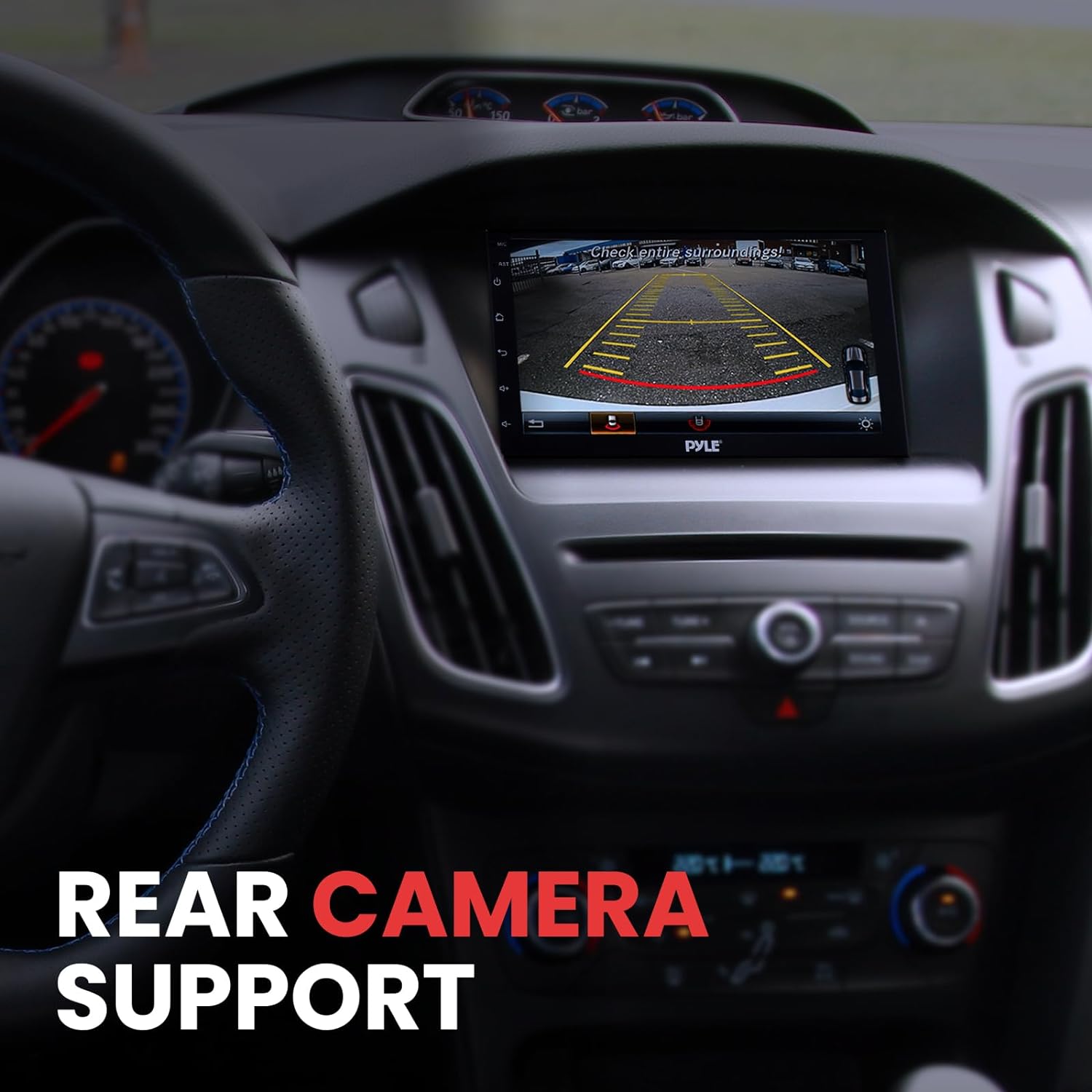
Figure 7: The Pyle Car Stereo displaying the rear camera feed, illustrating the safety feature that activates when the vehicle is in reverse.
Maintenance
To ensure the longevity and optimal performance of your Pyle Car Stereo Receiver, follow these maintenance guidelines:
- Cleaning the Screen: Use a soft, lint-free cloth to gently wipe the touchscreen. For stubborn smudges, slightly dampen the cloth with water or a screen-safe cleaner. Avoid abrasive materials or harsh chemicals.
- General Cleaning: Keep the unit free from dust and debris. Use a soft brush or compressed air to clean vents and connection ports.
- Connection Integrity: Periodically check all wiring connections to ensure they are secure and free from corrosion. Loose connections can lead to intermittent performance or sound issues.
- Temperature Control: Avoid exposing the unit to extreme temperatures. Prolonged exposure to direct sunlight or very cold conditions can affect performance and lifespan.
Troubleshooting
If you encounter issues with your Pyle Car Stereo Receiver, refer to the following common problems and solutions:
| Problem | Possible Cause | Solution |
|---|---|---|
| No Power | Blown fuse, incorrect wiring, loose power connection. | Check the fuse in the power cable. Verify all power connections are secure and correctly wired according to the diagram. |
| No Sound Output | Volume too low, mute activated, speaker wiring issues, incorrect audio source. | Increase volume. Check if mute is active. Verify speaker connections. Ensure correct audio source is selected (e.g., Radio, Bluetooth, AUX). |
| Bluetooth Not Connecting/Pairing | Bluetooth not enabled on device, unit not in pairing mode, interference. | Ensure Bluetooth is enabled on both the stereo and your mobile device. Put the stereo in pairing mode. Move closer to the unit. Clear previous pairings and try again. |
| Mirror Link Not Working | Incorrect USB cable, USB debugging not enabled on phone, incompatible phone settings. | Use a high-quality USB data cable. Ensure "EasyCon" or USB debugging is enabled in your phone's developer options. Some phone models may have specific requirements. |
| GPS Signal Weak/Lost | GPS antenna obstruction, poor antenna placement. | Ensure the GPS antenna is placed in a location with a clear view of the sky, away from metal obstructions. Check antenna connection. |
| Touchscreen Unresponsive | System freeze, temporary software glitch. | Perform a soft reset by pressing the RST (Reset) button with a thin object (e.g., paperclip). If the issue persists, power cycle the vehicle. |
Specifications
| Feature | Detail |
|---|---|
| Display Type | Wide Screen TFT - LCD Display |
| Pixel Resolution | 1024 x 600 Pixels |
| Aspect Ratio | 16:9 High Definition |
| Size Standard | Double DIN Universal Standard |
| Power Output | 4 x 80 Watt (320 Max.) |
| Impedance | 4 Ohm |
| Signal to Noise Ratio | 70dBA |
| Frequency Response | 20Hz - 20kHz |
| Video System | NTSC/PAL (Auto Recognition) |
| Response Time | Up 30 MS, down 50 ms |
| Radio Tuner | AM/FM-MPX 2 Band Radio - Auto Store, Preset, Scan |
| Working Voltage | DC 12V |
| Product Dimensions (L x W x H) | 1.8'' x 7.09'' x 4.13'' -inches (Unit only) |
| Item Weight | 2.13 lbs. |
Warranty and Support
Pyle products are designed and manufactured to the highest quality standards. For warranty information or technical support, please refer to the warranty card included with your product or visit the official Pyle website. Do not attempt to service this unit yourself if issues arise that are not covered in the troubleshooting section, as this may void your warranty.
Related documentsPLINTBL7


Ask a question about this manual
Ask about setup, troubleshooting, compatibility, parts, safety, or missing instructions. Manuals+ will review the question and use this page’s manual context to help answer it.