
1. Introduction
Thank you for purchasing the PartsStorm Multimedia LED Projector UC28+. This manual provides essential information for the safe and efficient operation of your projector. Please read this manual thoroughly before use and retain it for future reference. This projector is designed for home cinema use, offering portable entertainment with various connectivity options.
2. Safety Information
- Power Supply: Use only the specified power adapter. Ensure the voltage matches the requirements of your region.
- Ventilation: Do not block the ventilation openings. Ensure adequate airflow around the projector to prevent overheating.
- Heat: The projector may become warm during operation. Avoid touching the projector's surface directly for extended periods.
- Eye Safety: Do not look directly into the projector lens when the lamp is on. The bright light can cause eye damage.
- Placement: Place the projector on a stable, level surface. Avoid placing it in direct sunlight, near heat sources, or in humid environments.
- Cleaning: Disconnect the power before cleaning. Use a soft, dry cloth. Do not use liquid or aerosol cleaners.
- Repairs: Do not attempt to repair the projector yourself. Refer all servicing to qualified personnel.
3. Package Contents
Please check that all items are present in your package:
- PartsStorm UC28+ Multimedia LED Projector
- Power Adapter
- Remote Control
- USB Cable
- VGA Cable
- AV Cable
- Carrying Bag
- User Manual (this document)
4. Product Overview
Familiarize yourself with the components and ports of your UC28+ projector.

Figure 4.1: Front and side view of the PartsStorm UC28+ projector, showing the lens and ventilation grilles.
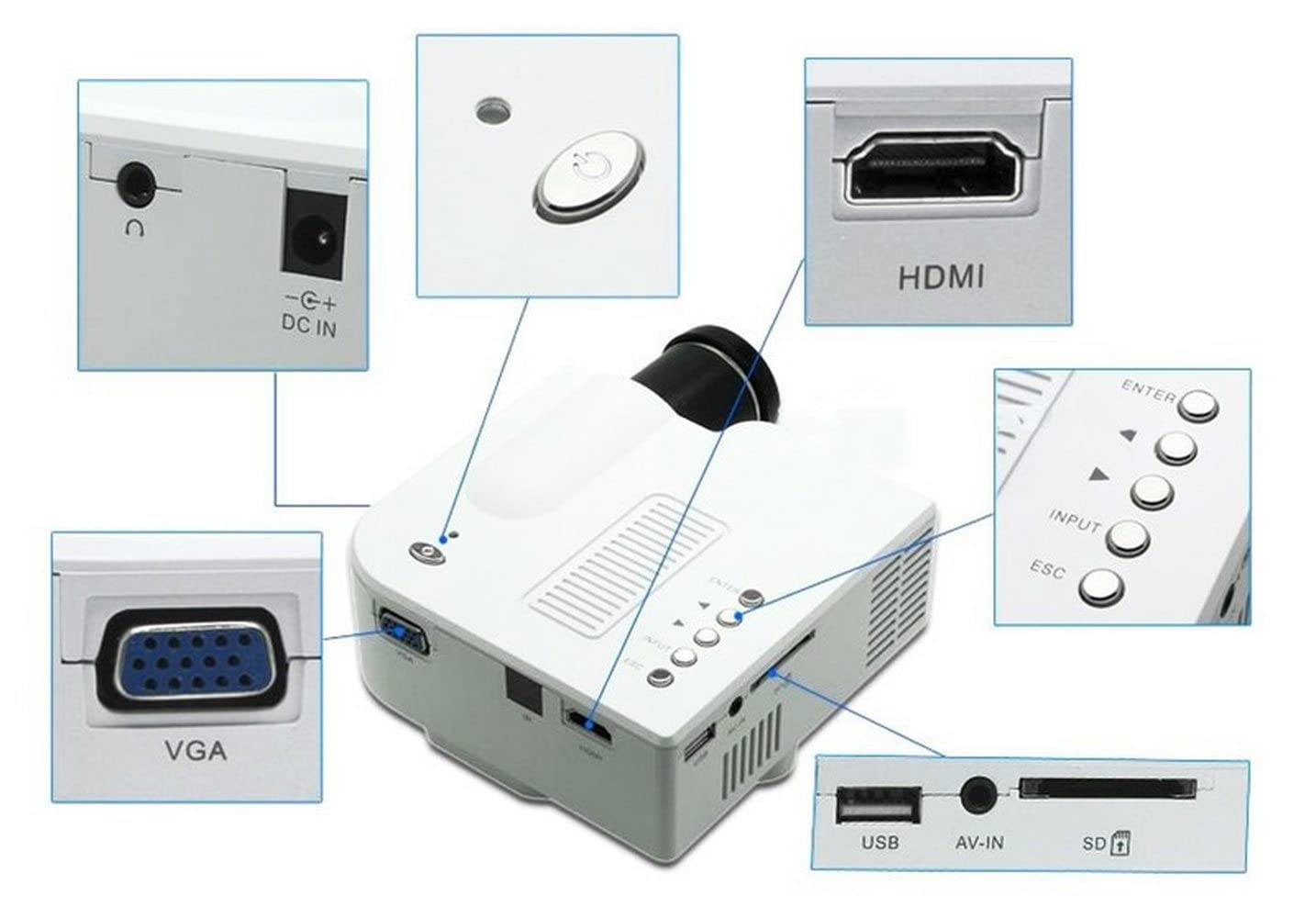
Figure 4.2: Overview of the projector's rear and side panels, highlighting the various input ports and control buttons.
Projector Components:
- Lens: Projects the image onto the screen.
- Focus Ring: Adjusts image clarity.
- Keystone Correction Dial: Corrects trapezoidal image distortion (if applicable).
- Control Panel: Buttons for power, menu navigation, input selection, and volume.
- Ventilation Grilles: For heat dissipation. Do not block.
- Input Ports: HDMI, VGA, USB, AV-in, SD Card Slot (detailed in Section 6).
- DC IN Port: For connecting the power adapter.
5. Setup
5.1 Placement
Choose a flat, stable surface for the projector. The distance from the projector to the screen will determine the image size. Ensure there is sufficient space around the projector for proper ventilation.
5.2 Power Connection
- Connect the power adapter to the DC IN port on the projector.
- Plug the power adapter into a suitable electrical outlet.
- The power indicator light on the projector should illuminate.
5.3 Focus Adjustment
After powering on the projector, rotate the focus ring around the lens until the projected image appears clear and sharp.
5.4 Keystone Correction
If the projected image appears trapezoidal (wider at the top or bottom), adjust the keystone correction dial (if present) until the image is rectangular. This corrects for the angle at which the projector is positioned relative to the screen.
6. Operating Instructions
6.1 Powering On/Off
- To Power On: Press the Power button on the projector or the remote control. The indicator light will change, and the projector will start.
- To Power Off: Press the Power button again. Confirm shutdown if prompted. Allow the projector to cool down before unplugging.
6.2 Menu Navigation
Use the navigation buttons (Up, Down, Left, Right) on the projector's control panel or remote control to browse through the on-screen menu. Press the 'OK' or 'Enter' button to select an option. Press 'ESC' or 'Return' to go back.
6.3 Input Source Selection
After connecting your device, press the 'Input' or 'Source' button on the projector or remote control. Select the corresponding input source (e.g., HDMI1, VGA, USB, AV) from the on-screen menu.
6.4 Volume Control
Adjust the volume using the '+' and '-' buttons on the projector or the remote control.
7. Connectivity
The UC28+ projector offers multiple ways to connect your devices.

Figure 7.1: Diagram illustrating various devices that can be connected to the UC28+ projector, including PCs, game consoles, and mobile devices.
7.1 HDMI Connection
Connect devices such as laptops, Blu-ray players, game consoles, or streaming sticks using an HDMI cable. Select the corresponding HDMI input source.
7.2 VGA Connection
Connect older computers or laptops using a VGA cable. Select the VGA input source.
7.3 USB Connection
Insert a USB flash drive to play multimedia files (photos, videos, music) directly from the drive. Select the USB input source and navigate through the files using the projector's menu.
7.4 AV-in Connection
Use the AV cable to connect devices with composite video and stereo audio outputs, such as DVD players or older video game consoles. Select the AV input source.
7.5 SD Card Slot
Insert an SD card to play multimedia files directly. Select the SD input source and navigate through the files using the projector's menu.
8. Maintenance
8.1 Cleaning the Lens
Use a soft, lint-free cloth or a lens cleaning brush to gently wipe the projector lens. Do not use abrasive cleaners or excessive force, as this can scratch the lens.
8.2 Cleaning Ventilation Vents
Regularly check and clean the ventilation vents to prevent dust buildup, which can lead to overheating. Use a soft brush or a vacuum cleaner with a brush attachment to remove dust.
8.3 Storage
When not in use for extended periods, store the projector in a cool, dry place, away from direct sunlight and extreme temperatures. Use the provided carrying bag for protection.
9. Troubleshooting
If you encounter issues with your projector, refer to the following common problems and solutions:
- No Power:
- Ensure the power adapter is securely connected to both the projector and the power outlet.
- Check if the power outlet is functional.
- No Image:
- Verify that the correct input source is selected (e.g., HDMI1, VGA, USB).
- Check the connection cable between the projector and the source device.
- Ensure the source device is powered on and outputting a signal.
- Blurry Image:
- Adjust the focus ring on the projector lens.
- Ensure the projector is at an optimal distance from the screen.
- Image is Trapezoidal:
- Adjust the keystone correction dial on the projector.
- Ensure the projector is placed as perpendicular to the screen as possible.
- No Sound:
- Check the volume level on both the projector and the source device.
- Ensure the audio cable (if using AV) is correctly connected.
- If using HDMI, ensure the source device is configured to output audio via HDMI.
- Remote Control Not Working:
- Replace the batteries in the remote control.
- Ensure there are no obstructions between the remote and the projector's IR receiver.
10. Specifications
Technical specifications for the PartsStorm UC28+ Multimedia LED Projector:
| Feature | Specification |
|---|---|
| Model Number | UC28+ |
| Brand | PartsStorm |
| Manufacturer | PartsStorm |
| Display Resolution | 1920 x 1080 (Supports 1080P input) |
| Connectivity Technology | HDMI, USB, VGA, AV-in, SD Card |
| Recommended Uses | Home Cinema |
| Special Feature | Portable |
11. Warranty and Support
For warranty information or technical support, please refer to the documentation provided at the time of purchase or contact PartsStorm customer service. Keep your purchase receipt as proof of purchase for warranty claims.