
1. Introduction
This manual provides essential information for setting up, operating, and maintaining your ZONKO K113B 10-inch Android Tablet. Please read it thoroughly to ensure proper use and to maximize your device's performance and longevity.
2. What's in the Box
Verify that all items are present in the package:
- ZONKO K113B 10-inch Android Tablet
- Bluetooth Keyboard
- Bluetooth Mouse
- Tablet Case
- Stylus
- OTG Adapter
- USB-C Cable
- 5V 2A Power Adapter
- User Manual (this document)

Image: Contents of the ZONKO K113B package, showing the tablet, keyboard, mouse, case, stylus, and charging accessories.

Image: The ZONKO K113B tablet and its included accessories, presented in white.

Image: The ZONKO K113B 10-inch tablet shown with its full set of accessories, including a leather case, wireless keyboard, Bluetooth mouse, stylus, and OTG adapter.
3. Product Overview
The ZONKO K113B is a 10-inch Android tablet designed for versatile use, featuring a quad-core processor, 4GB RAM, and 64GB internal storage, expandable via Micro SD card. It supports dual-band Wi-Fi (2.4GHz and 5GHz) and runs on Android 11 with Google Mobile Services (GMS) certification.

Image: An overview of the ZONKO K113B tablet, highlighting its core specifications such as RAM, storage, Wi-Fi capabilities, processor, display, operating system, battery, Bluetooth, and camera.

Image: The ZONKO K113B tablet emphasizing its Android 11 operating system, 10.1-inch IPS FHD screen, memory, storage, and quad-core processor.

Image: The ZONKO K113B tablet highlighting its dual-band 5G and 2.4G Wi-Fi capabilities, illustrated with video call scenarios.

Image: Details on the ZONKO K113B tablet's 6000mAh battery, including standby time, fast charging via Type-C, and estimated usage durations for various activities.
4. Setup
4.1 Initial Charge
Before first use, fully charge your tablet using the provided 5V 2A power adapter and USB-C cable. The charging port is located on the side of the tablet.
4.2 Power On/Off
- To Power On: Press and hold the Power button until the ZONKO logo appears.
- To Power Off: Press and hold the Power button, then select 'Power off' from the options.
- To Restart: Press and hold the Power button, then select 'Restart' from the options.
4.3 Initial Setup Wizard
Upon first power-on, follow the on-screen instructions to complete the initial setup. This includes selecting your language, connecting to a Wi-Fi network, and setting up your Google account.
4.4 Wi-Fi Connection
- Go to Settings > Network & internet > Wi-Fi.
- Toggle Wi-Fi On.
- Select your desired network from the list.
- Enter the password if prompted and tap Connect.
The tablet supports both 2.4GHz and 5GHz dual-band Wi-Fi for flexible connectivity.
4.5 Google Account Setup
A Google account is required to download apps from the Google Play Store and access Google services. You can sign in with an existing account or create a new one during the initial setup or later via Settings > Accounts.
5. Operating Instructions
5.1 Basic Navigation (Android 11)
- Home Screen: Swipe left or right to navigate between home screens.
- App Drawer: Swipe up from the bottom of the screen to access all installed applications.
- Notifications & Quick Settings: Swipe down from the top of the screen to view notifications and quick settings toggles.
- Multitasking: Swipe up from the bottom and hold to view recent apps.
5.2 Connecting Bluetooth Accessories (Keyboard & Mouse)
The ZONKO K113B comes with a Bluetooth keyboard and mouse for enhanced productivity.
- Ensure the keyboard and mouse are charged and powered on.
- On your tablet, go to Settings > Connected devices > Bluetooth.
- Toggle Bluetooth On.
- The tablet will scan for available devices. Select the keyboard and mouse from the list.
- Follow any on-screen prompts to pair the devices.
5.3 Using the Stylus
The included stylus can be used for precise input, drawing, or navigation. Simply touch the stylus to the screen as you would with your finger.
5.4 Tablet Modes
The tablet case allows for various viewing and usage modes:
- Laptop Mode: Combine the tablet with the wireless keyboard and mouse. Fold the case to create a stand for the tablet, mimicking a laptop setup.
- Studio Mode: Fold the tablet case to a lower angle, ideal for drawing or writing with the stylus.
- Tablet Mode: Use the tablet without accessories, holding it or placing it in a simple stand for media consumption.

Image: The ZONKO K113B tablet being used in different contexts, including productivity with a keyboard, educational activities for children, and as a companion during exercise.
Image: The ZONKO K113B tablet illustrating its adaptability for various activities such as professional work, educational purposes, reading, and use while traveling.

Image: Visual representation of the ZONKO K113B tablet's three primary usage modes: Laptop Mode with keyboard and mouse, Studio Mode for drawing with a stylus, and standard Tablet Mode for casual use.
6. Maintenance
6.1 Battery Care
- Avoid fully discharging the battery frequently.
- Do not expose the tablet to extreme temperatures.
- Use only the provided charger and cable to prevent damage.
6.2 Storage Management
The tablet has 64GB of internal storage, expandable up to 128GB via a Micro SD card. Regularly manage your storage to maintain optimal performance:
- Delete unnecessary apps and files.
- Move large files (photos, videos) to a Micro SD card.
- Clear app cache regularly via Settings > Apps > [App Name] > Storage & cache > Clear cache.

Image: The ZONKO K113B tablet highlighting its built-in 4GB RAM and 64GB ROM, with support for up to 128GB Micro SD card expansion, suitable for storing a wide range of digital content.
6.3 Cleaning
Use a soft, lint-free cloth to clean the screen and body of the tablet. Avoid abrasive materials or harsh chemicals.
7. Troubleshooting
| Problem | Possible Cause | Solution |
|---|---|---|
| Tablet does not power on | Low battery; System crash | Charge the tablet for at least 30 minutes. Press and hold the Power button for 10-15 seconds to force restart. |
| Wi-Fi connection issues | Incorrect password; Router issues; Signal interference | Verify Wi-Fi password. Restart your router. Move closer to the Wi-Fi router. Forget the network and reconnect. |
| Bluetooth accessories not pairing | Accessories not in pairing mode; Bluetooth off on tablet | Ensure accessories are in pairing mode. Turn tablet Bluetooth off and on. Restart tablet. |
| Slow performance | Too many apps running; Low storage; Outdated software | Close background apps. Clear app cache. Free up storage. Check for system updates. |
| Screen unresponsive | Temporary software glitch | Force restart the tablet by holding the Power button. |
8. Specifications
| Feature | Specification |
|---|---|
| Model Name | K113B |
| Screen Size | 10 Inches |
| Screen Resolution | 1280 x 800 pixels (HD) |
| Processor | 1.6 GHz Quad-core (Allwinner) |
| RAM | 4 GB |
| Internal Storage | 64 GB |
| Expandable Storage | Up to 128 GB via Micro SD Card |
| Operating System | Android 11 (GMS Certified) |
| Wireless Type | 802.11ac, 802.11b, 802.11g (Dual-band 2.4GHz & 5GHz) |
| Bluetooth | Yes (Version not specified, but accessories are Bluetooth) |
| Battery | 6000mAh Lithium Polymer |
| Charger | 5V 2A (USB-C) |
| Rear Camera Resolution | 13 MP |
| Front Camera Resolution | 5 MP |
| Item Weight | 3.15 pounds |
| Color | Silver |
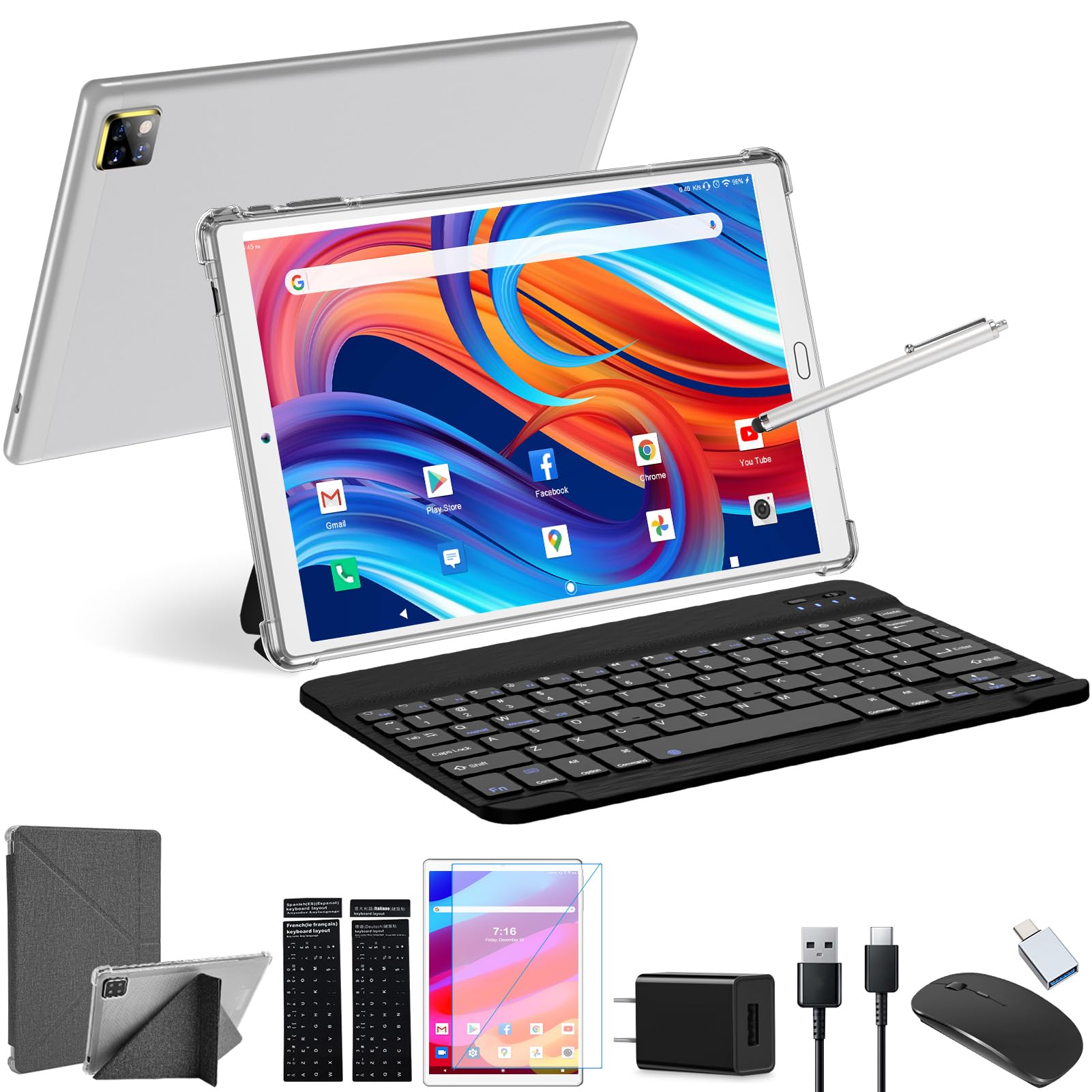
Image: Front and back view of the ZONKO K113B 10-inch Android Tablet.

Image: Key features of the ZONKO K113B tablet, including fast charging, camera specifications, audio, operating system, memory, storage, and display resolution.
9. Warranty and Support
ZONKO offers lifetime technical support and a 365-day warranty for the K113B tablet. If you encounter any problems with your product, please contact ZONKO customer service. Have your order number ready when contacting support for faster assistance.
For support, please visit the official ZONKO store or contact their customer service channels.


