
Logitech 910-006265
Logitech Signature M650 L Wireless Mouse User Manual
Model: M650 L (910-006265)
Introduction
The Logitech Signature M650 L is a wireless computer mouse designed for enhanced comfort and productivity, particularly suited for users with larger hands. It features an adaptive SmartWheel for precise and fast scrolling, customizable side buttons, and SilentTouch technology for quiet clicks. This manual provides detailed instructions for setting up, operating, maintaining, and troubleshooting your M650 L mouse.
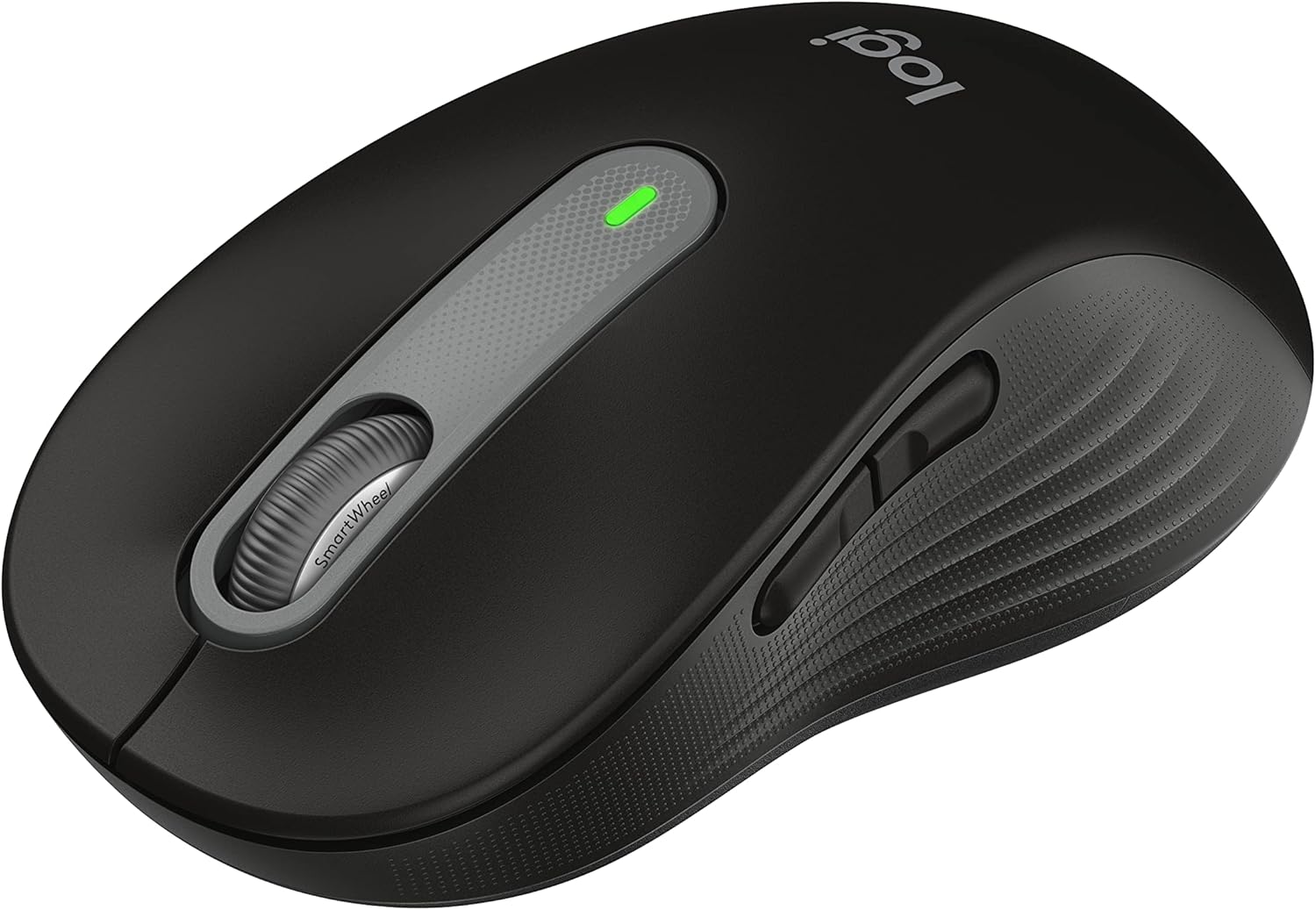
Figure 1: Logitech Signature M650 L Wireless Mouse
Setup
1. Battery Installation
The Signature M650 L mouse operates on a single AA battery, providing up to 24 months of battery life. The battery compartment is located on the underside of the mouse.
- Gently slide open the battery compartment cover on the bottom of the mouse.
- Insert one AA battery, ensuring correct polarity (+/-).
- Close the battery compartment cover until it clicks securely into place.
2. Connecting Your Mouse
The M650 L offers two connectivity options: Bluetooth Low Energy or the Logi Bolt USB receiver.

Figure 2: Connectivity Options (Bluetooth and Logi Bolt USB Receiver)
Option A: Logi Bolt USB Receiver
- Locate the Logi Bolt USB receiver inside the battery compartment of your mouse.
- Remove the receiver and plug it into an available USB port on your computer.
- Turn on the mouse using the power switch on the bottom. The mouse should automatically connect.
Option B: Bluetooth Low Energy
- Turn on the mouse using the power switch on the bottom.
- Press and hold the connection button on the bottom of the mouse until the LED light starts blinking rapidly. This indicates pairing mode.
- On your computer, open Bluetooth settings:
- Windows: Go to Settings > Devices > Bluetooth & other devices > Add Bluetooth or other device.
- macOS: Go to System Preferences > Bluetooth.
- Chrome OS/Linux: Access Bluetooth settings through your system tray or settings menu.
- Select "Signature M650 L" from the list of available devices to complete the pairing process.
Operating Your Mouse
SmartWheel Scrolling
The Signature M650 L features an adaptive SmartWheel that provides two modes of scrolling:
- Line-by-Line Precision: For detailed navigation in documents and spreadsheets.
- Super-Fast Free Spin: For quickly scrolling through long web pages or documents. The wheel automatically switches to this mode with a flick of your finger.

Figure 3: SmartWheel for Precision and Speed Scrolling
Customizable Side Buttons
The two side buttons on the M650 L mouse can be customized to perform your favorite shortcuts, such as back/forward navigation, copy/paste, or other functions. Customization is done through the Logitech Options+ software.

Figure 4: Customizing Buttons with Logitech Options+ Software
Silent Clicks (SilentTouch Technology)
The M650 L incorporates Logitech's SilentTouch technology, which reduces click noise by 90% compared to traditional mice. This feature allows for a quieter working environment, minimizing distractions for you and those around you.

Figure 5: Silent Clicks for a Quieter Workspace
Comfort and Ergonomics
The mouse is designed with a comfortable shape, a soft thumb area, and rubber side grips to ensure a secure and pleasant feel during long hours of use. The M650 L is specifically sized for larger hands, providing optimal ergonomic support.

Figure 6: Comfort Shape and Rubber Side Grips

Figure 7: M650 and M650 L Size Comparison
Compatibility
The Logitech Signature M650 L mouse is compatible with a wide range of operating systems, ensuring versatile use across different devices.
- PC (Windows 10, 11 or later)
- Mac (macOS 10.15 or later)
- Linux
- Chromebook

Figure 8: Windows 11 Compatibility
Maintenance
Battery Replacement
When the mouse's performance degrades or the indicator light signals low battery, it's time to replace the AA battery. Follow the battery installation steps outlined in the Setup section.
Cleaning
To maintain optimal performance and hygiene, regularly clean your mouse:
- Use a soft, lint-free cloth slightly dampened with water or an electronics-safe cleaning solution.
- Wipe the surface of the mouse, paying attention to the scroll wheel and side grips.
- Avoid using harsh chemicals or abrasive materials that could damage the mouse's finish.
Troubleshooting
Connection Issues
- Mouse not responding: Ensure the mouse is powered on and the battery is not depleted. Replace the battery if necessary.
- Bluetooth connection unstable: Move the mouse closer to your computer. Ensure no other devices are causing interference. Try re-pairing the mouse with your computer.
- Logi Bolt receiver not detected: Try plugging the receiver into a different USB port. Ensure the receiver is fully inserted.
- Switching between connections: If you switch between Bluetooth and the Logi Bolt receiver, you may need to re-pair or re-establish the connection each time.
Performance Issues
- Erratic cursor movement: Clean the optical sensor on the bottom of the mouse. Ensure you are using the mouse on a suitable surface (non-reflective, non-glass).
- Scroll wheel not working correctly: Ensure the scroll wheel is free of debris. If using Logitech Options+ software, check scroll settings.
- Buttons not responding: Check if the buttons are physically obstructed. If using Logitech Options+ software, ensure button assignments are correct.
Specifications
| Feature | Detail |
|---|---|
| Model | Signature M650 L |
| Model Number | 910-006265 |
| Connectivity | Bluetooth Low Energy, Logi Bolt USB Receiver |
| Sensor Technology | Optical |
| Battery Type | 1 x AA Battery |
| Battery Life | Up to 24 months (may vary based on usage) |
| Special Features | SmartWheel, SilentTouch Technology, Customizable Side Buttons |
| Dimensions (LxWxH) | 4.65 x 2.58 x 0.1 inches (11.8 x 6.55 x 0.25 cm) |
| Weight | 3.92 ounces (111 grams) |
| Compatible Platforms | PC, Linux, Mac (Windows 10/11+, macOS 10.15+, Chrome OS) |
Support & Additional Resources
For further assistance or detailed documentation, please refer to the following resources:
- Official User Manual (PDF): Download User Manual
- Instructions for Use (IFU) (PDF): Download IFU
- Logitech Support Website: Visit the official Logitech support page for FAQs, drivers, and software downloads.
- Logitech Options+ Software: Download the software to customize your mouse buttons and settings.
Related documents910-006265


Ask a question about this manual
Ask about setup, troubleshooting, compatibility, parts, safety, or missing instructions. Manuals+ will review the question and use this page’s manual context to help answer it.