
Logitech M650
Logitech Signature M650 Wireless Mouse User Manual
Model: M650
Introduction
The Logitech Signature M650 Wireless Mouse is designed for enhanced productivity and comfort. Featuring an adaptive SmartWheel for precise and fast scrolling, silent clicks with SilentTouch technology, and customizable side buttons, it offers a versatile and quiet user experience. This mouse connects wirelessly via Bluetooth Low Energy or the Logi Bolt USB receiver, making it compatible with a wide range of operating systems including PC, Mac, and Chromebook.
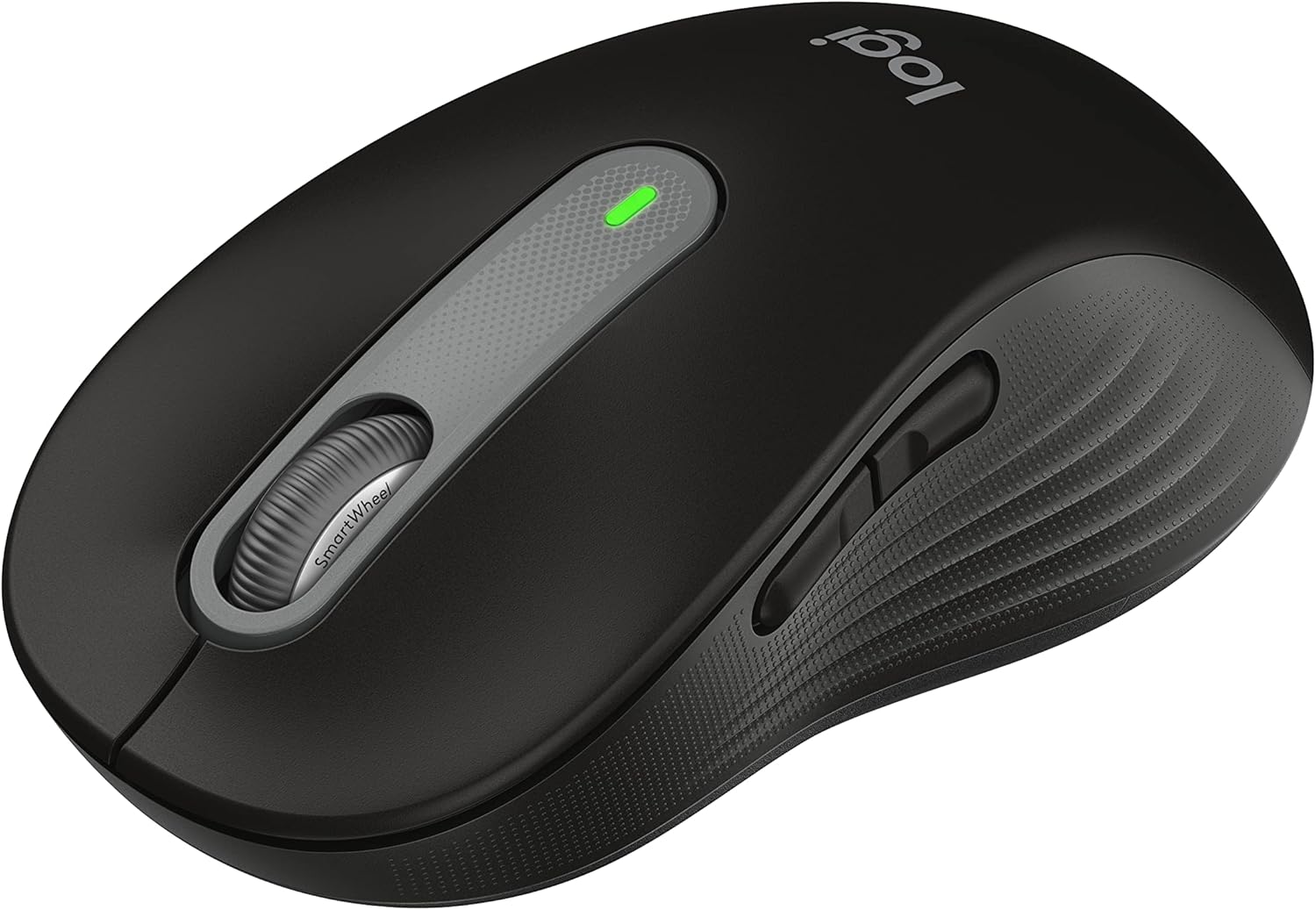
Figure 1: Logitech Signature M650 Wireless Mouse (Black)
Setup
1. Unboxing and Initial Inspection
Carefully remove all components from the packaging. Ensure the mouse and the Logi Bolt USB receiver are present. The mouse comes with a pre-installed battery.

Figure 2: Logitech Signature M650 Packaging
2. Connecting Your Mouse
The Signature M650 offers two connection methods: Logi Bolt USB receiver or Bluetooth Low Energy.
Option A: Logi Bolt USB Receiver
- Remove the Logi Bolt USB receiver from the mouse's battery compartment.
- Plug the Logi Bolt USB receiver into an available USB port on your computer.
- Turn on the mouse using the power switch located on the bottom. The LED indicator should turn solid green, indicating a successful connection.
Option B: Bluetooth Low Energy
- Turn on the mouse using the power switch located on the bottom.
- Press and hold the connect button on the bottom of the mouse until the LED indicator starts blinking rapidly, indicating pairing mode.
- On your computer, open Bluetooth settings and select the Logitech Signature M650 from the list of available devices to pair.

Figure 3: Connect via Bluetooth or Logi Bolt USB receiver
3. Installing Logitech Options+ Software
To unlock the full potential of your Signature M650, including customizable buttons and advanced SmartWheel settings, download and install the Logitech Options+ software from the official Logitech website (www.logitech.com/optionsplus). This software is available for Windows and macOS.
Operating Instructions
1. Basic Mouse Functions
- Left Click: Primary action, selection.
- Right Click: Context menu.
- Scroll Wheel: Vertical scrolling.
2. SmartWheel Scrolling
The SmartWheel automatically switches between two modes:
- Line-by-Line Precision: Ideal for detailed work and navigating documents.
- Super-Fast Free Spin: For quickly scrolling through long web pages or spreadsheets. Simply flick the wheel to activate.

Figure 4: Precision and speed scrolling with SmartWheel
3. Customizable Side Buttons
The two side buttons on your Signature M650 can be customized using the Logitech Options+ software. You can assign them to various shortcuts such as back/forward navigation, copy/paste, or other functions to enhance your workflow.

Figure 5: Customize buttons to your favorite shortcuts
4. SilentTouch Technology
The Signature M650 features SilentTouch technology, which reduces clicking noise by 90% compared to traditional mice. This allows for a quieter work environment, minimizing distractions for you and those around you.

Figure 6: 90% less clicking noise with SilentTouch technology
5. Ergonomics and Sizing
The mouse is designed for comfort during long hours of use, featuring a contoured shape, soft thumb area, and rubber side grips. The M650 is available in different sizes to accommodate various hand sizes, ensuring an optimal fit.

Figure 7: Designed for small-to-medium sized hands

Figure 8: Comfort shape and feel with rubber side grips

Figure 9: Available in two sizes (M650 and M650 L)
Maintenance
1. Battery Replacement
The Logitech Signature M650 boasts a 24-month battery life, which may vary based on usage. When the battery is low, the LED indicator on the mouse will turn red. To replace the battery:
- Locate the battery compartment on the bottom of the mouse.
- Open the compartment cover.
- Remove the old AA battery.
- Insert a new AA battery, ensuring correct polarity.
- Close the battery compartment cover securely.
2. Cleaning Instructions
To maintain optimal performance and appearance, clean your mouse regularly:
- Use a soft, lint-free cloth dampened with water or a mild cleaning solution.
- Avoid using harsh chemicals, abrasive cleaners, or solvents.
- Do not immerse the mouse in water or any liquid.
- Clean the optical sensor on the bottom of the mouse with a dry cotton swab to ensure accurate tracking.
Troubleshooting
| Problem | Possible Cause | Solution |
|---|---|---|
| Mouse not responding | Low battery; Receiver unplugged; Bluetooth not paired. | Replace battery; Re-insert Logi Bolt receiver; Re-pair Bluetooth connection. |
| Erratic cursor movement | Dirty optical sensor; Unsuitable surface. | Clean optical sensor; Use on a clean, non-reflective surface or mouse pad. |
| Side buttons not working | Logitech Options+ not installed or configured. | Install Logitech Options+ software and customize button assignments. |
For further assistance, please refer to the official Logitech support website or the User Guide PDF.
Video 1: Product Overview Video. This video provides a general overview of the Logitech Signature M650 Wireless Mouse, demonstrating its key features and design.
Specifications
- Model: M650 (910-006268)
- Connectivity: Bluetooth Low Energy, Logi Bolt USB Receiver (Radio Frequency)
- Movement Detection Technology: Optical
- Battery Life: Up to 24 months (may vary based on user and computing conditions)
- Power Source: 1 x AA Battery (included)
- Silent Clicks: Yes, with SilentTouch Technology (90% less click noise)
- Customizable Buttons: Yes, via Logitech Options+ software
- SmartWheel: Yes, adaptive scroll
- Ergonomics: Contoured shape, soft thumb area, rubber side grips
- Dimensions (LxWxH): 4.22 x 2.43 x 0.1 inches (approximate, for Small-Medium size)
- Weight: 3.57 ounces (approximate)
- Hardware Platform Compatibility: PC, Linux, Mac
- Operating System Compatibility: Linux, Chrome OS, Windows, macOS
- Material: Made with recycled plastic (specific percentage may vary by color/model)
- Country of Origin: China
- First Available: January 11, 2022
Warranty and Support
Logitech products typically come with a limited hardware warranty. For specific warranty details, registration, and technical support, please visit the official Logitech support website or refer to the documentation included with your product.
You can also download the full User Guide in PDF format from the following link: Logitech Signature M650 User Guide (PDF)
For software downloads and advanced customization, visit: Logitech Options+
Related documentsM650


Ask a question about this manual
Ask about setup, troubleshooting, compatibility, parts, safety, or missing instructions. Manuals+ will review the question and use this page’s manual context to help answer it.