
Introduction
Thank you for choosing the Ciciglow Wireless Bluetooth Mouse. This manual will guide you through the setup, operation, and maintenance of your new device. Please read these instructions carefully before use to ensure optimal performance and longevity of your mouse.
Package Contents
- 1 x Ciciglow Wireless Bluetooth Mouse
- 1 x User Manual
Features
- Professional Optical Positioning: Ensures precise and accurate cursor control.
- Durable ABS Material: Constructed from high-quality, practical, and durable ABS material.
- Adjustable DPI: Three adjustable DPI levels (800/1200/1600) for varied sensitivity needs.
- Mute Button: Designed for a quiet and comfortable user experience.
- Ergonomic Design: Reduces wrist pressure, allowing for comfortable long-term use.
- Smart Power-Saving Technology: Automatically enters sleep mode after 5 minutes of inactivity, reactivating with a slide.
- Wide Compatibility: Compatible with Windows, iOS, and Android operating systems.
- Wireless Connectivity: Bluetooth 3.0 for stable connection up to 10 meters (10.9 yards).
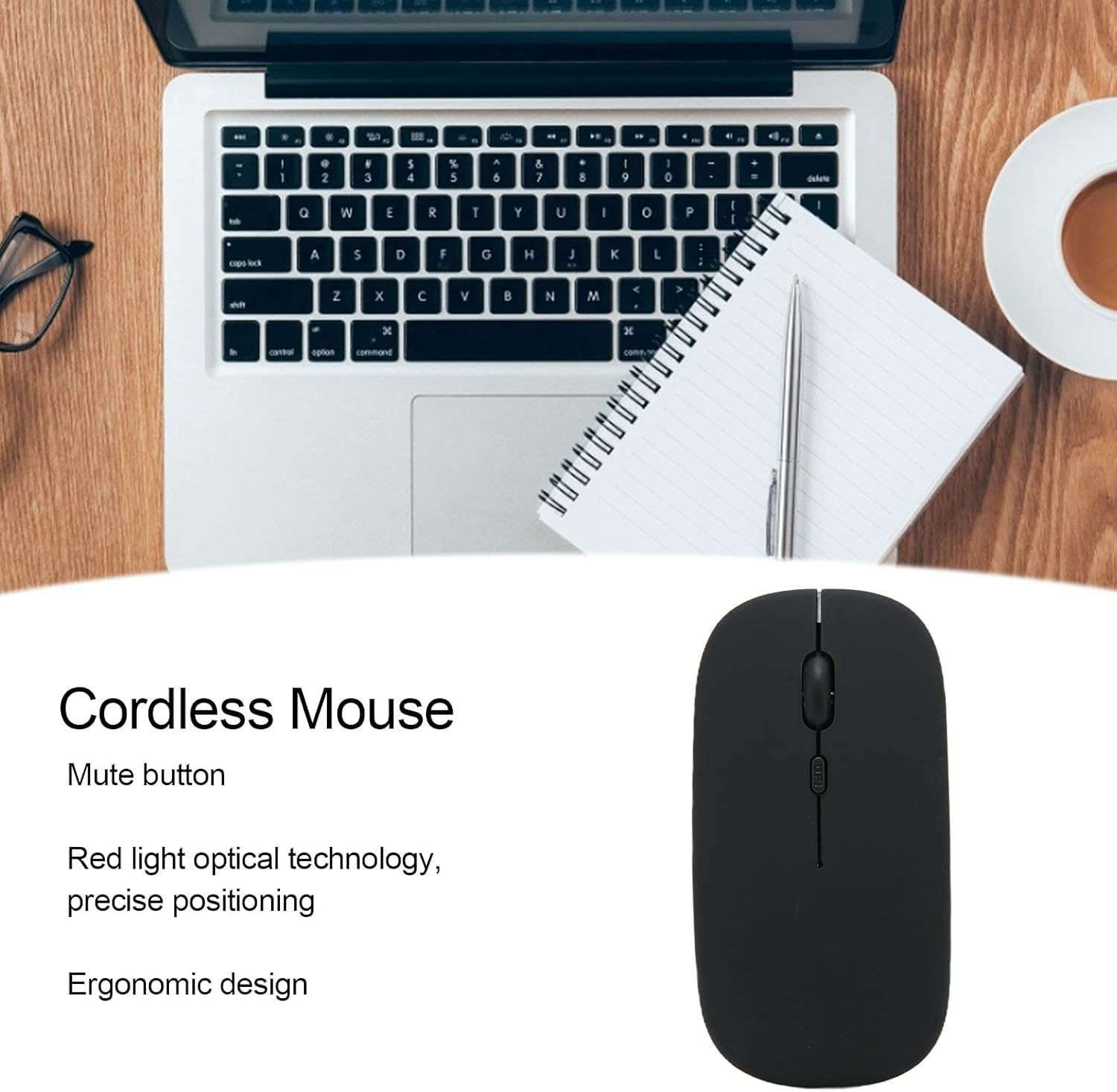
This image illustrates the key features of the Ciciglow Wireless Bluetooth Mouse, including its quiet click buttons, precise optical sensor, and comfortable shape.
Setup
1. Install Battery
- Locate the battery compartment on the underside of the mouse.
- Gently slide open the battery cover.
- Insert one AA battery (not included) into the compartment, ensuring correct polarity (+/-).
- Close the battery cover until it clicks securely into place.
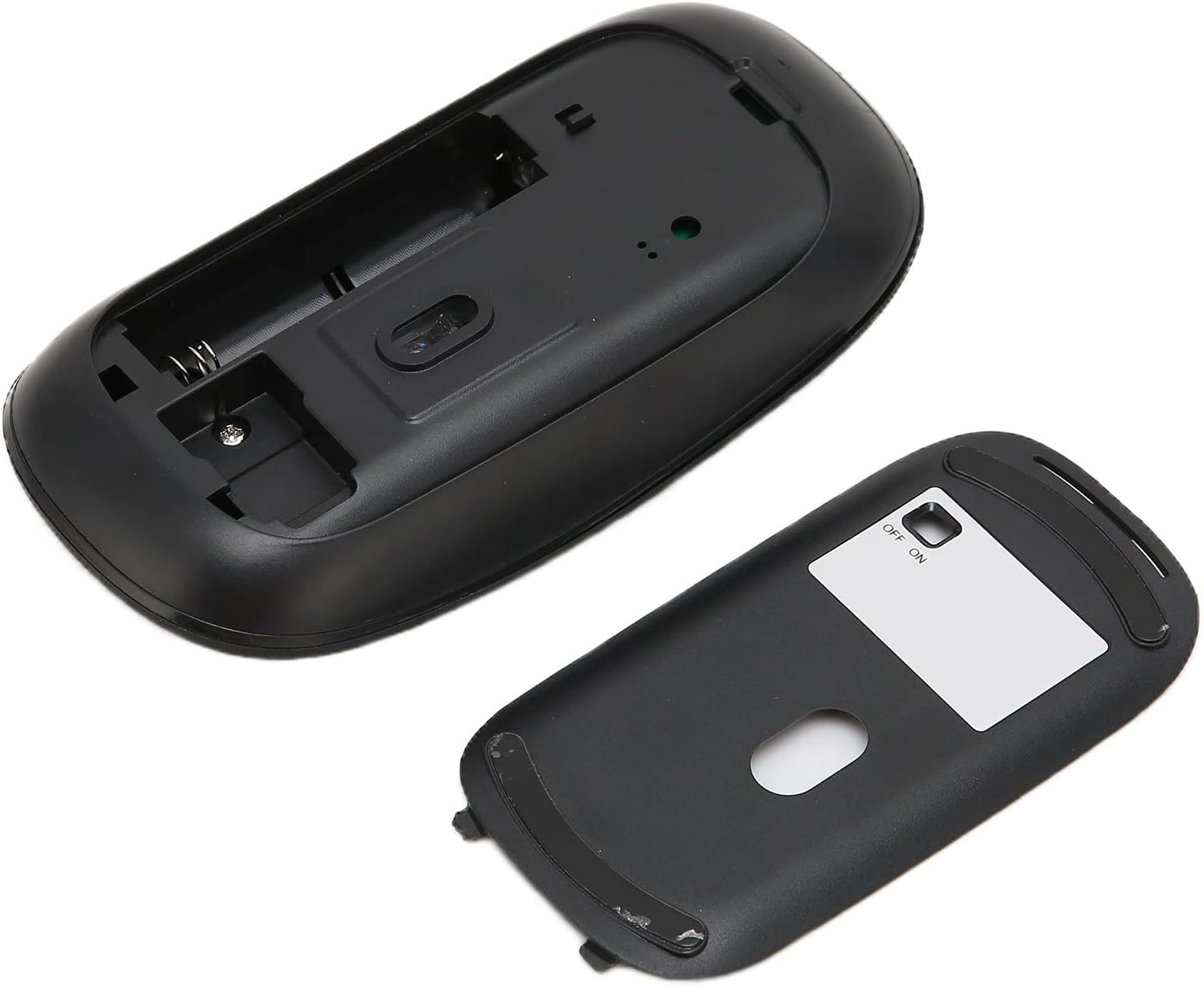
The image displays the open battery compartment of the mouse, indicating where to insert the AA battery.
2. Power On
Locate the ON/OFF switch on the underside of the mouse and slide it to the 'ON' position.
3. Pair via Bluetooth
- Ensure your device (laptop, tablet, smartphone) has Bluetooth enabled.
- On your device, go to Bluetooth settings and search for new devices.
- The mouse should appear as 'Bluetooth Mouse' or similar. Select it to pair.
- Once paired, the mouse is ready for use.
Operating Instructions
Basic Functions
- Left Click: Primary selection and activation.
- Right Click: Accesses contextual menus.
- Scroll Wheel: Scrolls through documents and web pages.

This close-up view highlights the scroll wheel and the DPI adjustment button on the mouse.
Adjusting DPI
The mouse features a DPI button located behind the scroll wheel. Press this button to cycle through the three available DPI settings: 800, 1200, and 1600. Adjust the DPI to match your preference for cursor speed and precision.
Smart Power-Saving Mode
To conserve battery life, the mouse will automatically enter sleep mode after 5 minutes of inactivity. To wake the mouse, simply move it slightly. No button press is required.

A user operating the Ciciglow Wireless Bluetooth Mouse with a laptop, demonstrating typical usage.
Maintenance
- Cleaning: Use a soft, dry cloth to clean the mouse. Avoid using harsh chemicals or abrasive materials.
- Battery Replacement: Replace the AA battery when the mouse performance degrades or it stops responding.
- Storage: When not in use for extended periods, turn off the mouse to conserve battery life. Store in a cool, dry place.
Troubleshooting
| Problem | Solution |
|---|---|
| Mouse not responding |
|
| Cursor movement is erratic |
|
| Cannot pair via Bluetooth |
|
Specifications
| Feature | Detail |
|---|---|
| Product Type | Wireless Mouse |
| Model Number | ciciglow5av8h132zk2305-16 |
| Material | ABS |
| Connectivity Technology | Bluetooth 3.0 |
| Photoelectric Resolution (DPI) | 800 / 1200 / 1600 |
| Transmission Distance | Approx. 10 meters / 10.9 yards |
| Number of Buttons | 3 |
| Motion Detection Technology | Optical |
| Hand Orientation | Ambidextrous |
| Power Source | 1 x AA Battery (not included) |
| Compatible Operating Systems | Windows, iOS, Android |
| Item Weight | 60 grams |

This image highlights the wireless transmission range of the mouse, approximately 10 meters.
Warranty
This product comes with a standard manufacturer's warranty. Please refer to the product packaging or contact your retailer for specific warranty terms and conditions. Keep your purchase receipt as proof of purchase.
Support
For technical support or customer service inquiries, please contact your point of purchase or visit the official Ciciglow website for contact information. Ensure you have your product model number (ciciglow5av8h132zk2305-16) ready when seeking support.