
1. Introduction
The Tccmebius USB C Ethernet Adapter (Model TCC-S20C) provides a reliable and stable wired network connection for devices equipped with a USB-C port. This adapter allows you to connect to an RJ45 Ethernet cable, offering data transmission speeds up to 100Mbps. It is an ideal solution for devices lacking an Ethernet port or when a stable wired connection is preferred over Wi-Fi.

Image 1.1: Tccmebius USB C Ethernet Adapter connected to a laptop, illustrating a fast and stable network connection.
2. Product Features
- Convenient Connectivity: Easily expands network capabilities for devices without an Ethernet port or with a damaged port.
- Efficient and Stable Performance: Features a built-in RTL8152B chip, supporting data transmission speeds up to 100Mbps for a stable and efficient network.
- Wide Compatibility: Compatible with a broad range of devices including desktop computers, notebooks with USB C ports, smartphones, TV boxes, and projectors.
- Plug and Play: No driver installation required for most modern operating systems.
- System Support: Compatible with Windows 11/10/8.1/8/7/Vista/XP, Android, Mac OSX 10.6-10.12, Chrome OS, and Linux.

Image 2.1: The USB C Ethernet Adapter shown with compatible devices such as smartphones, TV boxes, game consoles, tablets, PCs, TVs, and laptops.

Image 2.2: Close-up of the RTL8152B high-performance chip, ensuring stable and efficient network performance.
3. Package Contents
- 1 x Tccmebius USB C Ethernet Adapter (Model TCC-S20C)
4. Setup Guide
- Connect the Adapter: Insert the USB-C connector of the TCC-S20C adapter into an available USB-C port on your device (laptop, smartphone, tablet, etc.).
- Connect Ethernet Cable: Plug one end of an RJ45 Ethernet cable into the Ethernet port of the TCC-S20C adapter. Connect the other end of the Ethernet cable to your router or network switch.
- Driver Installation (if required):
- For Windows 11/10/8.1/8, Android, Mac OSX 10.6-10.12, and Chrome OS: The adapter is typically plug-and-play and does not require manual driver installation.
- For Windows XP/7/Vista and Linux systems: An interface or folder will automatically pop up on your desktop. Follow the on-screen instructions to install the appropriate driver.
- For Windows 11 systems where a driver prompt appears unexpectedly, please refer to the Troubleshooting section or contact customer support.
- Verify Connection: Once connected, check the indicator lights on the adapter. A green light typically indicates power, and a yellow light indicates data transfer activity.

Image 4.1: The USB C Ethernet Adapter connected to a tablet, providing a stable wired network connection.
5. Operating Instructions
After successful setup, your device should automatically detect the wired network connection provided by the TCC-S20C adapter. You can verify the connection status through your device's network settings.
- Indicator Lights:
- Green Light: Indicates the adapter is powered on and connected to a network.
- Yellow Light: Flashes to indicate active data transfer.
- Network Speed: The adapter supports up to 100Mbps data transfer. Ensure your Ethernet cable and network infrastructure support this speed for optimal performance.
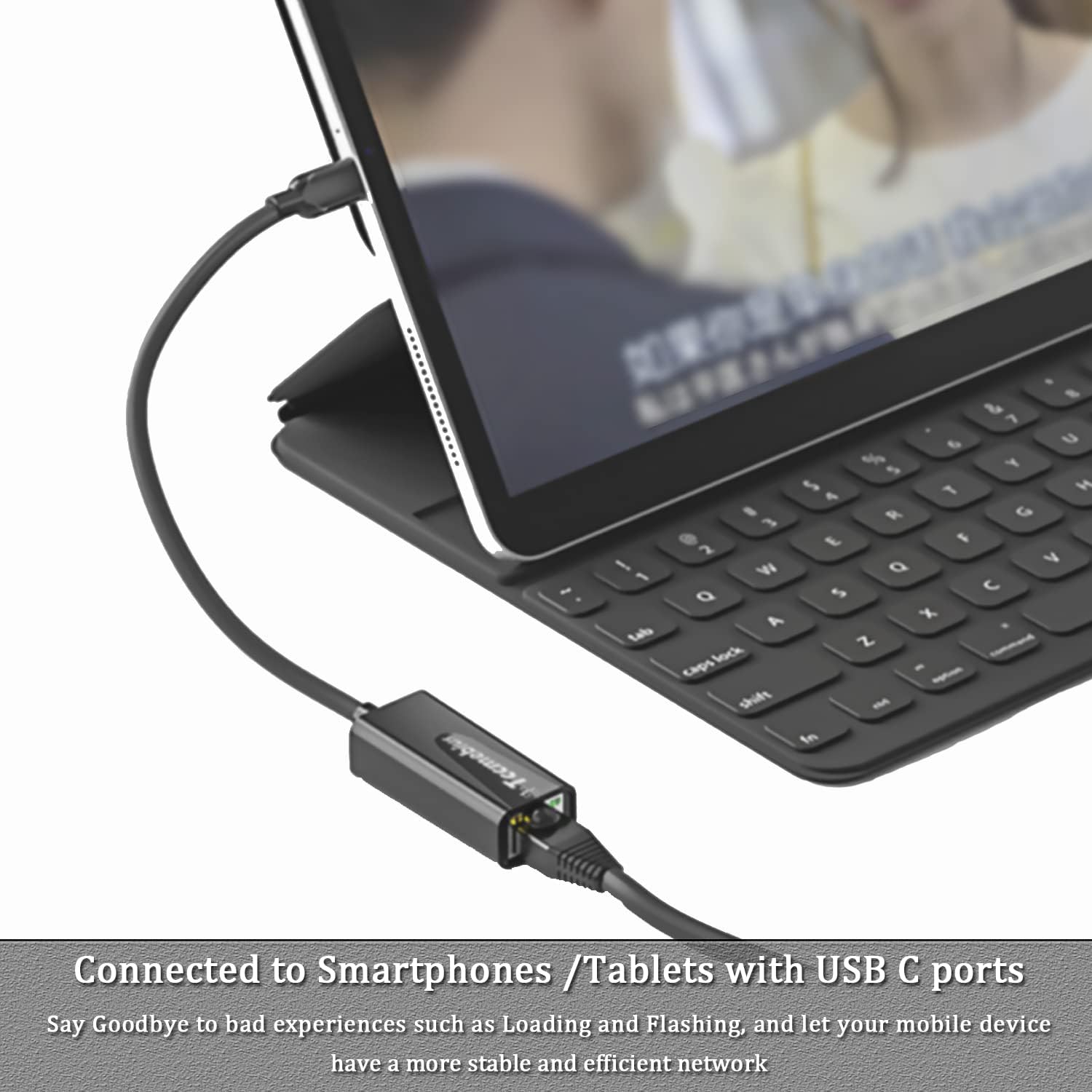
Image 5.1: Close-up view of the adapter's indicator lights, showing green for power and yellow for data transfer.
6. Compatibility
The Tccmebius USB C Ethernet Adapter is designed for broad compatibility:
- Compatible Devices: Desktop computers, notebooks (e.g., MacBook Pro/Air, Dell XPS, MateBook), smartphones, TV boxes, projectors, and other USB-C enabled devices.
- Compatible Operating Systems:
- Windows 11, Windows 10, Windows 8.1, Windows 8, Windows 7, Windows Vista, Windows XP
- Android
- Mac OSX 10.6, 10.7, 10.8, 10.9, 10.10, 10.11, 10.12
- Chrome OS
- Linux

Image 6.1: Visual representation of the adapter's compatibility across various operating systems.
7. Troubleshooting
If you encounter issues with your Tccmebius USB C Ethernet Adapter, please refer to the following common problems and solutions:
7.1. Cannot establish a wired connection with the computer:
- First, check if the Ethernet adapter is detected in the device manager. If not, test the adapter on another computer to rule out device malfunction.
- If detected, ensure "Auto DHCP" is selected under "Edit IP Settings" in your network configuration.
- Verify that the Ethernet cable and your router are functioning correctly.
7.2. Internet speed is slower than expected:
- Confirm that the USB-C port on your device supports USB 2.0 standard for data transmission.
- Set the Ethernet adapter to "100Mbps Full Duplex" in your device's network adapter settings.
- Ensure your broadband service is at least 100Mbps and use a Category 5e (Cat5e) network cable or higher.
- Try testing your network speed using different online tools.
7.3. USB C network card cannot be used on a TV box:
- Check the network cable and router for proper functionality.
- Disable the Wi-Fi function on your TV box before connecting the Ethernet cable via the USB C adapter.
- Test the adapter with a computer to confirm it is not faulty.
7.4. Network disconnection issues:
- Unplug and re-plug all connections to ensure they are secure.
- Verify that the network cable and router are working correctly.
- Try using a different USB-C port on your device to test the adapter.
7.5. Driver installation prompt or adapter not working (Windows 11 specific):
- While most systems are plug-and-play, if a driver installation prompt appears on Windows 11, please contact Tccmebius customer support via the Amazon platform for assistance.
8. Specifications
| Brand | Tccmebius |
| Model Number | TCC-S20C |
| Hardware Interface | Ethernet, USB-C |
| Color | Black |
| Compatible Devices | Desktop, Laptop, Smart TV, Smartphone, Tablet |
| Data Link Protocol | Ethernet |
| Data Transfer Rate | Up to 100 Mbps |
| Item Weight | 23 Grams |
| Product Dimensions | 2.1"L x 0.96"W x 0.64"H |
| Compatible OS Family | ChromeOS, Linux, MacOS, Windows, Android |

Image 8.1: Dimensions of the TCC-S20C adapter, highlighting its compact and portable design.
9. Maintenance
To ensure the longevity and optimal performance of your Tccmebius USB C Ethernet Adapter, follow these maintenance guidelines:
- Keep the adapter in a dry environment and avoid exposure to moisture or extreme temperatures.
- Clean the adapter with a soft, dry cloth. Do not use liquid cleaners or aerosols.
- Avoid bending or twisting the cable excessively to prevent internal damage.
- Store the adapter in a safe place when not in use to prevent physical damage.
10. Warranty and Support
10.1. Product Warranty Rules:
- Within 30 Days of Purchase: You may contact Amazon Customer Service directly for product returns and a full refund.
- Within 6 Months of Purchase: If the product experiences quality problems, send pictures or videos demonstrating the issue during normal use via email. Our technical staff will review and, if a defect is confirmed, a new product will be re-sent to you. The faulty product does not need to be returned.
- After 6 Months of Purchase: If the product becomes problematic after six months, you may send the product to our factory in China (customer covers shipping costs). We will repair the product within 7 working days and then mail it back to you (transit time from China is approximately 25 days).
10.2. Customer Support:
For any questions during use, issues with driver installation, or other concerns, please leave a message through the Amazon platform. Professional after-sales personnel will guide you in solving the problem after understanding the specific situation.