1. Product Overview
The HP LaserJet MFP M140w is a compact and efficient monochrome laser multifunction printer designed for home and small office environments. It combines printing, scanning, and copying functionalities in a single device, offering fast performance and wireless connectivity.

Figure 1: HP LaserJet MFP M140w Printer
This image displays the HP LaserJet MFP M140w printer in white, showcasing its compact design suitable for various workspaces. The top cover is slightly ajar, revealing the paper output tray.
Key features include:
- Compact design, suitable for small spaces.
- Fast monochrome laser printing up to 20 pages per minute (ppm).
- Integrated scanner and copier.
- Wireless connectivity (Wi-Fi) and mobile printing support (HP Smart app, AirPrint).
- Intuitive control panel with 8 buttons and 4 LEDs.
- Automatic On/Off technology for energy saving.
Important Note on Cartridges:
This printer is designed to function exclusively with HP original toner cartridges equipped with a new or reused HP chip. Dynamic security measures are implemented to block non-HP chipped cartridges. Regular firmware updates maintain the effectiveness of these measures. Using non-HP cartridges may result in printer malfunction or void the warranty.
2. Package Contents
Verify that all items are present in the printer box:
- HP LaserJet MFP M140w Printer
- Power Cord
- HP Black LaserJet Toner Cartridge (initial yield: 300 pages)
- Setup Poster
- Reference Guide
- Warranty Information
- Flyer
3. Initial Setup
3.1 Unboxing and Placement
- Remove the printer from its packaging and remove all protective tapes and packing materials.
- Place the printer on a stable, flat surface with adequate ventilation.
- Ensure there is enough space around the printer for paper loading and output.
3.2 Connecting Power
- Connect the power cord to the printer's power port.
- Plug the other end of the power cord into a grounded electrical outlet.
- Press the Power button to turn on the printer.
3.3 Installing the Toner Cartridge
- Open the toner cartridge access door.
- Remove the new toner cartridge from its packaging.
- Gently shake the cartridge to distribute the toner evenly.
- Insert the cartridge into its slot until it clicks into place.
- Close the toner cartridge access door.

Figure 2: Original HP Toner Cartridges
This image illustrates the importance of using Original HP Toner Cartridges for consistent and uninterrupted print quality, essential for maintaining high productivity.
3.4 Loading Paper
- Pull out the input tray.
- Adjust the paper guides to fit the paper size.
- Load a stack of paper into the input tray, print side down.
- Push the input tray back into the printer.
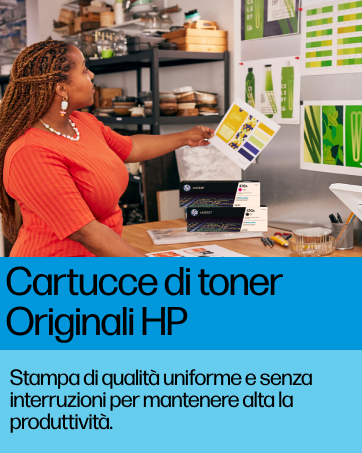
Figure 3: Original HP Paper
This image highlights Original HP Paper, a complete line of paper designed to deliver reliable and professional-quality results with your HP printer.
3.5 Software Installation and Wireless Setup
- Download the HP Smart app from hp.com/go/hpsmart or your device's app store.
- Follow the on-screen instructions in the HP Smart app to connect your printer to your Wi-Fi network.
- The app will guide you through driver installation and printer registration.
- For direct USB connection, install drivers from the HP support website.
4. Operating Instructions
4.1 Printing Documents
- From a Computer: Open the document you wish to print, select "Print" from the application's menu, choose your HP LaserJet MFP M140w printer, adjust settings (e.g., paper size, number of copies), and click "Print".
- From a Mobile Device (HP Smart App): Open the HP Smart app, select "Print Documents" or "Print Photos", choose the file, and send it to your printer.
- Using AirPrint (iOS/macOS): Ensure your device is on the same Wi-Fi network as the printer. Open the app, tap the Share icon or Print icon, select "Print", choose your printer, and tap "Print".
4.2 Scanning Documents
- Place the document face-down on the scanner glass, aligning it with the guide.
- Open the HP Smart app on your computer or mobile device, or use the scanning software on your computer.
- Select "Scan" and choose your desired scan settings (e.g., resolution, color/grayscale, destination).
- Click "Scan" to begin the process.
4.3 Copying Documents
- Place the document face-down on the scanner glass.
- Use the control panel buttons on the printer to select the number of copies.
- Press the Copy button (usually indicated by a document icon) to start copying.
- For advanced copy settings, use the HP Smart app or printer software on your computer.
5. Maintenance
5.1 Replacing the Toner Cartridge
When the print quality degrades or the toner low indicator lights up, it's time to replace the toner cartridge.
- Open the toner cartridge access door.
- Remove the old cartridge by pulling it straight out.
- Unpack the new HP original toner cartridge and gently shake it.
- Insert the new cartridge until it clicks into place.
- Close the access door.
5.2 Cleaning the Printer
- Exterior: Wipe the exterior surfaces with a soft, damp, lint-free cloth. Do not use abrasive cleaners.
- Scanner Glass: Use a soft, lint-free cloth lightly moistened with glass cleaner (non-ammonia based) to clean the scanner glass.
5.3 Firmware Updates
Regularly check for and install firmware updates through the HP Smart app or HP support website. Firmware updates can improve printer performance, add new features, and enhance security, especially regarding cartridge authentication.
6. Troubleshooting
6.1 Common Issues and Solutions
- Printer Not Responding:
- Check power connection and ensure the printer is turned on.
- Verify Wi-Fi connection (printer and device on the same network).
- Restart the printer and your computer/mobile device.
- Check for paper jams or low toner.
- Paper Jams:
- Carefully open all access doors and remove any jammed paper.
- Ensure paper is loaded correctly and not overfilled.
- Poor Print Quality:
- Check toner level and replace if low.
- Ensure you are using genuine HP toner cartridges.
- Clean the printer's internal components as per maintenance instructions.
- "Non-HP Cartridge" Message:
- This printer is designed to work only with HP-chipped cartridges. If you encounter this message, ensure you are using an original HP cartridge.
For more detailed troubleshooting, refer to the HP support website or the HP Smart app.
7. Technical Specifications
| Feature | Specification |
|---|---|
| Brand | HP |
| Model Number | 2A130FABD |
| Color | Black |
| Connectivity | Wi-Fi, High-Speed USB |
| Print Speed (Black) | Up to 20 ppm |
| Print Resolution | Up to 600 x 600 dpi |
| Paper Input Capacity | 150 sheets |
| Scanner Type | Flatbed |
| Mobile Printing | HP Smart App, Apple AirPrint |
| Auto On/Off Technology | Yes |
8. Warranty and Support
8.1 Warranty Information
This HP LaserJet MFP M140w printer comes with a standard manufacturer's warranty. Please refer to the warranty information flyer included in your product package for specific terms, conditions, and duration. Keep your proof of purchase for warranty claims.
8.2 Customer Support
For technical assistance, driver downloads, troubleshooting guides, and more information, please visit the official HP Support website:
You can also find helpful resources and community forums on the HP website.