
Kavolet AAL3477640380121LF
Kavolet Smart Wi-Fi Thermostat 16A for Electric Heating
Model: AAL3477640380121LF
1. Introduction
Thank you for choosing the Kavolet Smart Wi-Fi Thermostat. This device is designed to provide intelligent temperature control for electric heating systems, enhancing comfort and energy efficiency in your home, office, or other environments. Featuring a large LCD touch screen, Wi-Fi connectivity, and APP control, it offers flexible weekly programming to suit your lifestyle.

Image 1.1: Kavolet Smart Wi-Fi Thermostat and its mobile application interface. This image illustrates the thermostat's sleek design and its remote control capability via a smartphone app.
Key Features:
- Electric Heating Compatibility: Suitable for various electric heating systems.
- Dual Sensor System: Equipped with an internal sensor for ambient temperature and an external floor sensor for high-temperature protection.
- Weekly Programmable: Supports 7-day weekly operation modes with 6 daily time settings for customized temperature schedules.
- APP Control: Remotely manage your thermostat settings from your smartphone, anytime and anywhere.
- Large LCD Touch Screen: Clear display with backlight for easy reading and intuitive touch controls.
- High Accuracy: Maintains temperature within 1°C of the set point.
- Data Memory: Retains settings in case of power failure.
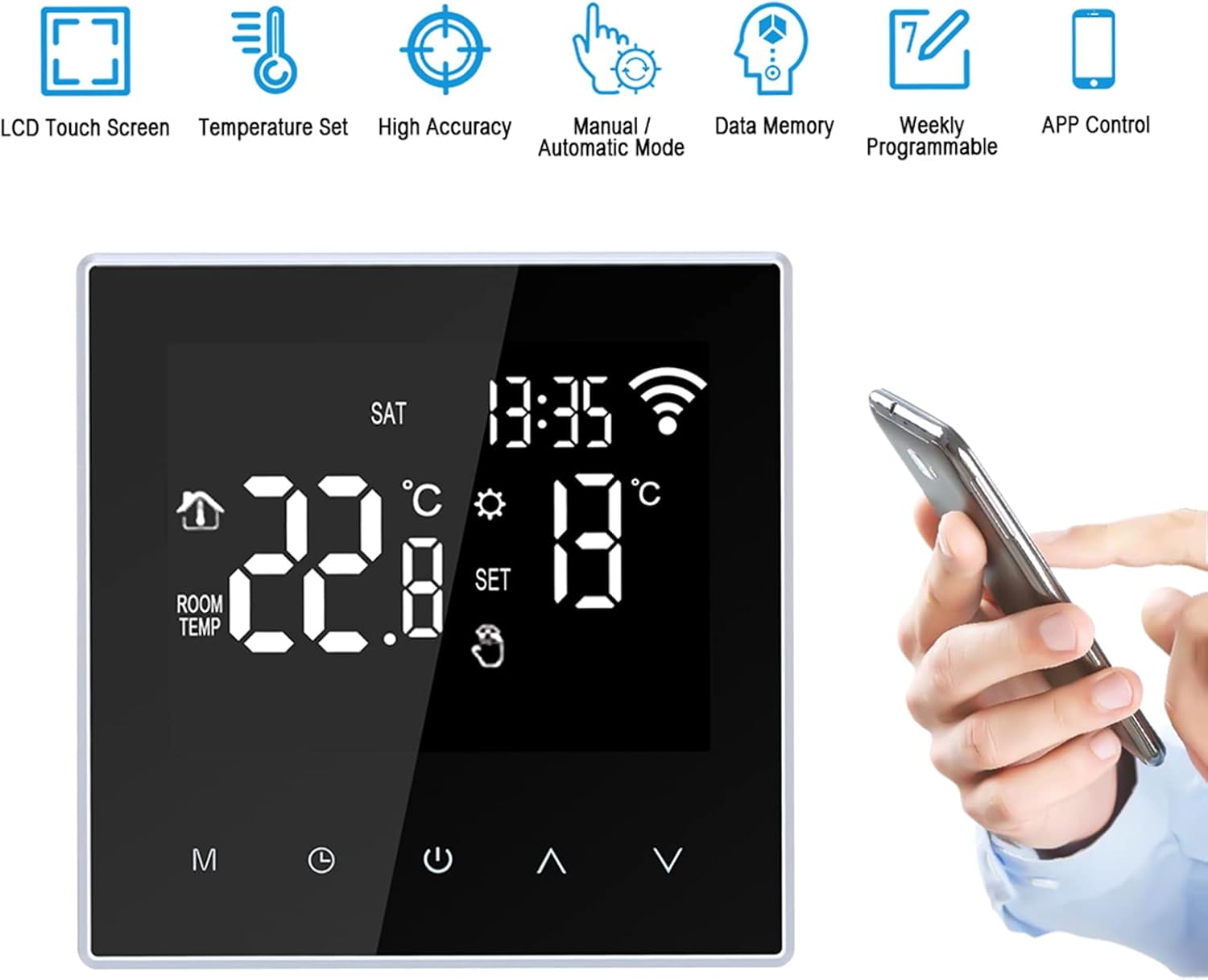
Image 1.2: Visual representation of the thermostat's main features, including LCD touch screen, temperature setting, high accuracy, manual/automatic mode, data memory, weekly programmability, and APP control.
2. Safety Information
WARNING: Installation of this thermostat involves high voltage. To prevent electric shock or damage to the product, installation must be performed by a qualified professional electrician in accordance with local electrical codes and regulations.
- Always disconnect power at the circuit breaker before installing or servicing the thermostat.
- Ensure all wiring connections are secure and correctly matched to avoid short circuits or malfunction.
- Do not operate the thermostat with wet hands.
- Keep the device away from water and excessive humidity.
- This product is designed for electric heating systems only. Do not use with other heating types.
3. Package Contents
Please check the package contents upon opening to ensure all items are present:
- 1 x Kavolet Smart Wi-Fi Thermostat
- 1 x 3-meter Sensor Cable (external floor sensor)
- 2 x Mounting Screws
- 1 x User Manual (English)
4. Specifications
| Brand | Kavolet |
| Model Number | AAL3477640380121LF |
| Color | Black |
| Power Supply | 220V AC 50/60Hz |
| Current Load | 16A |
| Temperature Accuracy | ±1°C |
| Temperature Setting Range | 5-60°C |
| Temperature Control Range | 5-95°C (Factory Default: 35°C) |
| Power Consumption | <2W |
| Timing Error | <1% |
| Shell Material | PC (Flame Retardant) |
| Sensors | Internal (ambient), External (floor protection) |
| Installation Distance | 60mm |
| Protection Class | IP20 |
| Control Type | Touch Keys |
| Connectivity | Wi-Fi |
| Item Dimensions (L*W*H) | 86 x 86 x 40mm (3.4 x 3.4 x 1.6in) |
| Item Weight | 168g (5.9oz) |

Image 4.1: Detailed dimensions of the Kavolet Smart Wi-Fi Thermostat, showing its front and side profiles with measurements in millimeters and inches.
5. Installation and Setup
Important: As stated in the safety information, installation must be carried out by a qualified professional electrician. Incorrect installation can lead to electric shock, fire, or damage to the device.
5.1 Wiring Diagram
Refer to the following diagram for correct wiring connections. Ensure power is disconnected before proceeding.

Image 5.1: Wiring diagram for the Kavolet Thermostat (model ME88H.16). It shows connections for AC230V, 16A, N, L1, N1, and sensor terminals (1, 2).
- Terminals 1 & 2: External sensor connection.
- Terminals 3 & 4: Power supply (N and L1).
- Terminals 5 & 6: Load connection (N1 and L).
- Ensure proper grounding if applicable.
5.2 Physical Installation
- Disconnect power at the main circuit breaker.
- Mount the backplate of the thermostat to a standard 60mm wall box using the provided screws.
- Connect the wires according to the wiring diagram (Image 5.1).
- Carefully attach the front panel of the thermostat to the mounted backplate, ensuring it clicks securely into place.
- Restore power at the circuit breaker.
5.3 Initial Power-On and Wi-Fi Connection
- Upon first power-on, the thermostat display will illuminate.
- Download the compatible mobile application (e.g., Smart Life, Tuya Smart) from your smartphone's app store.
- Register or log in to the application.
- Follow the in-app instructions to add a new device. This typically involves putting the thermostat into pairing mode (often by pressing and holding a specific button combination until a Wi-Fi icon flashes rapidly).
- Enter your Wi-Fi network credentials (2.4GHz network required).
- Once connected, the Wi-Fi icon on the thermostat display will become solid.
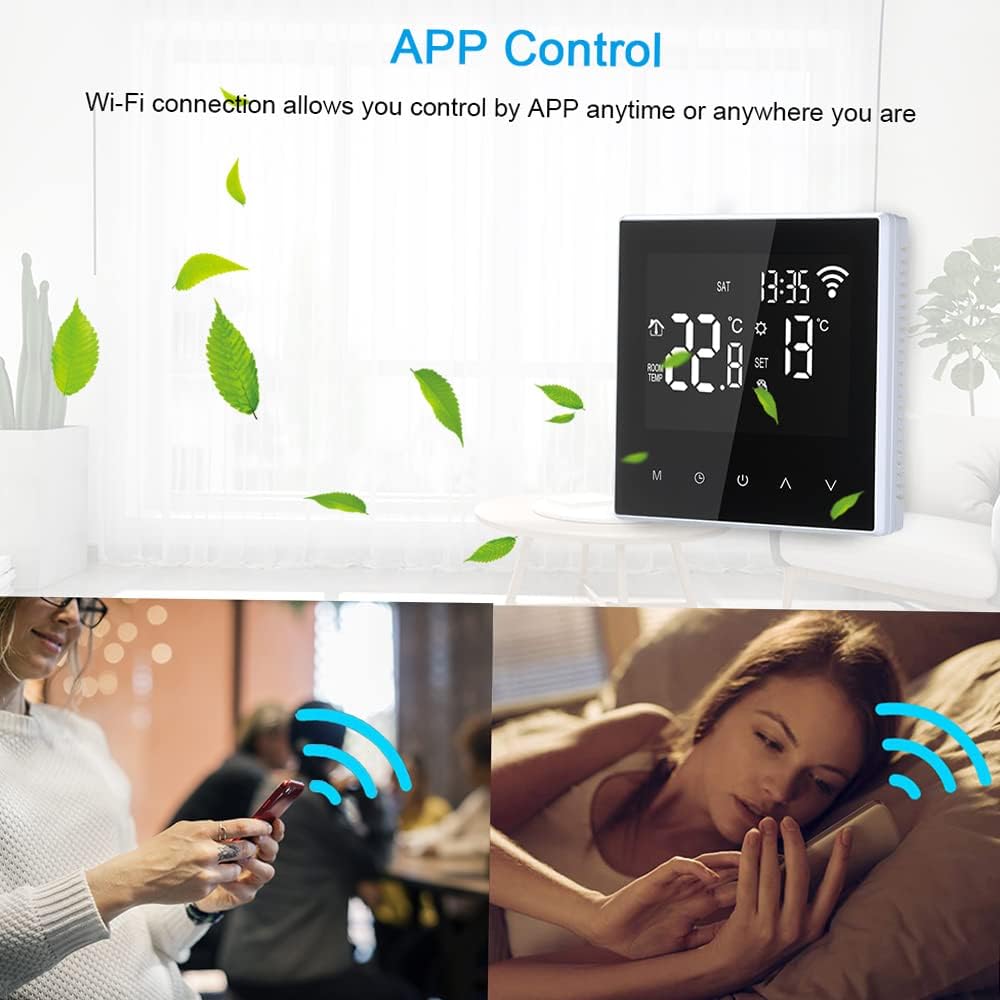
Image 5.2: The thermostat display alongside a smartphone screen demonstrating the APP control functionality, highlighting the convenience of remote temperature management.
6. Operating Instructions
6.1 Display Overview
The LCD screen provides all necessary information and control options. Refer to the diagram below for key indicators:

Image 6.1: Annotated diagram of the Kavolet Thermostat's LCD display, indicating the positions of Time, Week, Room Temperature, Setting Temperature, Manual/Automatic Mode indicator, Touch Keys, Mode Key (M), Clock Key, Power ON/OFF, Up Button, and Down Button.
- Time: Current time display.
- Week: Current day of the week.
- Room Temp: Current ambient temperature detected by the internal sensor.
- Setting Temp: Desired temperature set by the user or program.
- Manual/Automatic Mode: Indicates whether the thermostat is operating in manual or programmed mode.
- Wi-Fi Icon: Indicates Wi-Fi connection status (flashing for pairing, solid for connected).
- Heating Icon: Appears when the heating system is active.
6.2 Button Functions
- M (Mode Key): Press to switch between Manual mode and Automatic (Programmed) mode.
- Clock Key: Press and hold to enter time and week setting mode. Short press to confirm settings.
- Power ON/OFF: Press to turn the thermostat on or off.
- Up Button (▲): Increase temperature setting or navigate menu options.
- Down Button (▼): Decrease temperature setting or navigate menu options.
6.3 Setting Time and Day
- Press and hold the Clock Key until the time display flashes.
- Use the Up (▲) and Down (▼) buttons to adjust the hour.
- Press the Clock Key again to move to minute adjustment, then day of the week adjustment.
- Use Up (▲) and Down (▼) to set the minutes and day.
- Press the Clock Key one last time to save and exit.
6.4 Manual Mode Operation
- Press the M (Mode Key) until the manual mode icon is displayed.
- Use the Up (▲) or Down (▼) buttons to set your desired temperature. The thermostat will maintain this temperature until changed or switched to automatic mode.
6.5 Weekly Programming (Automatic Mode)
The thermostat supports 6 time modes daily for 7 days a week. This allows for customized heating schedules.

Image 6.2: The thermostat display highlighting its weekly programmable feature, indicating support for 7-day operation modes with multiple daily temperature settings.
- Press the M (Mode Key) until the automatic mode icon is displayed.
- To enter programming mode, press and hold the M (Mode Key) for several seconds. The display will show the first programming period (e.g., "Period 1" or a specific time slot).
- Use the Up (▲) and Down (▼) buttons to adjust the start time and desired temperature for each period.
- Press M (Mode Key) to cycle through the 6 periods for the current day, and then to the next day.
- Repeat for all 7 days and 6 periods as desired.
- Once all settings are complete, press the Power ON/OFF button or wait for a few seconds for the thermostat to automatically save and exit programming mode.
6.6 APP Control
Once the thermostat is connected to your Wi-Fi network and paired with the mobile application, you can control it remotely:
- Adjust temperature settings.
- Switch between manual and automatic modes.
- Modify weekly programming schedules.
- Monitor current room temperature.
- Access advanced settings (if available in the app).

Image 6.3: The thermostat in a home setting, illustrating its role in maintaining a comfortable temperature with high accuracy, benefiting occupants.
7. Maintenance
- Cleaning: Gently wipe the thermostat's screen and body with a soft, dry cloth. Do not use abrasive cleaners, solvents, or spray directly onto the device.
- Avoid Liquids: Ensure no liquids enter the thermostat's casing, as this can cause damage or electric shock.
- Sensor Care: Keep the external floor sensor free from obstructions and debris to ensure accurate temperature readings.
- Firmware Updates: Periodically check the mobile application for any available firmware updates for your thermostat to ensure optimal performance and security.
8. Troubleshooting
| Problem | Possible Cause | Solution |
|---|---|---|
| Thermostat does not power on. | No power supply; incorrect wiring; circuit breaker tripped. | Check circuit breaker. Verify wiring connections (consult a professional). Ensure power is restored. |
| Heating system not responding. | Incorrect temperature setting; thermostat in OFF mode; wiring issue; heating system malfunction. | Ensure thermostat is ON and set to a temperature higher than ambient. Check wiring. Consult a heating technician if the heating system itself is faulty. |
| Wi-Fi connection unstable or disconnected. | Weak Wi-Fi signal; incorrect Wi-Fi password; router issue; thermostat too far from router. | Ensure thermostat is within Wi-Fi range. Restart your router. Re-enter Wi-Fi credentials in the app. Ensure you are using a 2.4GHz network. |
| Inaccurate temperature readings. | Sensor obstruction; thermostat exposed to direct sunlight or drafts; faulty sensor. | Ensure sensors are clear. Relocate thermostat if exposed to external influences. Contact support if sensor is suspected faulty. |
| Cannot program schedules. | Thermostat in Manual mode; incorrect programming steps. | Switch to Automatic mode. Review Section 6.5 for detailed programming steps. |
9. Warranty and Support
Kavolet products are designed for reliability and performance. While specific warranty details are not provided in this manual, please retain your proof of purchase for any warranty claims.
Customer Support:
For technical assistance, troubleshooting beyond this manual, or warranty inquiries, please contact Kavolet customer support through the retailer where you purchased the product or refer to the official Kavolet website for contact information.
When contacting support, please have the following information ready:
- Product Model: AAL3477640380121LF
- Date of Purchase
- Description of the issue