
IVEOPPE IVEOPPE Bluetooth Keyboard Case
IVEOPPE Bluetooth Keyboard Case User Manual
For Samsung Galaxy Tab S7 FE, S7 Plus, S7+, S8+ Plus 12.4-inch Tablets
Model: IVEOPPE Bluetooth Keyboard Case
1. Introduction
This manual provides detailed instructions for the setup, operation, and maintenance of your IVEOPPE Bluetooth Keyboard Case. Please read this manual thoroughly before use to ensure proper functionality and to extend the product's lifespan.
2. Safety Information
- Keep the device away from water, moisture, and extreme temperatures.
- Do not attempt to disassemble or repair the device yourself. Contact qualified service personnel.
- Use only the provided charging cable or a certified equivalent.
- Avoid dropping or subjecting the device to strong impacts.
- Keep out of reach of children.
3. Package Contents
Verify that all items are present in your package:
- IVEOPPE Bluetooth Keyboard Case
- USB Charging Cable
- User Manual (this document)
4. Product Overview
The IVEOPPE Bluetooth Keyboard Case combines a protective cover with a detachable backlit Bluetooth keyboard, designed for specific Samsung Galaxy Tab models. It features a pen holder, multiple viewing angles, and an auto sleep/wake function.
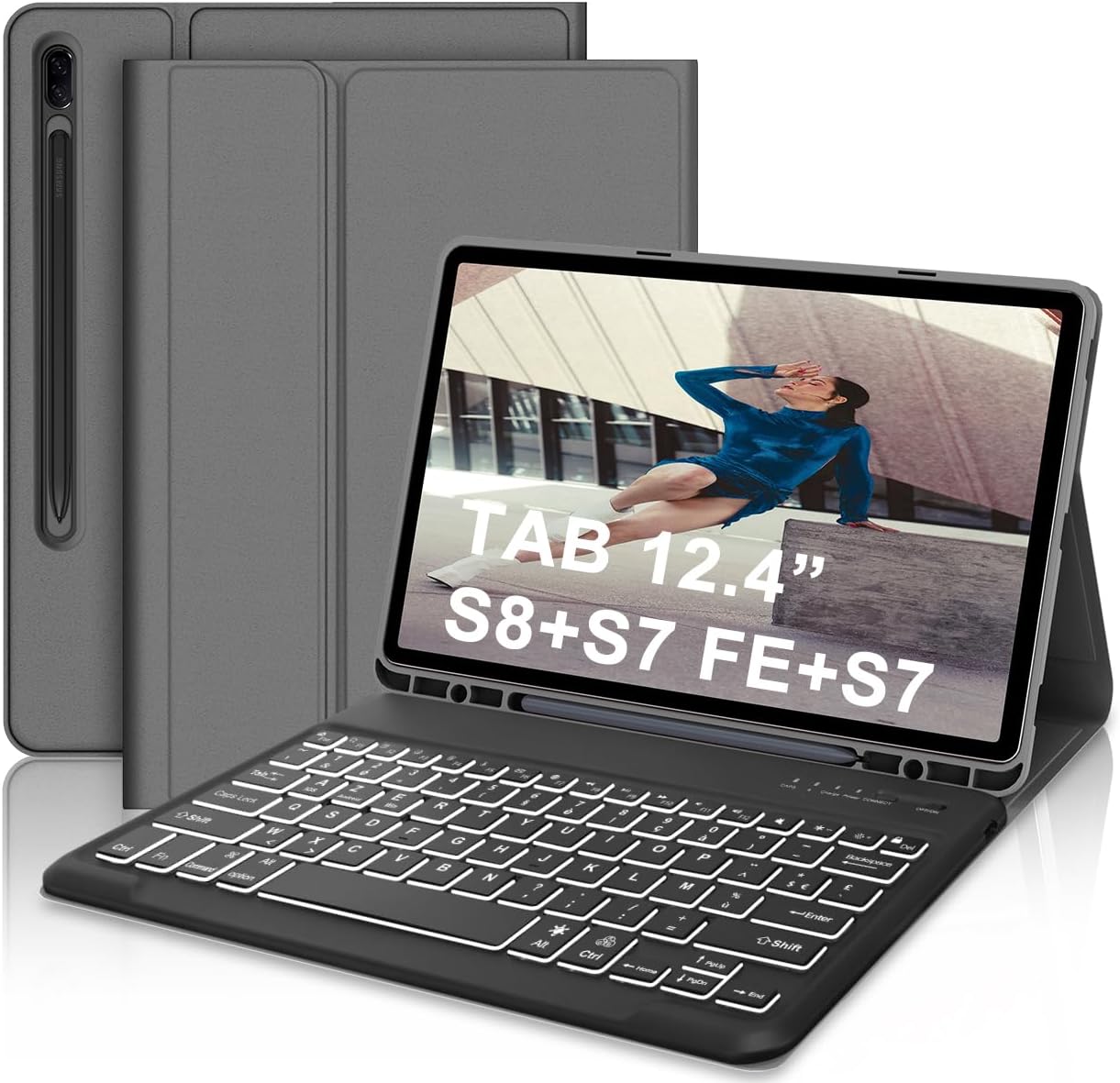
Figure 4.1: IVEOPPE Bluetooth Keyboard Case with tablet and stylus.
4.1 Key Features
- Detachable Bluetooth Keyboard: Allows flexible use.
- 7-Color Backlight: Adjustable keyboard backlight for various lighting conditions.
- Multi-Angle Stand: Provides 120°, 125°, and 130° viewing angles.
- Integrated Pen Holder: Securely stores your S Pen.
- Auto Sleep/Wake Function: Conserves battery life.
- Full Body Protection: Durable PU leather and TPU shell protect against dust, scratches, and impacts.

Figure 4.2: Key features of the IVEOPPE Bluetooth Keyboard, including wireless connectivity and mechanical keys.

Figure 4.3: Protective features of the case, including heat dissipation, anti-slip lining, and a soft TPU shell.

Figure 4.4: Additional protective and functional aspects, such as shock absorption, precise cutouts for ports, and the auto sleep/wake feature.
5. Setup
5.1 Charging the Keyboard
- Locate the charging port on the keyboard.
- Connect the provided USB charging cable to the keyboard's charging port.
- Connect the other end of the USB cable to a USB power adapter (not included) or a computer's USB port.
- The charging indicator light will illuminate. A full charge typically takes approximately 5 hours.
- Once fully charged, the indicator light may change or turn off. Disconnect the charging cable.
Note: The keyboard has a built-in 430 mAh Li-ion battery, offering up to 120 hours of continuous use or 100 days of standby time on a full charge.
5.2 Pairing the Keyboard via Bluetooth
- Ensure the keyboard is charged.
- Turn on the keyboard by sliding the power switch to the "ON" position. The indicator light will briefly flash.
- Press the "Connect" button (often labeled with a Bluetooth symbol or "Fn + C" on some models) on the keyboard. The Bluetooth indicator light will start blinking, indicating it is in pairing mode.
- On your Samsung Galaxy Tab, go to Settings > Connections > Bluetooth.
- Turn on Bluetooth on your tablet. It will search for available devices.
- Select "Bluetooth Keyboard" or a similar name from the list of available devices.
- If prompted, enter the pairing code displayed on your tablet onto the keyboard and press Enter.
- Once paired, the Bluetooth indicator light on the keyboard will stop blinking and remain solid or turn off, and your tablet will show the keyboard as "Connected".

Figure 5.1: Bluetooth connectivity with various operating systems.
5.3 Inserting the Tablet into the Case
- Open the keyboard case.
- Carefully align your Samsung Galaxy Tab with the TPU shell of the case.
- Gently press the tablet into the shell, ensuring all edges are securely seated and the camera cutouts align.
- The keyboard is magnetic and can be positioned as desired within the case.
- Place your S Pen into the designated pen holder if applicable.

Figure 5.2: Compatible tablet models for the keyboard case.
6. Operating Instructions
6.1 Keyboard Functions
- Backlight Control: Press the Light bulb icon key to turn the backlight on/off. Press Fn + Light bulb icon to cycle through 7 different backlight colors.
- Brightness Adjustment: Use the dedicated brightness keys (if available) or Fn + Up/Down arrow keys to adjust backlight brightness.
- Special Function Keys: The top row of keys provides quick access to various tablet functions (e.g., Home, Search, Volume, Play/Pause). These typically work directly or by pressing Fn simultaneously.

Figure 6.1: Keyboard backlight colors and multi-angle stand.
6.2 Adjusting Viewing Angles
The case features a multi-angle stand. Adjust the tablet's position within the case to achieve desired viewing angles (120°, 125°, 130°) for typing, viewing, or drawing.

Figure 6.2: Adjustable viewing angles.
6.3 Auto Sleep/Wake Function
The case supports an automatic sleep/wake function. Closing the case will put your tablet to sleep, and opening it will wake it up, helping to conserve battery life for both the tablet and the keyboard.

Figure 6.3: Auto sleep/wake feature.
7. Maintenance
7.1 Cleaning
- To clean the keyboard, gently wipe the keys and surface with a soft, lint-free cloth.
- For the case, use a slightly damp cloth to wipe away dust or smudges. Avoid harsh chemicals or abrasive cleaners.
- Ensure the keyboard is turned off and disconnected from any power source before cleaning.
7.2 Storage
- When not in use for extended periods, turn off the keyboard to conserve battery.
- Store the keyboard case in a cool, dry place, away from direct sunlight and extreme temperatures.
8. Troubleshooting
| Problem | Possible Cause | Solution |
|---|---|---|
| Keyboard not connecting via Bluetooth. | Keyboard is off, low battery, not in pairing mode, or tablet Bluetooth is off. |
|
| Keys are not responding. | Low battery, connection issue, or keyboard is off. |
|
| Backlight not working or changing colors. | Low battery, incorrect key press. |
|
| Auto sleep/wake function not working. | Tablet not properly seated, or feature disabled on tablet. |
|
9. Specifications
| Brand | IVEOPPE |
| Connectivity Technology | Bluetooth |
| Compatible Devices | Samsung Galaxy Tab S7 FE, S7 Plus, S7+, S8+ Plus 12.4-inch |
| Keyboard Description | Wireless, AZERTY (French layout) |
| Special Features | Rechargeable, Backlit (7 colors) |
| Material | PU Leather, TPU |
| Battery Composition | Lithium-ion |
| Battery Capacity | 430 mAh |
| Charging Time | Approx. 5 hours |
| Continuous Use Time | Up to 120 hours |
| Standby Time | Up to 100 days |
| Color | Dark Grey |
10. Warranty and Support
For warranty information or technical support, please refer to the retailer's return policy or contact the manufacturer directly through their official website or customer service channels. Please retain your proof of purchase for any warranty claims.
Related Documents - IVEOPPE Bluetooth Keyboard Case
 |
Product Safety and Manufacturer Information for IVEOPPE Tablet Case with Keyboard Safety warnings and manufacturer details for an IVEOPPE tablet case with keyboard, including handling instructions and compliance marks. |
Ask a question about this manual
Ask about setup, troubleshooting, compatibility, parts, safety, or missing instructions. Manuals+ will review the question and use this page’s manual context to help answer it.