
1. Introduction
Welcome to the user manual for your new Alcatel Pixi 3 10 Tablet with TypeCase. This guide provides essential information on setting up, operating, maintaining, and troubleshooting your device. Please read this manual thoroughly to ensure optimal performance and longevity of your tablet.
2. Product Overview
The Alcatel Pixi 3 10 Tablet is a versatile 10-inch device designed for everyday use, featuring a responsive touchscreen and a bundled TypeCase for enhanced productivity and protection.
2.1. Tablet Components
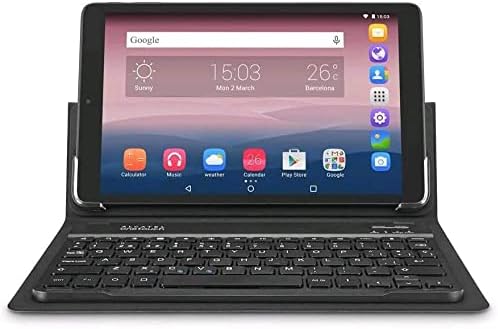
Front view of the Alcatel Pixi 3 10 Tablet with its integrated keyboard case, displaying the home screen.

Front view of the Alcatel Pixi 3 10 Tablet without the case, highlighting the display and front camera.

Rear view of the Alcatel Pixi 3 10 Tablet, displaying the brand logos and the rear camera lens.

Close-up of the keyboard component of the TypeCase, showing the power and connect switches.
Your tablet includes a 10-inch LCD display, front and rear cameras, a USB charging port, a headphone jack, and a microSD card slot for expandable storage. The TypeCase provides a protective cover and a physical keyboard for typing.
3. Setup
3.1. Initial Charging
Before first use, fully charge your tablet. Connect the provided USB cable to the tablet's charging port and the other end to a power adapter. The battery indicator on the screen will show charging progress.
3.2. Powering On/Off
- To Power On: Press and hold the Power button located on the side of the tablet until the Alcatel logo appears.
- To Power Off: Press and hold the Power button until the power options menu appears, then select 'Power off'.
3.3. Connecting the TypeCase Keyboard
The TypeCase keyboard connects to your tablet via Bluetooth. Ensure the keyboard is charged. Turn on the keyboard using its power switch. On your tablet, go to Settings > Connected devices > Bluetooth, and pair with the keyboard. Follow any on-screen prompts to complete the pairing process.
3.4. Initial Setup Wizard
Upon first power-on, the tablet will guide you through an initial setup wizard. This includes selecting your language, connecting to a Wi-Fi network, setting up your Google account, and configuring basic device settings.
4. Operating Instructions
4.1. Navigation
- Touchscreen Gestures: Tap to select, swipe to scroll, pinch to zoom.
- Home Screen: Access your apps, widgets, and notifications.
- Status Bar: Displays notifications, time, battery status, and connectivity icons. Swipe down from the top to access quick settings and full notifications.
4.2. Wi-Fi Connectivity
To connect to a Wi-Fi network, go to Settings > Network & internet > Wi-Fi. Select your desired network from the list and enter the password if required.
4.3. Using the Cameras
Open the Camera app from your home screen or app drawer. You can switch between the front and rear cameras, take photos, and record videos. Tap the screen to focus before capturing.
4.4. Managing Applications
Download new applications from the Google Play Store. To uninstall an app, go to Settings > Apps & notifications, select the app, and tap 'Uninstall'.
5. Maintenance
5.1. Cleaning Your Tablet
Use a soft, lint-free cloth to clean the screen and body of the tablet. For stubborn smudges, slightly dampen the cloth with water or a screen cleaner. Avoid using harsh chemicals or abrasive materials.
5.2. Battery Care
- Avoid exposing the tablet to extreme temperatures.
- Do not let the battery completely drain frequently.
- Use only the original or certified compatible chargers.
5.3. Software Updates
Periodically check for software updates to ensure your tablet has the latest features and security patches. Go to Settings > System > System update.
6. Troubleshooting
| Problem | Possible Solution |
|---|---|
| Tablet does not turn on. | Ensure the tablet is charged. Connect it to a charger for at least 30 minutes. If it still doesn't turn on, try a forced restart by holding the Power button for 10-15 seconds. |
| Screen is unresponsive. | Restart the tablet. If the issue persists, perform a factory reset (data will be lost). |
| Cannot connect to Wi-Fi. | Ensure Wi-Fi is enabled on the tablet. Restart your Wi-Fi router. Forget the network and try reconnecting. |
| Keyboard not connecting. | Ensure the keyboard is charged and powered on. Re-pair the keyboard via Bluetooth settings. Check if the keyboard's 'Connect' button needs to be pressed for pairing. |
| Apps are crashing or slow. | Close background apps. Clear app cache (Settings > Apps & notifications > [App Name] > Storage & cache > Clear cache). Restart the tablet. |
7. Specifications
| Feature | Detail |
|---|---|
| Brand Name | Alcatel |
| Model Name | Alcatel Pixi 3 |
| Display Size | 10 Inches |
| Display Resolution | 1280 x 800 pixels |
| Display Technology | LCD |
| Memory Storage Capacity | 8 GB |
| RAM Memory Installed | 8 GB (Note: This likely refers to total storage, not RAM. Product description states 1GB RAM.) |
| Main Camera | 5 MP |
| Selfie Camera | 2 MP |
| Battery Power Rating | 4060 mAh |
| Processor Description | MediaTek (Quad-core) |
| Wireless Communication | Wi-Fi (802.11 b/g/n) |
| Color | Black |
| Form Factor | Foldable Case |
8. Warranty and Support
For warranty information, please refer to the warranty card included with your purchase or visit the official Alcatel website. For technical support, product registration, or service inquiries, please contact Alcatel customer service through their official channels.