
1. Introduction
Thank you for choosing the IVEOPPE Bluetooth Keyboard Case. This product is designed to enhance your tablet experience by providing a protective case and a functional, detachable Bluetooth keyboard. Please read this manual carefully before use to ensure proper operation and to maximize the lifespan of your device.
2. Package Contents
- 1 x IVEOPPE Bluetooth Keyboard Case
- 1 x Detachable Bluetooth Keyboard (AZERTY)
- 1 x USB Charging Cable
- 1 x User Manual
3. Compatibility
This keyboard case is specifically designed for the following Samsung Galaxy Tab models:
- Samsung Galaxy Tab S7 FE 12.4" (Model: SM-T730/T733/T736/T738)
- Samsung Galaxy Tab S7+ / S7 Plus 12.4" (Model: SM-T970/T975/T976/T978)
- Samsung Galaxy Tab S8+ / S8 Plus 12.4" (Model: SM-X800/X806)

Figure 1: Compatible Tablet Models
4. Features
- Detachable Magnetic Bluetooth Keyboard: Provides quiet, smooth, and responsive typing.
- 7-Color Backlight: Adjustable keyboard backlight with seven colors and three brightness modes for comfortable typing in various lighting conditions.
- Full Body Protection: Durable PU leather exterior, microfiber lining, and a hard back cover protect your tablet from dust, scratches, stains, splashes, and drops.
- Adjustable Viewing Angles: Integrated multi-functional stand offers optimal angles (130°, 125°, 120°) for reading, typing, or viewing.
- Automatic Sleep/Wake Function: Extends tablet battery life by automatically putting the tablet to sleep when the case is closed and waking it when opened.
- Integrated Pen Holder: Securely stores your S Pen.
- Rechargeable Battery: Built-in 430 mAh Li-ion battery provides up to 120 hours of continuous use or 100 days of standby on a 5-hour charge.

Figure 2: Multi-Angle Design
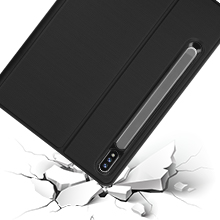
Figure 3: Bluetooth Connectivity and Keyboard Features

Figure 4: Protective Features and Auto Sleep/Wake
5. Setup
5.1 Charging the Keyboard
- Connect the provided USB charging cable to the keyboard's charging port.
- Plug the other end of the USB cable into a USB power adapter (not included) or a computer's USB port.
- The charging indicator light will illuminate. Once fully charged (approximately 5 hours), the light will turn off or change color.
5.2 Inserting Your Tablet
- Gently align your Samsung Galaxy Tab with the case's frame.
- Press the tablet firmly into the case, ensuring all edges are securely seated and all ports and buttons are accessible through the precise cutouts.
- Place the S Pen into the designated holder if applicable.
5.3 Pairing the Keyboard via Bluetooth
- Ensure the keyboard is charged and turned on. The power switch is usually located on the side or top edge of the keyboard.
- Press the Connect button on the keyboard (often indicated by a Bluetooth symbol). The Bluetooth indicator light will start blinking.
- On your Samsung Galaxy Tab, go to Settings > Connections > Bluetooth.
- Turn on Bluetooth and search for available devices.
- Select "Bluetooth Keyboard" (or a similar name) from the list of available devices.
- Follow any on-screen prompts to complete the pairing process. Once paired, the Bluetooth indicator light on the keyboard will stop blinking.

Figure 5: AZERTY Keyboard Layout and Multi-Device Compatibility
6. Operating Instructions
6.1 Using the Keyboard
- Once paired, the keyboard functions like a standard computer keyboard.
- Use the function keys (Fn) in combination with other keys for shortcuts specific to your tablet's operating system.
6.2 Adjusting Keyboard Backlight
- Press the Light Bulb key (often near the spacebar or function keys) to turn the backlight on/off.
- Press the RGB key (or a similar key) to cycle through the seven available backlight colors.
- Use Fn + Light Bulb (or similar combination) to adjust backlight brightness levels.

Figure 6: 7-Color Backlit Keyboard
6.3 Using the Stand Function
- Fold the case cover to create a triangular stand.
- Adjust the tablet to one of the three available angles (130°, 125°, 120°) for optimal viewing or typing comfort.
7. Maintenance
7.1 Cleaning the Case and Keyboard
- Wipe the exterior of the case with a soft, damp cloth. Avoid harsh chemicals.
- For the keyboard, use a soft, dry cloth. A small brush or compressed air can be used to clean between keys.
- Ensure the keyboard is powered off before cleaning.
7.2 Storage
- When not in use for extended periods, ensure the keyboard is fully charged and then powered off.
- Store the case and keyboard in a cool, dry place away from direct sunlight and extreme temperatures.
8. Troubleshooting
8.1 Keyboard Not Connecting
- Check Power: Ensure the keyboard is turned on and has sufficient battery charge.
- Re-pair: Delete the keyboard from your tablet's Bluetooth device list and attempt to pair it again (refer to Section 5.3).
- Tablet Bluetooth: Ensure your tablet's Bluetooth is enabled and functioning correctly.
- Distance: Make sure the keyboard is within the 10-meter Bluetooth range of your tablet.
8.2 Keys Not Responding
- Recharge: The keyboard battery might be low. Charge it fully.
- Re-connect: Turn the keyboard off and on, then try re-pairing.
- Clean: Ensure no debris is lodged under the keys.
8.3 Backlight Not Working
- Check Power: Ensure the keyboard is charged.
- Toggle: Press the backlight key to ensure it's not simply turned off.
9. Specifications
| Brand | IVEOPPE |
| Model Name | Keyboard Case |
| Compatible Devices | Samsung Galaxy Tab S7 FE/S7 Plus/S8+ 12.4" |
| Connectivity Technology | Bluetooth |
| Keyboard Layout | AZERTY |
| Number of Keys | 105 |
| Special Features | Rechargeable, 7-Color Backlit |
| Battery Capacity | 430 mAh Li-ion |
| Charging Time | Approx. 5 hours |
| Continuous Use Time | Up to 120 hours |
| Standby Time | Up to 100 days |
| Product Dimensions (L x W x H) | 29 x 20 x 2 cm |
| Internal Material | Polyurethane (PU) |
| Box Contents | USB Cable |
10. Warranty and Support
For warranty information and customer support, please refer to the product packaging or contact IVEOPPE customer service through the retailer where you purchased the product. Please retain your proof of purchase for warranty claims.