
Introduction
The WINFLIKE MX3 is a versatile 2.4G wireless remote control combining a motion-sensing air mouse, a full QWERTY keyboard, and an infrared (IR) learning function. It is designed for use with various devices such as Android TV boxes, Mini PCs, Smart TVs, Projectors, and HTPCs, providing enhanced control and navigation capabilities.
Setup
1. Battery Installation
The MX3 remote requires two AAA batteries (not included). To install:
- Locate the battery compartment on the back of the remote control.
- Slide open the battery compartment cover.
- Insert two AAA batteries, ensuring correct polarity (+ and -).
- Close the battery compartment cover securely.

This image shows the back of the WINFLIKE MX3 remote control with its battery compartment cover removed, revealing the slots for two AAA batteries. This illustrates where to insert or replace the batteries.
2. USB Receiver Connection
The MX3 operates via a 2.4G wireless USB receiver. To connect:
- Locate the USB receiver, typically found within the battery compartment or packaged separately.
- Plug the USB receiver into an available USB port on your target device (e.g., Android TV Box, Mini PC, Smart TV).
- The device should automatically detect and install the necessary drivers. No manual pairing is usually required for the 2.4G function.
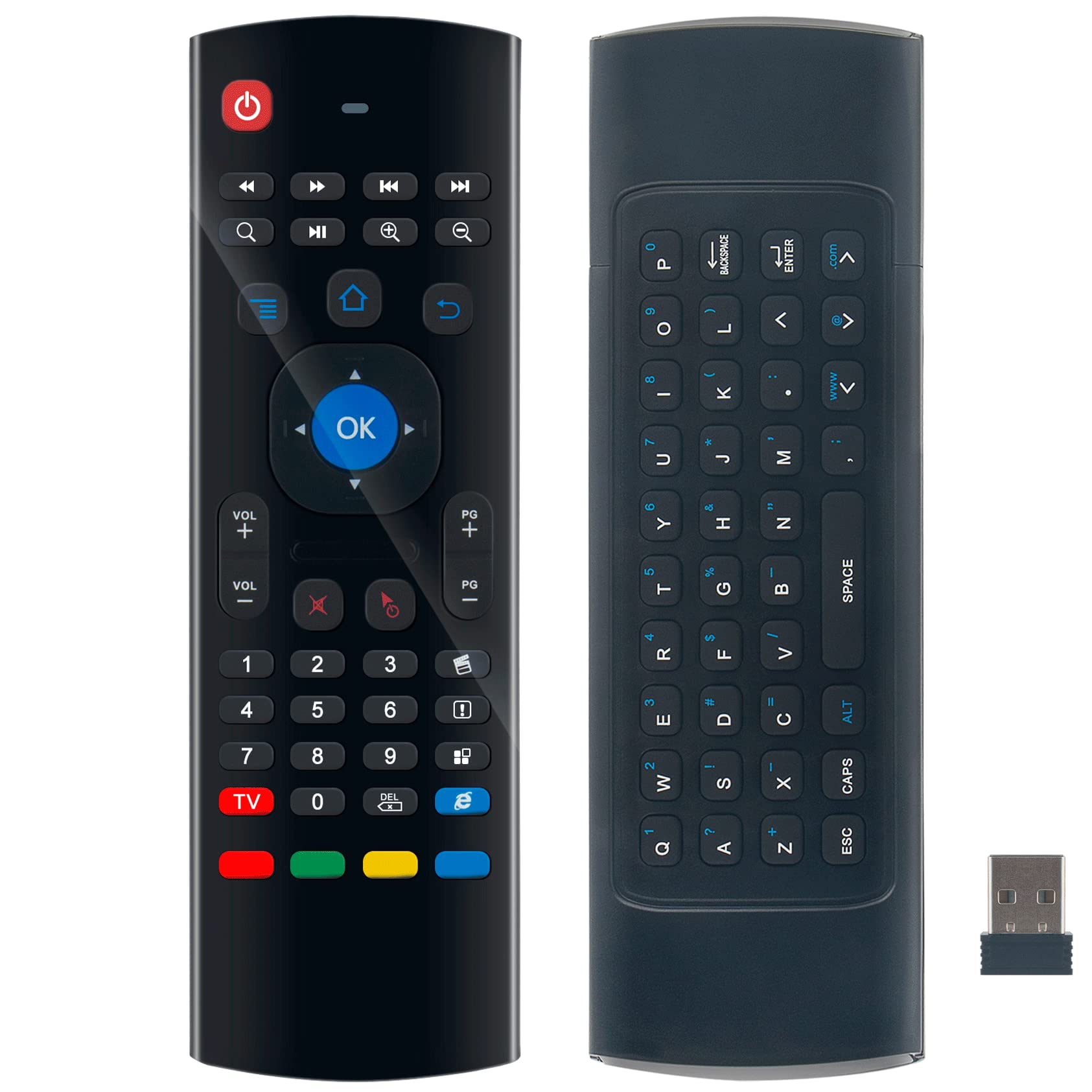
This image displays the WINFLIKE MX3 2.4G Motion Sensing Air Mouse Keyboard, showing its front face with various control buttons. The small USB receiver, essential for 2.4G wireless connectivity, is also pictured.
Operating Instructions
1. Power On/Off
Press the Power button (red button at the top left) to turn the remote on or off. Some devices may require a long press to power off.
2. 2.4G Air Mouse Function
The MX3 features a 6-axis inertia sensor for motion-sensing control.
- To activate the air mouse, press the Mouse Cursor On/Off button (often depicted as a mouse icon or a hand icon).
- Once activated, move the remote in the air to control the cursor on your screen.
- Press the OK button to click.
- Press the Mouse Cursor On/Off button again to deactivate the air mouse and use the directional pad.
3. Wireless Keyboard Function
The back of the MX3 remote features a full QWERTY keyboard for easy text input.
- Flip the remote to access the keyboard side.
- The remote automatically switches to keyboard mode when the keyboard side is facing up.
- Type as you would on a standard keyboard. Use the Shift, Alt, and Caps keys for special characters and capitalization.
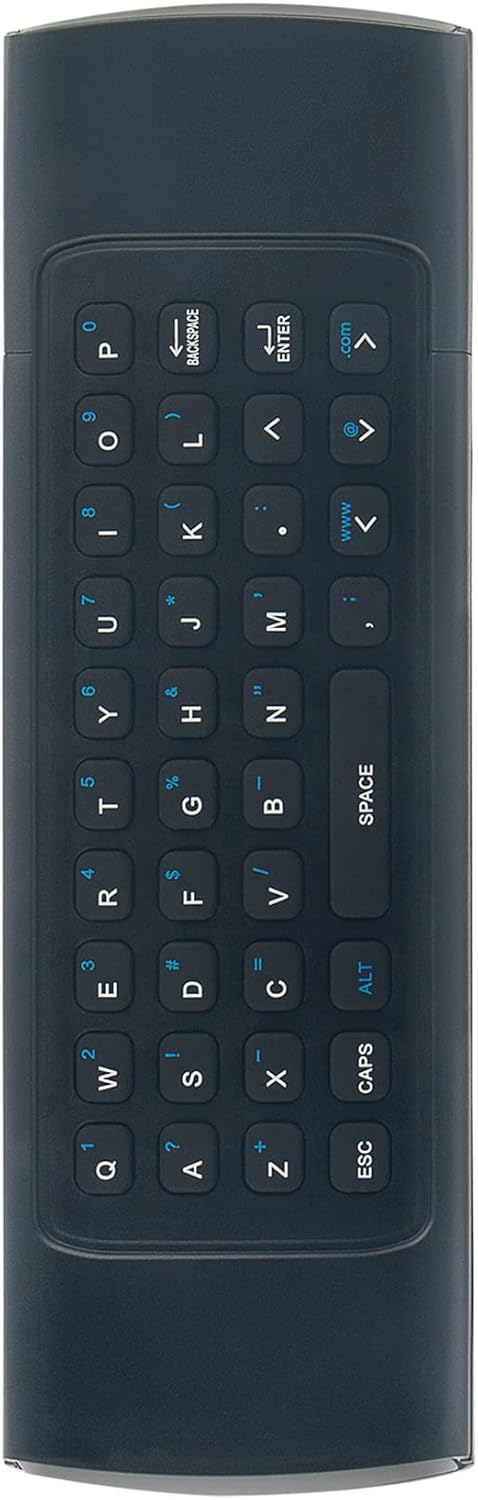
The reverse side of the WINFLIKE MX3 remote control, featuring a full QWERTY keyboard layout for text input. This side is used for typing when the remote is flipped.
4. IR Learning Function
The MX3 can learn infrared signals from your existing TV remote, allowing you to control basic TV functions (like power, volume) with the MX3.
- Place the MX3 remote and your original TV remote head-to-head, approximately 1-3 cm apart.
- Press and hold the TV button on the MX3 remote for 3-5 seconds until the LED indicator light starts flashing rapidly. This indicates it's in learning mode.
- While the MX3 LED is flashing, press the button on your original TV remote that you wish to program (e.g., TV Power button). The MX3 LED will change to a solid light, then flash rapidly again, indicating it has received the signal.
- Now, press the corresponding button on the MX3 remote (e.g., the red TV button or another programmable button) where you want to store the learned function. The LED will flash slowly, then turn off, indicating successful learning.
- Repeat steps 3 and 4 for any other buttons you wish to program.
- To exit IR learning mode, press the TV button again or wait for 10 seconds.
5. Button Functions (Front Side)
- Power (Red): Turns the device on/off.
- Directional Pad (Up/Down/Left/Right): Navigation.
- OK: Confirms selection.
- Volume +/-: Adjusts volume.
- Page Up/Down (PG+/-): Scrolls pages.
- Home: Returns to the main screen.
- Back/Return: Goes back to the previous screen.
- Menu: Opens context menu.
- Mouse Cursor On/Off: Activates/deactivates air mouse.
- Mute: Mutes audio.
- Media Control Buttons: Play/Pause, Fast Forward, Rewind, Next/Previous Track.
Maintenance
- Cleaning: Use a soft, dry cloth to clean the remote. Avoid using liquid cleaners or abrasive materials.
- Battery Replacement: Replace batteries when the remote's performance degrades or it stops responding. Always use new AAA alkaline batteries.
- Storage: Store the remote in a cool, dry place away from direct sunlight and extreme temperatures. If storing for extended periods, remove the batteries to prevent leakage.
Troubleshooting
- Remote not responding: Check if the batteries are correctly installed and have sufficient charge. Ensure the USB receiver is securely plugged into the device. Try re-inserting the USB receiver.
- Air mouse cursor is erratic or not moving smoothly: Ensure the remote is held steadily. Recalibrate the sensor by placing the remote on a flat surface for a few seconds. Low battery power can also affect performance.
- IR learning not working: Ensure the original remote's battery is charged. Make sure the remotes are placed close enough (1-3 cm) and pointed directly at each other. Repeat the learning steps carefully. Some IR signals may not be compatible.
- Keyboard not typing: Ensure the remote is flipped to the keyboard side. Check if the 2.4G connection is active.
Specifications
| Model Name | WL-AIR-MOUSE-MX3-S1-211105 |
| Brand | WINFLIKE |
| Connectivity Technology | 2.4G Wireless, Infrared |
| Controller Type | Air Mouse, Keyboard, IR Remote |
| Special Features | Ergonomic, Lightweight, 6-Axis Inertia Sensors, IR Learning |
| Compatible Devices | Android TV Box, Mini PC, Smart TV, Projector, HTPC |
| Maximum Range | 33 Feet (10 meters) |
| Batteries Required | 2 x AAA Alkaline batteries |
| Item Weight | 0.7 Ounces |
| Item Dimensions (L x W x H) | 6" x 2" x 0.5" |
Support
For further assistance or inquiries regarding your WINFLIKE MX3 remote control, please refer to the product packaging for manufacturer contact information or visit the official WINFLIKE support website.