
1. Introduction
The Samsung TU7000 85-inch 4K Crystal UHD HDR Smart TV offers an immersive viewing experience with advanced features. This manual provides essential information for setting up, operating, and maintaining your television.
Experience stunning 4K picture quality with the Crystal Processor 4K, which intelligently upscales content. The Smart TV, powered by Tizen™, provides easy access to streaming services and curated content through the Universal Guide. Enjoy vibrant colors with PurColor and enhanced detail with High Dynamic Range (HDR). The sleek design and convenient OneRemote simplify your entertainment experience.
2. What's in the Box
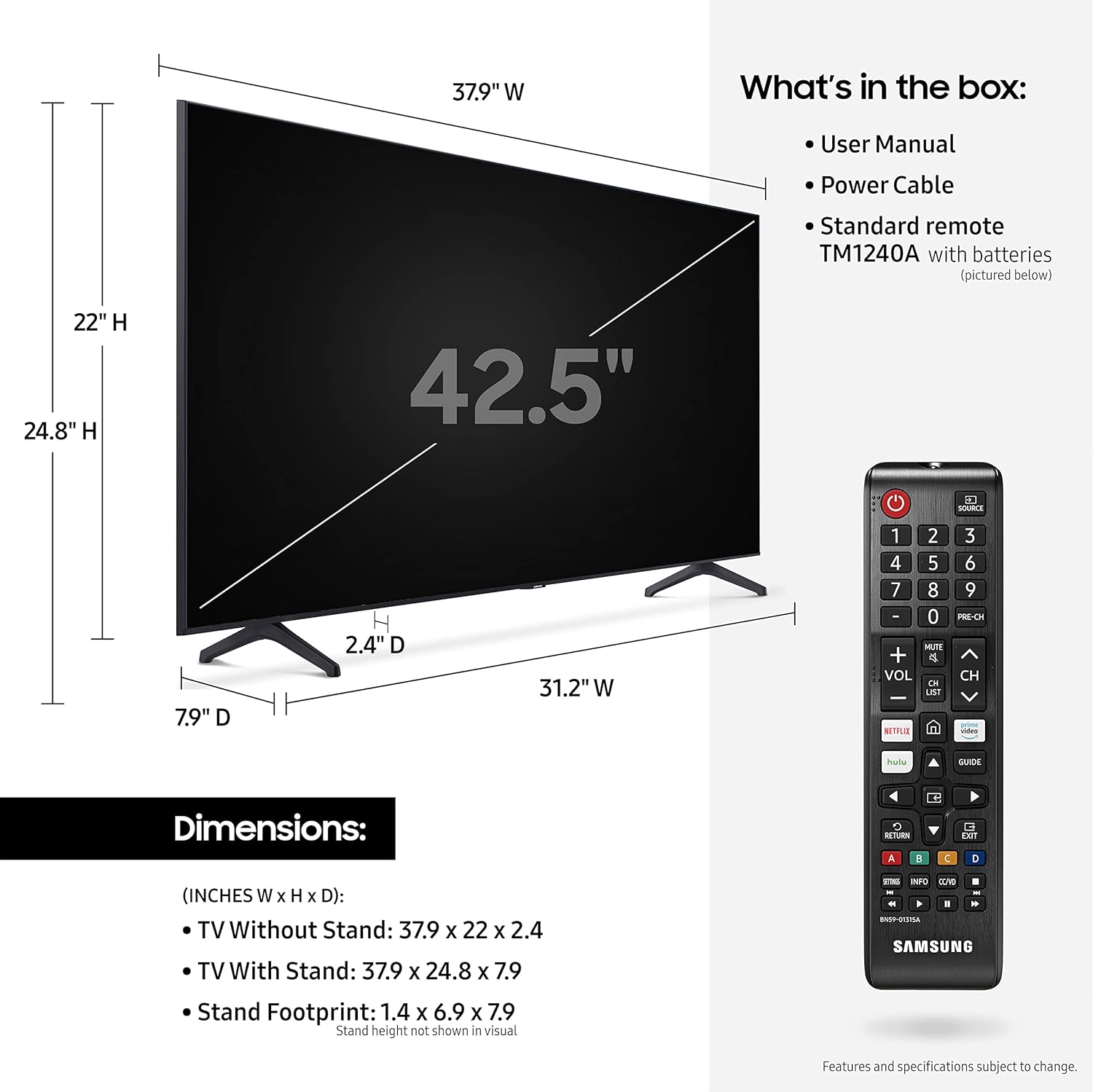
Upon unpacking your Samsung TU7000 TV, ensure all the following components are present:
- User Manual
- E-Manual (Electronic Manual)
- Power Cable
- Standard Remote (TM1240A) with batteries
- TV Stands (2)
3. Setup
3.1 Physical Setup
Carefully place the TV on a stable surface or mount it to a wall. If using the included stands, ensure they are securely attached to the designated slots at the bottom of the TV. It is recommended to have two people for safe handling and setup due to the TV's size.

Connect the power cable to the TV and a power outlet. Connect your external devices (cable box, gaming console, soundbar, etc.) to the appropriate ports on the back of the TV.

3.2 Smart TV Setup & Voice Assistants
Upon first power-on, the TV will guide you through the initial setup process, including connecting to your Wi-Fi network and configuring Smart TV features. You will also be prompted to select and set up your preferred voice assistant.
4. Operating Your TV
4.1 Remote Control
The included OneRemote allows for intuitive control of your TV and connected devices. It features dedicated buttons for popular streaming services and essential functions like volume, channel, and source selection.

4.2 Smart TV Features
The Samsung Smart TV, powered by Tizen™, provides a user-friendly interface to access a wide range of content. The Universal Guide curates content from broadcast and streaming channels, personalized for your viewing habits.


4.3 Voice Assistant Integration
Your Samsung TV seamlessly integrates with popular voice assistants, allowing for hands-free control and enhanced functionality.
- Amazon Alexa: Control your TV, change channels, adjust volume, and more using voice commands.
- Google Assistant: Get things done hands-free, including changing channels, adjusting volume, and controlling playback.
- Apple AirPlay 2: Stream or share content from your Apple devices directly to your TV.


5. Picture Quality
5.1 Crystal Processor 4K
The ultra-fast Crystal Processor 4K transforms everything you watch into stunning 4K resolution, enhancing clarity and detail.


5.2 4K UHD Resolution
Experience four times the resolution of Full HD, revealing crisp and clear picture details you may have been missing.

5.3 High Dynamic Range (HDR)
HDR technology allows you to enjoy a wide spectrum of colors and visual details, even in dark scenes, going beyond what standard HDTV can offer.


5.4 Crystal Display
The Crystal Display fine-tunes colors to deliver a naturally crisp and vivid picture, providing an immersive viewing experience.

6. Connectivity
The Samsung TU7000 TV offers various connectivity options:
- HDMI: Multiple HDMI ports for connecting gaming consoles, Blu-ray players, and other high-definition devices.
- USB: USB ports for connecting external storage devices to play media files.
- Ethernet: A LAN port for a stable wired internet connection.
- Wi-Fi: Built-in Wi-Fi for wireless internet access and streaming.
- Bluetooth: Bluetooth connectivity for wireless audio devices like headphones or soundbars.
7. Gaming Features
For gamers, the TV includes Auto Game Mode, which automatically optimizes the screen settings and minimizes input lag. This provides a smoother gaming experience without motion blur and judder, giving you more control.

8. Maintenance
To ensure the longevity and optimal performance of your Samsung TU7000 TV, follow these maintenance guidelines:
- Cleaning the Screen: Gently wipe the screen with a soft, dry microfiber cloth. For stubborn smudges, lightly dampen the cloth with water or a screen-specific cleaning solution (avoid harsh chemicals).
- Cleaning the Frame: Use a soft, dry cloth to clean the TV frame and stand.
- Ventilation: Ensure proper ventilation around the TV to prevent overheating. Do not block the ventilation openings.
- Cable Management: Utilize the Clean Cable Solution to keep all your TV cables tidy and organized, preventing clutter and potential damage.

9. Troubleshooting
If you encounter issues with your TV, try the following basic troubleshooting steps:
- No Power: Check if the power cable is securely connected to both the TV and the power outlet. Try plugging another device into the same outlet to confirm it's working.
- No Picture/Sound: Ensure the correct input source is selected. Check all cable connections (HDMI, audio) for looseness or damage.
- Remote Not Working: Replace the batteries in the remote control. Ensure there are no obstructions between the remote and the TV's sensor.
- Smart TV/App Issues: Check your internet connection. Try restarting the TV by unplugging it from the power outlet for a few minutes and then plugging it back in.
- Poor Picture Quality: Adjust picture settings (brightness, contrast, sharpness). Ensure your content source is high quality (e.g., 4K content for 4K TV).
For more detailed troubleshooting, refer to the E-Manual accessible through your TV's Smart Hub or visit the Samsung support website.
10. Specifications
| Feature | Specification |
|---|---|
| Brand | Samsung |
| Model Number | UN85TU7000FXZA |
| Screen Size | 85 Inches |
| Display Technology | LED |
| Resolution | 4K (3840 x 2160) |
| Refresh Rate | 60 Hz |
| Special Feature | Flat, Crystal Processor 4K, HDR, Smart TV Powered by Tizen™ |
| Connectivity Technology | Bluetooth, Ethernet, HDMI, USB, Wi-Fi |
| Product Dimensions | 15.5 x 74.6 x 46.7 inches (with stand) |
| Item Weight | 91.1 Pounds |
| Color | Gray |
| Included Components | E-Manual, Power Cable, User Manual, Remote Control |
11. Warranty & Support
For warranty information and customer support, please refer to the documentation included with your TV or visit the official Samsung support website. You can also find additional resources and FAQs online.