
Introduction
Thank you for purchasing the Wipkviey T27 Drone. This manual provides detailed instructions to help you safely and effectively operate your drone. Please read this manual thoroughly before first use and retain it for future reference.
The Wipkviey T27 is a compact and portable FPV (First Person View) quadricopter equipped with a 720P Wi-Fi camera, designed for both beginners and intermediate users. It features easy-to-control functions such as one-button takeoff/landing, headless mode, and altitude hold, ensuring a stable and enjoyable flight experience.
Safety Precautions
- Always operate the drone in open areas, away from people, animals, and obstacles.
- Do not fly in strong winds or adverse weather conditions.
- Ensure the battery is fully charged before each flight.
- Keep fingers and loose clothing away from rotating propellers.
- Adhere to local regulations regarding drone operation.
- This product is not suitable for children under 14 years old. Adult supervision is recommended for younger users.
Package Contents
Verify that all items are present in your package:
- Wipkviey T27 Drone
- Remote Controller
- Rechargeable Drone Batteries (2x)
- USB Charging Cable
- Spare Propellers
- Propeller Guards
- Screwdriver
- Portable Carry Bag
- User Manual

Image: The Wipkviey T27 Drone, its remote controller, two rechargeable batteries, and the included portable carry bag. This image illustrates the main components of the product package.
Setup
1. Charging the Batteries
The drone comes with two rechargeable Lithium-polymer batteries. Ensure both are fully charged before use.
- Connect the USB charging cable to the drone battery.
- Plug the other end of the USB cable into a 5V/1A USB power adapter (not included).
- The indicator light on the battery will show charging status (e.g., red for charging, green for fully charged).
- Charging typically takes approximately 60-90 minutes per battery.
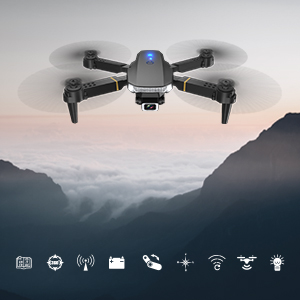
Image: Two Wipkviey T27 drone batteries, highlighting their compact design. The drone supports two batteries for extended flight time.
2. Installing Propeller Guards
For added safety, especially for beginners, install the propeller guards.
- Identify the four propeller guards.
- Gently snap each guard onto the corresponding motor arm of the drone. Ensure they are securely fastened.
3. Installing Drone Battery
- Ensure the drone is powered off.
- Insert a charged battery into the battery compartment on the underside of the drone until it clicks into place.

Image: A diagram illustrating the correct method for inserting the battery into the Wipkviey T27 drone's battery compartment.
4. Remote Controller Setup
- Install 3 x AAA batteries (not included) into the remote controller, observing polarity.
- Extend the phone holder on the remote controller and securely place your smartphone.
Operating Instructions
1. Power On and Pairing
- Place the drone on a flat, level surface.
- Press and hold the power button on the drone until the indicator lights turn on.
- Turn on the remote controller. The indicator lights on both the drone and controller will flash.
- Push the left joystick (throttle) all the way up, then all the way down. The lights will become solid, indicating successful pairing.
2. Calibrating the Drone
After pairing, calibrate the drone for stable flight.
- Push both joysticks down and to the right simultaneously for 2-3 seconds.
- The drone's lights will flash rapidly and then become solid, indicating successful calibration.
3. One-Button Takeoff/Landing
For easy operation, especially for beginners:
- Press the One-Button Takeoff/Landing button on the remote controller. The drone will automatically ascend to a stable altitude.
- To land, press the same button again. The drone will slowly descend and land.

Image: The Wipkviey T27 drone demonstrating its one-key takeoff and landing feature, simplifying flight control for users.
4. Basic Flight Controls
| Control Stick | Action | Drone Movement |
|---|---|---|
| Left Joystick (Throttle) - Up/Down | Push Up/Down | Ascend/Descend |
| Left Joystick (Throttle) - Left/Right | Push Left/Right | Rotate Left/Right (Yaw) |
| Right Joystick (Direction) - Up/Down | Push Up/Down | Move Forward/Backward (Pitch) |
| Right Joystick (Direction) - Left/Right | Push Left/Right | Move Left/Right (Roll) |
5. Advanced Features
- Headless Mode: Press and hold the Headless Mode button for 2 seconds. In this mode, the drone's orientation is relative to the pilot, making it easier to control regardless of the drone's front direction.
- Altitude Hold: The drone automatically maintains its current altitude, allowing for stable hovering and easier control of horizontal movement.
- 3D Flips: Press the 3D Flip button, then push the right joystick in any direction to perform a 360-degree flip. Ensure sufficient altitude before attempting.
- Speed Adjustment: Use the speed button to cycle through 3 adjustable speeds (low, medium, high) to suit your flying skill level and environment.
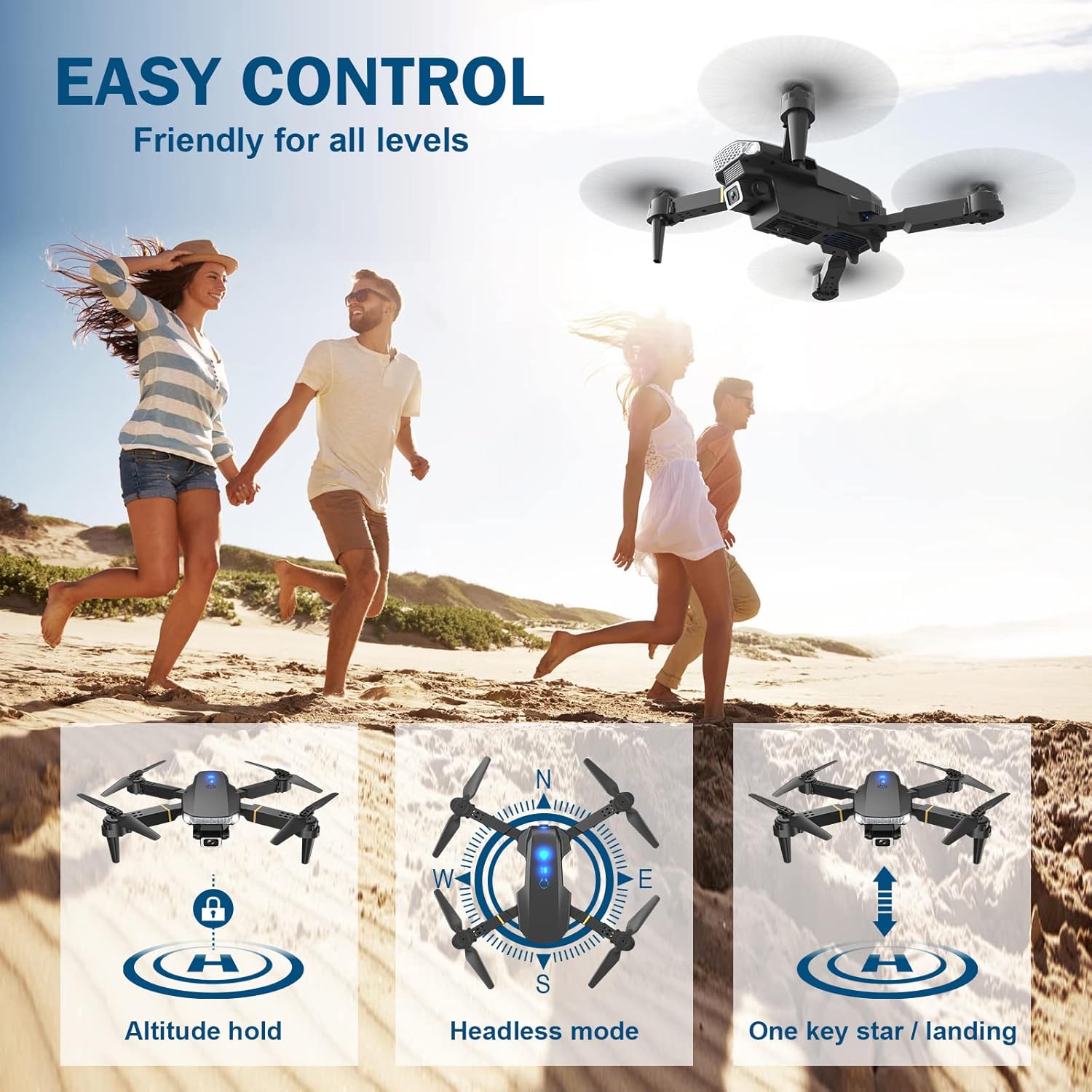
Image: The Wipkviey T27 drone showcasing its easy control features: Altitude Hold, Headless Mode, and One-Key Start/Landing, designed for user-friendly operation.

Image: The Wipkviey T27 drone executing a 3D flip, demonstrating its acrobatic capabilities.
6. FPV and Camera Operation
The Wipkviey T27 features a 720P Wi-Fi camera for FPV (First Person View) and photo/video recording.
- Download the official Wipkviey drone app (refer to the QR code in the quick start guide or search your app store).
- Connect your smartphone to the drone's Wi-Fi network (usually named "Wipkviey_XXXXXX").
- Open the app to view the live FPV feed.
- Use the app interface or specific buttons on the remote controller to take photos or record videos. The drone supports palm or fist gestures for selfies.

Image: The Wipkviey T27 drone's 720P HD WiFi camera in action, capturing high-fidelity footage and allowing users to take photos and videos.

Image: A first-person view from the Wipkviey T27 drone, demonstrating its FPV real-time transmission capability, allowing users to enjoy and share the visual experience.

Image: The Wipkviey T27 drone capturing a family moment, illustrating its use for recording memorable experiences.
Maintenance
- Cleaning: Use a soft, dry cloth to clean the drone and remote controller. Do not use harsh chemicals or solvents.
- Propeller Inspection: Regularly check propellers for damage (cracks, bends). Replace any damaged propellers immediately using the provided spare parts.
- Battery Care: Store batteries in a cool, dry place. Do not overcharge or over-discharge. If storing for extended periods, charge to about 50% capacity.
- Storage: When not in use, store the drone and its accessories in the portable carry bag to protect them from dust and damage.
Troubleshooting
| Problem | Possible Cause | Solution |
|---|---|---|
| Drone does not respond to controller. | Not paired; low battery on drone or controller. | Re-pair the drone and controller. Charge/replace batteries. |
| Drone drifts during flight. | Not calibrated; strong wind; propeller damage. | Recalibrate the drone. Fly in calm conditions. Check and replace propellers. |
| FPV feed is choppy or disconnected. | Weak Wi-Fi signal; too far from drone; interference. | Ensure phone is connected to drone's Wi-Fi. Fly closer to the drone. Avoid areas with strong Wi-Fi interference. |
| Drone does not take off. | Low battery; propellers blocked; not calibrated. | Charge battery. Clear any obstructions. Recalibrate. |
Specifications
| Feature | Detail |
|---|---|
| Brand | Wipkviey |
| Model | T27 |
| Model Number | 69485719 |
| Drone Weight | 14 Grams |
| Dimensions (Folded) | 5.1 x 7 x 3 cm (approx.) |
| Dimensions (Unfolded) | 13 x 13 x 3 cm (approx.) |
| Camera Resolution | 720P HD (1280x720) |
| Video Format | MP4 |
| Battery Type | Lithium-polymer |
| Flight Time | Up to 13 minutes per battery (26 minutes total with 2 batteries) |
| Control Technology | Radio Frequency |
| Special Features | FPV, One-Button Takeoff/Landing, Headless Mode, Altitude Hold, 3D Flips, 3 Speed Modes |
Warranty and Support
Wipkviey products are designed for reliability and performance. For warranty information, technical support, or replacement parts, please contact Wipkviey customer service through the retailer's platform or the official Wipkviey website.
Please retain your proof of purchase for warranty claims.