
Zoomax Em-RV6
Zoomax Luna 6 Portable Video Magnifier User Manual
Model: Em-RV6
1. Introduction
The Zoomax Luna 6 is a state-of-the-art portable video magnifier designed to assist individuals with low vision in reading and viewing various materials. Its compact size, high-definition display, and intuitive controls make it an ideal companion for daily tasks, whether at home, in the office, or on the go.
This manual provides comprehensive instructions for setting up, operating, maintaining, and troubleshooting your Luna 6 device. Please read it thoroughly to ensure optimal performance and longevity of your magnifier.

The Luna 6 Portable Video Magnifier in use, showing its clear display.
2. Product Features
- HD Screen for Sharp Text: A 6-inch high-definition screen provides clear and easy-to-read text, ideal for books, newspapers, labels, and menus.
- Comfortable Handle and Stand: Features a built-in handle for a secure grip and a foldable stand for hands-free reading on tables and desks.
- Long Battery Life and Wireless Charging: Offers up to 5 hours of continuous use on a full charge and supports convenient wireless charging.
- Lightweight and Travel-Friendly: Weighs only 0.46 lb, making it easy to carry in a pocket or bag for reading at home, in stores, or while traveling.
- Simple Controls and High-Contrast Buttons: Easy-to-use buttons with high contrast improve visibility and ensure effortless operation, even in low light.

Key features of the Luna 6, including its display, charging, and handle design.
3. Product Components
Familiarize yourself with the different parts of your Luna 6 magnifier:

Labeled diagram of the Luna 6 components.
| Component | Description |
|---|---|
| 5.5" TFT Screen | High-definition display for magnified text and images. |
| Power Button | Turns the device on or off. |
| Indicator Light | Indicates power status and charging. |
| Home Button | Returns to the default viewing mode or main screen. |
| Mode Button | Cycles through various color modes for optimal contrast. |
| Zoom In (+) | Increases magnification level. |
| Zoom Out (-) | Decreases magnification level. |
| Freeze Button | Captures and freezes the current image on the screen. |
| Foldable Handle/Stand | Provides a secure grip for handheld use and converts into a stand for desktop reading. |
4. Setup
4.1 Initial Charging
Before first use, fully charge your Luna 6. The device supports both wired and wireless charging.
- Wired Charging: Connect the provided USB-C cable to the charging port on the device and to a compatible USB power adapter.
- Wireless Charging: Place the Luna 6 directly onto a compatible Qi-certified wireless charging pad. Ensure the device is centered on the pad for efficient charging. The indicator light will show charging status.

The Luna 6 supports convenient wireless charging.
4.2 Unfolding the Handle/Stand
The Luna 6 features a unique foldable handle that also functions as a stand.
- For Handheld Use: Gently pull the handle outwards from the main body until it clicks into place, providing a comfortable grip.
- For Desktop Use (Stand): Continue to unfold the handle further until it forms a stable stand, allowing the device to rest on a flat surface for hands-free reading.

The versatile foldable handle of the Luna 6.
5. Operating Instructions
5.1 Power On/Off
- To Power On: Press and hold the Power Button (located on the top edge) until the screen illuminates.
- To Power Off: Press and hold the Power Button until the screen turns off.
5.2 Adjusting Magnification
Use the Zoom In (+) and Zoom Out (-) buttons on the right side of the device to adjust the magnification level. The Luna 6 offers up to 19x magnification.
5.3 Changing Color Modes
Press the Mode Button (bottom left) to cycle through various high-contrast color modes. These modes enhance readability for different types of text and backgrounds, such as black on white, white on black, yellow on blue, etc.
5.4 Freezing an Image
Press the Freeze Button (camera icon on the right) to capture and freeze the current image on the screen. This is useful for examining details without moving the device. Press the button again to unfreeze.
5.5 Reading with the Luna 6
- Handheld Reading: Hold the device comfortably using the extended handle over the material you wish to read. Adjust magnification and color mode as needed.
- Desktop Reading: Unfold the handle to form the stand and place the Luna 6 over your reading material on a flat surface. This allows for hands-free operation.

Using the Luna 6 to magnify a map for easier navigation.
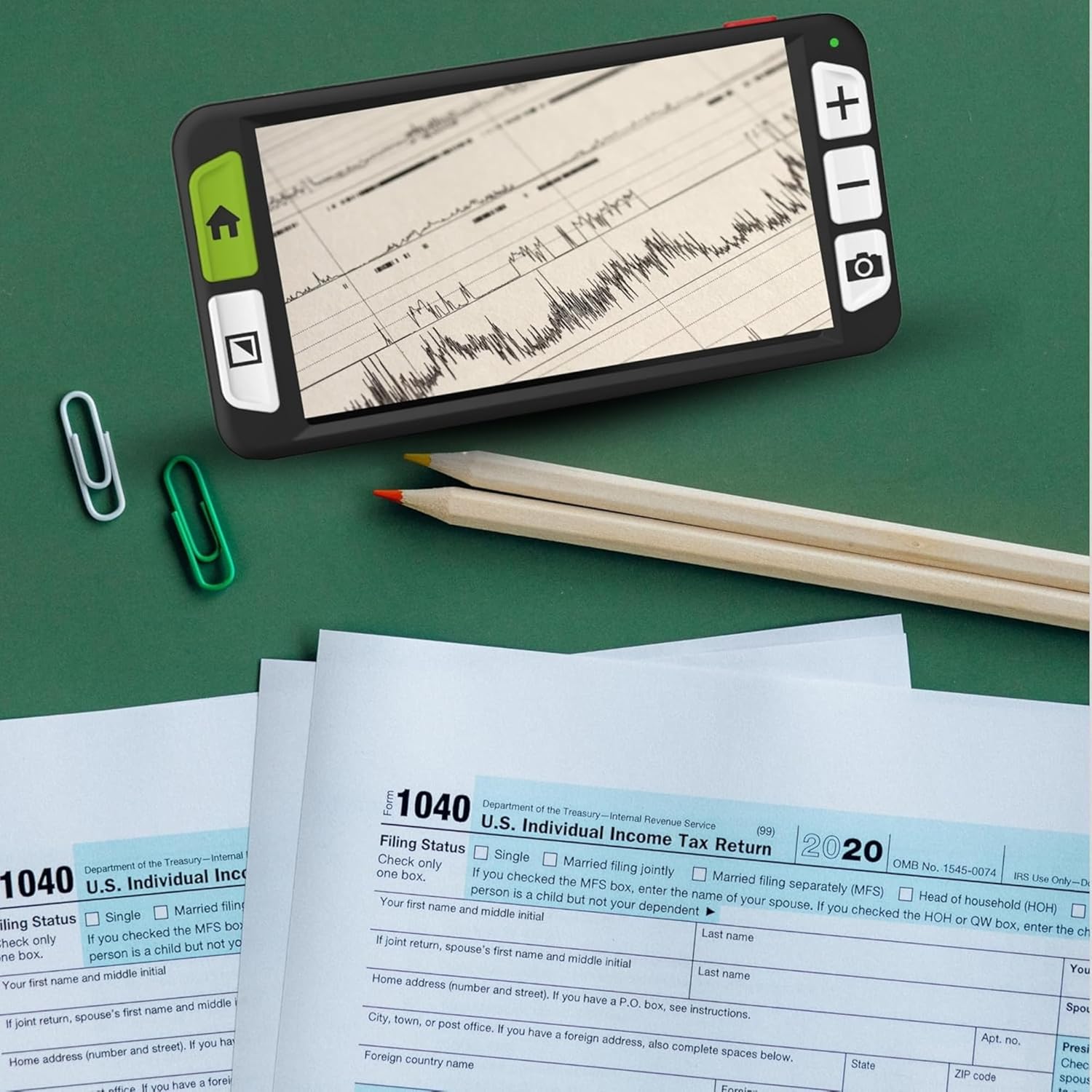
The Luna 6 provides clear magnification for documents like tax forms.
5.6 Official Product Video
This video demonstrates the key features and operation of the Zoomax Luna 6 Handheld Video Magnifier.
6. Maintenance
6.1 Cleaning the Device
To maintain optimal viewing quality, regularly clean the screen and camera lens.
- Screen: Use a soft, lint-free cloth, preferably a microfiber cloth, to gently wipe the screen. For stubborn smudges, slightly dampen the cloth with water or a screen-cleaning solution designed for electronics.
- Camera Lens: Use a lens cleaning brush or a microfiber cloth specifically for optics to carefully remove dust or smudges from the camera lens. Avoid touching the lens directly with your fingers.
- Body: Wipe the body of the device with a soft, dry cloth. Avoid using harsh chemicals or abrasive materials.
6.2 Battery Care
To maximize battery life and performance:
- Avoid fully discharging the battery frequently.
- Store the device in a cool, dry place when not in use for extended periods.
- Charge the device regularly, even if not used daily, to prevent deep discharge.
7. Troubleshooting
If you encounter issues with your Luna 6, refer to the following common problems and solutions:
| Problem | Possible Cause | Solution |
|---|---|---|
| Device does not turn on. | Battery is depleted. | Charge the device using the provided cable or a wireless charger. |
| Screen is blurry or unclear. | Camera lens is dirty; incorrect focus. | Clean the camera lens with a soft cloth. Ensure the device is placed flat on the reading material or held at the correct distance. |
| Cannot change magnification. | Buttons are not responding. | Ensure the device is powered on. If unresponsive, try restarting the device. |
| Wireless charging not working. | Device not properly aligned; charger not Qi-compatible. | Reposition the device on the charging pad. Ensure your charging pad is Qi-certified. |
If the issue persists, please contact Zoomax customer support for further assistance.
8. Specifications
| Feature | Detail |
|---|---|
| Brand | Zoomax |
| Model Number | Em-RV6 |
| Screen Size | 6-inch HD |
| Magnification Levels | Up to 19x |
| Battery Life | Up to 5 hours (typical use) |
| Charging | Wired (USB-C) and Wireless (Qi-compatible) |
| Weight | 0.46 lb (12.8 ounces) |
| Dimensions | 6.3 x 3.1 x 0.4 inches |
| Color | Black |
| Lens Material | Glass |
| Handle Material | Plastic |
9. Warranty and Support
For warranty information, please refer to the documentation included with your purchase or visit the official Zoomax website. If you require technical support, have questions about your device, or need assistance with troubleshooting beyond what is covered in this manual, please contact Zoomax customer service.
Zoomax Customer Service: Refer to your product packaging or the Zoomax official website for the most current contact information.
Ask a question about this manual
Ask about setup, troubleshooting, compatibility, parts, safety, or missing instructions. Manuals+ will review the question and use this page’s manual context to help answer it.