
Introduction
This manual provides detailed instructions for the setup, operation, and maintenance of your Port Connect Port Designs Wireless Rechargeable Bluetooth Mouse. This ergonomic mouse offers dual connectivity via Bluetooth and 2.4 GHz wireless technology, ensuring compatibility with a wide range of devices. Please read this manual thoroughly before using the product to ensure optimal performance and longevity.
Package Contents
Verify that all items are present in your package:
- Port Connect Port Designs Wireless Rechargeable Bluetooth Mouse
- USB-A 2.4 GHz Wireless Receiver (dongle)
- USB-C Adapter for the 2.4 GHz Wireless Receiver
- USB-C Charging Cable
- User Manual (this document)
Product Overview
The Port Connect Wireless Rechargeable Bluetooth Mouse is designed for comfort and efficiency. It features an ergonomic shape, multiple connectivity options, and adjustable sensitivity.

Image 1: Front view of the Port Connect Wireless Rechargeable Bluetooth Mouse, showcasing its ergonomic design and the included USB-A and USB-C wireless dongles. The mouse supports both Bluetooth and 2.4 GHz wireless connectivity.
Key Features:
- Dual Connectivity: Connects via Bluetooth or 2.4 GHz wireless receiver.
- Ergonomic Design: Provides optimal comfort during extended use.
- Rechargeable Battery: Built-in battery offers long-lasting power.
- Adjustable DPI: Five speed levels for precise cursor control (800, 1200, 1600, 2400, 3200 DPI).
- Silent Clicks: Designed for quiet operation.
- Multi-Device Pairing: Easily switch between up to three connected devices.
Setup
Charging the Mouse
Before initial use, fully charge the mouse using the provided USB-C charging cable. Connect the USB-C end to the mouse and the USB-A end to a powered USB port (e.g., computer, wall adapter). The charging indicator light will provide status.
Connecting via 2.4 GHz Wireless Receiver:
- Locate the USB-A 2.4 GHz wireless receiver. It is typically stored in a compartment on the underside of the mouse.
- Insert the USB-A receiver into an available USB-A port on your computer. If your computer only has USB-C ports, use the provided USB-C adapter.
- Turn on the mouse using the power switch located on the underside.
- Select the 2.4 GHz mode using the connectivity switch on the underside of the mouse. The mouse should automatically connect to your device.

Image 2: The Port Connect mouse shown with its 2.4 GHz USB-A wireless receiver and the USB-C adapter, illustrating the components used for wireless connection.
Connecting via Bluetooth:
- Turn on the mouse using the power switch on the underside.
- Select one of the Bluetooth modes (e.g., BT1 or BT2) using the connectivity switch on the underside of the mouse.
- Press and hold the Bluetooth pairing button (often located near the connectivity switch) until the indicator light starts blinking, indicating it is in pairing mode.
- On your computer or device, open Bluetooth settings and search for new devices.
- Select "Port Connect Mouse" (or similar name) from the list of available devices to complete the pairing process.
- Repeat for additional Bluetooth devices using BT2 or BT3 modes if available.
Operating Instructions
DPI Adjustment:
The mouse features a dedicated DPI button, usually located behind the scroll wheel. Press this button to cycle through the available DPI settings (800, 1200, 1600, 2400, 3200). A higher DPI setting results in faster cursor movement.
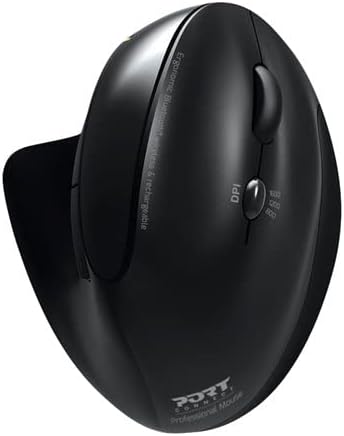
Image 3: A close-up view of the Port Connect mouse, highlighting the DPI button and its associated indicator lights for different sensitivity levels.
Button Functions:
- Left Click: Standard selection.
- Right Click: Context menu.
- Scroll Wheel: Scroll up/down, middle click.
- DPI Button: Adjusts cursor sensitivity.
- Forward/Backward Buttons: (If present on the side) Navigate web pages or folders.
Switching Between Devices:
Use the connectivity switch on the underside of the mouse to toggle between 2.4 GHz wireless mode and the paired Bluetooth devices (BT1, BT2, etc.).
Maintenance
- Cleaning: Use a soft, dry cloth to clean the mouse. For stubborn dirt, slightly dampen the cloth with water. Avoid harsh chemicals or abrasive materials.
- Storage: When not in use, store the mouse in a cool, dry place. If storing for an extended period, ensure the mouse is fully charged and then turn it off to preserve battery life.
- Battery Care: Avoid fully discharging the battery frequently. Recharge when the low battery indicator appears.
Troubleshooting
- Mouse not responding:
- Ensure the mouse is turned on.
- Check battery level and recharge if necessary.
- For 2.4 GHz connection, ensure the receiver is properly inserted and the mouse is in 2.4 GHz mode. Try a different USB port.
- For Bluetooth connection, ensure Bluetooth is enabled on your device and the mouse is in the correct BT mode. Re-pair if necessary.
- Cursor movement is erratic or slow:
- Clean the optical sensor on the underside of the mouse.
- Ensure you are using the mouse on a suitable surface (non-reflective, opaque).
- Adjust the DPI setting to a higher level.
- Cannot connect to a new Bluetooth device:
- Ensure the mouse is in Bluetooth pairing mode (blinking indicator).
- Check if your device's Bluetooth is enabled and discoverable.
- If you have reached the maximum number of paired devices, remove an old pairing from your device's Bluetooth settings.
Specifications
| Brand | Port Designs |
| Model Name | 900706-BT |
| Color | Black |
| Connectivity Technology | Bluetooth, 2.4 GHz Wireless |
| Movement Detection | Optical |
| Number of Buttons | 5 |
| DPI Levels | 800, 1200, 1600, 2400, 3200 |
| Hand Orientation | Ambidextrous |
| Power Source | Rechargeable Battery |
| Item Weight | 100 Grams |
| Enclosure Material | Plastic |
| Country of Origin | France |
Warranty and Support
This Port Connect Port Designs Wireless Rechargeable Bluetooth Mouse comes with a 2-year manufacturer's warranty. For warranty claims or technical support, please contact Port Designs customer service through their official website or the retailer where the product was purchased. Please retain your proof of purchase for warranty validation.