Introduction
Thank you for purchasing the Core Innovations 150" LCD Home Theater Projector. This manual provides essential information for setting up, operating, and maintaining your projector to ensure optimal performance and longevity. Please read this manual thoroughly before use and retain it for future reference.
Product Overview
The Core Innovations 150" LCD Home Theater Projector is designed to deliver an immersive viewing experience with its adjustable screen size and versatile connectivity options.

Components and Controls
Familiarize yourself with the projector's various ports and controls for seamless operation.
1. Headphone Jack (3.5mm)
2. AV Input
3. Micro SD Card Slot
4. HDMI Inputs 1 & 2
5. USB Port
6. DC IN (Power Input)
Setup Guide
- Unpacking: Carefully remove the projector and all accessories from the packaging. Ensure all included components are present: Power Cord, User Manual, HDMI Cable, Remote Control, Projector Lens Cover.
- Placement: Place the projector on a stable, flat surface. For optimal viewing, position the projector directly in front of your projection surface (screen or wall). Ensure adequate ventilation around the projector.
- Power Connection: Connect the included power cord to the DC IN port (6) on the projector and then plug it into a standard electrical outlet.
- Power On: Press the power button on the projector or the remote control to turn on the device.
- Focus Adjustment: Rotate the focus adjustment knob located near the lens until the projected image appears clear and sharp.
- Keystone Correction: If the projected image appears trapezoidal (wider at the top or bottom), use the keystone correction feature to adjust it into a rectangular shape. This is typically done via a dial or digital setting on the projector or remote.

Operating Instructions
Connecting Devices
The projector supports various input sources:
- HDMI: Connect your laptop, gaming console (PS5), Roku, or other HDMI-enabled devices to either HDMI Input 1 or 2 (4).
- USB: Insert a USB flash drive (up to 1000GB) into the USB Port (5) to play media files directly.
- Micro SD Card: Insert a Micro SD card into the Micro SD Card Slot (3) to access stored media.
- AV: Use the AV Input (2) for older devices with composite video and stereo audio outputs.
- VGA: Connect a computer via the VGA port for video output.


Adjusting Projection Size
The projector supports an adjustable screen size between 32 inches and 150 inches. Adjust the distance of the projector from the screen to achieve your desired projection size. Use the focus knob to maintain image clarity after adjusting the distance.
Audio Output
The projector features built-in speakers for convenient audio playback. For enhanced sound quality, you can connect external speakers or headphones using the 3.5mm Headphone Jack (1).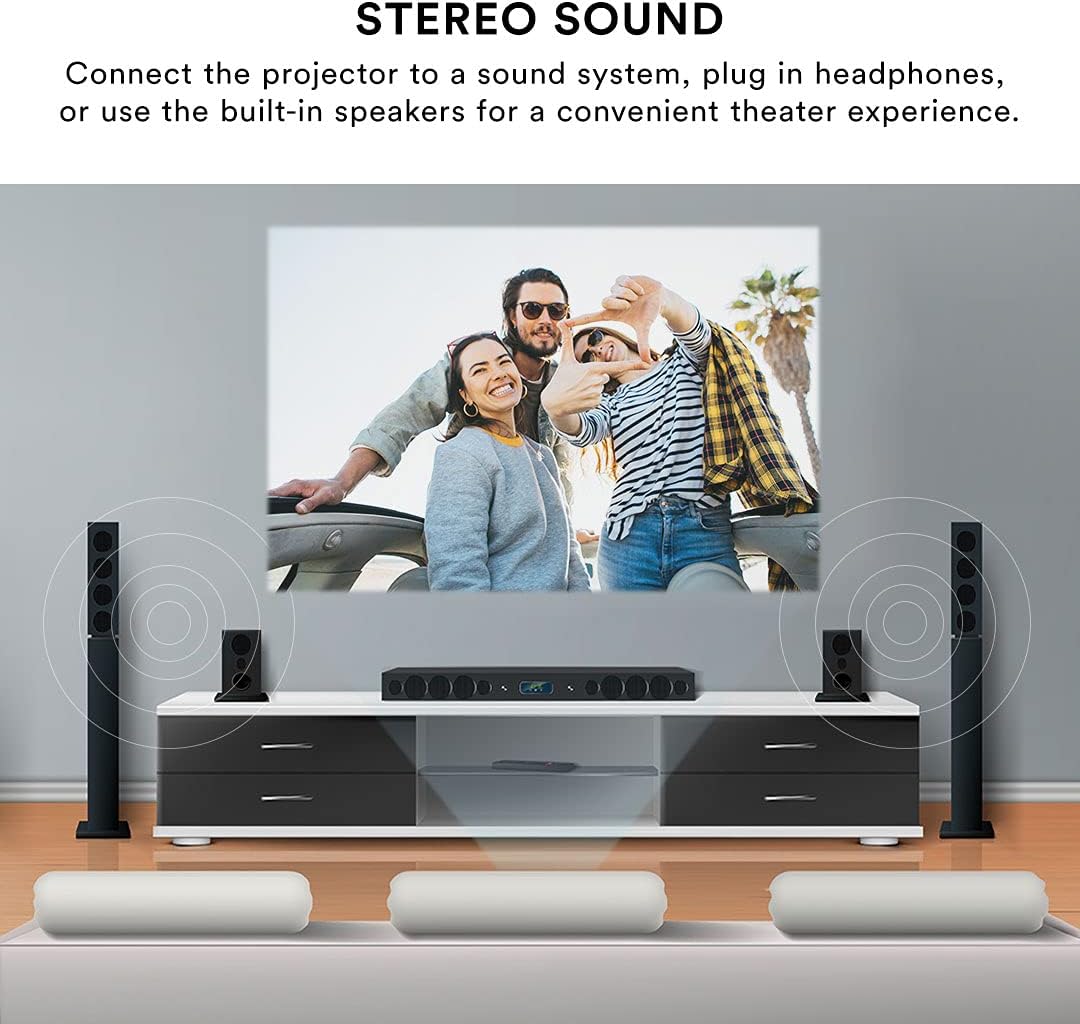
Remote Control
The included remote control allows for effortless operation from a distance. Use it to power on/off, select input sources, navigate menus, adjust volume, and control playback.
Maintenance
Proper maintenance ensures the longevity and performance of your projector.
- Lens Cleaning: Use a soft, lint-free cloth specifically designed for optical lenses to gently wipe the projector lens. Avoid using abrasive cleaners or excessive force, which can scratch the lens.
- Exterior Cleaning: Wipe the exterior of the projector with a soft, dry cloth. For stubborn marks, a slightly damp cloth can be used, but ensure no liquid enters the device.
- Ventilation: Ensure the projector's ventilation openings are clear and unobstructed. Do not place the projector on soft surfaces that may block airflow. Proper ventilation prevents overheating.
- Storage: When not in use for extended periods, store the projector in a cool, dry place, away from direct sunlight and extreme temperatures. Use the lens cover to protect the lens from dust.
Troubleshooting
If you encounter issues with your projector, refer to the following common problems and solutions:
| Problem | Possible Cause | Solution |
|---|---|---|
| No image projected | Power cable disconnected; Incorrect input source selected; Device not connected properly. | Check power connection; Select the correct input source (HDMI, USB, AV); Ensure source device is powered on and connected securely. |
| Image is blurry | Focus not adjusted; Projector too far/close to screen; Lens dirty. | Adjust the focus knob; Adjust projector distance; Clean the lens. |
| Image is distorted (trapezoid) | Projector not perpendicular to screen. | Use keystone correction to adjust the image. |
| No sound | Volume too low; External speakers not connected; Source device audio settings. | Increase projector volume; Ensure external speakers are connected and powered; Check audio output settings on your source device. |
| Remote control not working | Batteries low/dead; Obstruction between remote and projector; Remote sensor blocked. | Replace batteries; Remove any obstructions; Ensure remote is pointed at the projector's IR sensor. |
| Projector is overheating or fan is loud | Blocked ventilation; Prolonged use. | Ensure ventilation openings are clear; Allow the projector to cool down if used for extended periods. |
Specifications
| Feature | Detail |
|---|---|
| Brand | Core Innovations |
| Model Number | CJR600BL |
| Product Dimensions | 8.1 x 3.4 x 6.1 inches |
| Item Weight | 2 pounds |
| Projection Size | 32" - 150" |
| Contrast Ratio | 300:1 |
| Display Resolution | 1280 x 720 |
| Connectivity Technology | HDMI (x2), USB, Micro SD, AV, VGA |
| Audio | Built-in speakers, 3.5mm headphone jack |
| Form Factor | Portable |
| Included Components | Power Cord, User Manual, HDMI Cable, Remote Control, Projector Lens Cover |
Warranty and Support
Warranty Information
This Core Innovations projector comes with a 1-year limited warranty from the date of purchase, covering 90 days for parts and labor. Please retain your proof of purchase for warranty claims.
Customer Support
For technical assistance, troubleshooting beyond this manual, or warranty inquiries, please contact Core Innovations customer support. Refer to the contact information provided on the product packaging or the official Core Innovations website.


