
1. Product Overview
The Keenso Universal Auto OBD2 + GPS Car HUD Head-up Display is designed to project essential driving information directly onto your windshield, enhancing driving safety by keeping your eyes on the road. This device supports both OBD2 and GPS systems, offering a wide range of data display options and alarm functions.

Figure 1: Keenso HUD Head-up Display showing various data points.
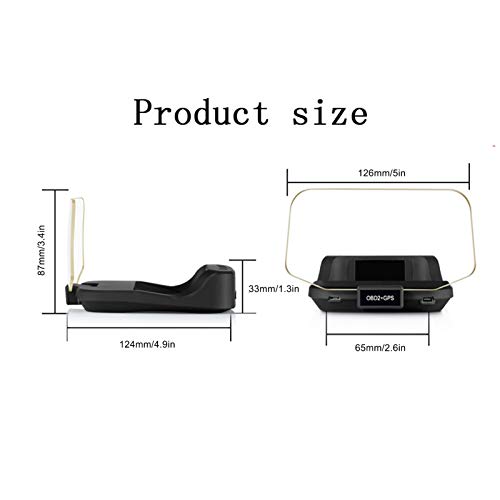
Figure 2: Product dimensions of the Keenso HUD unit.
2. Product Features
- Large Color Screen Display: Provides clear reflective reading for convenient use.
- Comprehensive Data Display: Shows vehicle speed, water temperature, voltage, fuel consumption, rotational speed, single mileage, total mileage accumulation, driving time, driving direction, satellite quantity, altitude, system time, intake pressure, oil temperature, air-fuel ratio, turbine pressure, intake air pressure, acceleration test, brake test, clear fault codes, and data stream reading.
- Multi-functional Alarms: Includes overspeed alarm, high water temperature alarm, low pressure alarm, variable speed alarm, and engine failure alarm.
- Enhanced Driving Safety: Designed to reduce the possibility of traffic accidents by keeping critical information in the driver's line of sight.
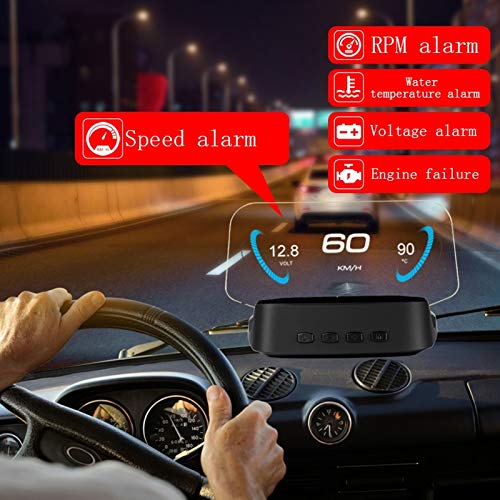
Figure 3: HUD displaying speed and various alarm indicators during driving.
3. Package Contents
The complete kit includes the following items:
- 1 x Display Unit
- 1 x OBD Line
- 1 x Car Power Cable (Cigarette Lighter)
- 1 x Instruction Manual
- 1 x Cleaning Cloth
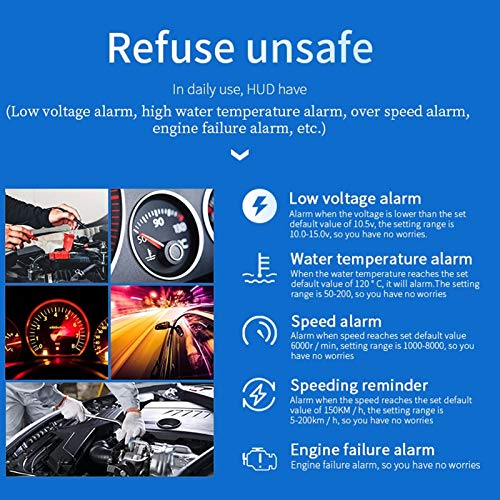
Figure 4: Overview of alarm functions including low voltage, water temperature, speed, and engine failure.
4. Setup and Installation
- Connect the OBD Cable: Plug the provided OBD cable into your car's OBD interface. This connection enables the HUD to access vehicle data.
- Connect the USB Cable: Connect the USB end of the car power cable to the HUD unit and the other end (cigarette lighter plug) into your car's cigarette lighter interface. This provides power to the unit.
- Navigation Setup (Optional): To use navigation features, download the WiiYii APP software on your smartphone. Establish a Bluetooth connection between the HUD and your smartphone. Navigation information will then be displayed synchronously through the APP.
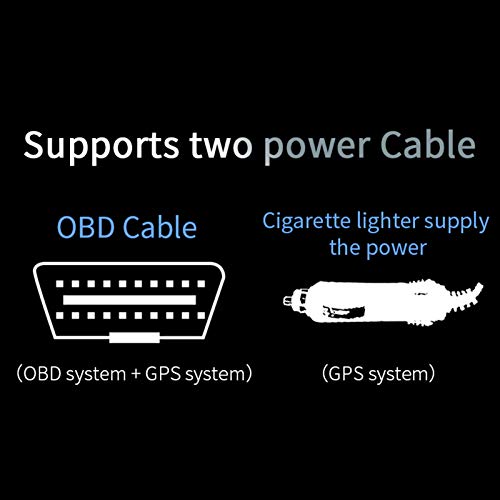
Figure 5: Power connection options for the HUD unit (OBD and cigarette lighter).

Figure 6: Steps for mobile device interconnection and navigation setup.
5. Operating Instructions
5.1 OBD Mode Functions
When connected via the OBD cable, the HUD can display a wide array of vehicle data:
- Car speed
- Water temperature
- Voltage
- Fuel consumption
- Rotational speed (RPM)
- Single mileage
- Total mileage accumulation
- Driving time
- Driving direction
- Satellite quantity
- Altitude
- System time
- Intake pressure
- Oil temperature
- Air-fuel ratio
- Turbine pressure
- Intake air pressure
- Acceleration test
- Brake test
- Clear fault codes
- Read data stream
5.2 Alarm Functions
The HUD provides critical alerts to ensure safe driving:
- Overspeed Alarm: Alerts when vehicle speed exceeds a preset limit.
- Rotational Speed Alarm: Alerts when engine RPM exceeds a preset limit.
- High Water Temperature Alarm: Alerts if engine coolant temperature becomes too high.
- Low Voltage Alarm: Alerts if the vehicle's electrical system voltage drops below a safe level.
- Engine Failure Alarm: Notifies of detected engine issues.
5.3 GPS Mode Functions
When operating in GPS mode (typically via the car power cable/cigarette lighter connection), the HUD can display:
- Vehicle speed
- Driving time
- Satellite time
- Altitude
- Number of satellites
- Driving direction
- Single mileage
- Voltage
- Acceleration test
- Brake test
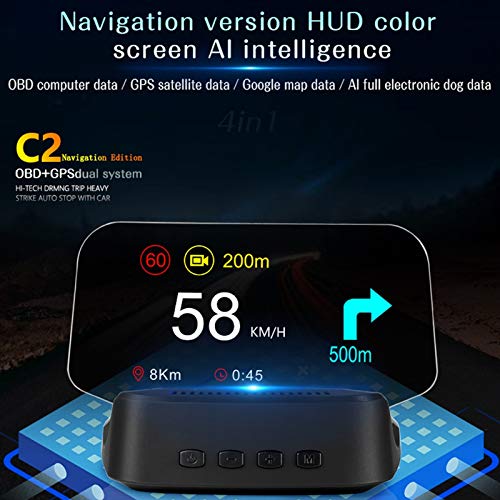
Figure 7: Navigation display on the HUD unit, showing speed and directional guidance.
6. Troubleshooting
- Unit Does Not Automatically Shut Down: If the HUD unit does not automatically shut down with the vehicle, access the setting menu. Select the 'sleep voltage' option and adjust its value slightly higher. This can resolve issues with the unit remaining on after the car is turned off.
- Inaccurate Speed Reading: If the displayed speed does not match your vehicle's speedometer or GPS, navigate to the speed adjustment settings within the HUD menu. Adjust the percentage value to calibrate the speed reading for accuracy.
- Compatibility Issues: This unit is designed for vehicles complying with OBD II standards. If you receive a message indicating incompatibility, your vehicle may not fully support the OBD II protocol required for this device.
- Syncing Issues with Smartphone (for Navigation): Ensure Bluetooth is enabled on both the HUD and your smartphone. Verify that the WiiYii APP is correctly installed and running. Restarting both devices and attempting to reconnect may resolve connection problems.
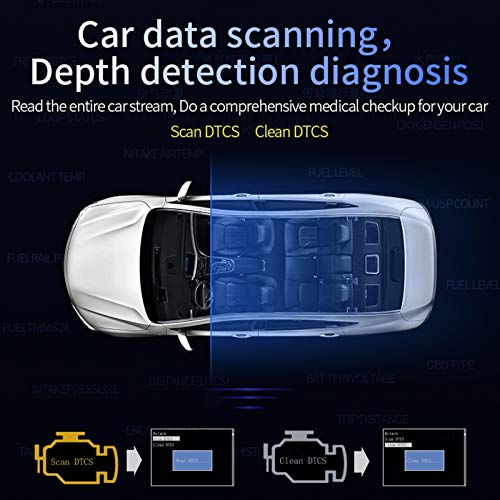
Figure 8: Car data scanning and diagnostic process, including scanning and clearing DTCs.
7. Specifications
| Specification | Detail |
|---|---|
| Item Type | Auto OBD2 + HUD |
| Material | ABS+PC |
| Fitment | Vehicles complying with OBD II standards |
| Package Dimensions | 8.35 x 5.71 x 2.09 inches |
| Item Weight | 14 ounces |
| Manufacturer | Keenso |
8. Warranty and Support
For warranty information or technical support, please refer to the contact details provided with your purchase documentation or visit the official Keenso website. Ensure you have your product model and purchase date available when contacting support.
Note: Please allow 1-3mm difference due to manual measurement.