
Pretty Paws PP005
Pretty Paws® PP005 Wifi Automatic Pet Feeder User Manual
Model: PP005
Introduction
The Pretty Paws PP005 is a smart automatic pet feeder designed to provide convenient and reliable feeding for your beloved pets. This device connects to a mobile application, allowing you to manage your pet's feeding schedule from anywhere. It offers customizable meal frequencies and portion sizes, ensuring your pet receives their daily nutrition precisely as needed. The feeder features a user-friendly interface, durable construction, and easy-to-clean components, making pet care simpler and more efficient.
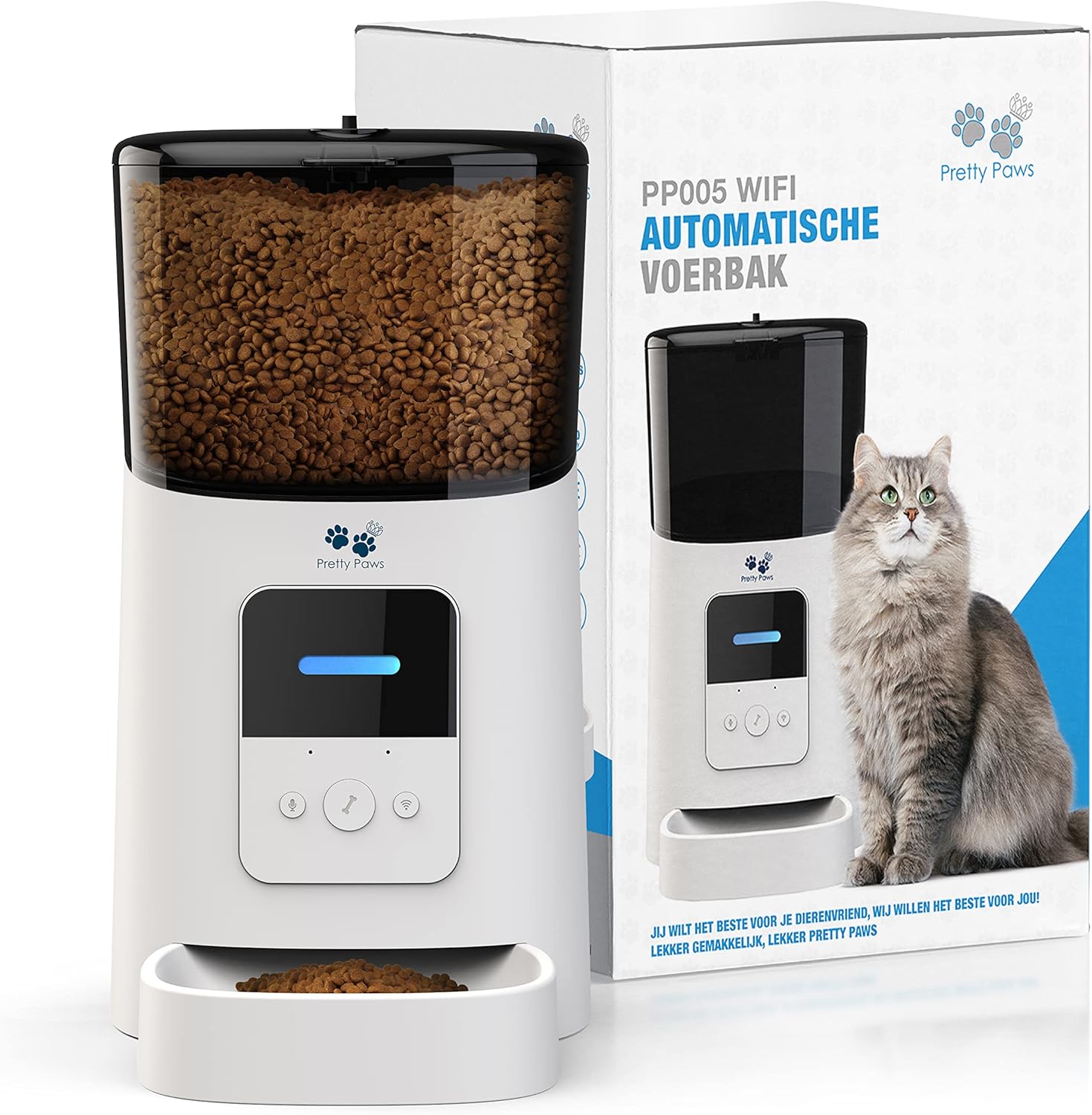
Image: The Pretty Paws PP005 Wifi Automatic Pet Feeder, showcasing its sleek design and transparent food container filled with pet kibble.
Product Features
- Automatic & Manual Feeding: Control feeding via the mobile application, offering both scheduled automatic dispensing and on-demand manual feeding.
- Adjustable Feeding Schedule: Easily set up a customized feeding schedule through the app, defining meal times and portion sizes. Up to 50 meals can be scheduled, with adjustable portion sizes from 5 to 360 grams per meal.
- Easy to Clean: Designed for hassle-free maintenance, with components that are easy to disassemble and clean.
- Large Capacity: Features a generous 6-liter food capacity, reducing the frequency of refills.
- "Cat Proof" Lid: Secure lid design prevents pets from accessing the food reservoir directly.
- Remote Feeding: Dispense food remotely using the mobile application from any location.
- Low Food Warning: Equipped with two warning signals to alert you when the food level is low, ensuring your pet never misses a meal.
- Minimalist Design: A sleek and modern aesthetic that blends seamlessly with home decor.
- Infrared Sensors: Advanced infrared sensors detect when the food bowl is nearly empty, triggering alerts.
- Personalized Voice Memo: Record a custom voice message to call your pet at meal times.
- Feeding History: View a detailed history of dispensed meals within the app.
- Dual Power Supply: Ensures reliable operation with two power options for continuous feeding.
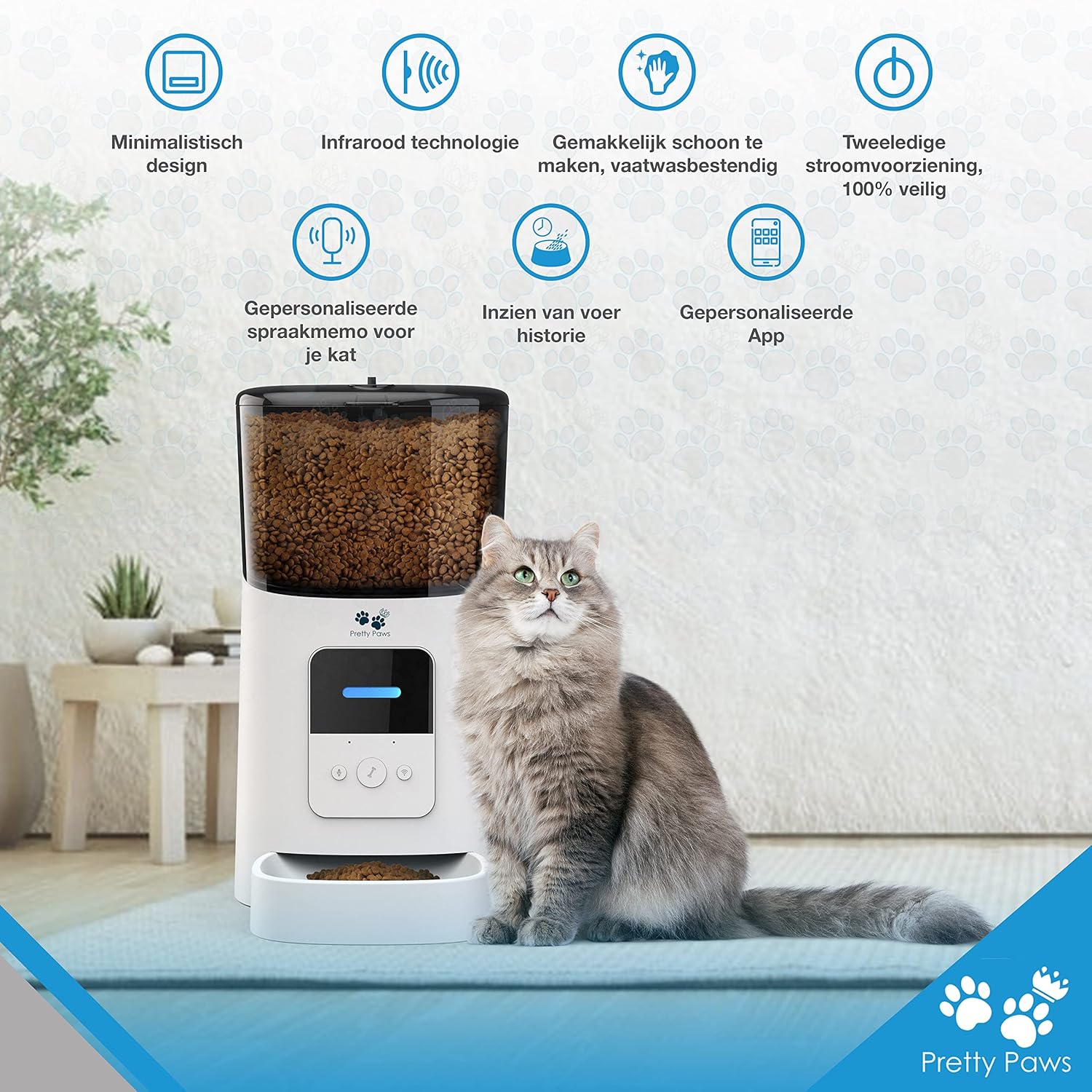
Image: An overview of the Pretty Paws PP005's key features, including minimalist design, infrared technology, easy cleaning, dual power, personalized voice memo, feeding history, and app control, with a cat sitting next to the feeder.
Setup Guide
1. Unboxing and Assembly
Carefully remove all components from the packaging. The feeder typically consists of the main unit, food container, lid, and food bowl. Assemble the food bowl to the main unit and ensure the food container is securely placed on top.
2. Power Connection
Connect the power adapter to the feeder and plug it into a wall outlet. For backup power, insert appropriate batteries (not included) into the designated battery compartment. This ensures continuous operation during power outages.
3. App Installation
Download the official Pretty Paws application on your smartphone. The app is available on both Google Play Store and Apple App Store.

Image: The Pretty Paws mobile application interface, showing options for app settings, feeding history, and manual feeding, along with icons for Google Play and Apple App Store for easy download.
Scan the QR code in the manual or search for "Pretty Paws" in your app store:
4. Connecting to Wi-Fi
- Open the Pretty Paws app and create an account or log in.
- Follow the in-app instructions to add a new device.
- Ensure your feeder is in pairing mode (refer to the feeder's indicator light for status).
- Select your home Wi-Fi network (2.4GHz only) and enter the password.
- The app will guide you through the connection process. Once connected, the feeder's indicator light will change, confirming successful pairing.
Operating Instructions
1. Filling the Food Container
Open the lid of the food container and pour dry pet kibble into the reservoir. Ensure the lid is securely closed after filling to maintain food freshness and prevent spills.
2. Setting Feeding Schedules
- In the Pretty Paws app, navigate to the feeder's settings.
- Select "Feeding Schedule" or a similar option.
- Add new feeding times, specifying the hour, minute, and days of the week.
- Adjust the portion size for each meal. The feeder allows for precise control over the amount of food dispensed per meal.
- Save your settings. The feeder will now automatically dispense food according to your programmed schedule.
3. Manual Feeding
To dispense food immediately, use the "Manual Feed" option in the app. You can also press the manual feed button on the feeder itself (if available) to dispense a single portion.
4. Voice Recording
The feeder supports personalized voice recordings. In the app, find the voice recording feature and record a short message (e.g., "Time to eat, [Pet's Name]!"). This message will play before each scheduled meal to alert your pet.
5. Monitoring Food Levels and Alerts
The app provides real-time updates on the food level in the container. When the food is running low, the feeder will send a notification to your phone, prompting you to refill it. Infrared sensors inside the feeder also help detect low food levels.

Image: Screenshot of the Pretty Paws app showing notifications for successful feeding, low food alerts ("Food run out!"), and feeding failures, indicating the feeder's smart monitoring capabilities.
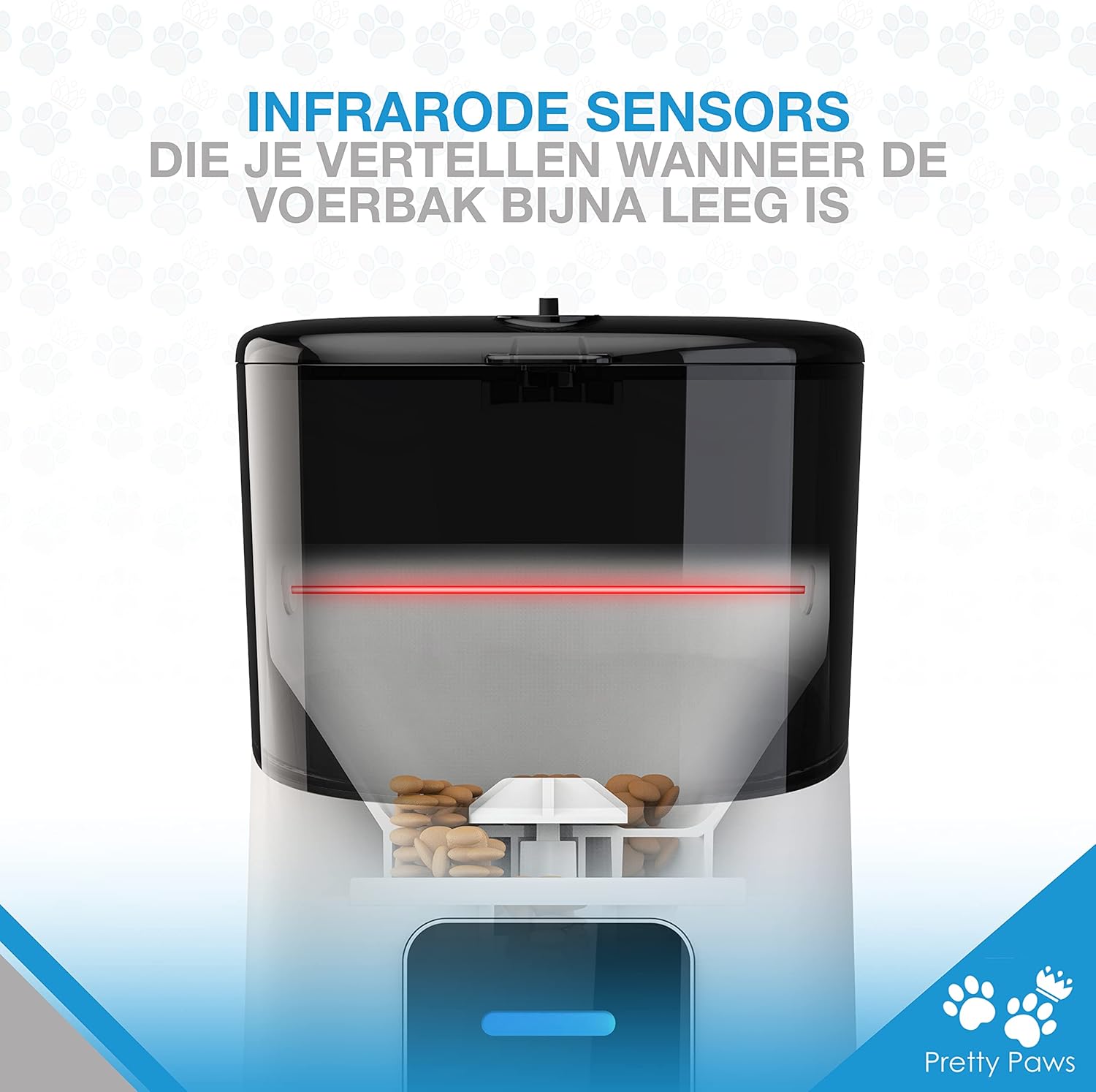
Image: A close-up view of the infrared sensors located inside the Pretty Paws feeder's food container, which detect when the food level is low.
Maintenance and Cleaning
Regular cleaning of your Pretty Paws feeder is essential to maintain hygiene and ensure optimal performance. It is recommended to clean the food bowl and container at least once a week.
Cleaning Steps:
- Unplug the Feeder: Always disconnect the power adapter before cleaning.
- Disassemble Components: Remove the food bowl, food container, and lid from the main unit.
- Wash Parts: The food bowl and food container are dishwasher safe. Alternatively, wash them by hand with mild soap and warm water. Avoid using abrasive cleaners.
- Clean Main Unit: Wipe the main unit with a damp cloth. Do not submerge the main unit in water, as it contains electronic components.
- Dry Thoroughly: Ensure all parts are completely dry before reassembling to prevent moisture damage and bacterial growth.
- Reassemble: Put all components back together securely.

Image: The Pretty Paws feeder disassembled into its main components (food container, lid, main unit, and food bowl), illustrating how easily it can be taken apart for thorough cleaning, with water splashes indicating its washability.
Troubleshooting
| Problem | Possible Cause | Solution |
|---|---|---|
| Feeder not dispensing food. |
|
|
| App cannot connect to the feeder. |
|
|
| Low food warning is inaccurate. |
|
|
| Voice recording not playing. |
|
|
Specifications
| Attribute | Detail |
|---|---|
| Brand | Pretty Paws |
| Model Number | PP005 |
| Color | Pretty Paws White |
| Capacity | 6 Liters |
| Dimensions (Approx.) | 23cm (W) x 19.5cm (D) x 36.2cm (H) |
| Weight | 1.72 KG |
| Operation Mode | Automatic, Manual |
| Target Species | Cat (suitable for small to medium dogs as well) |
| Power Supply | AC Adapter, Battery Backup |
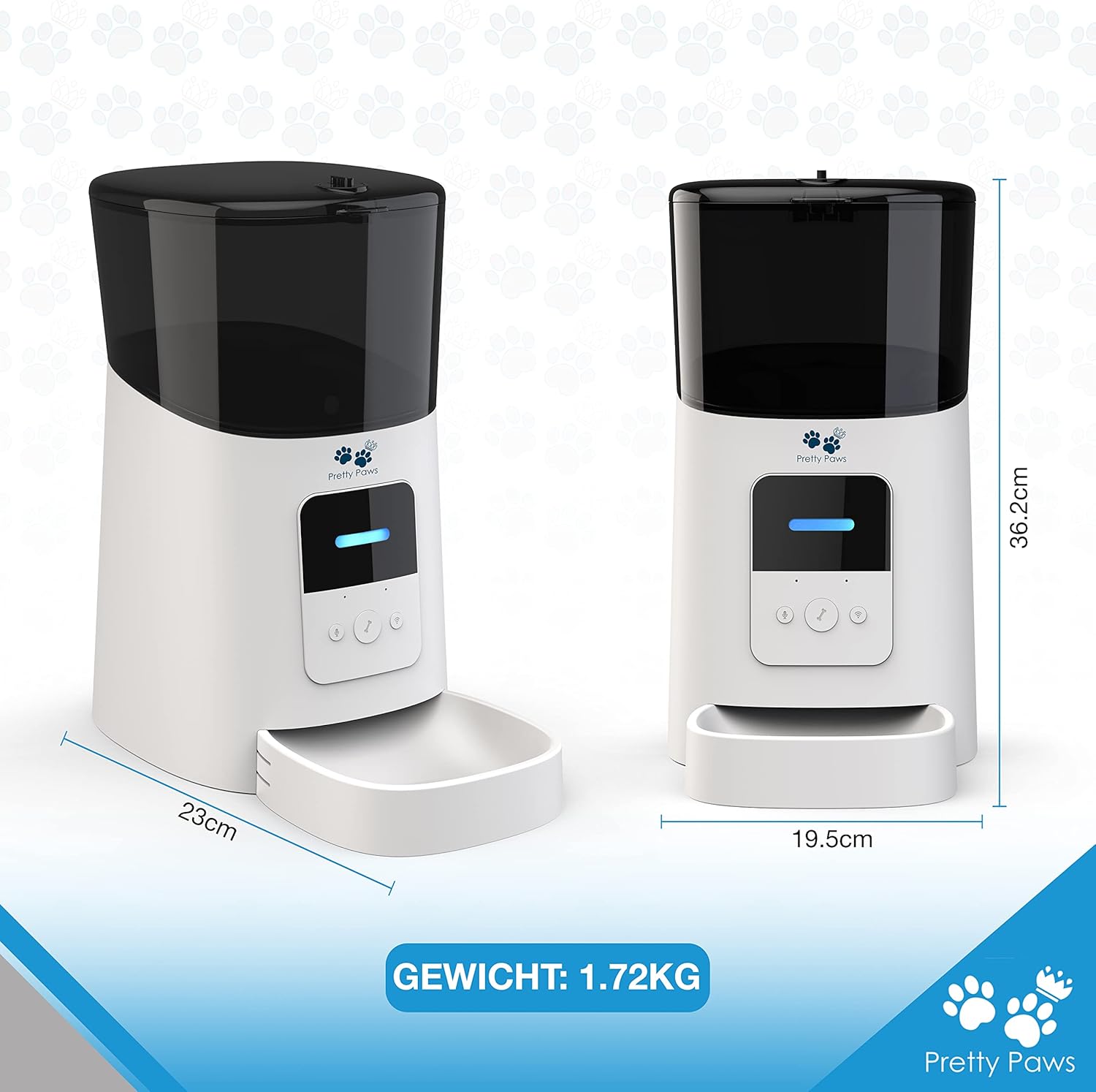
Image: A visual representation of the Pretty Paws PP005 feeder's dimensions (width, depth, height) and its weight, providing clear size information for placement.
Warranty and Support
Pretty Paws is committed to providing high-quality products and customer satisfaction. For any questions, technical assistance, or warranty claims, please contact Pretty Paws customer support.
Please refer to the product packaging or the official Pretty Paws website for the most up-to-date warranty information and contact details.
Online Support: Visit the official Pretty Paws website for FAQs, troubleshooting guides, and contact forms.
Email Support: [Insert Manufacturer's Support Email Here, if available]
Phone Support: [Insert Manufacturer's Support Phone Number Here, if available]
Ask a question about this manual
Ask about setup, troubleshooting, compatibility, parts, safety, or missing instructions. Manuals+ will review the question and use this page’s manual context to help answer it.