1. Product Overview
The WeHere Smart Key Lock Box is a versatile and secure storage solution for keys, offering multiple unlocking methods for convenience and enhanced security. Designed for various applications including residential homes, real estate, apartments, garages, and stores, this lock box provides flexible access control.

Image: The WeHere Smart Key Lock Box, shown open to reveal stored keys, alongside a smartphone displaying its control application. This illustrates the product's primary function and smart capabilities.
2. Safety Information
Please read and understand all safety instructions before installing and operating the WeHere Smart Key Lock Box. Failure to follow these instructions may result in product damage, property damage, or personal injury.
- Always follow proper installation techniques to securely mount the lock box to the wall.
- Avoid placing the lock box in areas with high traffic or potential hazards.
- Keep the lock box away from extreme temperatures and moisture to ensure optimal performance and longevity.
- Always use the correct unlock method and do not force the lock to prevent damage to the mechanism.
- If the lock box is damaged, do not attempt to repair it yourself. Contact the manufacturer for assistance and warranty information.
3. Product Features
The WeHere Smart Key Lock Box is equipped with advanced features to provide secure and flexible access management:
- Four Unlock Ways: Supports Password unlock (OTP, fixed, timed), App/Bluetooth unlock, Remote unlock with optional Wi-Fi bridge (WeHere W100, sold separately), and Spare key unlock.
- No App Installation Needed for Users: Owners can generate and share OTPs (One-Time Passwords) via SMS, Facebook, or other platforms. These links provide temporary access and automatically expire, changing every 60 seconds for enhanced security.
- Comprehensive App Features: The dedicated app allows for authorized access management, remote unlocking (with Wi-Fi bridge), Bluetooth unlocking, setting fixed and time-period passwords, and reviewing unlock history.
- Sturdy and Durable Construction: Constructed from a 1mm thick steel plate casing, equivalent to 7 sheets of A4 paper in thickness, ensuring high resistance to impact and tampering. It can withstand 50 drops from a height of one meter.
- External Battery Box Design: The battery compartment is conveniently located on the exterior, allowing for easy battery replacement without needing to open the main lock box, facilitating maintenance by tenants or neighbors.
- Portable Installation: Designed for both wall-mounting and hanging on door handles, with pre-drilled holes and removable hooks. All necessary mounting hardware is included for quick setup.
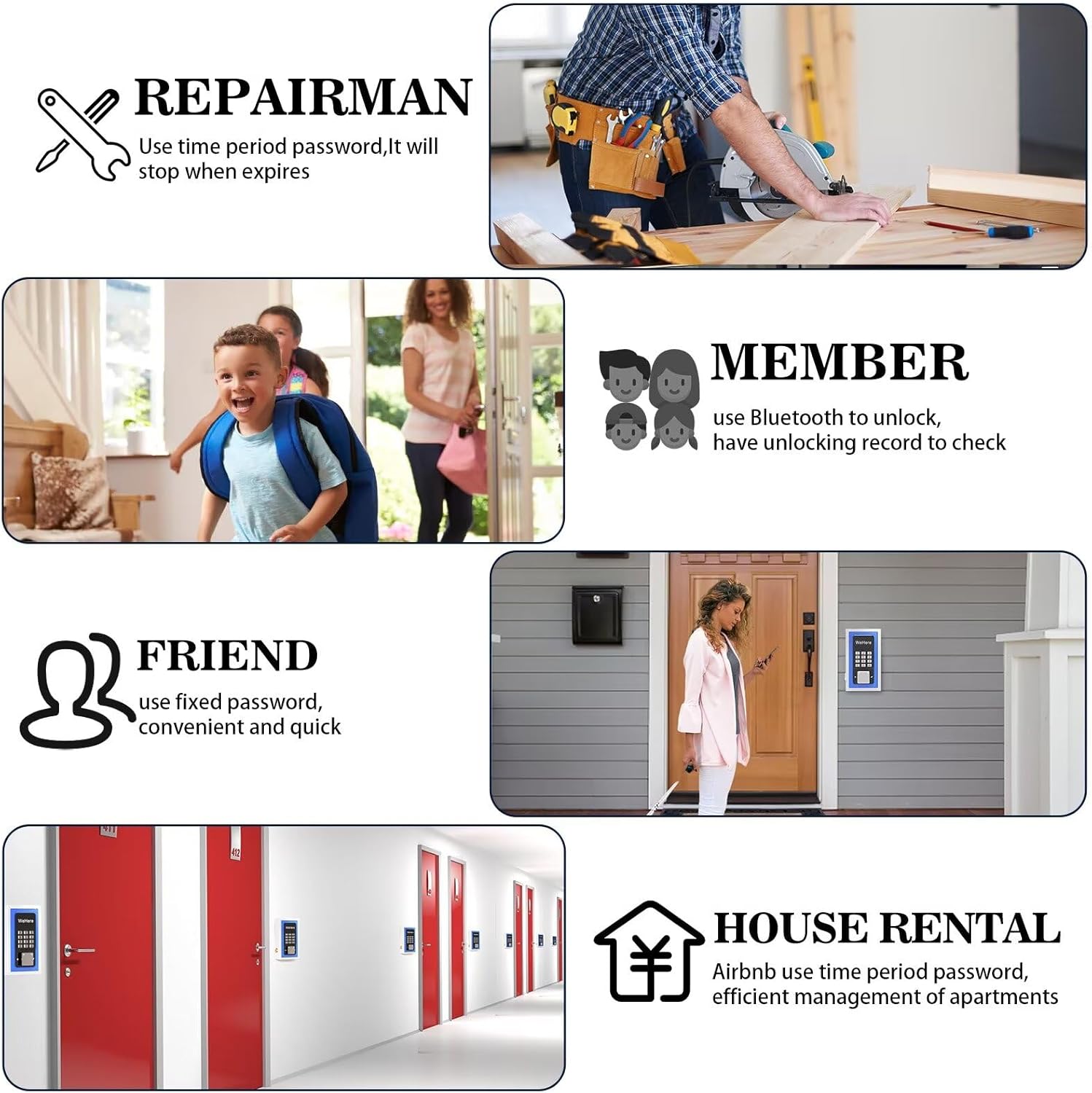
Image: This visual demonstrates the diverse applications of the WeHere Smart Key Lock Box, illustrating how it can be used by repairmen with temporary access, family members with Bluetooth access, friends with fixed codes, and for house rentals with timed passwords.

Image: A detailed view of the smart lock component, emphasizing its robust zinc alloy housing and the accessible external battery cover, designed for easy battery replacement without opening the main unit.
4. What's in the Box
Upon opening your WeHere Smart Key Lock Box package, you should find the following components:
- WeHere Key Box
- Smart Lock Mechanism
- Mounting Hardware (screws, anchors)
- Removable Hooks (for door handle installation)
- Spare Keys (for manual unlock)
- User Manual (this document)

Image: The WeHere Smart Key Lock Box is shown with its top lid open, providing a clear view of the internal compartment designed for key storage and the integrated smart lock mechanism.
5. Product Specifications
| Attribute | Detail |
|---|---|
| Brand | WeHere |
| Model Name | KB-501 |
| Lock Type | Electronic |
| Material | Alloy Steel |
| Color | Blue |
| Item Dimensions (L x W x H) | 7.3 x 4.7 x 2 inches (18.5 x 11.9 x 5.1 cm) |
| Item Weight | 2.2 Pounds (1 kg) |
| Control Method | App |
| Connectivity Protocol | Bluetooth |
| Special Features | Heavy Duty, OTP unlock, Smart lock, Timed password unlock, Permanent password unlock |
| Installation Style | Wall mount |
| UPC | 791711610007 |
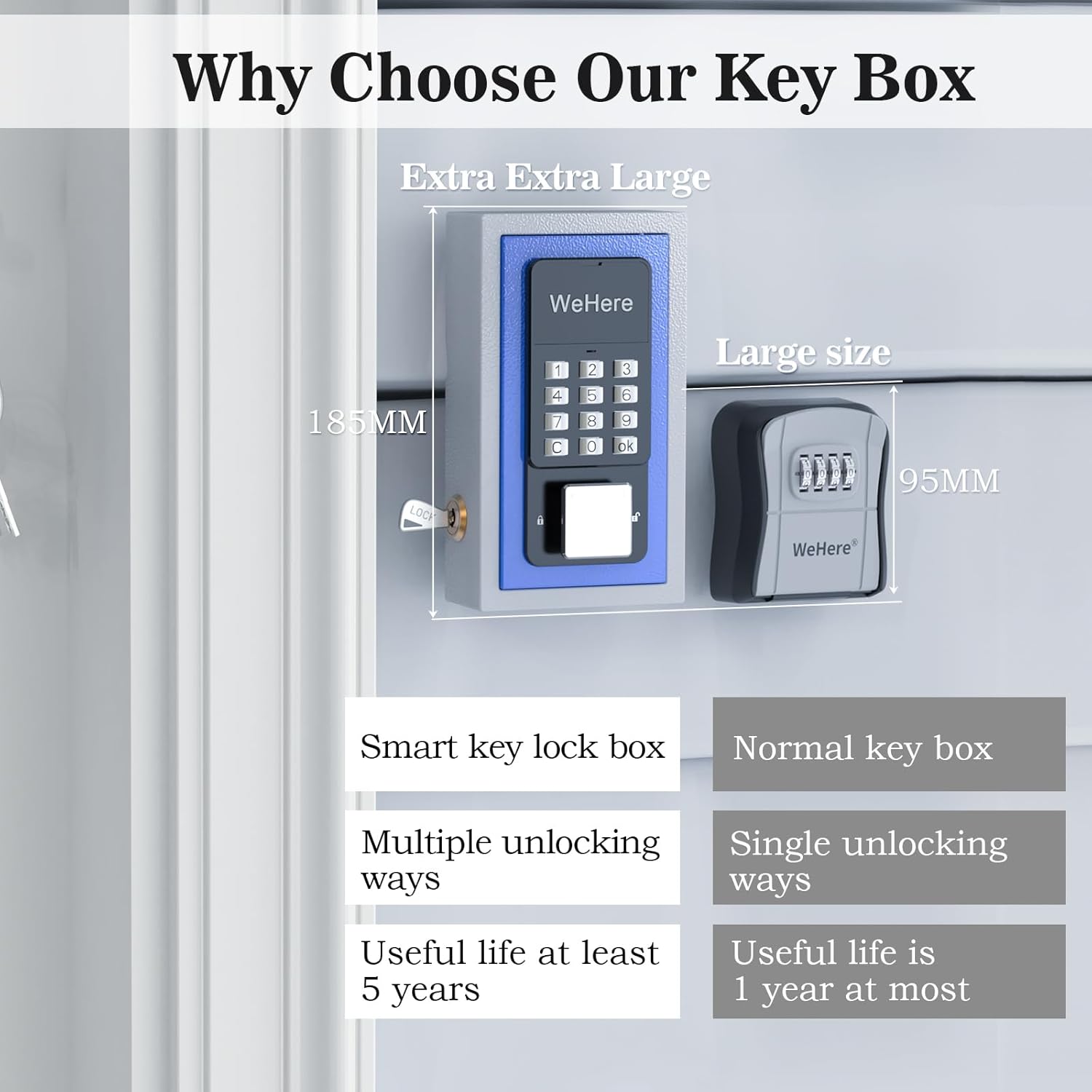
Image: This graphic illustrates the physical dimensions of the WeHere Smart Key Lock Box, showing its height of 185mm, and compares it to a smaller, conventional key box, emphasizing its larger capacity and smart capabilities.
6. Setup and Installation
The WeHere Smart Key Lock Box offers flexible installation options: wall-mounting or hanging on a door handle.
6.1. Initial Setup
- Unpack: Carefully remove all components from the packaging. Verify that all items listed in the "What's in the Box" section are present.
- Install Batteries: Locate the external battery compartment. Insert the required batteries (typically 4 x AAA, not included) according to the polarity markings.
- Download App: Scan the QR code provided in the quick start guide or search for the "WeHere" app in your smartphone's app store (iOS/Android). Install the application.
- Pair Device: Open the WeHere app and follow the on-screen instructions to pair your smart key lock box via Bluetooth. Ensure Bluetooth is enabled on your smartphone and the lock box is within range.
- Set Master Password: During the initial app setup, you will be prompted to set a master password for the lock box. Remember this password as it will be crucial for managing access.
6.2. Installation Methods
Wall-Mount Installation:
- Choose Location: Select a secure, discreet, and easily accessible location on a wall. Ensure the surface is suitable for drilling.
- Mark Holes: Use the lock box as a template to mark the positions for drilling holes.
- Drill Holes: Drill pilot holes at the marked positions. Insert wall anchors if necessary for your wall type.
- Secure Lock Box: Align the lock box with the drilled holes and secure it firmly using the provided screws.
Door Handle Hanging Installation:
- Attach Hooks: Secure the removable hooks to the designated slots on the back or top of the lock box.
- Hang: Hang the lock box securely over a door handle or similar fixture. Ensure it is stable and does not obstruct the door's operation.

Image: The WeHere Smart Key Lock Box is displayed alongside the optional Wi-Fi bridge, demonstrating the components involved in setting up remote access capabilities.
7. Operating Instructions
The WeHere Smart Key Lock Box offers multiple convenient ways to unlock and manage access.
7.1. Unlocking Methods
7.1.1. Password Unlock (Keypad)
This method uses the integrated keypad on the lock box.
- OTP (One-Time Password) Unlock: The owner generates a temporary, expiring OTP via the WeHere app and shares it with the user. The user enters this code on the keypad. The code automatically expires after use or a set time (e.g., 60 seconds).
- Fixed Password Unlock: The owner sets a permanent password via the app. Users can enter this fixed code on the keypad to unlock.
- Timed Password Unlock: The owner sets a password that is valid only for a specific time range. Users can enter this code on the keypad during the valid period.

Image: A hand is shown interacting with the keypad of the WeHere Smart Key Lock Box. Surrounding icons visually represent the diverse unlocking options available, including OTP, App, Fixed Code, Spare Key, and the ability to view an Unlock Log.
7.1.2. App / Bluetooth Unlock
For registered users with the WeHere app installed and Bluetooth enabled.
- Ensure your smartphone's Bluetooth is on and you are within range of the lock box.
- Open the WeHere app.
- Select the lock box from your paired devices.
- Tap the "Unlock" button within the app to open the lock box.
7.1.3. Remote Unlock with Wi-Fi Bridge (Optional)
This feature requires the separate purchase and setup of the WeHere W100 Wi-Fi Bridge.
- Ensure the WeHere W100 Wi-Fi Bridge is properly set up and connected to your home Wi-Fi network.
- Ensure the Wi-Fi bridge is within close proximity to the lock box for stable connection.
- Open the WeHere app on your smartphone.
- Select the lock box and use the remote unlock function. The command will be relayed through the Wi-Fi bridge.

Image: This image depicts a user remotely unlocking the WeHere Smart Key Lock Box using a smartphone, facilitated by a Wi-Fi bridge. The lock box is shown securely mounted on an exterior wall.
7.1.4. Spare Key Unlock
For manual access or in case of battery depletion.
- Locate the traditional keyhole on the side of the lock box.
- Insert one of the provided spare keys into the keyhole.
- Turn the key to unlock the box.
7.2. Managing Access via App
The WeHere app provides comprehensive control over your lock box.
- Password Management: Create, modify, or delete fixed, timed, and OTP passwords.
- Guest/Member Management: Add or remove authorized users who can access the lock box via Bluetooth or app.
- Unlock History: View a detailed log of all unlock events, including method and timestamp.
- Settings: Adjust various lock box settings, including sound, auto-lock timer, and firmware updates.
8. Maintenance
Regular maintenance ensures the longevity and optimal performance of your WeHere Smart Key Lock Box.
8.1. Battery Replacement
The WeHere Smart Key Lock Box features an external battery compartment for easy replacement.
- When the battery level is low, the lock box may indicate this with a warning light or sound, and the app will notify you.
- Locate the external battery box on the side of the unit.
- Slide open the battery compartment cover.
- Remove the old batteries (typically 4 x AAA).
- Insert new batteries, ensuring correct polarity (+/-).
- Close the battery compartment cover securely. The lock box should resume normal operation immediately.
8.2. Cleaning
To clean the exterior of the lock box:
- Use a soft, damp cloth to wipe down the surface.
- Avoid using abrasive cleaners, solvents, or harsh chemicals, as these can damage the finish or electronic components.
- Ensure no moisture enters the keypad or battery compartment.
9. Troubleshooting
If you encounter issues with your WeHere Smart Key Lock Box, refer to the following common problems and solutions:
| Problem | Solution |
|---|---|
| Lock box does not respond to keypad input. | Check battery level and replace if necessary. Ensure the keypad is clean and free of debris. Verify the password entered is correct. |
| App cannot connect to the lock box via Bluetooth. | Ensure Bluetooth is enabled on your smartphone. Make sure you are within close range of the lock box. Restart the app and/or your phone. Check if the lock box batteries are low. |
| Remote unlock via Wi-Fi bridge is not working. | Verify the Wi-Fi bridge (WeHere W100) is powered on and connected to your Wi-Fi network. Ensure the bridge is placed close enough to the lock box for a stable connection. Check the bridge's status indicator. |
| OTP or timed password is not accepted. | Ensure the password has not expired. OTPs change every 60 seconds; ensure you are using the most current one. Verify the current date and time settings on your smartphone and the lock box (if applicable). |
| Lock box suddenly stops working or won't lock. | Replace batteries immediately. If the issue persists after battery replacement, contact customer support. Avoid using strong magnets near the lock box as they may interfere with its mechanism. |
| App installation or functionality issues. | Ensure your smartphone's operating system is up to date. Try uninstalling and reinstalling the WeHere app. Check your internet connection for app updates. |
If the problem persists after attempting these solutions, please contact WeHere customer support for further assistance.
10. Warranty and Support
WeHere stands behind the quality of its products.
10.1. Product Warranty
The WeHere Smart Key Lock Box comes with a one-year warranty from the date of purchase. This warranty covers defects in materials and workmanship under normal use. It does not cover damage caused by misuse, accidents, unauthorized modifications, or improper installation.
10.2. Customer Support
For any questions, technical assistance, or warranty claims, please do not hesitate to contact WeHere customer support. Refer to the contact information provided on the product packaging or the official WeHere website.
Note: No official seller videos were found for direct embedding in this manual. Please refer to the WeHere official website or product page for any available video tutorials.


