
Razuvious RA-X2TT
Razuvious Smart Door Lock WiFi Gateway User Manual
Model: RA-X2TT
Brand: Razuvious
1. Introduction
The Razuvious Smart Door Lock WiFi Gateway (Model RA-X2TT) serves as a bridge to connect your smart door lock to your home Wi-Fi network, enabling remote control and advanced smart home functionalities. This gateway allows you to manage your smart lock from anywhere using the TT Lock APP, integrate with voice assistants like Alexa, and monitor lock activity in real-time. This manual provides detailed instructions for setting up, operating, and maintaining your Razuvious WiFi Gateway.

Figure 1: Razuvious G2 Gateway and TT Lock App Interface
This image shows the compact white Razuvious G2 Gateway device next to a hand holding a smartphone. The smartphone screen displays the TT Lock application, illustrating the remote control capabilities of the gateway.
2. Key Features
- Multiple Functions: Monitor door lock status, view unlock records, remotely open doors, and share e-keys or passwords.
- Remote Control: Control your smart door lock from anywhere via the TT Lock APP, overcoming Bluetooth distance limitations. Manage E-keys, check door status, battery life, and activity logs in real-time.
- Voice Control Integration: Works with Alexa (device not included) for voice-activated unlocking and locking. Supports pairing with multiple smart door locks.
- Easy Setup: Quick connection and setup with your smart lock app within 2 minutes.
- Wide Compatibility: Compatible with Holify locks and all locks that support the TTLock App.

Figure 2: Wide Compatibility with Smart Locks
This image displays the Razuvious G2 Gateway at the center, with various models of smart door locks positioned around it, connected by dashed lines. This visually represents the gateway's compatibility with an unlimited number of connections and different TT Lock App supported smart locks.
3. Package Contents
Upon opening the package, please verify that all components are present and in good condition:
- 1 x Razuvious G2 Gateway
- 1 x USB Cable (for power)
Note: A power adapter is not included in the package. Please use a standard USB power adapter (e.g., a phone charger) to power the gateway.
4. Setup Guide
Setting up your Razuvious G2 Gateway is a straightforward process designed for quick integration with your smart lock system.
4.1 Placement Considerations
For optimal signal connection, it is recommended that the distance between the gateway and your smart door lock is no more than 32 feet (10 meters).

Figure 3: Gateway Placement for Optimal Signal
This diagram illustrates the recommended placement of the Razuvious G2 Gateway. The gateway is shown on a table, within 32 feet (10 meters) of a smart door lock, and connected wirelessly to a smartphone running the TT Lock app, ensuring a strong and reliable connection.
4.2 Adding Gateway through the TT Lock APP
Follow these steps to connect your G2 Gateway to the TT Lock application:
- Open App: Launch the TT Lock application on your smartphone.
- Access Menu: Click on the menu icon (usually three horizontal lines) in the top left corner of the screen.
- Select Gateway: From the drop-down list, select "Gateway".
- Choose G2: Select "[G2]" as your gateway type.
- Connect Power: Connect the USB cable to the gateway and a power source. The gateway's light should flash alternately in red and blue, indicating it's in pairing mode.
- Add Gateway: Click the "+" icon within the app to add a new gateway.
- Built-in Network: The app will prompt you to configure the network.
- Select Network: Select your correct Wi-Fi network and enter the password. Ensure your smartphone and the gateway are connected to the same Wi-Fi network during this step.
- Completion: The gateway will connect, and the setup will be complete. If the timeout occurs and binding is unsuccessful, power off the gateway and try again.

Figure 4: App-Based Gateway Setup Steps
This image provides a visual, step-by-step guide for adding the G2 Gateway using the TT Lock App. It shows screenshots of the app interface for opening the app, accessing the menu, selecting the gateway, connecting power, adding the device, and configuring the Wi-Fi network.
5. Operating Instructions
Once your Razuvious G2 Gateway is set up, you can utilize its full range of smart functionalities.
5.1 Remote Control (Unlock/Lock)
The gateway allows you to remotely control your smart door lock from any location, as long as you have an internet connection on your smartphone. This feature is ideal for granting access to visitors or family members when you are away.
- Open the TT Lock APP.
- Select the desired smart lock.
- Tap the unlock/lock icon to control the door.
- You can also set, share, modify, and delete E-keys anytime, anywhere.
- Check door status, battery life, and activity logs remotely in real-time.

Figure 5: Wi-Fi Remote Control Capabilities
This image shows a person's hands interacting with a smartphone displaying the TT Lock app. The app interface clearly shows options for managing passcodes, viewing recent activity logs, and checking the lock status, highlighting the Wi-Fi remote control features.
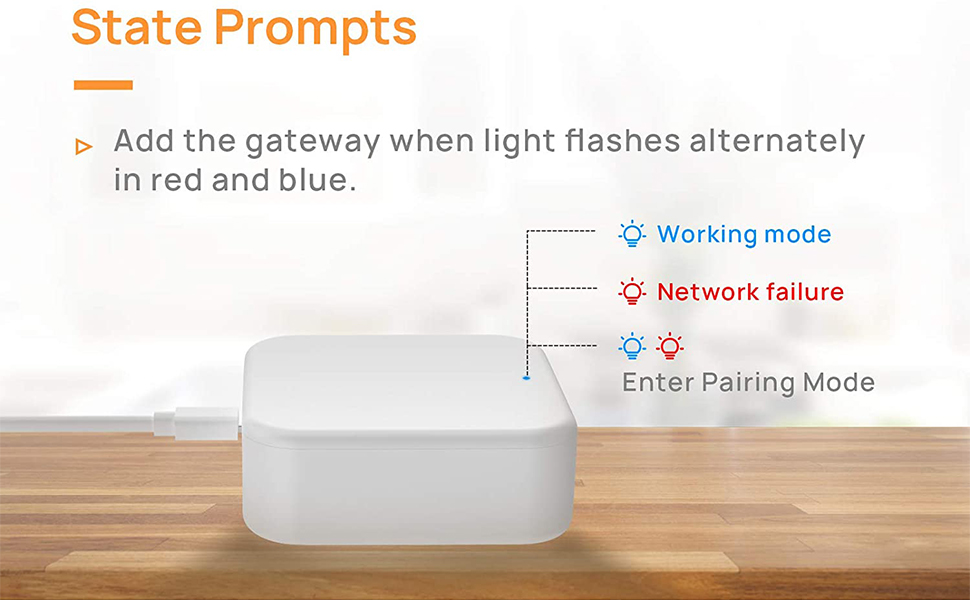
Figure 6: Remote Unlock Convenience
This image depicts a man sitting at a desk with a laptop, using his smartphone to remotely unlock a smart lock. The Razuvious G2 Gateway is visible on the desk, emphasizing the convenience of managing access from anywhere for family and friends.
5.2 Voice Control
Integrate your Razuvious G2 Gateway with Alexa for convenient voice control of your smart door lock. This feature is particularly useful when your hands are full or in low-light conditions.
- Ensure your Alexa device (not included) is set up and linked to your TT Lock account.
- Use voice commands such as, "Alexa, unlock the front door."
- The gateway can pair with multiple smart door locks for comprehensive voice control.

Figure 7: Voice Control with Alexa
This image shows a woman holding a smartphone, with the Razuvious G2 Gateway and an Amazon Echo Dot (Alexa device) on a table. A speech bubble indicates a voice command: "Hi, Alexa, unlock the front door," demonstrating the voice control functionality.

Figure 8: Seamless Voice Control
This image features a man at a desk, seemingly giving a voice command to unlock his door, with the Razuvious G2 Gateway and a laptop in the foreground. A speech bubble says, "Alexa, unlock the front door please," illustrating the ease of voice control integration.
5.3 Real-Time Notifications and Activity Logs
Receive instant alerts and view detailed activity logs for your smart lock directly through the TT Lock APP. This keeps you informed about who enters or exits your property.
- Get instant alerts every time someone unlocks your Smart Lock.
- View a chronological record of all unlock events, including the method used (e.g., fingerprint, app, passcode).

Figure 9: Real-Time Notifications and Records
This image combines two scenes: a child unlocking a smart door lock and a smartphone displaying a list of unlock records from the TT Lock app. This illustrates how users receive instant alerts and can review who has accessed their smart lock, such as when children return home from school.
5.4 Sharing Access with Others
Easily grant temporary or permanent access to friends, family, housekeepers, or delivery personnel through the TT Lock APP, even when you're not home.

Figure 10: Remote Access for Family and Friends
This image presents two scenarios: a child calling their parent to open the door, and a parent remotely unlocking the door via the TT Lock app. This highlights the convenience of the gateway for granting access to family members when they arrive home.

Figure 11: Facilitating Visitor Entry
This image shows two individuals on phone calls. One person is outside a door, asking if someone is home, while the other person is indoors, stating they can unlock the door remotely. This illustrates how the gateway enables convenient remote access for visitors.

Figure 12: Granting Access to Various Users
This image features the Razuvious G2 Gateway at the center, with circular images of different individuals (visitors, housekeepers, express deliveries) connected to it by dashed lines. This visually represents the gateway's ability to facilitate access for various types of users.
6. Light Indication Status
The LED indicator on the Razuvious G2 Gateway provides visual cues about its current operational status:
- Blue Light: Indicates the gateway is in Working mode.
- Red Light: Indicates a Network failure.
- Light Flashes Alternately in Red and Blue: Indicates Stand-by mode, ready for pairing.

Figure 13: Gateway Light Status Indicators
This image shows the Razuvious G2 Gateway in two settings, with a diagram explaining its light indications. It clearly labels what blue light, red light, and alternating red and blue lights signify: Working mode, Network failure, and Stand-by mode (ready for pairing), respectively.

Figure 14: State Prompts for Gateway
This close-up image of the Razuvious G2 Gateway highlights its LED indicator. It provides a clear legend for the light states: blue for working mode, red for network failure, and alternating red and blue for entering pairing mode, which is when the gateway should be added via the app.
7. Troubleshooting
If you encounter issues with your Razuvious G2 Gateway, please refer to the following common troubleshooting steps:
- Gateway Not Connecting to Wi-Fi:
- Ensure the gateway is within 32 feet (10 meters) of your smart lock and Wi-Fi router.
- Verify that your Wi-Fi network is 2.4GHz. The gateway does not support 5GHz networks.
- Double-check your Wi-Fi password for accuracy during setup.
- Restart your Wi-Fi router and the gateway, then attempt the setup process again.
- Ensure your smartphone is connected to the same 2.4GHz Wi-Fi network as the gateway during the setup process.
- Remote Control Not Working:
- Check the gateway's light indicator. If it's red, there's a network failure. Refer to the "Light Indication Status" section.
- Ensure your smartphone has an active internet connection.
- Verify that the smart lock is properly paired with the gateway in the TT Lock APP.
- Voice Control Issues:
- Confirm that your Alexa device is properly linked to your TT Lock account.
- Ensure the gateway is online and functioning correctly (blue light).
- Check your Alexa app for any skill-related issues or updates.
- Gateway Not Powering On:
- Ensure the USB cable is securely connected to both the gateway and a working power source.
- Try a different USB cable and power adapter.
If these steps do not resolve your issue, please contact Razuvious customer support for further assistance.
8. Specifications
| Attribute | Detail |
|---|---|
| Model Number | RA-X2TT |
| Brand | Razuvious |
| Item Weight | 110 g |
| Product Dimensions (L x W x H) | 7 x 7 x 2.6 cm |
| Color | White |
| Material | Plastic |
| Power Source | USB Powered (Adapter not included) |
| Connectivity | Wi-Fi, Bluetooth (for smart lock connection) |
| Compatibility | TT Lock APP, Alexa, Google Home |
| Max. Distance to Smart Lock | 32 ft (10 meters) |
| Batteries Required? | No |
9. Warranty and Support
Razuvious is committed to providing high-quality products and excellent customer service. Your satisfaction is our eternal motivation.
- Warranty Information: Please refer to the product packaging or the official Razuvious website for specific warranty terms and conditions.
- Customer Support: For any questions regarding installation, app problems, or general inquiries, please feel free to contact us.
Contact details can typically be found on the product packaging, the official Razuvious website, or through your point of purchase.
Ask a question about this manual
Ask about setup, troubleshooting, compatibility, parts, safety, or missing instructions. Manuals+ will review the question and use this page’s manual context to help answer it.