
podofo Q3516A2
Podofo Q3516A2 Wireless CarPlay Single Din Car Stereo User Manual
Model: Q3516A2
1. Introduction
This manual provides detailed instructions for the installation, operation, and maintenance of your Podofo Q3516A2 Wireless CarPlay Single Din Car Stereo. This unit features a 7-inch flip-out touchscreen, Wireless CarPlay and Android Auto compatibility, Bluetooth 5.1, AM/FM/RDS radio, Mirror Link functionality, and includes an HD backup camera. Please read this manual thoroughly before use to ensure proper installation and optimal performance.
2. Package Contents
Verify that all items are present in your package:
- Podofo Q3516A2 Car Stereo Unit
- Power Cable
- Horn Cable
- External Microphone (MIC)
- Remote Control
- Mounting Accessories
- User Manual (this document)
- 12LED HD Rear View Camera

Image Description: An illustration showing the Podofo Q3516A2 car stereo unit, its dimensions, and a list of included accessories: car stereo, power cable, horn cable, microphone, remote control, mounting accessories, user manual, and a 12LED rear camera. Also displays a detailed wiring diagram.
3. Safety Information
- Always consult a professional for installation if you are unsure about any wiring procedures.
- Ensure the vehicle's battery is disconnected before beginning installation to prevent electrical shorts.
- Do not operate the unit in a way that distracts you from driving. Always prioritize road safety.
- Keep the screen clean and free from obstructions.
- This unit is designed for a 12V DC power supply.
4. Installation Guide
4.1 Pre-installation Checks
- Confirm your vehicle has a single DIN slot.
- Gather necessary tools (screwdrivers, wire strippers, electrical tape, multimeter).
- Disconnect the negative terminal of your car battery.
4.2 Wiring Connections
Refer to the detailed wiring diagram provided in the package and on the product image for correct connections. Key connections include:
- Power Wires: Connect the yellow wire (constant 12V) to a constant power source, the red wire (ACC) to an ignition-switched power source, and the black wire to ground.
- Speaker Wires: Connect the speaker wires to your vehicle's speakers, ensuring correct polarity.
- Backup Camera Input: Connect the camera's video output to the 'CAMIN' (CVBSIN) input on the stereo. Connect the camera's power to the reverse light circuit and the reverse trigger wire (usually brown or pink) from the stereo to the reverse light circuit.
- Steering Wheel Control (SWC): Connect the SWC wires to your vehicle's steering wheel control interface, if applicable.
- Antenna: Connect your vehicle's radio antenna.
Image Description: A comprehensive diagram illustrating the various wiring connections for the Podofo Q3516A2 car stereo, including power, speaker outputs, RCA audio outputs, camera inputs, and steering wheel control connections. Color-coded wires are shown for clarity.
4.3 Mounting the Unit
Slide the metal mounting sleeve into your vehicle's dashboard opening. Secure it using the provided tabs. Insert the stereo unit into the sleeve until it clicks into place. Some vehicles may require an additional mounting kit.
4.4 Connecting the Backup Camera
The included 12LED HD rear view camera should be mounted at the rear of your vehicle. Connect its power cable to the reverse light circuit and its video cable to the stereo's 'CAMIN' input. Ensure the reverse trigger wire is correctly connected for automatic display when reversing.
5. Basic Operation
5.1 Power On/Off
Press the power button (usually the volume knob) to turn the unit on or off. The unit will power on automatically when the vehicle's ignition is turned on (if ACC wire is correctly connected).
5.2 Screen Adjustment
The 7-inch screen is a manual flip-out design. Gently pull or push the screen to adjust its angle for optimal viewing. Avoid excessive force.

Image Description: The Podofo Q3516A2 car stereo with its 7-inch screen extended, highlighting the manual flip-out mechanism. The image also shows various multimedia playback ports like USB and AUX.
5.3 Touchscreen Interface
Navigate the stereo's functions using the responsive touchscreen. Tap icons to select applications or settings. Swipe gestures may be used for navigation in certain modes.
6. Key Features & Functions
6.1 Wireless CarPlay & Android Auto
Connect your iPhone or Android smartphone wirelessly to access navigation, music, calls, and messages directly on the stereo's screen. This feature supports voice commands for a safer driving experience.
- Connection: Enable Bluetooth and Wi-Fi on your phone. On the stereo, select the CarPlay or Android Auto icon. Follow the on-screen prompts to pair your device.
- Voice Control: Use Siri (for CarPlay) or Google Assistant (for Android Auto) by pressing the voice command button on the stereo or steering wheel, or by saying the wake word.

Image Description: A visual comparison of the user interfaces for Wireless CarPlay and Android Auto, showing typical app layouts and connectivity icons. Both interfaces are displayed on a car stereo screen.

Image Description: An in-car view demonstrating the use of CarPlay and Android Auto on the stereo's screen, with examples of voice commands like "Hey Siri, call Annie" and "Hey Google, navigate to the gas station."
6.2 Bluetooth 5.1
The upgraded Bluetooth 5.1 ensures a stable, fast, and smooth connection for hands-free calling and wireless audio streaming.
- Pairing: Go to the Bluetooth menu on the stereo. Enable Bluetooth on your phone and search for available devices. Select 'Podofo Q3516A2' (or similar name) and confirm pairing.
- Hands-Free Calling: Use the built-in ultra-clear microphone or the external microphone for clear call quality. Answer, reject, or end calls directly from the stereo screen.
- Audio Streaming: Play music from your phone wirelessly through the car stereo.
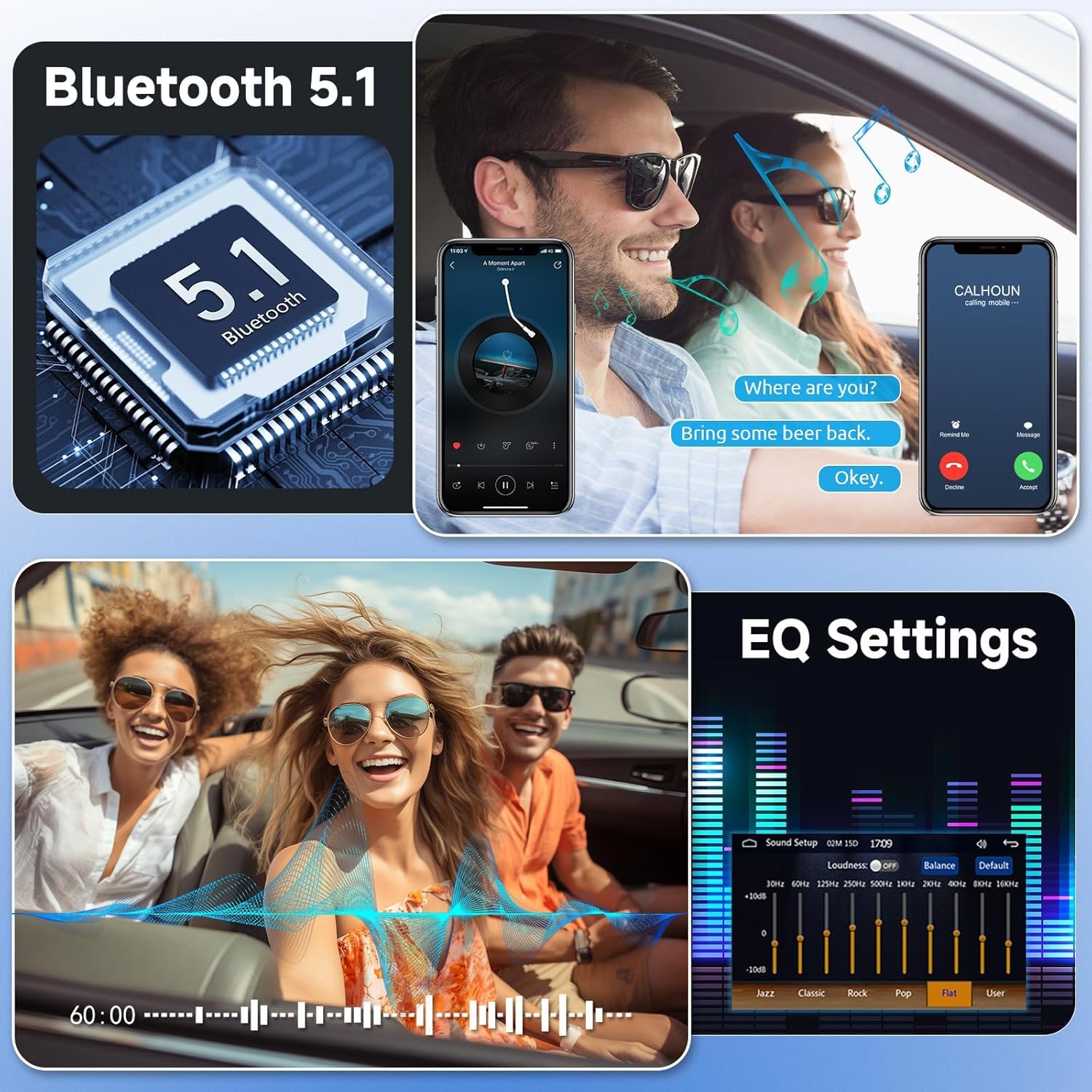
Image Description: An image highlighting the Bluetooth 5.1 chip and showing a scenario of hands-free calling in a car. The image also includes a graphic representation of EQ settings.
6.3 AM/FM/RDS Radio
Tune into your favorite AM or FM radio stations. RDS (Radio Data System) provides additional information like station name, song title, and traffic updates where available.
- Tuning: Select the Radio application. Use the touchscreen or physical buttons to scan for stations or manually tune.
- Saving Presets: Long-press a station number on the screen to save the current frequency as a preset.
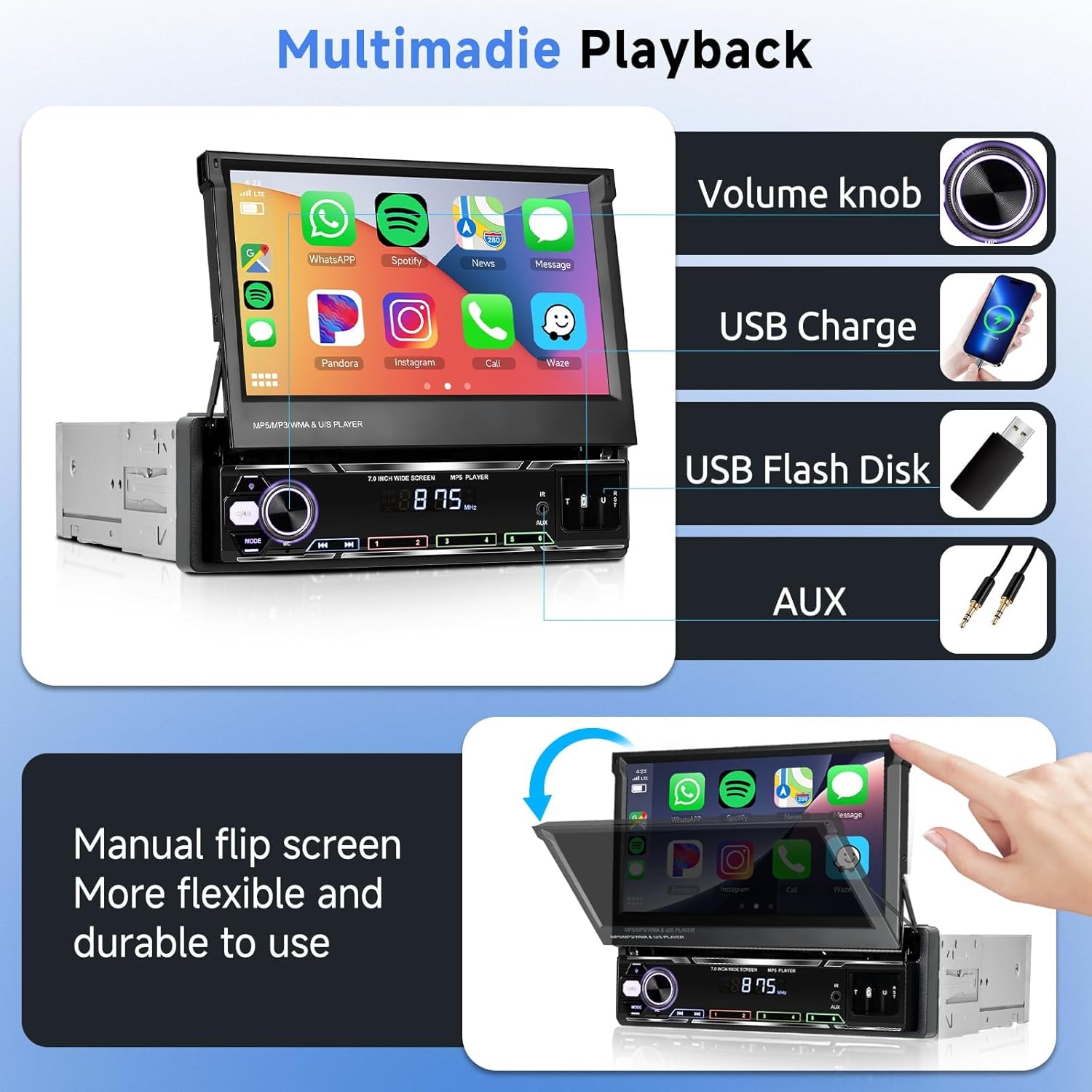
Image Description: The Podofo Q3516A2 car stereo displaying the AM/FM radio interface within a car dashboard. The screen shows current frequency, station information, and options for news, music, and traffic.
6.4 Mirror Link
Mirror Link allows you to display your smartphone's screen directly onto the stereo's 7-inch HD retractable display, enabling access to apps, videos, and navigation from your phone.
- Connection: Select the Mirror Link option on the stereo. Follow the specific instructions for your phone's operating system (Android or iOS) to establish the connection, typically via USB cable or Wi-Fi.
6.5 Multimedia Playback
The unit supports various multimedia sources for audio and video playback.
- USB: Insert a USB flash drive into the USB port for media playback or phone charging.
- SD Card: Insert an SD card into the designated slot for media playback.
- AUX-in: Connect external audio devices using a 3.5mm AUX cable.
Image Description: The Podofo Q3516A2 car stereo displaying its multimedia playback capabilities, including a volume knob, USB charging port, USB flash disk input, and AUX input. The image also shows the manual flip screen feature.
6.6 Reverse Camera System
The included HD rear view camera provides a clear view of the area behind your vehicle when reversing, enhancing safety.
- Automatic Activation: When the vehicle is shifted into reverse, the camera feed will automatically display on the stereo screen.
- Features: The camera offers HD 1080P resolution, night vision capabilities, IP69 waterproof rating, and a 170° wide-angle view.
Image Description: The Podofo Q3516A2 car stereo displaying a reverse camera view on its screen, complete with parking guidelines. Icons indicate features like HD 1080P, Night Vision, IP69 Waterproof, and 170° Wide Angle. The included backup camera is also shown.
6.7 Steering Wheel Control (SWC)
If your vehicle supports it and the SWC wires are connected, you can control basic stereo functions (e.g., volume, track skip, answer calls) directly from your steering wheel buttons.
- Setup: Access the SWC settings in the stereo's menu. Follow the on-screen instructions to program your steering wheel buttons.
6.8 Audio Settings (EQ)
Adjust the audio output to your preference using the built-in Equalizer (EQ) settings.
- Accessing EQ: Navigate to the Audio or Sound settings menu.
- Adjustments: Choose from preset EQ modes (e.g., Pop, Rock, Jazz) or customize individual frequency bands.
Image Description: A graphic showing the EQ settings interface with adjustable frequency sliders, allowing users to customize the audio output. This is part of a larger image also depicting Bluetooth 5.1 and hands-free calling.
7. Maintenance
- Screen Cleaning: Use a soft, lint-free cloth to gently wipe the touchscreen. For stubborn smudges, slightly dampen the cloth with water or a screen-safe cleaner. Avoid harsh chemicals.
- General Cleaning: Keep the unit free from dust and debris. Use a soft brush or compressed air for vents and crevices.
- Avoid Extreme Temperatures: Do not expose the unit to prolonged direct sunlight or extreme cold, as this can affect performance and lifespan.
8. Troubleshooting
If you encounter issues with your Podofo Q3516A2 car stereo, refer to the following common problems and solutions:
| Problem | Possible Cause | Solution |
|---|---|---|
| No Power | Incorrect wiring (constant 12V, ACC, ground), blown fuse. | Check all power connections. Verify the fuse in the stereo's wiring harness and vehicle's fuse box. |
| No Sound | Speaker wires incorrectly connected, volume too low, mute activated. | Check speaker wiring. Increase volume. Ensure unit is not muted. |
| Sound Cuts Out Intermittently | Loose power connection, overheating, software glitch. | Check power connections. Ensure adequate ventilation. Try restarting the unit by turning the ignition off and on. |
| Touchscreen Unresponsive | Software error, temporary glitch. | Restart the unit. If the issue persists, contact support. |
| Radio Loses Saved Stations | Constant 12V (yellow wire) not connected or losing power. | Ensure the yellow wire is connected to a constant 12V power source that remains active when the ignition is off. |
| Backup Camera Image Hazy/No Color | Loose video cable, faulty camera, incorrect camera settings. | Check the video cable connection from the camera to the stereo. Ensure the camera lens is clean. Verify camera settings in the stereo menu. |
| Humming/Buzzing Noise | Ground loop interference, poor grounding. | Ensure the stereo is properly grounded to a clean metal point on the vehicle chassis. Consider installing a ground loop isolator if the issue persists. |
| CarPlay/Android Auto Not Connecting | Bluetooth/Wi-Fi off, phone not paired, incompatible phone. | Ensure Bluetooth and Wi-Fi are enabled on your phone. Re-pair the device. Check phone compatibility. |
9. Specifications
| Feature | Specification |
|---|---|
| Product Dimensions | 7.01 x 5.98 x 2.28 inches (17.8 x 15.2 x 5.8 cm) |
| Item Weight | 2.2 pounds (1 kg) |
| Model Number | Q3516A2 |
| Display | 7-inch LCD Flip-Out Touchscreen |
| Connectivity Technology | Bluetooth 5.1, USB |
| Special Features | Wireless CarPlay, Wireless Android Auto, Mirror Link, AM/FM/RDS Radio, HD Backup Camera Input, Steering Wheel Control |
| Compatible Devices | Smartphones (iOS and Android) |
| Audio Output Mode | Stereo |
| Video Encoding | AVI (supported) |
| Backup Camera | HD 1080P, Night Vision, IP69 Waterproof, 170° Wide Angle (included) |
10. Warranty and Support
Podofo products are designed for reliability and performance. This product typically comes with a 2-year warranty. For specific warranty terms and conditions, please refer to your purchase documentation or contact the seller directly.
If you encounter any issues or require technical assistance, please contact Podofo customer support. You can usually find support contact information through your purchase platform or the official Podofo website.

Image Description: An informational graphic detailing how to find Podofo technical support, typically by navigating to the seller's page on the purchase platform and using the 'Ask a question' feature. It also mentions 24/7 technical support availability.
Ask a question about this manual
Ask about setup, troubleshooting, compatibility, parts, safety, or missing instructions. Manuals+ will review the question and use this page’s manual context to help answer it.