
1. Introduction
This manual provides essential information for the safe and efficient operation of your Haier 58 Inch 4K UHD HDR Smart Android TV, model LE58U6900UG. Please read this manual thoroughly before using the television and retain it for future reference. This television features a 58-inch 4K UHD display with HDR support, running on Android 9.0, offering smart functionalities and a slim, bezelless design.
2. Safety Information
Observe the following safety precautions to prevent damage and ensure safe operation:
- Power Source: Connect the TV only to an AC power outlet of the specified voltage. Ensure the power cord is not damaged or pinched.
- Ventilation: Do not block ventilation openings. Allow adequate space around the TV for proper airflow to prevent overheating.
- Water and Moisture: Do not expose the TV to rain, moisture, or place objects filled with liquids on or near the TV.
- Cleaning: Unplug the TV before cleaning. Use a soft, dry cloth. Do not use liquid or aerosol cleaners.
- Placement: Place the TV on a stable, level surface. Avoid placing it in direct sunlight or near heat sources.
- Servicing: Do not attempt to service the TV yourself. Refer all servicing to qualified service personnel.
- Children: Supervise children to ensure they do not climb on the TV or furniture it is placed on.
3. Package Contents
Verify that all items listed below are included in your package:
- Haier 58 Inch 4K UHD HDR Smart Android TV (Model LE58U6900UG)
- Remote Control
- Power Cable
- TV Stands (2 pieces) and Screws
- User Manual (this document)
- Quick Start Guide
4. Setup
4.1 Attaching the TV Stands
To attach the TV stands:
- Carefully place the TV face-down on a soft, clean surface to prevent screen damage.
- Align each stand with the corresponding screw holes on the bottom of the TV.
- Secure the stands using the provided screws. Ensure they are tightened firmly.

Figure 4.1: Angled view of the Haier 58-inch TV with its stands attached, ready for placement.
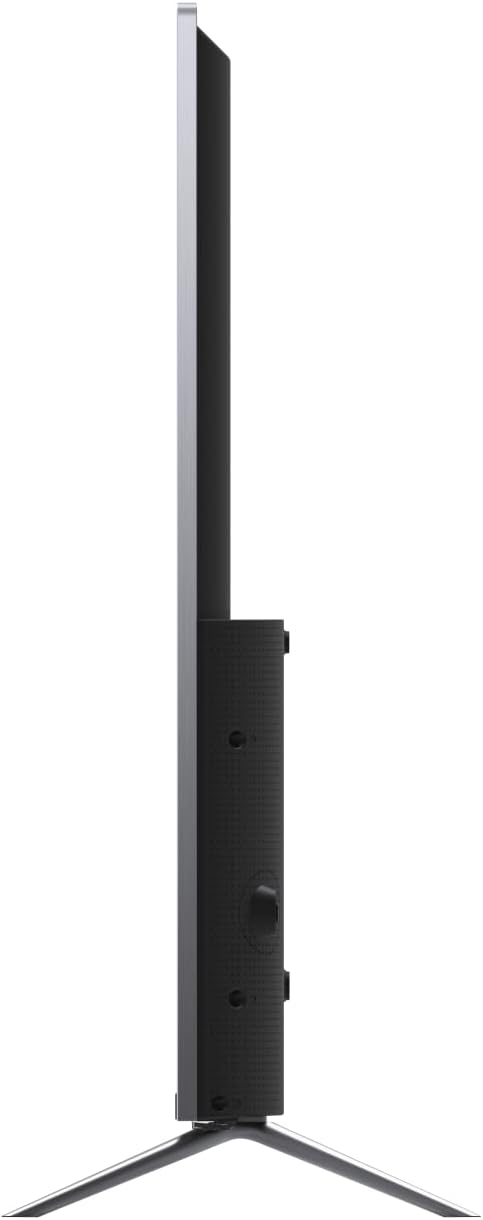
Figure 4.2: Side profile of the Haier 58-inch TV, highlighting its slim design and the attached stand.
4.2 Connecting Power
Connect the power cable to the TV's power input and then to a wall outlet. Ensure the connection is secure.
4.3 Connecting External Devices
Your TV supports various connectivity options:
- HDMI: For high-definition audio and video devices like Blu-ray players, game consoles, or set-top boxes.
- USB: For connecting USB storage devices to play media files.
- Wireless (Wi-Fi): For internet access and smart TV features.
- Bluetooth: For connecting wireless accessories like headphones or speakers.
4.4 Initial Setup
Upon first power-on, the TV will guide you through the initial setup process:
- Language Selection: Choose your preferred language.
- Network Connection: Connect to your Wi-Fi network or use an Ethernet cable for a wired connection.
- Google Account Setup: Sign in with your Google account to access Android TV features, Google Play Store, and Google Assistant.
- Channel Scan: Scan for available TV channels if you have an antenna or cable connected.
5. Operating the TV
5.1 Remote Control Functions
The remote control allows you to navigate the TV's features. Familiarize yourself with the buttons:

Figure 5.1: The Haier TV remote control, featuring dedicated buttons for power, navigation, volume, and quick access to apps like Netflix and YouTube.
- Power Button (●): Turns the TV on or off.
- Navigation Pad (Circle): Use Up, Down, Left, Right to navigate menus. Press the center button to confirm selections.
- Back (←): Returns to the previous screen or menu.
- Home (⌂): Accesses the Android TV home screen.
- Volume (+/-): Adjusts the volume level.
- Channel (CH +/-): Changes TV channels.
- Google Assistant (Microphone icon): Activates voice control.
- App Buttons: Dedicated buttons for Netflix, YouTube, and SHAHID VIP for quick access.
5.2 Smart TV Features (Android 9.0)
Your Haier Smart TV runs on Android 9.0, providing access to a wide range of applications and services.

Figure 5.2: The Haier 58-inch TV displaying the Android TV home screen, featuring various streaming applications and content recommendations.
- Google Play Store: Download and install additional apps, games, and content.
- Netflix & YouTube: Access popular streaming services directly.
- Google Assistant: Use voice commands to search for content, control smart home devices, and get information.
- Chromecast Built-in: Cast content from your smartphone or tablet directly to the TV.
- SHAHID VIP: Access regional streaming content.
5.3 Input Selection
To switch between different input sources (e.g., HDMI 1, USB, TV tuner), press the "Input" button on your remote control and select the desired source from the on-screen menu.
5.4 Settings Menu
Access the settings menu to adjust picture, sound, network, and system preferences. Navigate to the "Settings" icon on the Android TV home screen or use the dedicated settings button on the remote (if available).
6. Maintenance
6.1 Cleaning the TV
- Screen: Gently wipe the screen with a soft, lint-free cloth. For stubborn marks, slightly dampen the cloth with water or a specialized screen cleaner (do not spray directly onto the screen).
- Cabinet: Wipe the TV cabinet with a soft, dry cloth. Avoid using abrasive cleaners or solvents.
- Before Cleaning: Always unplug the TV from the power outlet before cleaning.
6.2 Storage
If storing the TV for an extended period, unplug it from the power source and cover it to protect against dust. Store in a cool, dry place.
7. Troubleshooting
Refer to the following table for common issues and their solutions:
| Problem | Possible Cause | Solution |
|---|---|---|
| No power | Power cable not connected; power outlet not working. | Ensure power cable is securely connected. Test the outlet with another device. |
| No picture, but sound is present | Incorrect input source selected; backlight setting too low. | Press the "Input" button on the remote to select the correct source. Check picture settings. |
| No sound, but picture is present | Volume muted or too low; external audio device issues. | Unmute the TV or increase volume. Check connections to external audio systems. |
| Remote control not working | Batteries are dead or incorrectly inserted; obstruction between remote and TV. | Replace batteries. Ensure no obstructions. Point remote directly at the TV's IR sensor. |
| Cannot connect to Wi-Fi | Incorrect password; router issues; TV too far from router. | Verify Wi-Fi password. Restart router. Move TV closer to router or use a Wi-Fi extender. |
8. Specifications
Key technical specifications for the Haier LE58U6900UG TV:
- Model Number: LE58U6900UG
- Screen Size: 58 inches
- Display Technology: LED
- Resolution: 4K UHD (3840 x 2160)
- HDR Support: Yes
- Operating System: Android 9.0
- Refresh Rate: 60 Hz
- Aspect Ratio: 16:9
- Connectivity: Bluetooth, USB, Wireless (Wi-Fi), HDMI
- Special Features: SHAHID VIP, Google Assistant, Google Play, Chromecast, Netflix, YouTube
- Package Dimensions: 152 x 94 x 15 cm
- Weight: 15.5 kg
9. Warranty and Support
For warranty information and technical support, please refer to the warranty card included with your product or visit the official Haier website. Do not attempt to repair the product yourself, as this may void your warranty.
For further assistance, contact Haier customer service.