
Introduction
Thank you for choosing the SENGBIRCH Bluetooth Keyboard Case. This manual provides essential instructions for the proper setup, operation, and maintenance of your new keyboard case. Please read this manual thoroughly before use to ensure optimal performance and longevity of your product.
Compatibility
This keyboard case is specifically designed for the following Samsung Galaxy Tab 12.4-inch models:
- Samsung Galaxy Tab S7+ (2020): Models SM-T970, SM-T975, SM-T976
- Samsung Galaxy Tab S7 FE (2021): Models SM-T730, SM-T733, SM-T736, SM-T738
- Samsung Galaxy Tab S8+ (2022): Models SM-X800, SM-X806
Please verify your tablet model number before use to ensure compatibility.

Image: Compatibility chart for SENGBIRCH keyboard case with various Samsung Galaxy Tab models.
Package Contents
Please check the package for the following items:
- 1 x SENGBIRCH Keyboard Case
- 1 x Bluetooth Keyboard (QWERTZ German Layout)
- 1 x Micro USB Charging Cable
- 1 x User Manual (English)
Setup Instructions
1. Installing Your Tablet
- Gently align your Samsung Galaxy Tab with the elastic TPU inner shell of the case.
- Carefully press the tablet into the shell, ensuring all corners and edges are securely fitted. The elastic TPU material provides a snug fit and protection against impacts.

Image: Step-by-step illustration of inserting the tablet into the protective case.

Image: Detail of the elastic TPU inner shell for tablet protection.
2. Charging the Keyboard
- Locate the Micro USB charging port on the keyboard.
- Connect the provided Micro USB cable to the keyboard and a USB power source (e.g., computer, wall adapter).
- The charging indicator light will illuminate. A full charge typically takes about 2 hours.
3. Pairing the Bluetooth Keyboard
- Turn on the keyboard by sliding the power switch to the 'ON' position. The power indicator light will briefly turn on.
- Press the Connect button on the keyboard. The Bluetooth indicator light will start blinking, indicating it is in pairing mode.
- On your Samsung Galaxy Tab, go to Settings > Connected devices > Bluetooth.
- Ensure Bluetooth is enabled. Your tablet will search for available devices.
- Select "Bluetooth Keyboard" (or similar name) from the list of available devices.
- Follow any on-screen prompts to complete the pairing process. Once paired, the Bluetooth indicator light on the keyboard will turn off.
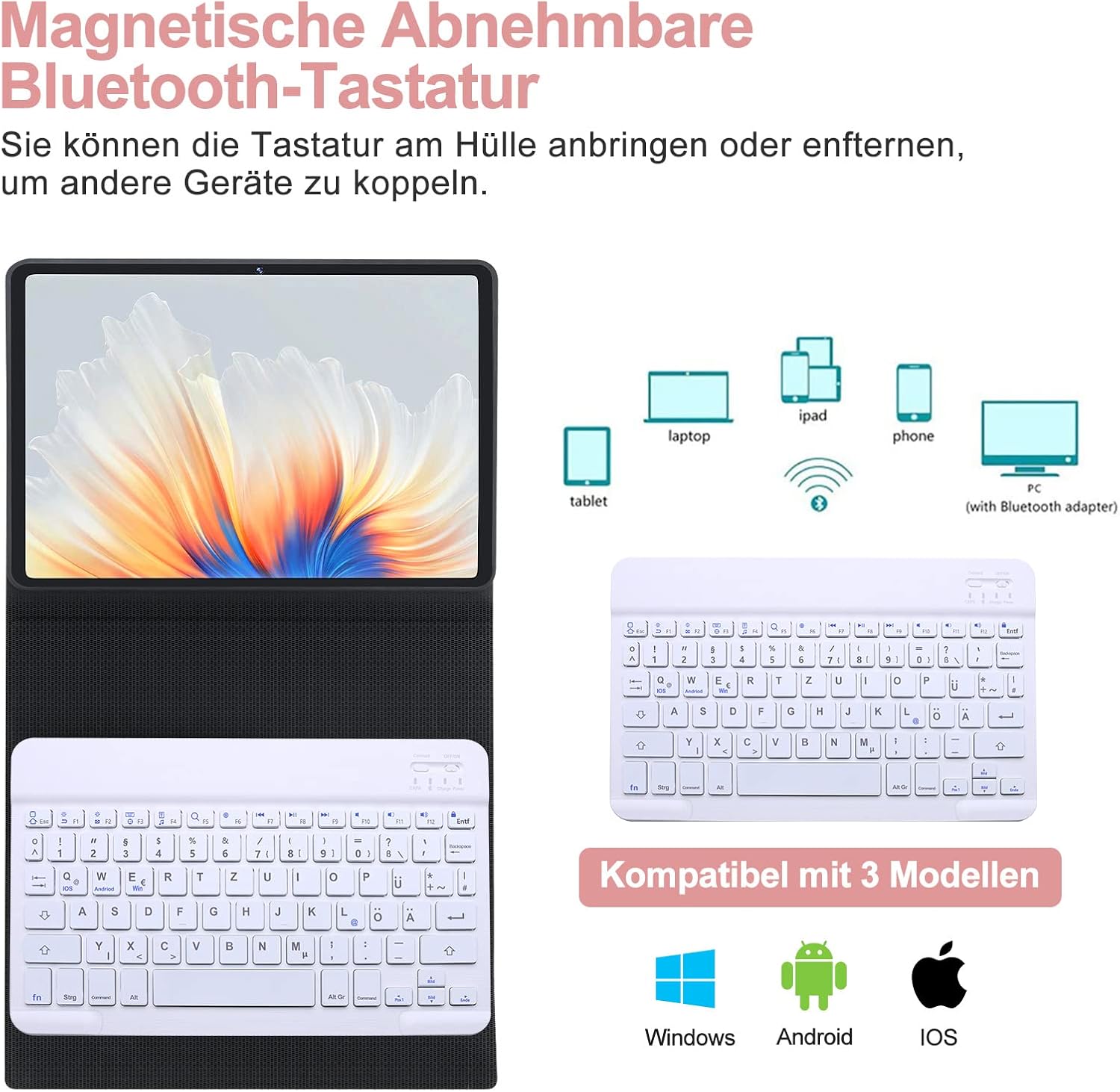
Image: Detachable Bluetooth keyboard and its multi-device compatibility.
Operating Instructions
1. Using the Keyboard with Your Tablet
- The keyboard is magnetically attached to the case and can be easily detached for flexible positioning.
- The case features three indentations to adjust the viewing angle of your tablet (120°, 125°, 130°). Position your tablet in one of these grooves for comfortable typing or viewing.

Image: Adjustable viewing angles for the tablet.
2. QWERTZ German Layout and Special Keys
The keyboard features a QWERTZ German layout. Below are some common special key combinations:
- @ Symbol: Press Alt Gr + Q.
- Switching Operating Systems: This keyboard supports Windows, Android, and iOS. To switch between systems, press Fn + Q (iOS), Fn + W (Android), or Fn + E (Windows). Ensure the correct system is selected for optimal key function.

Image: QWERTZ German keyboard layout with special key functions highlighted.
3. Magnetic Pen Holder
The case includes a magnetic area designed to securely hold and charge your S Pen (if applicable to your tablet model).
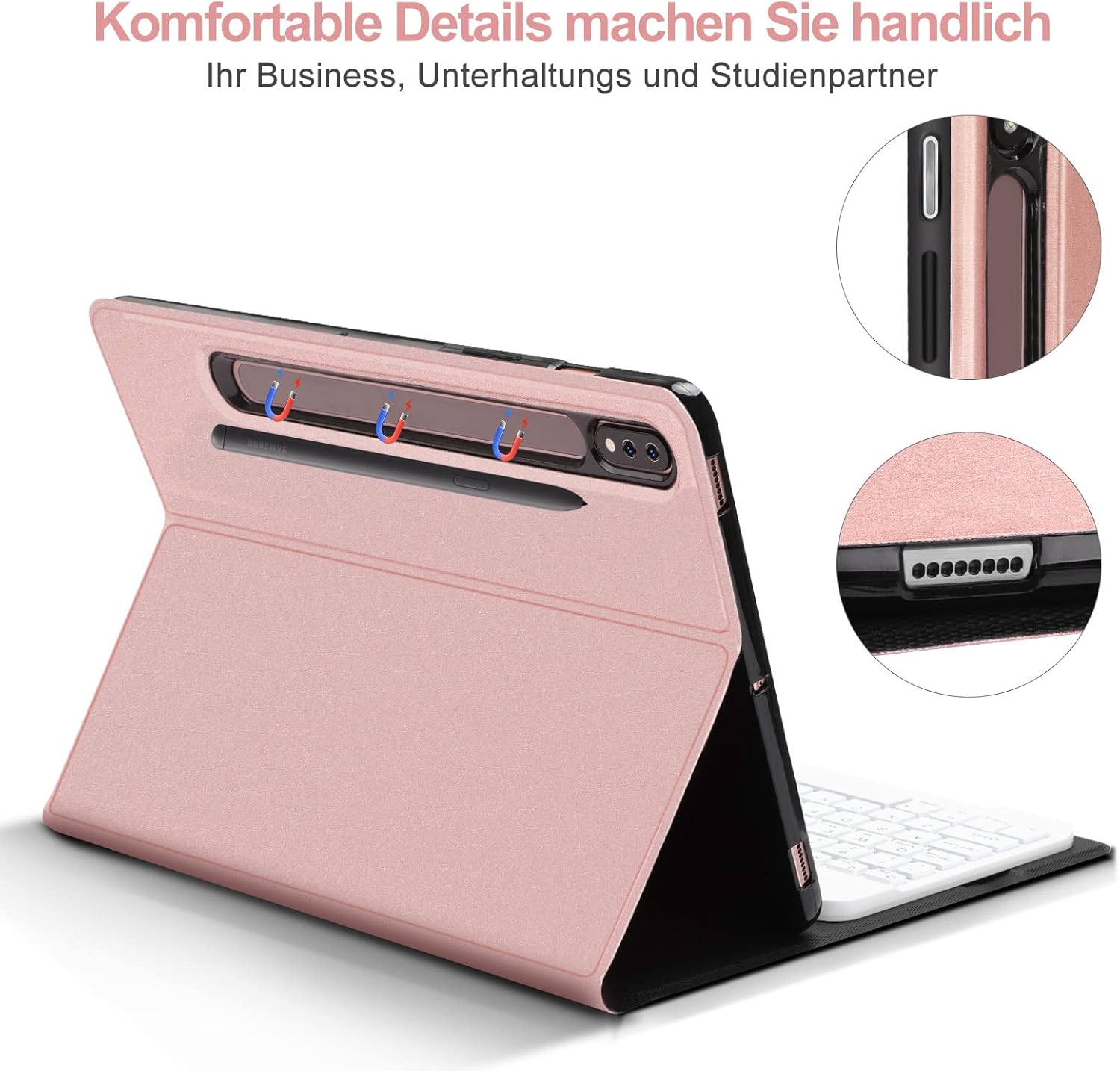
Image: Magnetic pen holder and charging area.
Maintenance
- Cleaning the Case: Wipe the synthetic leather exterior with a soft, damp cloth. Avoid harsh chemicals or abrasive cleaners.
- Cleaning the Keyboard: Use a soft, dry cloth to clean the keyboard surface. For dust between keys, use compressed air. Do not immerse the keyboard in water.
- Storage: When not in use for extended periods, turn off the keyboard to conserve battery life. Store the case and keyboard in a cool, dry place away from direct sunlight and extreme temperatures.
Troubleshooting
- Keyboard not connecting:
- Ensure the keyboard is turned on and fully charged.
- Make sure Bluetooth is enabled on your tablet.
- Press the 'Connect' button on the keyboard to enter pairing mode.
- Forget the device in your tablet's Bluetooth settings and try pairing again.
- Ensure the correct operating system mode (Fn+W for Android) is selected on the keyboard.
- Keys not responding or incorrect characters:
- Check if the keyboard is properly paired.
- Verify that the correct operating system mode is selected on the keyboard (Fn+Q for iOS, Fn+W for Android, Fn+E for Windows).
- Recharge the keyboard.
- @ symbol not working:
- For QWERTZ layout, ensure you are pressing Alt Gr + Q.
- Confirm the keyboard is set to the correct operating system mode for your tablet.
- Short battery life:
- Ensure the keyboard is fully charged (approx. 2 hours).
- Turn off the keyboard when not in use.
Specifications
| Feature | Detail |
|---|---|
| Brand | SENGBIRCH |
| Model Compatibility | Samsung Galaxy Tab S7+/S7 FE/S8+ 12.4" |
| Color | Rose Gold |
| Connectivity Technology | Bluetooth |
| Keyboard Layout | QWERTZ German |
| Special Features | Ergonomic, Detachable Magnetic Keyboard, Adjustable Viewing Angles |
| Battery Type | Lithium-ion |
| Charging Time | Approx. 2 hours |
| Number of Buttons | 78 |
| Included Components | USB Cable |
Warranty and Support
SENGBIRCH offers a 2-year quality guarantee for this product. If you encounter any issues or have questions regarding the operation of your keyboard case, please contact our customer support team. We provide 24-hour online support to assist you.
For support, please refer to the contact information provided with your purchase or visit the official SENGBIRCH website.


