Introduction
Thank you for choosing phopollo Smart RGBCW WiFi LED Light Bulbs. These bulbs offer a wide range of colors and tunable white light, controllable via a smartphone application or voice commands through compatible smart home assistants like Amazon Alexa and Google Home. This manual provides essential information for installation, operation, and maintenance to ensure optimal performance and safety.

Image: phopollo Smart RGBCW WiFi LED Light Bulbs
Safety Information
- Ensure the power is turned off before installing or replacing bulbs.
- Do not use with standard dimmers. These bulbs are dimmable only via the smart application or voice control.
- Suitable for indoor use in dry locations only.
- Operating temperature range: -20°C to 40°C (-4°F to 104°F).
- Do not disassemble or modify the bulb.
- Avoid direct exposure to water or excessive humidity.
Package Contents
- 12 x phopollo Smart RGBCW WiFi LED Light Bulbs (Model SBE2612)
- 1 x User Manual
Product Features
- Voice & App Control: Compatible with Amazon Alexa and Google Home for hands-free control. Control via smartphone app (no hub required).
- 16 Million Color Options: Choose from a vast spectrum of colors to create various moods and scenes.
- Dimmable & Tunable White: Adjust brightness from 1% to 100% and color temperature from soft warm (2700K) to cool daylight (6500K).
- Timer & Schedule: Program bulbs to turn on/off or change settings at specific times.
- Group Control: Control multiple smart bulbs simultaneously by creating custom groups within the app.

Image: Overview of phopollo Smart LED Bulb features
Setup Guide
1. Installation
Screw the phopollo Smart LED Light Bulb into a standard E26 light socket. Ensure the power is off before installation. Once installed, turn on the power.
2. App Download
Download the recommended smart control application (e.g., Smart Life or Tuya Smart) from the App Store (iOS) or Google Play Store (Android). Search for "Smart Life" or "Tuya Smart" and install the app.

Image: Example of the smart control app interface
3. Device Pairing
- Open the smart control application and register or log in to your account.
- Ensure your phone is connected to a 2.4GHz WiFi network. 5GHz networks are not supported for initial pairing.
- Turn the light bulb on and off 3 times (on-off-on-off-on) until it starts blinking rapidly. This indicates it is in pairing mode.
- In the app, tap "Add Device" or the "+" icon. The app may automatically discover the device, or you may need to select "Lighting" > "Light Source (Wi-Fi)" or a similar option.
- Confirm the bulb is blinking rapidly in the app and follow the on-screen instructions to connect to your WiFi network.
- Once connected, you can rename the bulb and assign it to a room.
Video: This video demonstrates the process of setting up and pairing your phopollo Smart LED Light Bulb with the control application. It shows how to reset the device and connect it for smart control.
Operating Instructions
1. App Control
After successful pairing, you can control your bulb directly from the app. Select the bulb to access controls for:
- Turning the light on/off.
- Adjusting brightness (1% to 100%).
- Changing colors (16 million options).
- Adjusting color temperature (2700K-6500K).
- Selecting preset scene modes.
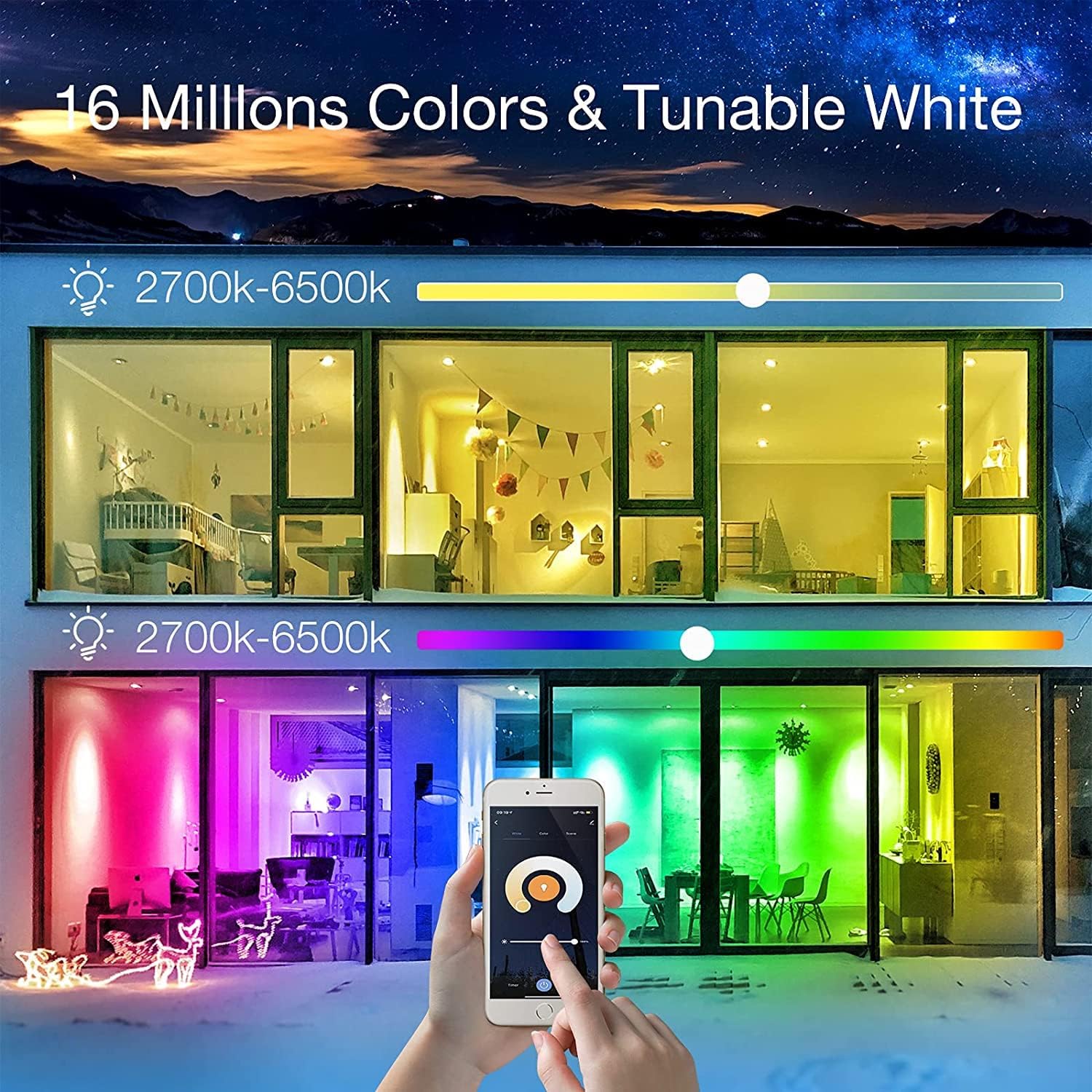
Image: App interface for color and tunable white control
2. Voice Control (Alexa & Google Home)
To enable voice control, link your smart control app account with your Amazon Alexa or Google Home app. Follow the instructions within your smart assistant's app to discover new devices.
- Example Alexa Commands:
"Alexa, turn on the living room light."
"Alexa, set the bedroom light to blue."
"Alexa, dim the kitchen light to 50%." - Example Google Home Commands:
"Hey Google, turn off the lights."
"Hey Google, change the office light to warm white."
"Hey Google, brighten the dining room light."

Image: Voice control in action with a smart light bulb
3. Group Control
If you have multiple phopollo smart bulbs, you can group them together in the app to control them simultaneously. This is useful for controlling lights in an entire room or area with a single command.
- In the app, navigate to the device settings or group management section.
- Create a new group and add the desired bulbs to it.
- You can then control the group as a single entity (e.g., turn all lights in the living room on/off, change their color).

Image: Group control of multiple smart bulbs from a smartphone app
4. Scheduling and Timers
Set schedules and timers to automate your lighting. This feature allows you to program your bulbs to turn on/off, dim, or change color at specific times of the day or week.
- Access the "Schedule" or "Timer" function within the app for each bulb or group.
- Set desired times, days, and light settings (on/off, brightness, color).
- Use this for routines like waking up with gradually brightening lights or dimming lights for bedtime.
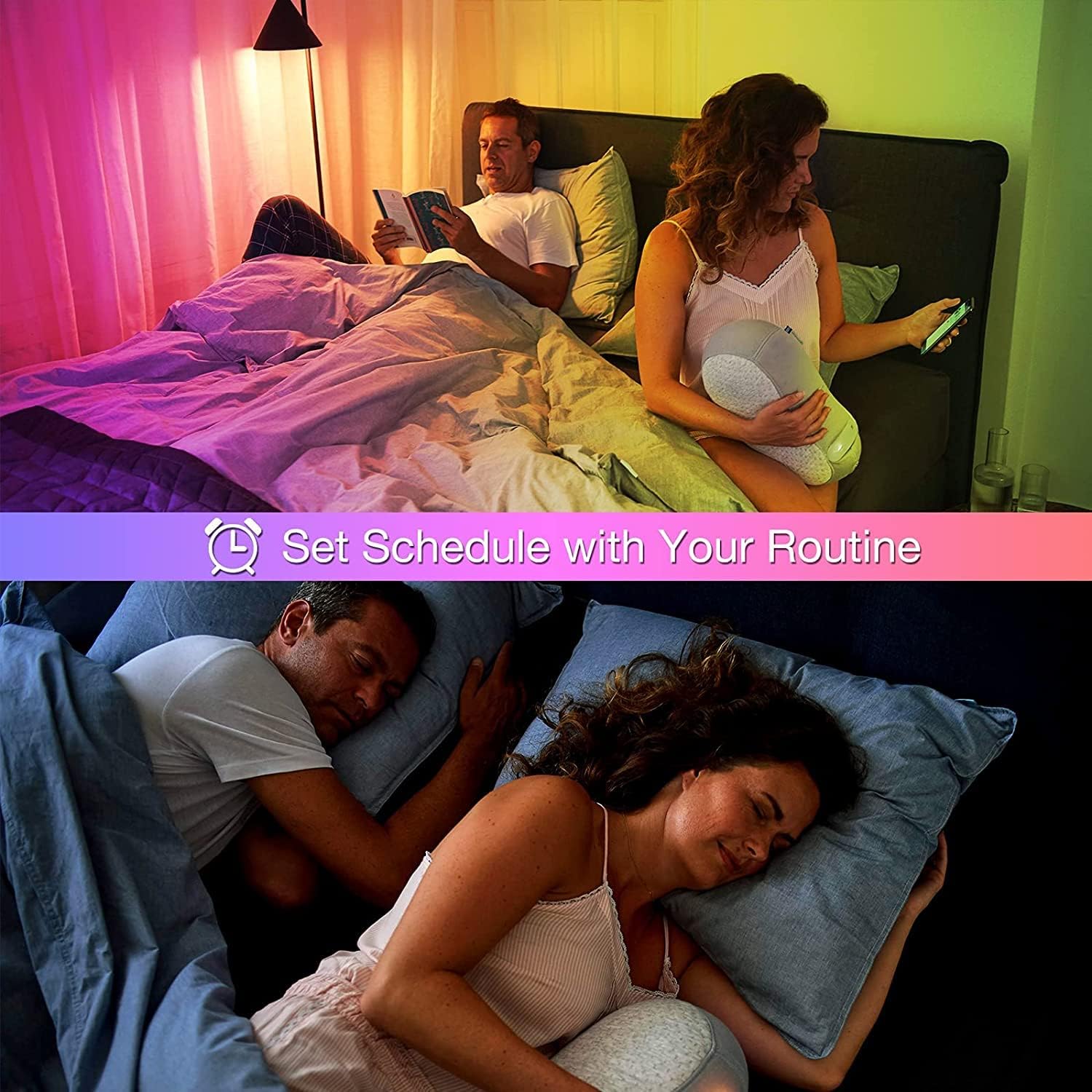
Image: Setting schedules for daily routines
Maintenance
- Clean the bulb with a soft, dry cloth. Do not use liquid cleaners.
- Ensure the bulb is cool before handling or cleaning.
- Regularly check for firmware updates in the smart control app to ensure optimal performance and security.
Troubleshooting
- Bulb not connecting/blinking rapidly: Ensure your WiFi network is 2.4GHz. If the bulb is not blinking, cycle the power (on-off-on-off-on) until it blinks rapidly to enter pairing mode.
- Loss of connection after power outage: If power is lost, bulbs may revert to pairing mode (blinking). You may need to re-pair them if they do not automatically reconnect once power is restored and your WiFi is stable. Ensure your phone is on the same 2.4GHz network as the bulbs for re-pairing.
- Voice control not working: Verify that your smart control app account is correctly linked to your Alexa or Google Home app. Ensure the smart assistant can discover the bulbs. Check your internet connection.
- Bulb unresponsive: Try turning the light switch off and on. If the issue persists, attempt to re-pair the bulb with the app.
- Cannot control multiple bulbs: Ensure all bulbs are successfully paired and assigned to the correct group in the app.
Specifications
| Brand | phopollo |
| Model Number | SBE2612 |
| Light Type | LED |
| Wattage | 9 Watts |
| Incandescent Equivalent | 60 Watts |
| Brightness | 800 Lumens |
| Bulb Shape Size | A19 |
| Bulb Base | E26 |
| Light Color | Multicolor (RGBCW) |
| Color Temperature | 2700K - 6500K |
| Voltage | 120 Volts |
| Control Method | App, Voice |
| WiFi Frequency | 2.4GHz (not compatible with 5GHz) |
| Indoor/Outdoor Usage | Indoor |
Warranty and Support
phopollo products are designed for reliability and performance. For any questions, technical support, or warranty inquiries, please refer to the contact information provided with your purchase or visit the official phopollo website. Please retain your proof of purchase for warranty claims.