
1. Introduction
The TASUMATO HK03CM USB-C to HDMI Adapter is designed to connect your USB Type-C enabled devices to an HDMI display, such as a TV, monitor, or projector. This adapter supports 4K video resolution at 60Hz, providing a high-quality visual and audio experience. It also features a USB charging port to power your device during use, ensuring uninterrupted viewing or gaming.
2. Product Overview
The adapter cable integrates a USB-C connector for your source device, an HDMI connector for the display, and a USB-A connector for power. Its robust design ensures stable signal transmission and durability.

Image: The TASUMATO HK03CM USB-C to HDMI Adapter, showcasing its 4K capability and compact design.
Key Features:
- 4K 60FPS HD Video: Supports resolutions up to 4K*2K (3840*2160) at 60Hz for smooth, high-quality video and audio. Backward compatible with 1080p.
- Plug and Play: No drivers, software, or apps required. No personal hotspot, Wi-Fi, or Bluetooth needed.
- Integrated Charging: Includes a USB-A port to connect to a power adapter (5V@2A recommended) to charge your device while mirroring.
- Wide Compatibility: Compatible with USB Type-C (Thunderbolt 3) devices with DisplayPort Alternate Mode (DP Alt Mode).
- HDCP Support: Compatible with apps that have HDCP video copyright protection, such as Netflix, Amazon Video, HBO Go, and Hulu.
3. Setup and Installation
Follow these steps to connect your device to an HDMI display:
- Connect to HDMI Display: Insert the HDMI connector of the adapter cable into an available HDMI port on your TV, monitor, or projector.
- Connect to Power Source: Plug the USB-A connector of the adapter cable into a 5V@2A power adapter or a powered USB port. This provides power to the adapter and charges your connected device.
- Connect to Your Device: Insert the USB-C connector into the USB Type-C port of your compatible smartphone, tablet, or laptop.
- Display Output: Your device's screen should automatically mirror or extend to the connected display. No additional settings are typically required for basic mirroring.

Image: A hand inserting the HDMI end of the adapter into the HDMI port on the back of a television.
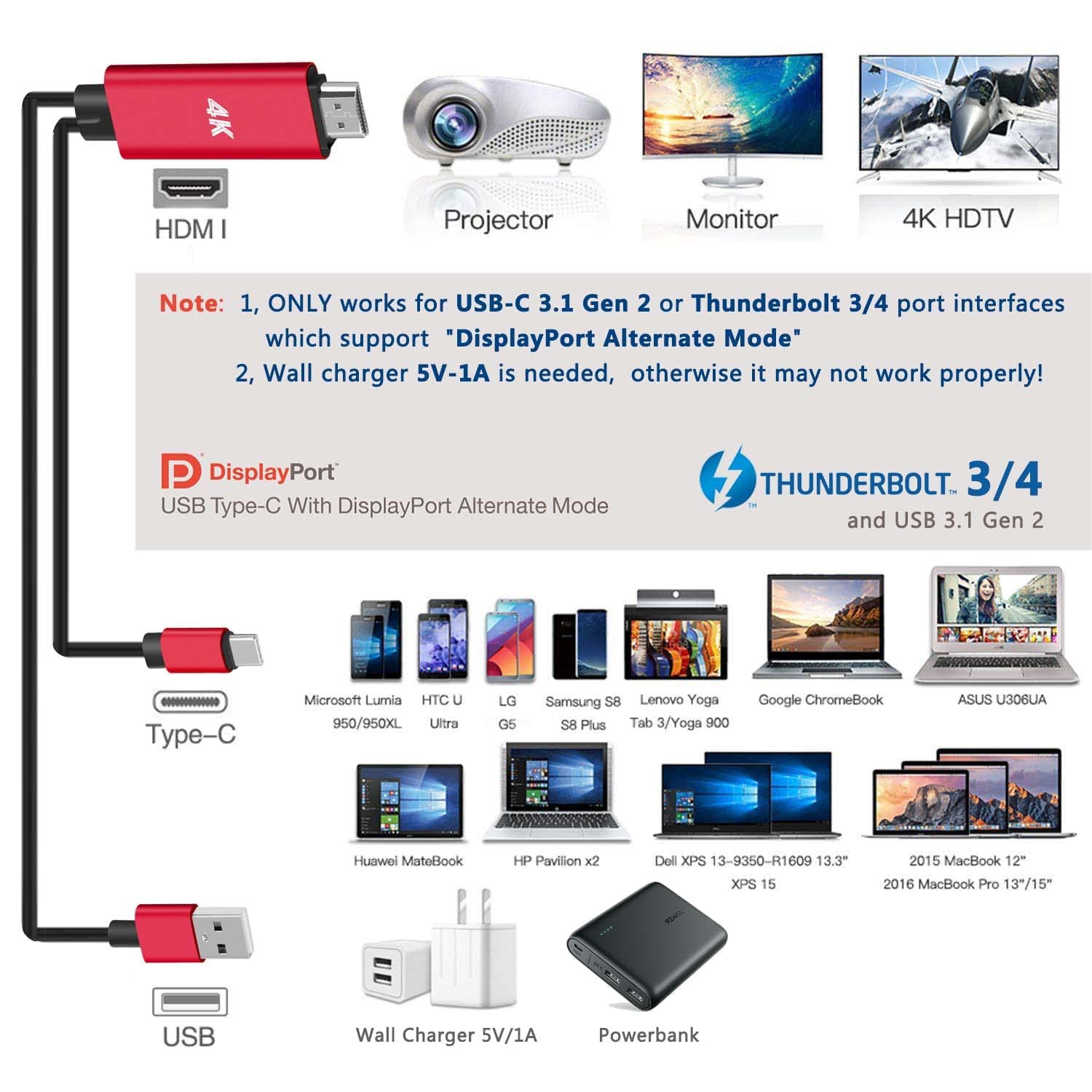
Image: A diagram showing the USB-C to HDMI adapter connected to a projector, monitor, or 4K HDTV, with the USB-A end connected to a wall charger or power bank.

Image: A smartphone displaying the Samsung DeX interface, connected via the USB-C to HDMI adapter to a curved monitor, illustrating both DeX and mirroring modes.
Setup Demonstration Video:
Video: This video demonstrates the connection process of the USB-C to HDMI adapter, showing how to connect it to a TV and a smartphone, and then displaying content on the TV. It highlights the ease of setup and the ability to watch videos and play games on a larger screen.
4. Operating Instructions
Once connected, the adapter functions as a direct video and audio output from your USB-C device to the HDMI display.
Mirroring and Extending Display:
- Most devices will automatically mirror their screen. For devices supporting DisplayPort Alternate Mode, you may have options to mirror or extend your display through your device's display settings.
- Enjoy content such as videos, photos, games, and presentations directly on your TV or monitor.

Image: A family enjoying movies and playing mobile games on a large TV screen, connected via the USB-C to HDMI adapter.
Charging During Use:
The integrated USB-A port allows you to charge your device simultaneously, preventing battery drain during extended use.

Image: A smartphone connected to a TV via the adapter, with the phone displaying a charging icon, indicating simultaneous charging and video output.
5. Compatibility
This adapter is compatible with devices that support USB-C with DisplayPort Alternate Mode (DP Alt Mode), including Thunderbolt 3, Thunderbolt 4, and USB-C 3.1 Gen 2 (or higher) devices. For USB-C 3.1 Gen 1 devices, please verify DP Alt Mode support.
Compatible Devices (Partial List):
- Apple: iPhone 15/15 Plus/15 Pro/15 Pro Max, iPad (10th gen), iPad mini (6th gen), iPad Air (4th/5th gen), iPad Pro (3rd/4th/5th/6th gen).
- Samsung Galaxy: S8/S8+/S9/S9+/S10/S10e/S10+/S20/S20+/S20 Ultra/S20 FE/S21/S21+/S21 Ultra/S21 FE/S22/S22+/S22 Ultra/S23/S23+/S23 Ultra, Note 8/9/10/10+/20/20 Ultra, Fold/Z Fold 2/3/4, A90 5G, M52 5G.
- Samsung Galaxy Tab: S4/S5e/S6 (excluding Lite)/S7/S7+/S8/S8+/S8 Ultra/S9/S9+/S9 Ultra, Active Pro/Active 3.
- LG: G5/G7/G7+/G8/Q8/V20/V30/V30+/V35/V35+/V40/V50/V60 (Note: All with Dec 2018 update!).
- OnePlus: 7/7 Pro/8/8 Pro/9/9R/9 Pro/10 Pro (Note: works on most 720p/1080p displays, crashes on 4K displays).
- Huawei: Mate 10/10 Pro/20/20 X/20 Pro/30/30 Pro/30 RS Porsche Design/30E Pro/40 Pro/50/50E/50 Pro/50 RS Porsche Design, Mate X/Xs/X2/X3, P20/P20 Pro/P30/P30 Pro/P40/P40 Pro/P50 Pocket/P60/P60 Pro/P60 Art.
- Other Brands: Asus (ZenFone 3 Ultra, ROG Phone series), Motorola (Edge+, Edge S, G100, Edge 20 Pro, Edge 30 Pro, Edge X30, Edge 30 Ultra, Edge 40 Pro, Moto X 40, ThinkPhone), Lenovo (Legion Phone Duel, Legion 2 Pro, Legion Duel 2, Legion Y90, TAB6 5G, Tab P11 5G, Tab P11 Pro, Tab P11 Pro Gen 2), Xiaomi (Black Shark 2/3/4), vivo (X70 Pro+, X80 Pro, X90 Pro, X90 Pro+, X Note, X Fold, X Fold+, Pad), OPPO (RX17 Pro, Reno 10x Zoom, Reno 5G, Find X3 Pro), Microsoft (Surface Duo/Duo 2, Lumia 950/950 XL), HTC (10, U Ultra, U11, U11+, U12+, U19e, Exodus 1), Sony (Xperia 1/1 II/1 III/1 IV/1 V, Xperia 5/5 II/5 III/5 IV, Xperia 10 III/10 IV, Xperia Pro/Pro-I), Sharp (Aquos R5G, Aquos zero5G basic, Aquos R6/R7, Leica Leitz Phone 1/2), Razer (Razer Phone/2), BlackBerry Key2, BQ Aquaris X2, Essential Phone, Fairphone 4, PINE64 PinePhone, Purism Librem 5, Smartisan R1, HP Elite x3, Acer Liquid Jade Primo.

Image: A detailed list of compatible phone and tablet models from various brands, including Apple, Samsung, Huawei, and others, along with their release years.
Compatibility List Video:
Video: This video presents a comprehensive list of compatible phone and tablet models for the TASUMATO USB-C to HDMI adapter, organized by brand and year, to help users verify device compatibility.
6. Specifications
| Brand | TASUMATO |
| Model Number | HK03CM |
| Connector Type | HDMI, Thunderbolt, USB C to HDMI, USB Type C |
| Cable Type | HDMI, USB |
| Special Feature | Fast Charging, Heat Resistant, Lightweight, Low Voltage, Short Circuit Protection |
| Data Transfer Rate | 5 Gigabits Per Second |
| Maximum Voltage | 5 Volts |
| Item Weight | 2.82 ounces (0.08 Kilograms) |
| Cable Length | 6 feet (1.8 meters) |
7. Troubleshooting
Common Issues and Solutions:
- No Display/Signal:
- Ensure your device supports USB-C with DisplayPort Alternate Mode. Refer to the compatibility list.
- Verify all connections are secure: USB-C to device, HDMI to display, and USB-A to power source (5V@2A recommended).
- Try a different HDMI port on your display.
- Restart your source device and display.
- Intermittent Connection/Flickering:
- Ensure the USB-A power connector is connected to a stable 5V@2A power source. Insufficient power can cause instability.
- Check for any physical damage to the cable or connectors.
- Ensure your device's operating system is up to date, as older versions might not fully support DP Alt Mode.
- No Audio:
- Check your display's audio settings and ensure the correct HDMI input is selected for audio output.
- Adjust the volume on both your source device and the display.
- Not Compatible with Certain Apps (e.g., Netflix, Amazon Video):
- This adapter supports HDCP, which is required for protected content. If an app is not working, ensure the app and your device's software are updated.
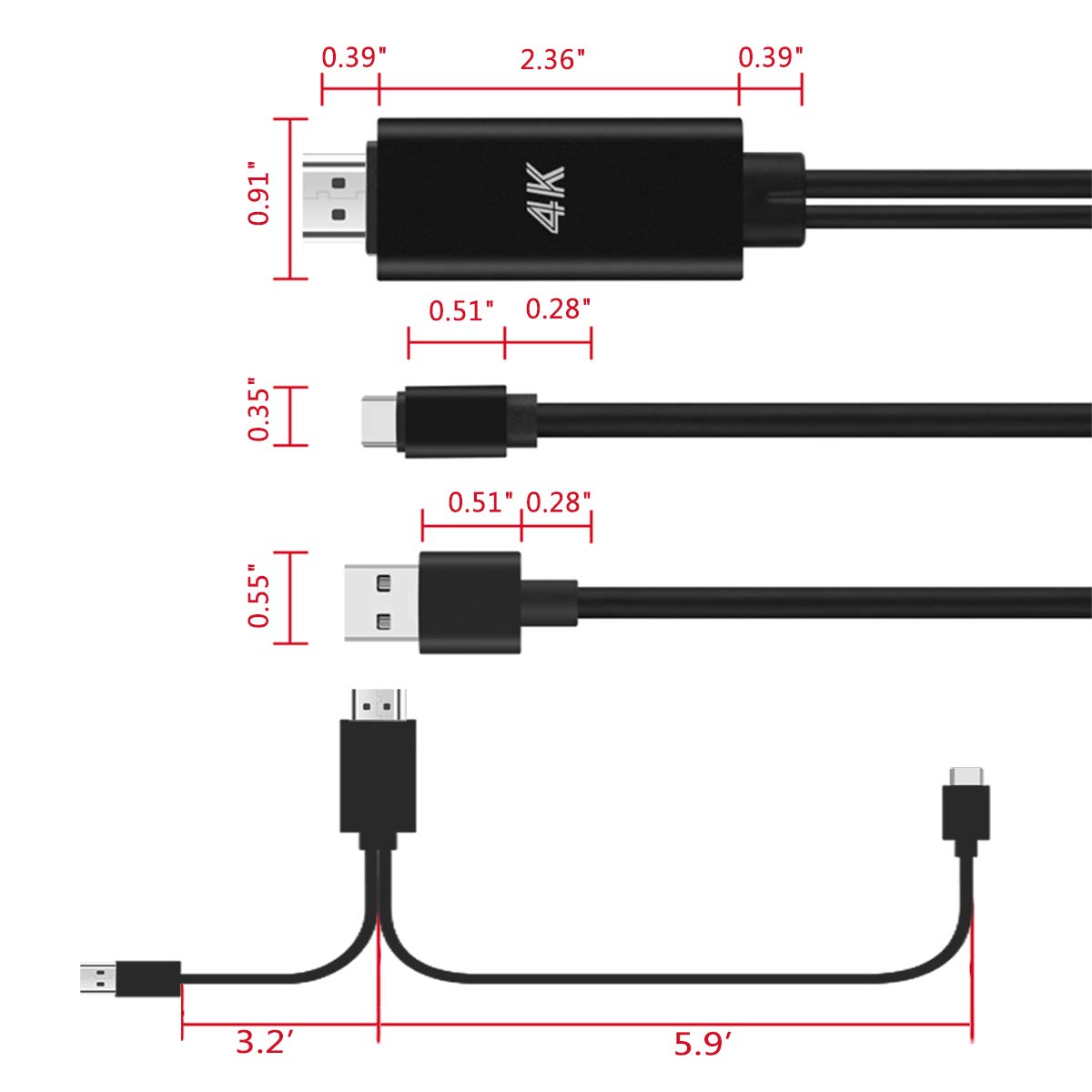
Image: A visual guide indicating devices that are not compatible with the USB-C to HDMI adapter, including specific Samsung, Huawei, and other phone models, as well as devices like iPhone (pre-15), Fire Tablet, GoPro, and Nintendo Switch.
8. Care and Maintenance
- Keep the adapter in a dry environment and avoid exposure to extreme temperatures.
- Do not bend the cable excessively or apply undue force to the connectors.
- Clean the connectors periodically with a soft, dry cloth to ensure optimal contact.
- Store the adapter properly when not in use to prevent tangling or damage.
9. Warranty and Support
For warranty information or technical support, please refer to the product packaging or contact TASUMATO customer service through the retailer where the product was purchased. Please provide your model number (HK03CM) and purchase details when seeking support.