
Introduction
This user manual provides comprehensive instructions for the IQAir AirVisual Air Quality Monitor Bundle, which includes both the AirVisual Pro (indoor monitor) and the AirVisual Outdoor (outdoor monitor). This bundle is designed to provide accurate, real-time air quality data for both your indoor and outdoor environments, empowering you to make informed decisions for a healthier living space.
Please read this manual thoroughly before setting up and operating your AirVisual monitors to ensure optimal performance and longevity of the devices.
Product Overview
The IQAir AirVisual Bundle offers advanced air quality monitoring capabilities. The AirVisual Pro is an indoor monitor that displays real-time PM2.5 and CO2 readings using professional-grade laser sensors, along with indoor temperature and humidity. Its bright LED display allows for easy comparison of indoor PM2.5 readings with outdoor air quality data from your nearest official station. The AirVisual Pro also provides predictive 3-day air quality forecasting and personalized recommendations based on your indoor readings.
The AirVisual Outdoor is a weatherproof unit designed for continuous outdoor use, providing real-time PM1, PM2.5, PM10, optional CO2, AQI calculations, temperature, relative humidity, and atmospheric pressure information. Both devices integrate seamlessly with the free AirVisual app, allowing you to view real-time data from anywhere in the world and access the global air quality monitoring network.

Figure 1: The IQAir AirVisual Bundle, featuring the indoor AirVisual Pro monitor (front) and the outdoor AirVisual Outdoor unit (background).

Figure 2: The AirVisual Pro's display interface, highlighting its capability to detect critical air quality factors such as AQI, PM2.5, CO2, Temperature, and Humidity.

Figure 3: An illustration of the comprehensive IQAir air quality monitoring ecosystem, demonstrating how various IQAir devices and the mobile app work together for 360-degree air quality tracking.
Setup
Setting up your IQAir AirVisual monitors is designed to be straightforward. Both units connect to your network for data transmission and app integration.
AirVisual Pro (Indoor Unit) Setup:
- Power On: Connect the AirVisual Pro to a power outlet using the provided adapter. The device will power on automatically.
- Initial Configuration: Follow the on-screen prompts to select your language, time zone, and connect to your Wi-Fi network.
- App Pairing: Download the free IQAir AirVisual app from your device's app store. Create an account or log in. The app will guide you through pairing your AirVisual Pro with your smartphone or tablet.
- Placement: Place the AirVisual Pro in a central location within the indoor area you wish to monitor. Ensure it is not near direct heat sources, vents, or windows that could skew readings.
AirVisual Outdoor Unit Setup:
- Power Connection: The AirVisual Outdoor unit requires a power adapter and comes with a 12m (35-foot) cable for connection to any standard electrical outlet.
- Mounting: The unit can be mounted on a wall, roof, or pole. Ensure the mounting location provides clear air circulation and is protected from direct precipitation if possible, although the unit is weatherproof.
- Network Connectivity: The AirVisual Outdoor supports Wi-Fi, LAN, and optional 4G connectivity (requires 4G modem stick and SIM card with data plan). Connect the unit to your preferred network.
- App Integration: Once connected, the AirVisual Outdoor unit can be added to your IQAir AirVisual app account, allowing you to monitor outdoor air quality data alongside your indoor readings.

Figure 4: Illustration of the AirVisual Pro and Outdoor units connecting wirelessly to the IQAir AirVisual mobile application, demonstrating seamless data access across devices.
Operating Instructions
The AirVisual monitors are designed for continuous operation, providing real-time data and insights into your air quality.
AirVisual Pro Display:
The AirVisual Pro features a bright LED display that cycles through various screens, showing current indoor air quality, outdoor air quality from nearby stations, temperature, humidity, and CO2 levels. You can navigate through the screens using the physical buttons on the device.
IQAir AirVisual App:
The AirVisual app is your central hub for monitoring and managing your air quality data. Key features include:
- Real-time Readings: View live indoor and outdoor air quality data, including PM2.5, CO2, temperature, and humidity.
- Historical Data: Access graphs and charts showing air quality trends over time, allowing you to identify patterns and sources of pollution.
- Air Quality Forecasts: Get predictive 3-day forecasts for both indoor and outdoor air quality, helping you plan activities and manage ventilation.
- Personalized Recommendations: Receive actionable advice based on your specific air quality data to improve your indoor environment.
- Alerts and Notifications: Set custom alerts for specific pollutant levels, ensuring you are notified when air quality changes significantly.
- IFTTT Integration: Utilize "If This Then That" (IFTTT) to automate actions based on air quality readings, such as turning on an air purifier when PM2.5 levels rise.
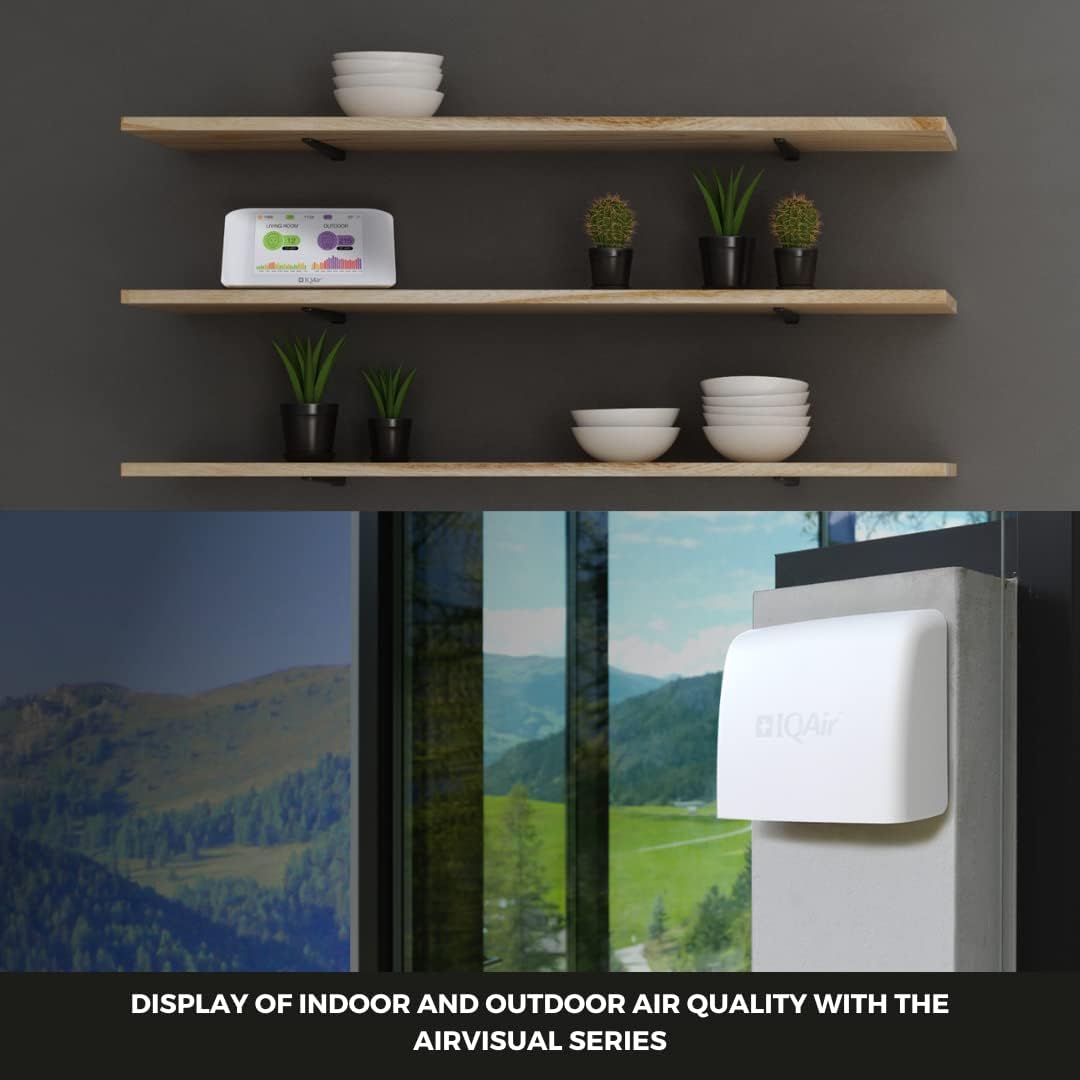
Figure 5: The AirVisual Pro's display showing a comparison of indoor and outdoor air quality, providing a clear visual representation of current conditions.
Maintenance
Regular maintenance ensures the accuracy and longevity of your IQAir AirVisual monitors.
- Cleaning: Gently wipe the exterior of both units with a soft, dry cloth. Avoid using abrasive cleaners or solvents. Ensure the air inlets and outlets are free from dust and debris.
- Sensor Care: The professional-grade laser sensors are designed for durability. Avoid exposing the units to excessive dust or moisture, which could affect sensor performance.
- Software Updates: Keep your AirVisual Pro firmware and AirVisual app updated to the latest versions to benefit from new features and performance improvements. Updates are typically managed through the AirVisual app.
Troubleshooting
If you encounter issues with your IQAir AirVisual monitors, refer to the following common troubleshooting steps:
| Problem | Possible Cause | Solution |
|---|---|---|
| Device not powering on | Power cable not connected properly; Power outlet issue. | Ensure the power cable is securely plugged into both the device and a working electrical outlet. Try a different outlet. |
| No data displayed / Offline | Wi-Fi connectivity issue; Router problem. | Check your Wi-Fi connection. Restart your Wi-Fi router. Re-pair the device with the app if necessary. Ensure the device is within Wi-Fi range. |
| Inaccurate readings | Blocked air inlets/outlets; Device placed in an unsuitable location. | Ensure air inlets/outlets are clear. Relocate the device away from direct drafts, heat sources, or areas with concentrated pollutants (e.g., cooking fumes). |
| App not connecting to device | Bluetooth/Wi-Fi issues on phone; App outdated. | Ensure Bluetooth and Wi-Fi are enabled on your phone. Update the AirVisual app to the latest version. Restart both the device and your phone. |
For further assistance, please refer to the official IQAir support resources or contact customer service.
Specifications
Below are the key specifications for the IQAir AirVisual Air Quality Monitor Bundle:
- Product Dimensions: 4 x 7.24 x 3.25 inches (AirVisual Pro); Specific dimensions for AirVisual Outdoor may vary but are designed for outdoor installation.
- Weight: Approximately 6 Pounds (for the bundle).
- Manufacturer: IQAir
- ASIN: B0CFYX1T2W
- First Available: October 14, 2021
- Monitored Parameters (AirVisual Pro): PM2.5, CO2, Temperature, Humidity.
- Monitored Parameters (AirVisual Outdoor): PM1, PM2.5, PM10, optional CO2, AQI, Temperature, Relative Humidity, Atmospheric Pressure.
- Connectivity: Wi-Fi, LAN (AirVisual Outdoor), optional 4G (AirVisual Outdoor).
- Power Source: Electrical outlet/USB (AirVisual Pro), Power adapter with 12m cable (AirVisual Outdoor).
- Design: Swiss-Designed (AirVisual Pro), Weatherproof (AirVisual Outdoor).
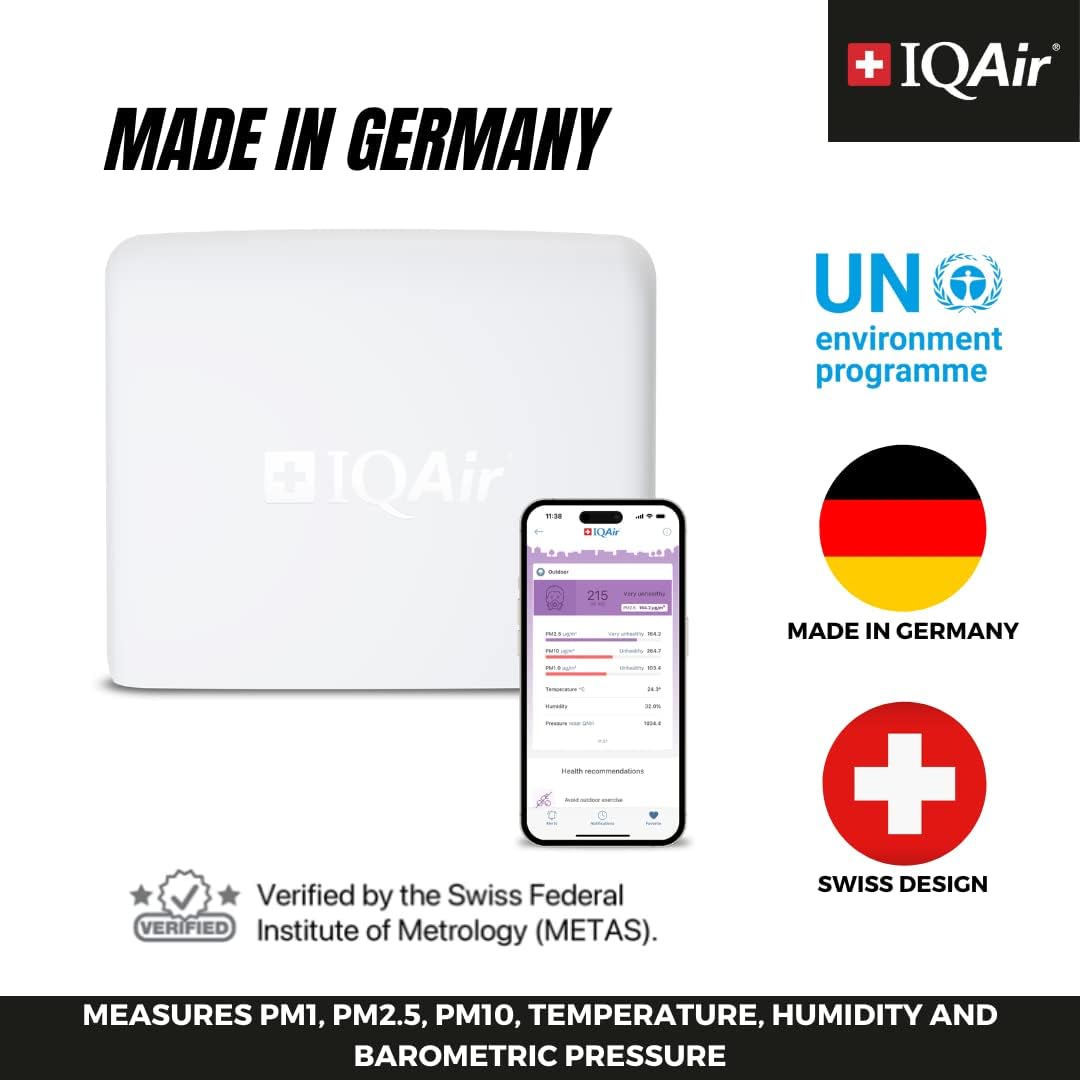
Figure 6: Highlighting the Swiss design and German manufacturing of IQAir products, along with verification by the Swiss Federal Institute of Metrology (METAS).
Warranty and Support
For detailed warranty information, including coverage period and terms, please refer to the warranty card included with your product packaging or visit the official IQAir website. IQAir provides customer support for product inquiries, technical assistance, and warranty claims.
Online Resources: Visit the IQAir support page for FAQs, troubleshooting guides, and product documentation.
Contact Support: Contact information for customer service can be found on the IQAir website or in your product documentation. Please have your product model and serial number ready when contacting support.
Note: Protection plans are available for purchase separately to extend coverage beyond the standard manufacturer's warranty.