
Introduction
Thank you for choosing the SIMGAL B90 Bluetooth Cat Ear Headphones. These headphones offer a versatile audio experience with both wireless Bluetooth and wired connectivity options. Designed for comfort and featuring distinctive RGB lighting, they are suitable for various devices and users. This manual provides detailed instructions for setup, operation, maintenance, and troubleshooting to ensure optimal performance.
Safety Information
- Volume Control: To prevent hearing damage, avoid using headphones at high volume levels for extended periods.
- Cleaning: Use a soft, dry cloth for cleaning. Do not use liquid cleaners or aerosols.
- Water Exposure: These headphones are not water-resistant. Avoid exposure to water or excessive moisture.
- Storage: Store the headphones in a cool, dry place away from extreme temperatures.
- Disassembly: Do not attempt to disassemble or modify the headphones, as this may void the warranty and cause damage.
Package Contents
- 1 x SIMGAL B90 Bluetooth Cat Ear Headphones
- 1 x USB-C Charging Cable
- 1 x 3.5mm Audio Cable
- 1 x User Manual
Product Overview
The SIMGAL B90 headphones feature a foldable design for portability, soft memory foam ear-pads for comfort, and integrated RGB lighting on the cat ears and ear cup logos. They support both wireless Bluetooth 5.0 connectivity and a wired connection via a 3.5mm audio jack. A built-in microphone allows for hands-free communication.
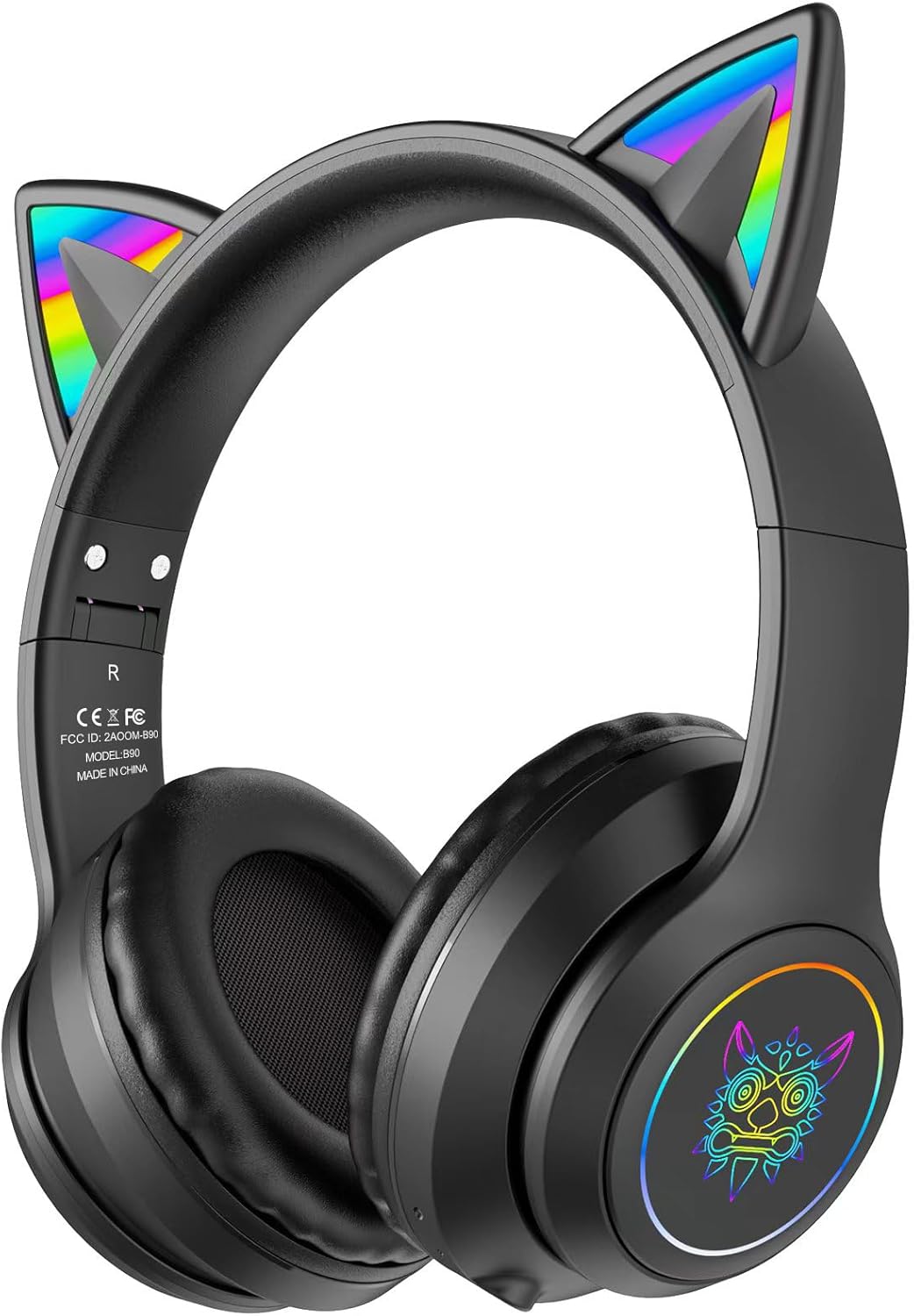
Image: SIMGAL B90 Bluetooth Cat Ear Headphones, showcasing the black design with illuminated cat ears and ear cup logos.
Key Features:
- RGB Cat Ears & Logo: Integrated RGB backlighting on cat ears and ear cup logos.
- Comfortable Design: Lightweight with soft memory foam ear-pads for extended wear.
- Dual Mode: Supports wireless Bluetooth 5.0 and wired 3.5mm audio connection.
- Built-in Microphone: High-definition microphone for clear communication.
- Foldable & Portable: Ear-pads fold inward, and the head beam is adjustable for easy storage and transport.

Image: Detailed view of the headphone's multi-button controls, including volume, play/pause, power, charging port, audio port, microphone, and indicator light.
Setup
1. Charging the Headphones
- Connect the provided USB-C charging cable to the charging port on the headphones.
- Connect the other end of the USB-C cable to a USB power source (e.g., computer, wall adapter).
- The indicator light will illuminate during charging and turn off when fully charged.
2. Power On/Off
- To power on, press and hold the ON/OFF button until the indicator light flashes.
- To power off, press and hold the ON/OFF button until the indicator light turns off.
3. Bluetooth Pairing (Wireless Mode)
- Ensure the headphones are powered off.
- Press and hold the ON/OFF button for approximately 3-5 seconds until the indicator light flashes blue and red alternately, indicating pairing mode.
- On your device (phone, tablet, laptop), enable Bluetooth and search for available devices.
- Select "SIMGAL B90" from the list of devices.
- Once connected, the indicator light will turn solid blue or flash slowly.
4. Wired Connection
- Insert one end of the 3.5mm audio cable into the audio port on the headphones.
- Insert the other end into the 3.5mm audio jack of your device.
- Note: In wired mode, the RGB lights and the built-in microphone will not function.
Operating Instructions
Music Playback (Wireless Mode)
- Play/Pause: Click the Play/Pause button (center button).
- Volume Up: Click the Volume Up button (+).
- Volume Down: Click the Volume Down button (-).
- Next Track: Long-press the Volume Up button (+).
- Previous Track: Long-press the Volume Down button (-).
Call Management (Wireless Mode)
- Answer/End Call: Click the Play/Pause button.
- Reject Call: Long-press the Play/Pause button.
RGB Lighting
The RGB lights on the cat ears and ear cup logos activate automatically when the headphones are powered on in wireless mode. There is no specific control button for the RGB lighting; it is an integrated feature.

Image: SIMGAL B90 headphones resting on a laptop, demonstrating the vibrant RGB lighting on the cat ears and ear cup logos.
Maintenance
Cleaning
- Wipe the headphones with a soft, dry, lint-free cloth.
- Do not use harsh chemicals, cleaning solvents, or strong detergents.
Storage
- When not in use, fold the ear-pads inward to reduce the headphone's size.
- Store in a protective case or bag to prevent damage.
Troubleshooting
| Problem | Possible Solution |
|---|---|
| Headphones do not power on. | Ensure the headphones are fully charged. Connect to a power source using the USB-C cable. |
| No sound in wireless mode. | Check if the headphones are paired correctly with your device. Ensure the volume on both the headphones and your device is turned up. |
| Bluetooth connection fails. | Make sure the headphones are in pairing mode (flashing blue/red light). Turn off and on Bluetooth on your device. Try unpairing and re-pairing the headphones. Ensure no other devices are connected to the headphones. |
| Microphone not working in wired mode. | This is expected behavior. The microphone is only active in wireless (Bluetooth) mode. |
| RGB lights are not on in wired mode. | This is expected behavior. RGB lights are only active in wireless (Bluetooth) mode. |
Specifications
| Feature | Detail |
|---|---|
| Model Name | B90 |
| Connectivity Technology | Wired, Wireless (Bluetooth) |
| Wireless Communication Technology | Bluetooth |
| Headphones Jack | 3.5 mm Jack |
| Frequency Response | 20 KHz |
| Microphone Format | Built-In |
| Control Type | Media Control |
| Material | Memory Foam (ear-pads) |
| Item Weight | 0.36 Kilograms |
| Batteries Included | Yes (1 Lithium Ion battery) |
| Special Features | Foldable, RGB Lighting |
| Compatible Devices | Mobile Phones, Tablets, Laptops, Computers, Gaming Consoles |
Warranty and Support
SIMGAL products are designed for reliability and performance. For information regarding warranty coverage, technical support, or service inquiries, please refer to the contact information provided with your purchase or visit the official SIMGAL website. Please retain your proof of purchase for warranty claims.