
1. Introduction
This manual provides detailed instructions for the installation, operation, and maintenance of your Denver DTB-145 DVB-T2 H.265 Set-Top Box. Please read this manual thoroughly before using the device to ensure proper functionality and to prevent damage. Keep this manual for future reference.
2. Safety Information
- Power Supply: Use only the power adapter supplied with the device. Ensure the voltage matches your local power supply.
- Ventilation: Do not block any ventilation openings. Place the device on a stable, flat surface with adequate space around it for air circulation.
- Water and Moisture: Do not expose the device to rain, moisture, or any liquids. Do not place objects filled with liquids, such as vases, on the device.
- Heat Sources: Keep the device away from heat sources such as radiators, heat registers, stoves, or other heat-producing appliances.
- Cleaning: Unplug the device from the power outlet before cleaning. Use a soft, dry cloth. Do not use liquid or aerosol cleaners.
- Servicing: Do not attempt to service this product yourself. Refer all servicing to qualified service personnel. Opening the cover may expose you to dangerous voltage or other hazards.
- Lightning: Unplug the device during lightning storms or when unused for long periods.
3. Package Contents
Verify that all items are present in the package:
- Denver DTB-145 DVB-T2 H.265 Set-Top Box
- Remote Control
- Power Adapter
- User Manual (this document)
4. Product Overview
4.1 Front Panel

Image Description: This image displays the front panel of the Denver DTB-145 Set-Top Box. On the left, the 'DENVER' logo is visible. In the center, a green LED display shows 'St-rt'. To the right, a USB port is present.
- LED Display: Shows channel number, time, or operational status.
- USB Port: For connecting USB storage devices for media playback.
4.2 Rear Panel
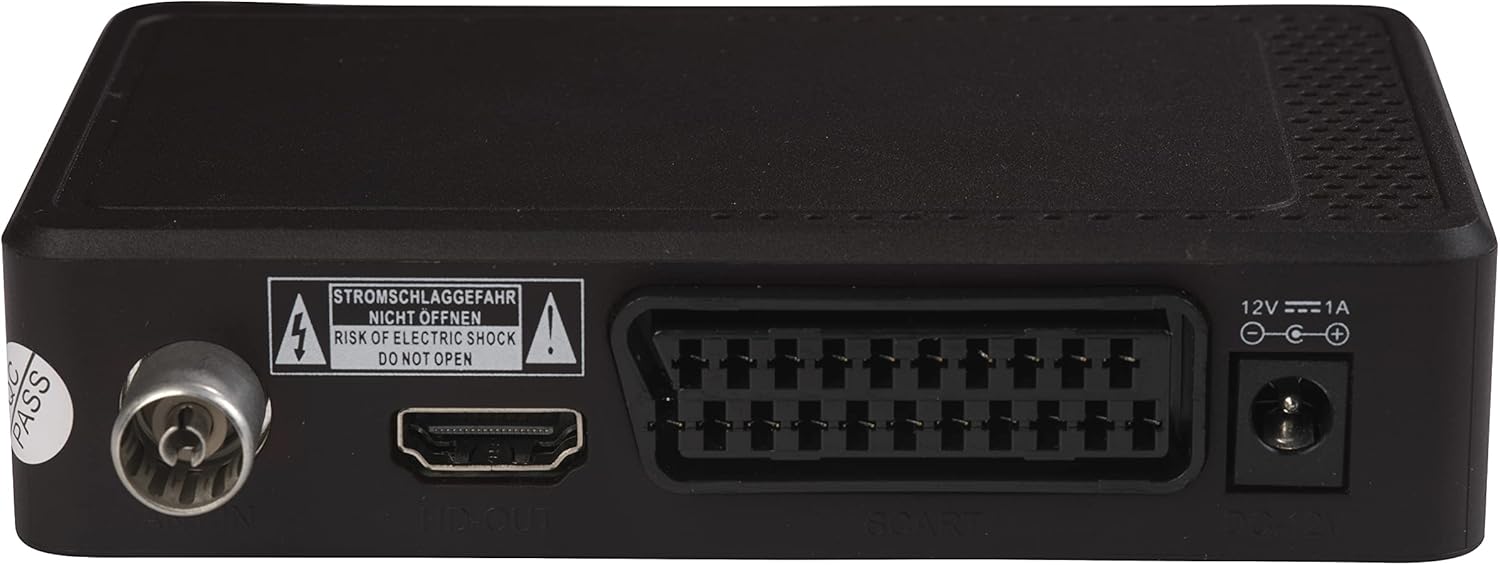
Image Description: This image shows the rear panel of the Denver DTB-145 Set-Top Box. From left to right, the ports include: Antenna IN (RF IN), HDMI OUT, SCART, DC IN (12V), and an Ethernet port.
- RF IN: Connects to your terrestrial antenna.
- HDMI OUT: Connects to your TV for high-definition video and audio.
- SCART: Connects to older TVs for standard-definition video and audio.
- DC IN (12V): Connects to the power adapter.
- ETHERNET: Connects to your network for internet access (if supported by firmware for specific features).
4.3 Remote Control
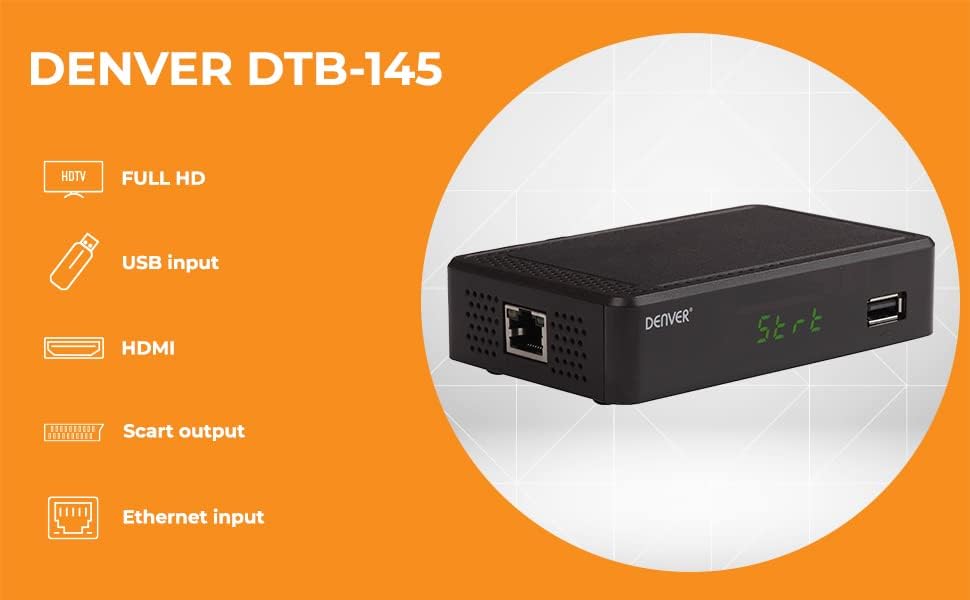
Image Description: This image displays the remote control for the Denver DTB-145 Set-Top Box. It features a standard layout with power, channel, volume, menu, navigation, EPG, and media control buttons.
The remote control allows you to operate all functions of the set-top box. Familiarize yourself with the button layout for easy navigation.
5. Setup
5.1 Connecting to Your Television
- HDMI Connection (Recommended for HD):
- Ensure both your TV and the set-top box are powered off.
- Connect one end of an HDMI cable (not included) to the HDMI OUT port on the set-top box.
- Connect the other end of the HDMI cable to an available HDMI input on your TV. Note the HDMI input number (e.g., HDMI 1, HDMI 2).
- SCART Connection (for older TVs):
- Ensure both your TV and the set-top box are powered off.
- Connect one end of a SCART cable (not included) to the SCART port on the set-top box.
- Connect the other end of the SCART cable to the SCART input on your TV.
5.2 Connecting the Antenna
- Connect your terrestrial antenna cable to the RF IN port on the rear panel of the set-top box.
5.3 Connecting Power
- Connect the supplied power adapter to the DC IN (12V) port on the rear panel of the set-top box.
- Plug the power adapter into a wall outlet. The set-top box should power on or enter standby mode.
5.4 First-Time Installation and Channel Scan
- Power on your TV and select the correct HDMI or SCART input source.
- Power on the set-top box using the remote control or the power button on the unit.
- The first-time installation wizard should appear. Follow the on-screen prompts to select your language, country, and initiate an automatic channel scan.
- The channel scan may take several minutes. Do not interrupt the process.
- Once the scan is complete, the set-top box will display the first available channel.
5.5 Connecting to Network (Optional)
- Connect an Ethernet cable (not included) from your router to the ETHERNET port on the rear panel of the set-top box.
- This connection may be used for potential future firmware updates or specific internet-enabled features, depending on the device's software capabilities.
6. Operating
6.1 Basic Functions
- Power On/Off: Press the STANDBY button on the remote control.
- Channel Selection: Use the CH+/CH- buttons or enter the channel number directly using the numeric keypad.
- Volume Control: Use the VOL+/VOL- buttons.
- Mute: Press the MUTE button to temporarily silence the audio.
6.2 Menu Navigation
- Press the MENU button to access the main menu.
- Use the directional arrows (▲ ▼ ◀ ►) to navigate through menu options.
- Press OK to confirm a selection.
- Press EXIT to return to the previous menu or exit the menu entirely.
6.3 Electronic Program Guide (EPG)
- Press the EPG button on the remote control to view the Electronic Program Guide.
- The EPG displays program schedules for current and upcoming broadcasts. Use the directional arrows to navigate through channels and programs.
6.4 Media Playback via USB
- Insert a USB storage device (e.g., USB flash drive) into the USB port on the front panel.
- Access the media player function through the main menu or by pressing a dedicated media button (if available) on the remote.
- Browse your files and select the desired video, audio, or image file for playback.
6.5 DVB Subtitles and Teletext
- If available on the broadcast, press the SUB-T button to enable or disable DVB subtitles.
- Press the TTX button to access Teletext services, if provided by the broadcaster.
7. Maintenance
7.1 Cleaning
- Always unplug the set-top box from the power outlet before cleaning.
- Use a soft, dry, lint-free cloth to wipe the exterior of the device.
- Do not use liquid cleaners, abrasive pads, or chemical sprays, as these can damage the finish or internal components.
7.2 Software Updates
Periodically check the manufacturer's website for available software updates. Updates can improve performance, add features, or fix bugs. Follow the instructions provided with the update file carefully.
8. Troubleshooting
| Problem | Possible Cause | Solution |
|---|---|---|
| No picture or sound | Incorrect TV input selected Loose cable connections Set-top box not powered on | Select the correct HDMI/SCART input on your TV. Check all cable connections (HDMI/SCART, antenna, power). Ensure the set-top box is powered on. |
| Poor picture quality | Weak antenna signal Damaged antenna cable | Adjust antenna position or consider an amplified antenna. Check antenna cable for damage and replace if necessary. |
| Remote control not working | Dead batteries Obstruction between remote and box Incorrect remote mode | Replace batteries. Ensure a clear line of sight to the set-top box's IR receiver. Ensure the remote is in the correct mode for the set-top box. |
| No channels found during scan | Antenna not connected or faulty Weak signal in your area | Check antenna connection. Ensure antenna is suitable for DVB-T2. Try repositioning the antenna or using an outdoor antenna. |
| USB media not playing | Unsupported file format USB device not recognized | Refer to specifications for supported media formats. Convert files if necessary. Ensure USB device is formatted correctly (e.g., FAT32). Try a different USB device. |
9. Specifications
| Feature | Specification |
|---|---|
| Model | DTB-145 (Manufacturer Model: 110131120090) |
| Brand | Denver |
| Tuner Type | DVB-T2 H.265 |
| Video Encoding | H.265, MPEG-1, MPEG-2, MPEG-4 |
| Resolution | Full HD (1920x1080) via HDMI |
| Audio Codec | Dolby Digital (Plus) |
| Audio Output Mode | Surround (5.1 channel configuration) |
| Connectivity | HDMI, SCART, USB, Ethernet |
| Special Features | FTA (Free-to-Air) Channels, EPG, DVB Subtitles, Teletext, USB Media Playback |
| Dimensions (L x W x H) | 12 x 8 x 3 cm |
| Weight | 250 Grams |
| Power Input | 12V, 1A (via included power adapter) |
10. Warranty and Support
This product is covered by a standard manufacturer's warranty. For specific warranty terms and conditions, please refer to the warranty card included with your product or contact your retailer. For technical support or service inquiries, please contact Denver customer service or visit their official website for further assistance.


