
1. Introduction
Thank you for purchasing the BT21 Chimmy Baby My Little Buddy Wireless Mouse. This manual provides essential information for setting up, operating, and maintaining your new mouse. Please read these instructions carefully before use to ensure proper functionality and longevity of the product.

Image: The BT21 Chimmy wireless mouse, featuring the Chimmy character, positioned on a matching mousepad alongside a compact wireless keyboard. The setup is presented on a pink checkered background.
2. Product Features
- Dual Connectivity: Supports both 2.4G wireless via a nano receiver and Bluetooth (BT3.0/BT5.0) for versatile connection to multiple devices.
- Silent Click: Designed for quiet operation, making it suitable for environments where noise reduction is desired.
- Optical Sensor: Equipped with a 1200 DPI optical sensor for precise tracking and smooth cursor movement.
- Wide Compatibility: Compatible with Windows (7, 8, 10, XP), macOS (10.4 and above), and Linux operating systems.
- Power Saving Mode: Automatically enters power-saving mode after a period of inactivity to conserve battery life.
- Portable Design: Compact and lightweight, ideal for use with personal computers and laptops.
- 20M Wireless Range: Offers a reliable wireless connection up to 20 meters.

Image: An overhead view of the BT21 Chimmy mouse, highlighting its dual 2.4G and Bluetooth connectivity. The image also displays various BT21 character designs surrounding the mouse.

Image: The underside of the BT21 Chimmy mouse, detailing the mode switch button (2.4G/BT1/BT2), mode status indicator, ON/OFF power switch, and a compartment for storing the nano receiver. The silent click feature is also indicated.
3. Setup Instructions
3.1. Installing the Battery
- Locate the battery compartment on the bottom of the mouse.
- Open the battery cover.
- Insert one AA battery, ensuring the polarity (+/-) matches the indicators inside the compartment.
- Close the battery cover.
3.2. 2.4G Wireless Connection
- Turn on the power switch located on the bottom of the mouse.
- Take out the nano receiver stored inside the battery compartment.
- Insert the nano receiver into an available USB port on your personal computer or laptop.
- The mouse will automatically connect to your device.
3.3. Bluetooth Connection
- Turn on the power switch located on the bottom of the mouse.
- Press the mode switch button on the bottom of the mouse to select either BT1 or BT2 mode. The mode indicator light will blink, indicating that the mouse is in pairing mode.
- On your device (PC, laptop, or smartphone), navigate to the Bluetooth settings.
- Search for available devices and select either "BT3.0 MOUSE" or "BT5.0 MOUSE" to connect.
- For iOS devices: If you encounter issues, enable "AssistiveTouch" in your device's Settings > Accessibility > Touch menu to ensure proper functionality with the Bluetooth mouse.

Image: A detailed diagram illustrating the steps for both 2.4G and Bluetooth connections, including battery installation, nano receiver placement, and device pairing instructions. The package contents are also shown.

Image: The BT21 Chimmy mouse shown in use, emphasizing its 20-meter wireless range and illustrating the 2.4GHz connection method with a nano receiver plugged into a laptop's USB port.
4. Operating Instructions
Once connected, the BT21 Chimmy mouse functions like a standard three-button optical mouse.
- Left Click: Primary function, typically used for selecting items or activating functions.
- Right Click: Secondary function, typically used to open context menus.
- Scroll Wheel: Used for scrolling through documents or web pages. It can also function as a middle click button.
- Mode Switching: Use the mode switch button on the bottom of the mouse to toggle between 2.4G, BT1, and BT2 modes if you need to switch between connected devices.
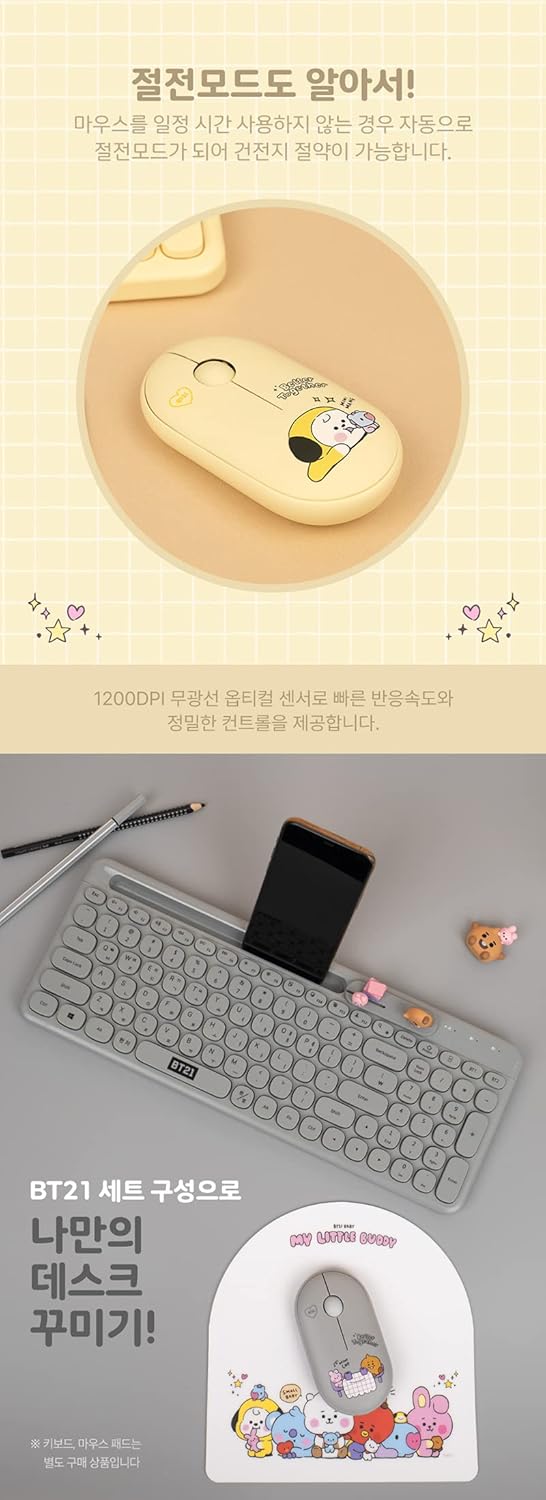
Image: The BT21 Chimmy mouse paired with a keyboard, illustrating its power-saving capabilities and 1200 DPI optical sensor for precise control.
5. Maintenance
5.1. Battery Replacement
When the mouse performance degrades or the indicator light suggests low battery, replace the AA battery by following the steps in Section 3.1.
5.2. Cleaning
- Ensure the mouse is turned off before cleaning.
- Use a soft, dry cloth to wipe the surface of the mouse.
- For stubborn dirt, slightly dampen the cloth with water or a mild, non-abrasive cleaner.
- Avoid using harsh chemicals or abrasive materials, as these can damage the mouse's surface.
- Keep the optical sensor clean and free from dust or debris for optimal tracking performance.
6. Troubleshooting
- Mouse not responding:
- Check if the mouse is turned on.
- Replace the battery if it is low or depleted.
- For 2.4G connection, ensure the nano receiver is securely plugged into a working USB port. Try a different USB port.
- For Bluetooth connection, ensure Bluetooth is enabled on your device and the mouse is in pairing mode (blinking indicator). Re-pair the mouse if necessary.
- Intermittent connection:
- Ensure the mouse is within the 20-meter wireless range of your device.
- Minimize interference from other wireless devices.
- For 2.4G, try moving the nano receiver closer to the mouse or using a USB extension cable.
- Cursor movement is erratic or inaccurate:
- Clean the optical sensor on the bottom of the mouse.
- Use the mouse on a clean, non-reflective surface or a mouse pad.
- Cannot connect via Bluetooth on iOS:
- Enable "AssistiveTouch" in your iOS device's Settings > Accessibility > Touch menu.
7. Specifications
| Feature | Detail |
|---|---|
| Brand | BT21 |
| Model | BT21-TMS-3E-CM |
| Connectivity | 2.4G Wireless (Nano Receiver), Bluetooth (BT3.0/BT5.0) |
| Movement Detection Technology | Optical |
| DPI | 1200 |
| Number of Buttons | 3 |
| Special Features | Wireless, Silent Click, Power Saving Mode |
| Compatible Operating Systems | Windows 7, 8, 10, XP; macOS 10.4 and above; Linux |
| Compatible Devices | Personal Computer, Laptop, Smartphone |
| Power Source | Battery Powered |
| Battery Type | 1 x AA Alkaline Battery (included) |
| Material | Plastic |
| Dimensions (L x W x H) | 107 x 58 x 27 mm (approx. 4.21 x 2.28 x 1.06 inches) |
| Weight | 46 g (approx. 1.62 oz) |
| Wireless Range | Up to 20 meters |
8. Warranty and Support
This product comes with a standard manufacturer's warranty. For specific warranty details, please refer to the packaging or contact the retailer where the product was purchased. For technical support or further assistance, please contact the manufacturer's customer service.