
Introduction
This manual provides comprehensive instructions for the installation, operation, and maintenance of your Zomoss DRZ Keyless Entry Deadbolt. Designed for convenience and security, this electronic keypad deadbolt offers keyless access, auto-locking features, and multiple user code options. Please read this manual thoroughly before installation and use to ensure proper function and longevity of your lock.
Installation Guide
Follow these steps carefully to install your Zomoss DRZ Keyless Entry Deadbolt. A screwdriver is the only tool required for most installations.
Video: This official Zomoss video provides a detailed guide on how to install and program your Zomoss DRZ Door Lock with Keypads.
Step 1: Prepare the Door
Ensure your door is prepared for installation. The Zomoss DRZ deadbolt fits standard door thicknesses from 1-3/8" to 2".
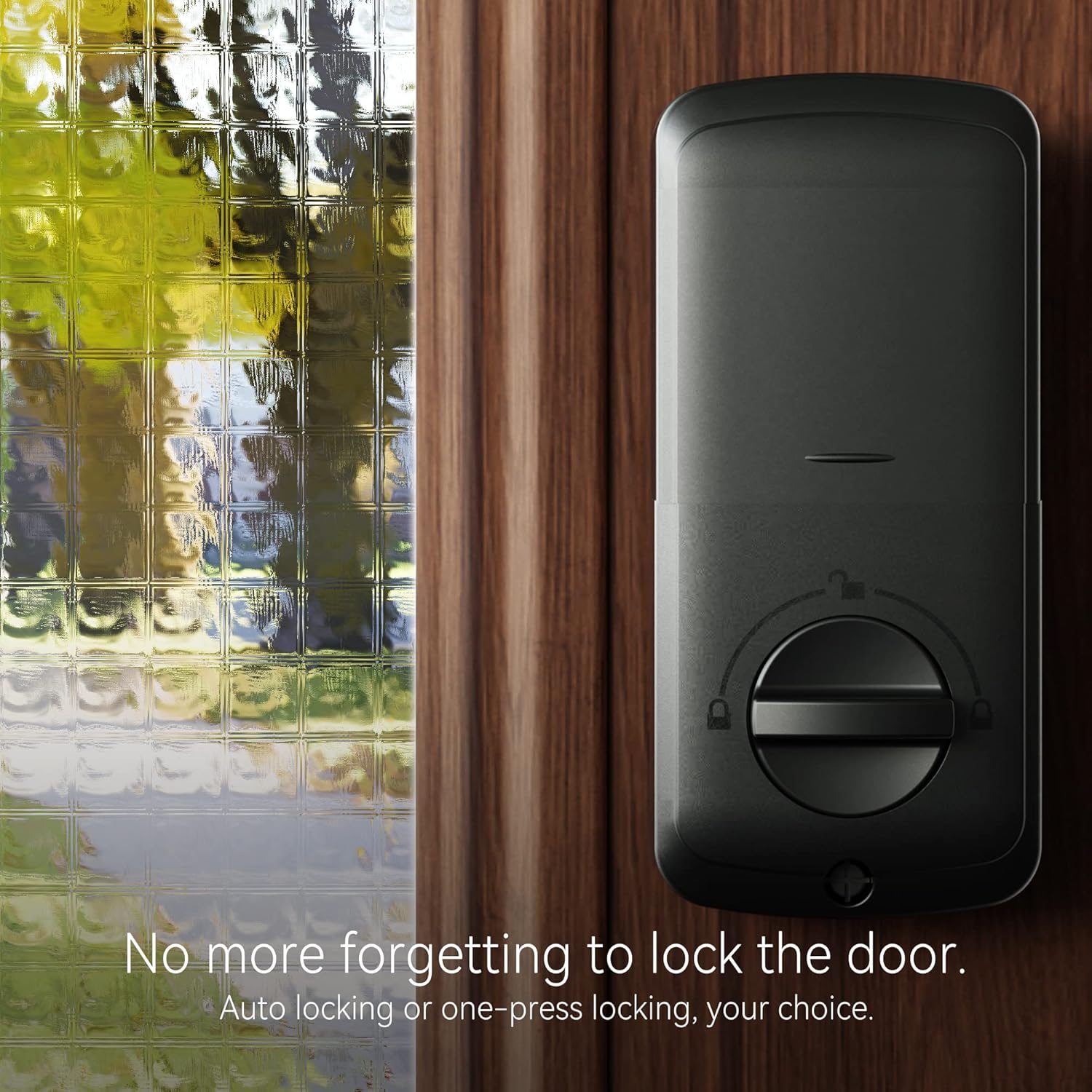
Image: Detailed diagram illustrating the dimensions and components of the Zomoss DRZ deadbolt, showing how it fits into a standard door.
Step 2: Install the Latch Bolt
Insert the latch bolt into the door edge, ensuring the slotted hole is centered in the door hole. Secure it with the provided latch screws.

Image: Close-up view of the Zomoss deadbolt latch bolt, highlighting its adjustable backset feature.
Step 3: Install the Exterior Keypad
Route the cable from the exterior keypad through the latch bolt and position the keypad on the exterior side of the door. Ensure the torque blade goes horizontally through the latch bolt.

Image: The exterior keypad of the Zomoss deadbolt, showing the illuminated numbers and the keyhole.
Step 4: Install the Mounting Plate
Install the mounting plate on the interior side of the door, ensuring the cable passes through the rectangular slot. Secure it with the longest screws provided.
Step 5: Install the Interior Assembly
Connect the power cable to the socket on the interior PCB. Combine the interior assembly to the mounting plate, ensuring the thumb knob is in the vertical unlocked position. Secure with the remaining screws.

Image: Interior view of the Zomoss deadbolt, showing the thumb-turn and battery compartment.
Step 6: Reset Lock Orientation and Test
Insert 3 AA alkaline batteries. While holding the reset pin (located in the interior assembly), insert the 4th battery until the latch bolt extends. This resets the lock orientation. Put back the battery cover. Test the lock by entering the default master code (12345678) and pressing the Zomoss button to unlock. Hold any button for 2 seconds to lock. Also, test with the backup key.

Image: The Zomoss deadbolt installed on a wooden door, showcasing its sleek contemporary style.
Operating Instructions
Changing the Master Code
The master code is used to program the lock. It is recommended to change the default master code immediately after installation.
- Press the Zomoss button twice.
- Enter the current master code (default is 12345678).
- Press the Zomoss button once.
- Press '1'.
- Enter your new master code (4-10 digits).
- Press the Zomoss button once.
- Re-enter your new master code.
- Press the Zomoss button once to confirm.
Video: This official Zomoss video demonstrates the process of changing the master code on your Zomoss DRZ Keyless Deadbolt.
Adding User Codes
You can program up to 20 individual user codes for family and friends.
- Press the Zomoss button twice.
- Enter your master code.
- Press the Zomoss button once.
- Press '2'.
- Enter the new user code (4-10 digits).
- Press the Zomoss button once.
- Re-enter the new user code.
- Press the Zomoss button once to confirm.
Auto-Lock Feature
The auto-lock feature automatically locks the deadbolt after a set period (default 30 seconds) after unlocking. This provides peace of mind, ensuring your door is always secured.
Video: This official Zomoss video illustrates how to program and adjust the auto-lock feature on your Zomoss DRZ Door Lock.
Silent Mode
Enable silent mode to disable keypad tones for quiet operation. Motor sounds and program alerts will still be audible.
Vacation Mode
When enabled, vacation mode restricts all access except via the master code, ideal for extended periods away from home.
Maintenance
- Battery Replacement: The lock requires 4 AA alkaline batteries (not included). A low battery indicator (red flashes 10 times after pressing any button) will alert you when batteries are drying out. Replace all four batteries simultaneously for optimal performance.
- Cleaning: Clean the keypad and lock body with a soft, damp cloth. Avoid abrasive cleaners or solvents that could damage the finish or electronic components.
- Lubrication: Periodically lubricate the latch bolt mechanism with a silicone-based lubricant to ensure smooth operation.
Troubleshooting
| Problem | Solution |
|---|---|
| Lock does not respond to keypad entry. | Check battery levels and replace if necessary. Ensure the master code or user code is entered correctly. Perform a lock orientation reset. |
| Latch bolt does not extend or retract smoothly. | Check for obstructions in the door frame or strike plate. Ensure the latch bolt is properly aligned and lubricated. Verify correct installation of the interior assembly. |
| Auto-lock feature is not working. | Ensure the auto-lock feature is enabled in the programming settings. Check the set time delay. |
| Keypad is not illuminated. | Check battery levels. The backlight activates upon touch. |
| Cannot program new codes. | Ensure you are using the correct master code. Follow the programming steps precisely. |
Specifications
- Brand: Zomoss
- Model: DRZ
- Lock Type: Keypad Deadbolt
- Material: Metal
- Color: Oil Rubbed Bronze
- Dimensions (L x W x H): 5.1 x 3.03 x 1.26 inches
- Power Source: 4 AA Alkaline Batteries (not included)
- User Codes: Up to 20 individual codes
- Special Features: Auto Lock, Temporary Code, 1-Touch Locking, Mute Function, Low Battery Indicator, Away Mode, Wrong Entry Limits, Virtual Code, Illuminated Keypad, Two Back-up Keys
- Door Thickness Compatibility: 1-3/8" to 2"
Warranty & Support
For warranty information, technical support, or any inquiries regarding your Zomoss DRZ Keyless Entry Deadbolt, please refer to the official Zomoss website or contact their customer service directly. Contact details can typically be found on the product packaging or the brand's official online presence.