
Nuheara NU318
IQbuds 2 MAX User Manual
Model: NU318
Brand: Nuheara

Image: Nuheara IQbuds 2 MAX product packaging.
1. Introduction
The Nuheara IQbuds 2 MAX are advanced hearing amplifiers designed to enhance your listening experience through personalized sound, active noise cancellation, and seamless Bluetooth connectivity. This manual provides essential information for setting up, operating, and maintaining your IQbuds 2 MAX.
What's in the Box:
- Pair of IQbuds™ 2 MAX (Left and Right) earbuds
- Charge case
- USB Charge Cable
- 6 pairs of ear tips in Small, Medium and Large (Silicone and Memory Foam) for comfortable fit
- Cloth Carry Case
- Instructions for Use (this manual)
2. Setup and Personalization
2.1 Initial Setup
Before first use, ensure your IQbuds 2 MAX are fully charged and the IQbuds app is installed on your mobile device.
- Charge the Earbuds: Place the IQbuds 2 MAX earbuds into their charging case. Connect the charging case to a power source using the provided USB cable. Ensure the earbuds are charged and the LED lights on the case are glowing white or green.
- Download the IQbuds App: Search for "IQbuds" in your device's app store (Google Play Store for Android or Apple App Store for iOS) and install the official Nuheara IQbuds app.
- Pair with Your Device:
- Open the IQbuds app.
- Ensure Bluetooth is enabled on your mobile device.
- Follow the on-screen prompts in the app to pair your IQbuds 2 MAX. You may need to hold both tap sensors on the earbuds until you hear "Pairing" to activate pairing mode.

Image: IQbuds 2 MAX earbuds in their open charging case.
Video: Getting Started with IQbuds 2 MAX on Android. This video guides users through the initial setup process, including app download and pairing.
Video: Getting Started with IQbuds 2 MAX on iOS. This video guides users through the initial setup process, including app download and pairing for Apple devices.
2.2 Finding the Best Fit
A proper fit is crucial for optimal sound quality and comfort. Your IQbuds 2 MAX come with six pairs of ear tips (three silicone, three memory foam) in various sizes.
- Select Ear Tip Size: Experiment with different ear tip sizes and materials to find the pair that creates a comfortable, secure seal in your ear canal. The largest size that fits comfortably is generally recommended for the best performance.
- Attach Ear Tips: Align the inner shape of the ear tip with the molded shape on the bottom of the earbud, then press firmly to push the tip on.
- Insert Earbuds: Gently insert the earbud into your ear and twist it back until it feels securely locked in place. Adjust as needed for comfort.
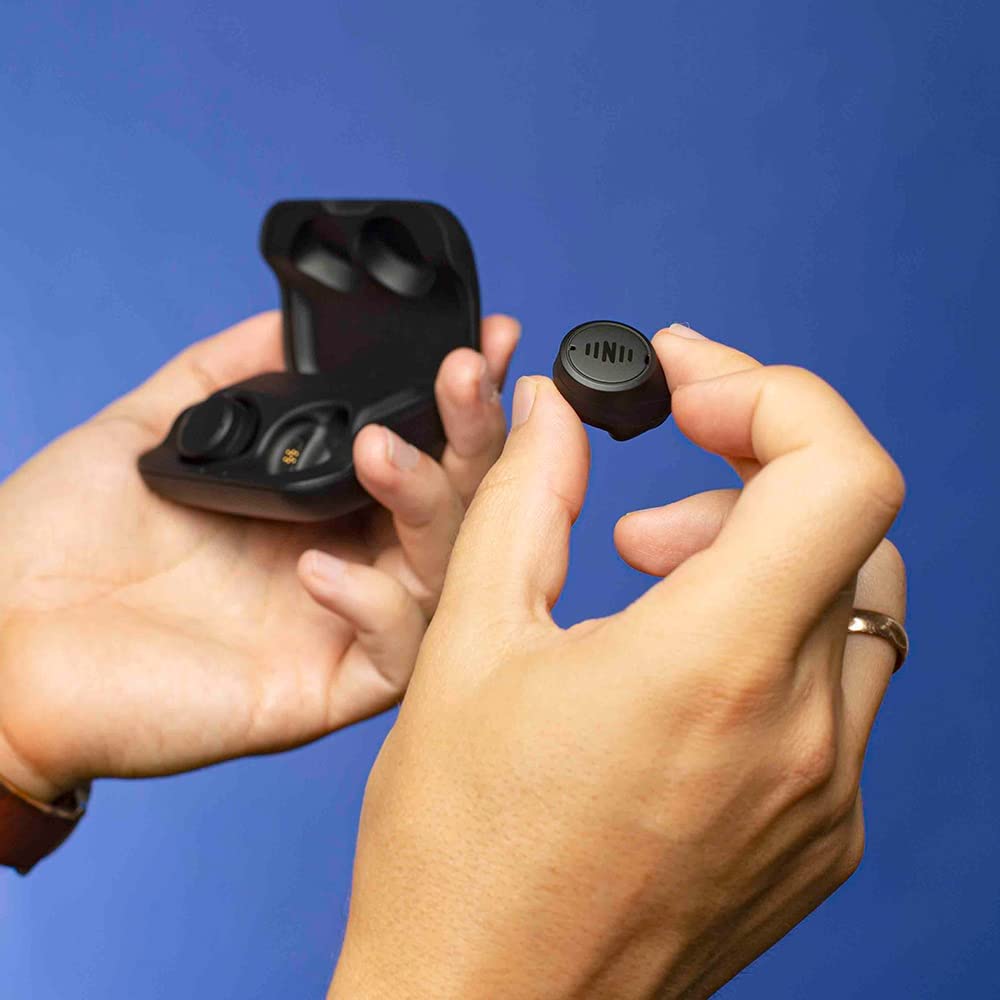
Image: A hand holding a single IQbuds 2 MAX earbud, demonstrating its compact size.
Video: How to get the best fit with your Nuheara IQbuds 2 MAX. This video demonstrates how to select and properly insert ear tips for optimal comfort and performance.
2.3 Ear ID™ Personalization
Ear ID™ is a hearing assessment built into the IQbuds app that personalizes your earbuds to your unique hearing profile, ensuring the best possible auditory experience.
- Prepare for Assessment: Find a quiet environment and ensure both earbuds are inserted correctly.
- Start Ear ID: In the IQbuds app, navigate to the "Ear ID" section (usually found on the bottom panel). Tap "Get Started."
- Follow Prompts: The app will guide you through a series of sounds. Tap the screen as soon as you hear a tone. The assessment takes approximately 5-10 minutes.
- Personalization: After the assessment, answer a few questions. Ear ID will then personalize your earbuds based on your hearing profile, represented by a ring showing your hearing across different frequencies.

Image: A smartphone displaying the Ear ID personalization screen within the IQbuds app.
Video: How to use Nuheara Ear ID. This video explains the Ear ID feature and guides users through the hearing assessment process for personalized sound.
3. Operating Your IQbuds 2 MAX
3.1 World Volume & Active Noise Cancellation (ANC)
World Volume allows you to control the level of real-world sound you want to hear from your environment. ANC can cut out and neutralize all surrounding environmental sound.
- Adjust World Volume: In the IQbuds app, tap "World" on the bottom panel. Use the World Volume dial to increase or decrease the amount of environmental sound you hear.
- Activate ANC: Tap "ANC" in the app to turn on Active Noise Cancellation, effectively muting surrounding environmental sound.
- Location Presets: The app offers various location presets (e.g., Workout, Street, Home, Office, Restaurant, Driving, Plane) with pre-configured settings for different environments. Tap the location bar to select a preset. You can also favorite up to 4 locations for quick access.
Video: How to use Nuheara World Volume & Active Noise Cancellation. This video demonstrates how to control ambient sound and activate noise cancellation.
3.2 SINC and FOCUS
SINC (Speech In Noise Control) and FOCUS are powerful controls to help you concentrate on important sounds.
- SINC: In the app, tap "SINC." Use the SINC dial to either increase ambient noise (turn left) or elevate speech by reducing background noise (turn right). You can toggle SINC on/off using the center button.
- FOCUS: Slide the top menu to the right and tap "FOCUS." When FOCUS is off, you hear sounds from all directions equally. When turned on, it suppresses noise from behind you, improving the clarity of sounds directly in front of you.
Video: How to use Nuheara IQbuds App SINC and FOCUS. This video explains how to use Speech In Noise Control and Directional Focus features.
3.3 World EQ
World EQ is a fine-tuning control that allows you to filter out high or low frequencies in your environment.
- Access World EQ: In the app, tap "World EQ."
- Adjust Filters: Move the action bar to the right to increase bass and filter out unwanted high-frequency noise (e.g., glass clinking, bird sounds). Move it to the left to filter out unwanted low-frequency noise (e.g., jet engines, heavy traffic) and increase treble. The middle setting provides the most natural sound.
Video: How to use Nuheara IQbuds App World EQ. This video demonstrates how to adjust the equalizer settings to filter specific frequencies in your environment.
3.4 General Usage
Your IQbuds 2 MAX offer versatile functionality beyond hearing amplification:
- Music Streaming: Enjoy high-quality audio streaming from your Bluetooth-enabled devices.
- Hands-Free Calls: Take and manage phone calls with clear audio.
- Voice Assistants: Connect to Siri or Google Assistant for convenient voice commands.
- Tap Touch Controls: Use the intuitive tap touch controls on the earbuds to adjust settings without needing your phone.

Image: A man wearing IQbuds 2 MAX earbuds while walking in a city, showcasing their discreet design.
4. Maintenance
4.1 Charging
The IQbuds 2 MAX earbuds charge through the charging case. The case itself also holds a charge to power the earbuds on the go.
- Earbud Charging: Place earbuds into the charging case. The gold contacts on the earbuds and pins in the case facilitate charging. Lights on the case will indicate charging status (red for charging, green for charged).
- Case Charging: Connect the USB cable to the charging case and a power source. Side lights on the case indicate its charge level (red for low charge, green for sufficient charge).
- Check Battery Status: You can always check the battery level of your earbuds and case in the "My Buds" screen of the IQbuds app.
Video: How to charge your IQbuds 2 MAX. This video provides instructions on how to charge both the earbuds and the charging case.
4.2 Cleaning and Care
To ensure longevity and optimal performance, regularly clean your IQbuds 2 MAX.
- Wipe earbuds and ear tips with a soft, dry cloth.
- Avoid using harsh chemicals or abrasive materials.
- Keep the charging contacts clean and free of debris.
4.3 App and Firmware Updates
Regularly updating your IQbuds app and earbud firmware ensures you have the latest features and performance improvements.
- Check for Updates: Open the IQbuds app and navigate to the "My Buds" screen. The app will automatically search for available updates under the "Update Centre" section.
- Install Updates: Tap "Update Now" next to any available updates (App or Firmware). Follow the on-screen instructions. For firmware updates, ensure your earbuds are in the case with the lid closed during the process. Keep your phone near the IQbuds 2 MAX during the update.
Video: How to update Nuheara IQbuds App and IQbuds 2 MAX Firmware. This video explains the process for keeping your app and earbuds updated.
5. Troubleshooting
If you encounter issues with your IQbuds 2 MAX, consider the following general troubleshooting steps:
- Connectivity Issues: Ensure Bluetooth is on and your earbuds are charged. Try unpairing and re-pairing the earbuds with your device.
- Sound Quality: Check ear tip fit. Ensure earbuds are clean and free of debris. Re-run the Ear ID assessment.
- App Not Responding: Close and reopen the app. Restart your mobile device.
- Charging Problems: Ensure the USB cable is securely connected to both the case and the power source. Check for debris on charging contacts.
For more detailed troubleshooting and support, please visit the official Nuheara support website.
6. Specifications
| Feature | Detail |
|---|---|
| Product Dimensions | 2.13 x 4 x 6 inches; 0.28 ounces |
| Item Model Number | NU318 |
| Batteries | 3 Lithium Ion batteries required (included) |
| Manufacturer | Nuheara Limited |
| Country of Origin | Malaysia |
| Color | Black |
| Material | Plastic |
| Style | Ear Bud |
| Model Name | IQbuds 2 MAX |
7. Warranty and Support
For warranty information, product support, and frequently asked questions, please visit the official Nuheara support website:
You can also refer to the User Guide (PDF) provided with your product for additional details.