
1. Introduction
Thank you for purchasing the DENVER PFF-1024WHITE 10.1-inch Wi-Fi Digital Photo Frame. This manual provides essential information for setting up, operating, and maintaining your device. Please read these instructions carefully before use and retain them for future reference.
The DENVER PFF-1024WHITE is a smart digital photo frame designed to display your cherished photos and videos. With its 10.1-inch IPS touchscreen and Wi-Fi connectivity, you can easily receive and share media directly from your smartphone using the Frameo application.
2. Safety Information
- Do not expose the device to rain or moisture to prevent fire or electric shock hazards.
- Do not open the casing. There are no user-serviceable parts inside. Refer all servicing to qualified personnel.
- Only use the provided power adapter. Using unauthorized adapters may damage the device and void the warranty.
- Keep the device away from direct sunlight, heat sources, and extreme temperatures.
- Avoid placing the device on unstable surfaces.
- Clean the screen with a soft, dry cloth. Do not use liquid cleaners.
3. Package Contents
Ensure all items are present in the box:
- DENVER PFF-1024WHITE Digital Photo Frame
- Power Adapter (100-240V ~ 50-60Hz / 5V ~ 2A)
- User Manual
4. Product Overview
The DENVER PFF-1024WHITE features a sleek design and intuitive controls for an enhanced photo viewing experience.
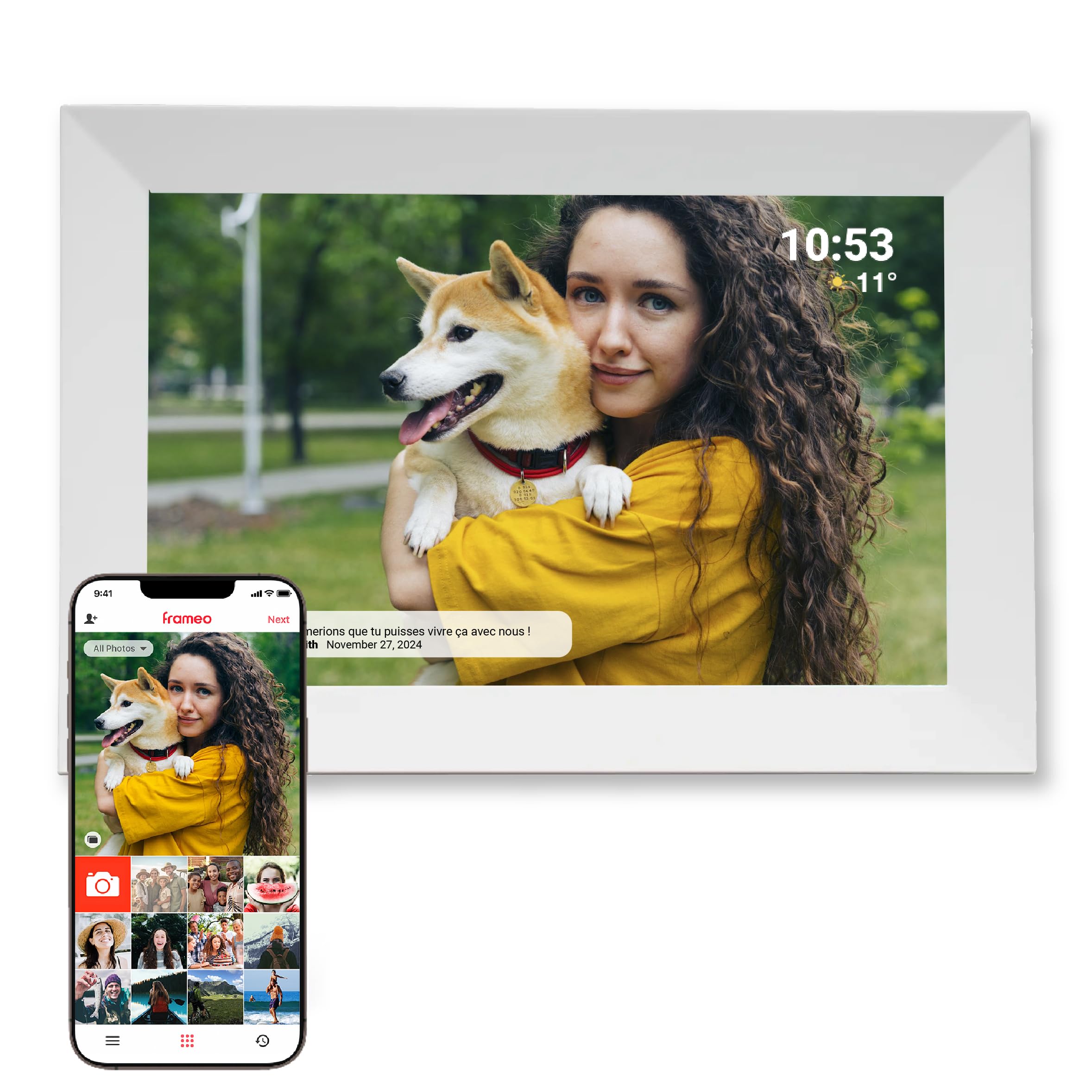
Image: The DENVER PFF-1024WHITE Digital Photo Frame in a home setting, displaying a photo of a couple.
Key Features:
- 10.1-inch IPS Touchscreen: High-resolution display (1280 x 800 pixels) for clear image viewing.
- 16GB Internal Storage: Store thousands of photos directly on the frame.
- MicroSD Card Slot: Expand storage for more photos and longer videos (MicroSD card not included).
- Wi-Fi Connectivity: Seamlessly receive photos and videos from anywhere.
- Frameo Software: Pre-installed for easy photo and video sharing via the dedicated mobile app.
- Timer Function: Automatically power the frame on/off at set times.
- Adjustable Image Rotation: Customize display duration from 10 seconds to 30 minutes.
5. Setup
5.1 Initial Power On
- Unpack the digital photo frame and all accessories.
- Connect the power adapter to the DC input port on the frame.
- Plug the power adapter into a wall outlet. The frame will automatically power on.
- Follow the on-screen instructions to select your language and region.
5.2 Connecting to Wi-Fi
- On the initial setup screen or in the settings menu, select 'Wi-Fi'.
- The frame will scan for available Wi-Fi networks. Select your network from the list.
- Enter your Wi-Fi password using the on-screen keyboard.
- Tap 'Connect'. Once connected, a Wi-Fi icon will appear on the screen.
5.3 Installing the Frameo App
The Frameo app is required to send photos and videos to your digital photo frame.
- Download the 'Frameo' app from the Google Play Store (for Android devices) or the Apple App Store (for iOS devices).
- Install the app on your smartphone or tablet.
- Open the Frameo app and create an account or log in.

Image: A smartphone displaying the Frameo application interface, ready to send photos to the digital frame.
6. Operating Instructions
6.1 Sending Photos and Videos to the Frame
- On your digital photo frame, tap 'Add Friend' to generate a unique 6-digit code.
- Open the Frameo app on your smartphone.
- Tap 'Add Friend' in the app and enter the 6-digit code displayed on your frame.
- Once connected, you can select photos or short videos (up to 15 seconds) from your phone's gallery within the Frameo app.
- Tap 'Send' to transfer the selected media to your frame. The media will appear on the frame shortly.
6.2 Managing Photos and Videos
The frame owner has full control over the displayed content.
- Delete Photos: Tap on a photo to view it, then tap the trash can icon to delete it from the frame.
- Create Albums: Organize your photos into albums directly on the frame.
- Add/Remove Friends: Manage who can send photos to your frame via the 'Friends' menu.

Image: The digital photo frame screen showing options to create and manage photo albums.
6.3 Frame Settings
Access the settings menu by swiping down from the top of the screen or tapping the gear icon.
- Slideshow Timer: Adjust the duration each photo is displayed (10 seconds to 30 minutes).
- Sleep Mode/Timer: Set specific times for the frame to automatically turn off and on, conserving energy.
- Brightness: Adjust screen brightness.
- Wi-Fi: Manage network connections.
- Storage: View internal storage usage and manage MicroSD card content.
- Software Update: Check for and install the latest Frameo software updates.

Image: An illustration of the digital photo frame highlighting features such as automatic rotation, clock, weather display, slideshow, Wi-Fi, and touchscreen functionality.
7. Maintenance
- Cleaning: Use a soft, dry, lint-free cloth to clean the screen and frame. Do not use abrasive cleaners, waxes, or solvents.
- Software Updates: Regularly check for and install software updates through the frame's settings menu to ensure optimal performance and access to new features.
- Storage Management: Periodically review your stored photos and videos. Delete unwanted media to free up internal storage. Consider using a MicroSD card for extensive collections.

Image: The digital photo frame illustrating its 16GB integrated memory and the option to add a MicroSD card for expanded storage.
8. Troubleshooting
- Frame does not turn on: Ensure the power adapter is securely connected to both the frame and a working power outlet.
- Cannot connect to Wi-Fi: Verify your Wi-Fi password is correct. Ensure the frame is within range of your Wi-Fi router. Try restarting your router and the frame.
- Photos are not appearing: Check if the frame is connected to Wi-Fi. Ensure the Frameo app on your phone is connected to the correct frame and that photos were successfully sent.
- Touchscreen unresponsive: Try restarting the frame by unplugging and replugging the power adapter. If the issue persists, contact support.
- Frameo app issues: Ensure your Frameo app is updated to the latest version. Check your phone's internet connection.
9. Specifications
| Feature | Specification |
|---|---|
| Brand | Denver |
| Model | PFF-1024WHITE |
| Screen Size | 10.1 inches |
| Display Type | IPS Touchscreen |
| Resolution | 1280 x 800 pixels |
| Aspect Ratio | 16:10 |
| Internal Storage | 16 GB (EMMC) |
| External Storage | MicroSD card slot (card not included) |
| Connectivity | Wi-Fi |
| Compatible Apps | Frameo (Android, iOS) |
| Power Input | DC Input, Micro USB (for firmware) |
| Power Adapter | 100-240V ~ 50-60Hz / 5V ~ 2A |
| Dimensions (L x W x H) | 18 x 26 x 2.5 cm |
| Weight | 600 Grams |
10. Warranty and Support
10.1 Warranty Information
This product comes with a 2-year manufacturer's warranty. Please retain your proof of purchase for warranty claims. The warranty covers manufacturing defects but does not cover damage caused by misuse, accidents, unauthorized modifications, or normal wear and tear.
10.2 Technical Support
For technical assistance or inquiries regarding your DENVER PFF-1024WHITE digital photo frame, please refer to the official Denver website or the Frameo app's support section. The Frameo team provides dedicated assistance for software-related issues.
For further information, you may visit the Denver Brand Store.


