
1. Introduction
Thank you for purchasing the Acctim Delaware 71682 Radio Controlled LCD Digital Alarm Clock. This manual provides essential information for setting up, operating, and maintaining your new alarm clock. Please read these instructions carefully before use and retain them for future reference.
2. Product Overview
The Acctim Delaware 71682 is a radio-controlled digital alarm clock featuring a large LCD display with a green backlight, dual alarms, calendar, and indoor temperature display. Its radio-controlled function ensures accurate timekeeping in the UK and Ireland.
2.1. Components and Display
Familiarize yourself with the clock's buttons and display elements.
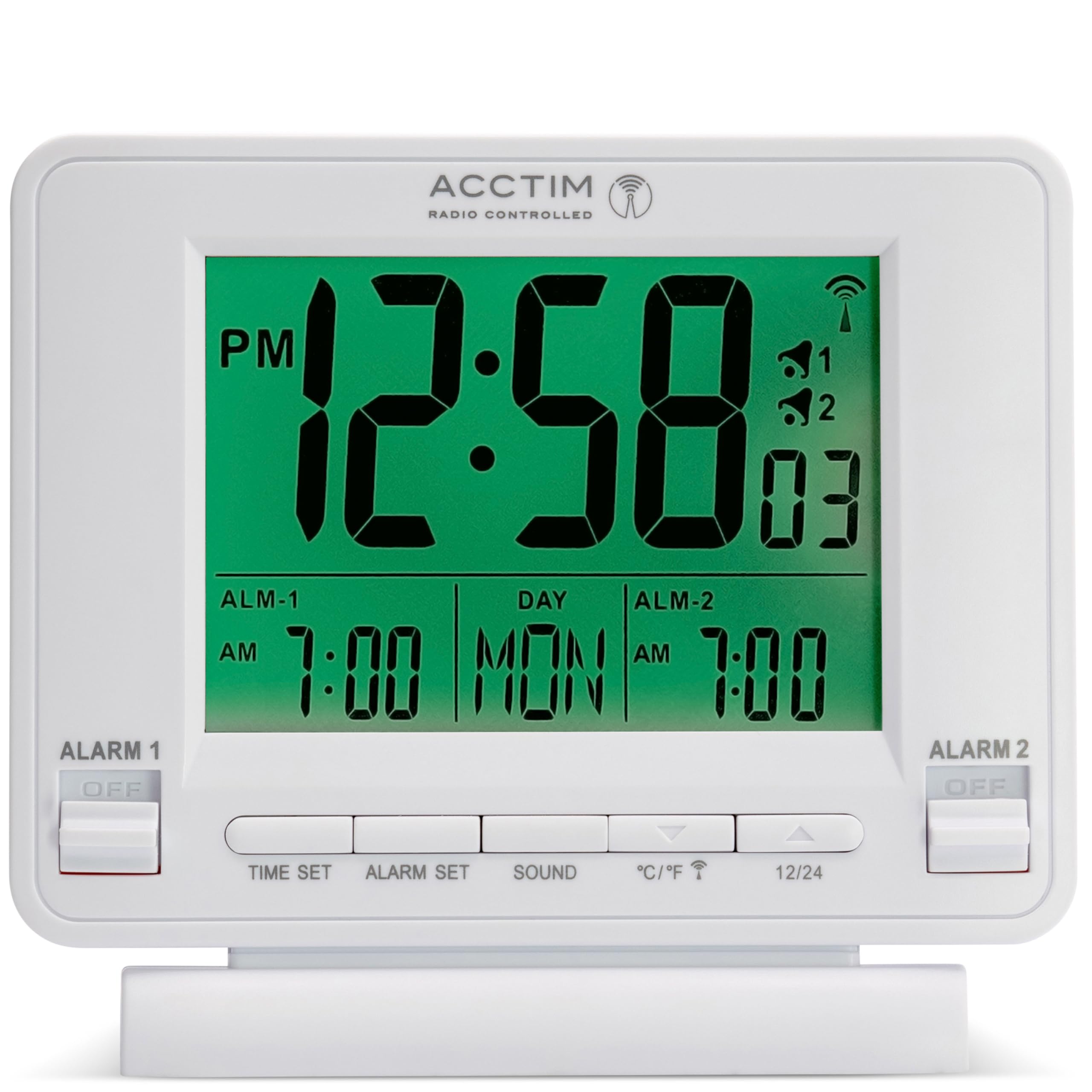
Image 1: Front view of the Acctim Delaware 71682 Radio Controlled LCD Digital Alarm Clock. The display shows time, day, date, and alarm settings. Control buttons are visible at the bottom, and alarm switches on the sides.
Front Panel Controls:
- TIME SET: Used to enter time setting mode.
- ALARM SET: Used to enter alarm setting mode.
- SOUND: Used to select alarm sound, and typically functions as the Snooze/Backlight button.
- °C/°F: Toggles between Celsius and Fahrenheit for temperature display. Also functions as a 'down' adjustment button in setting modes.
- 12/24: Toggles between 12-hour and 24-hour time format. Also functions as an 'up' adjustment button in setting modes.
Side Panel Controls:
- ALARM 1 ON/OFF Switch: Activates or deactivates Alarm 1.
- ALARM 2 ON/OFF Switch: Activates or deactivates Alarm 2.

Image 2: Rear view of the Acctim Delaware 71682 Alarm Clock. This image highlights the battery compartment cover and the recessed RESET button.
Rear Panel Controls:
- Battery Compartment: Holds the required AA batteries.
- RESET Button: A small, recessed button to reset the clock to factory defaults.
3. Setup
3.1. Battery Installation
- Open the battery compartment cover on the back of the clock.
- Insert 2 new AA batteries, ensuring the correct polarity (+ and -).
- Close the battery compartment cover securely.
Note: Batteries are not included. Always use fresh batteries for optimal performance.
3.2. Initial Setup and Radio Control Synchronization
Upon battery installation, the clock will automatically attempt to synchronize with the radio-controlled time signal (MSF signal for UK and Ireland). This process may take several minutes to a few hours, depending on your location and signal strength. During synchronization, a radio signal icon will flash on the display.
- Place the clock near a window for better signal reception.
- Avoid placing it near electronic devices that may cause interference.
- Once synchronized, the radio signal icon will appear solid on the display, and the time will be set automatically.
If the clock fails to synchronize, you may need to set the time manually.
4. Operating Instructions
4.1. Setting Time and Date Manually
If radio control is unavailable or you prefer manual setting:
- Press and hold the TIME SET button until the hour digits start flashing.
- Use the 12/24 (up) and °C/°F (down) buttons to adjust the hour.
- Press TIME SET again to confirm the hour and move to minutes. Adjust minutes using the up/down buttons.
- Continue pressing TIME SET to cycle through and set year, month, and day.
- Press TIME SET one last time or wait for 10 seconds for the settings to be saved automatically.
4.2. Setting Alarms (Alarm 1 and Alarm 2)
The clock features two independent alarms.
- Press and hold the ALARM SET button until the Alarm 1 hour digits start flashing.
- Use the 12/24 (up) and °C/°F (down) buttons to adjust the desired Alarm 1 hour.
- Press ALARM SET again to confirm the hour and move to Alarm 1 minutes. Adjust minutes using the up/down buttons.
- Press ALARM SET again to move to Alarm 2 hour setting. Repeat the adjustment process for Alarm 2.
- Press ALARM SET one last time or wait for 10 seconds to save the alarm settings.
4.3. Activating/Deactivating Alarms
Use the physical switches on the sides of the clock:
- Slide the ALARM 1 ON/OFF switch to 'ON' to activate Alarm 1. An alarm icon (1) will appear on the display.
- Slide the ALARM 2 ON/OFF switch to 'ON' to activate Alarm 2. An alarm icon (2) will appear on the display.
- Slide the switches to 'OFF' to deactivate the respective alarms.

Image 3: Front view of the Acctim Delaware 71682 with Alarm 1 activated. The 'ALARM 1' switch is in the 'ON' position, and the corresponding alarm icon is visible on the LCD.
4.4. Using the Alarm and Snooze Function
- When an alarm sounds, press the SOUND button (or any other front button, depending on model variation) to activate the snooze function. The alarm will pause and sound again after approximately 5 minutes.
- To stop the alarm completely, slide the corresponding ALARM ON/OFF switch to 'OFF'.
4.5. Display Settings
- 12/24 Hour Format: Press the 12/24 button to switch between 12-hour (with AM/PM indicator) and 24-hour time display.
- Temperature Unit: Press the °C/°F button to toggle the indoor temperature display between Celsius and Fahrenheit.
- Backlight: Press the SOUND button (or the top button if present) to activate the green backlight for a few seconds.

Image 4: Front view of the Acctim Delaware 71682 with its green backlight activated, illuminating the time, date, and temperature display for enhanced visibility in low light conditions.
5. Maintenance
5.1. Cleaning
To clean the clock, use a soft, dry cloth. Do not use abrasive cleaners or chemical solvents, as these may damage the casing or display.
5.2. Battery Replacement
When the display becomes dim or the clock functions erratically, it's time to replace the batteries. Follow the battery installation steps in Section 3.1. Always replace both batteries at the same time with new ones.
6. Troubleshooting
- No display or dim display:
Ensure batteries are inserted correctly with the correct polarity. Replace with fresh AA batteries. - Incorrect time:
Check if the radio control signal icon is solid. If it's flashing or absent, the clock may not be receiving the signal. Move the clock to a location with better reception (e.g., near a window). If the issue persists, set the time manually as described in Section 4.1. - Alarm not sounding:
Verify that the respective ALARM ON/OFF switch (Alarm 1 or Alarm 2) is in the 'ON' position. Ensure the alarm time is set correctly. - Backlight not working:
Ensure batteries have sufficient power. The backlight is designed to illuminate for a short period only. - Clock unresponsive:
Remove the batteries, wait for a few minutes, then reinsert them. If the problem persists, use a pointed object (like a paperclip) to press the recessed RESET button on the back of the clock. Note that this will clear all settings.
7. Specifications
| Feature | Detail |
|---|---|
| Model Number | 71682 |
| Brand | Acctim |
| Display Type | Digital LCD |
| Special Features | Radio Controlled (UK & Ireland), Dual Alarm, Snooze, Calendar, Indoor Temperature, Backlight |
| Power Source | Battery (2 x AA required) |
| Dimensions (H x W x D) | 10.1 x 10.2 x 4 cm |
| Weight | 0.14 kg |
| Color | White |
8. Warranty Information
This Acctim product comes with a 24-month warranty from the date of purchase. Please retain your proof of purchase for any warranty claims. The warranty covers manufacturing defects but does not cover damage caused by misuse, accidents, unauthorized repairs, or normal wear and tear.
9. Customer Support
For further assistance, troubleshooting, or warranty inquiries, please contact Acctim customer support through their official website or the retailer where the product was purchased. Please have your model number (71682) and proof of purchase ready.


