1. Introduction
Thank you for choosing the IrisCargo Bluetooth 5.0 3-in-1 Transmitter and Receiver. This versatile device allows you to seamlessly switch between transmitting and receiving audio signals, upgrading your wired audio systems to wireless capabilities. Featuring an intuitive LCD display and dual pairing functionality, it provides a convenient and high-quality audio experience for various applications, including TVs, PCs, car audio systems, and headphones.

Figure 1: IrisCargo Bluetooth 5.0 3-in-1 Transmitter and Receiver
2. Package Contents
Please verify that all items are present in your package:
- 1x IrisCargo Bluetooth Transceiver (Model ZF-365)
- 1x USB to Type-C Data Cable
- 1x 3.5mm Audio Cable
- 1x 3.5mm Wireless Audio Adapter
- 1x User Manual
3. Product Overview
Familiarize yourself with the device's components and controls:
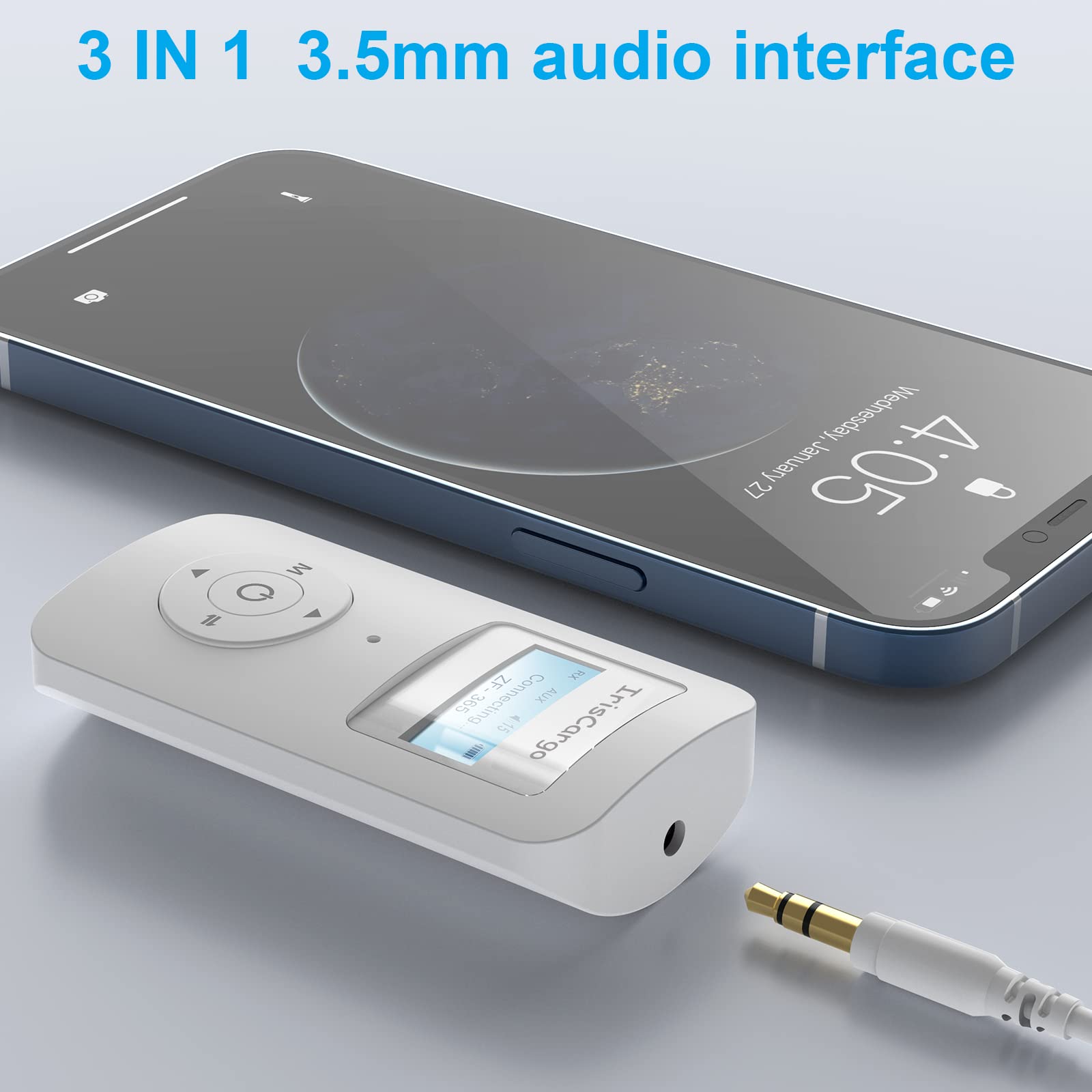
Figure 2: Product Diagram and Controls
- Display Screen: Shows connection status, device names, and mode.
- Microphone: For voice calls in Receiver mode.
- Previous Track Button: Navigates to the previous audio track.
- Power Button (Center): Press for 3 seconds to turn on/off. Click to initiate pairing/searching. Double-click to disconnect and search again.
- Mode Switch Button (M): Click to switch between USB/AUX input (in TX mode). Double-click to switch between RX (Receiver) and TX (Transmitter) modes.
- Next Track Button: Navigates to the next audio track.
- 3.5mm Audio Port: For AUX audio input/output.
- Type-C Charging Port: For charging the device and direct audio transmission from a computer.
4. Setup and Basic Operation
4.1 Charging the Device
Before first use, fully charge the device. Connect the provided USB to Type-C data cable to the Type-C charging port on the device and a USB power source (e.g., computer USB port, wall adapter).
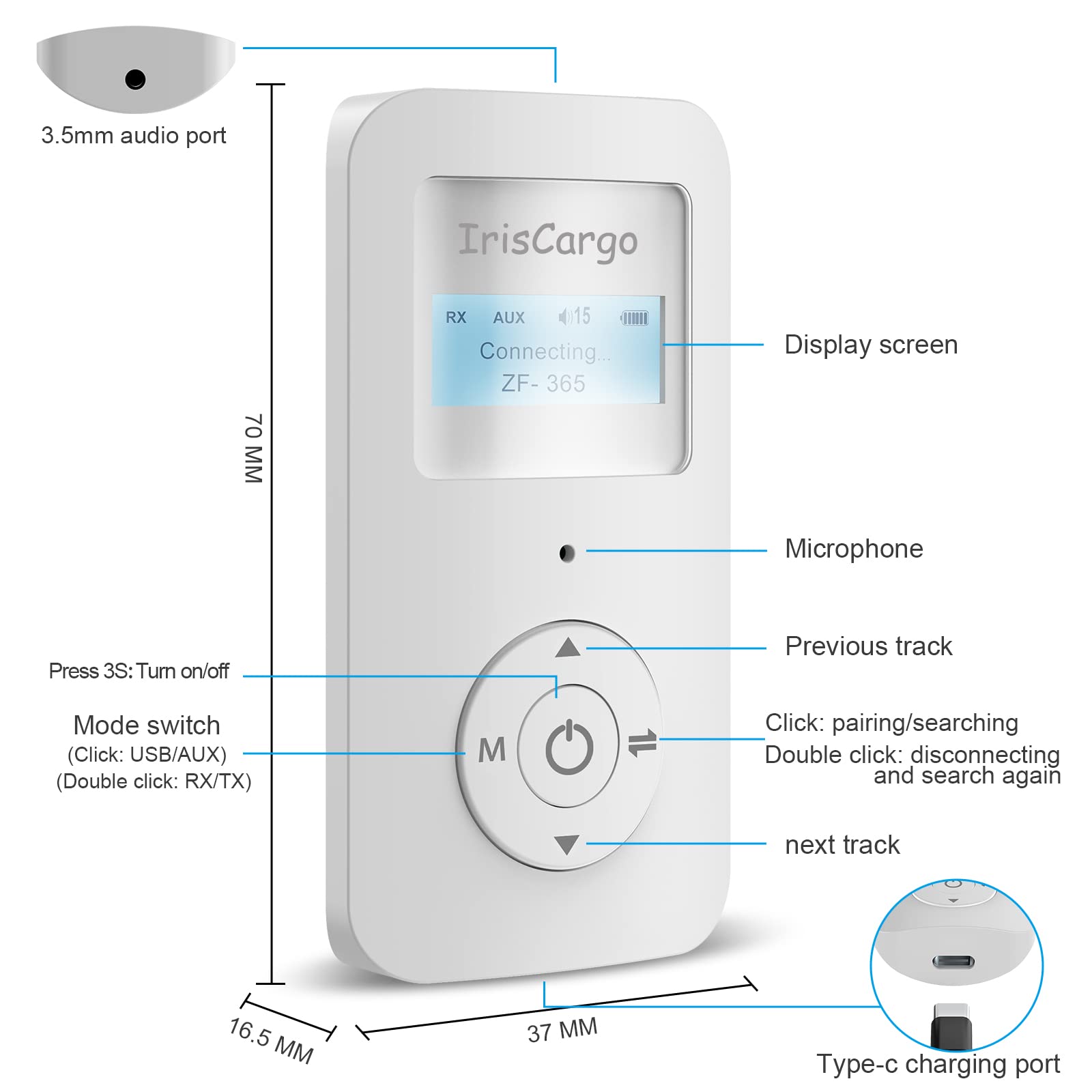
Figure 3: Charging the IrisCargo Bluetooth Adapter
A full charge provides approximately 9-10 hours of use time, depending on the mode (Receiver or Transmitter).
4.2 Power On/Off
- To Power On: Press and hold the Power button (center button) for 3 seconds. The LCD screen will light up.
- To Power Off: Press and hold the Power button for 3 seconds. The LCD screen will turn off.
4.3 Switching Modes (Transmitter/Receiver)
The device supports both Transmitter (TX) and Receiver (RX) modes. You can switch between modes directly without needing to power off and restart the device.
- To Switch Modes: Double-click the Mode Switch button (M button). The LCD screen will indicate the current mode (TX or RX).

Figure 4: Transmitter (TX) and Receiver (RX) Mode Overview
5. Operating Modes
5.1 Transmitter Mode (TX)
In Transmitter mode, the device takes audio from a non-Bluetooth source (e.g., TV, PC, MP3 player) and transmits it wirelessly to Bluetooth-enabled headphones or speakers.
- Ensure the device is in TX mode (double-click 'M' button if needed).
- Connect the IrisCargo adapter to your audio source (TV, PC, etc.) using the 3.5mm audio cable or the Type-C cable (for PC audio).
- Put your Bluetooth headphones or speaker into pairing mode.
- The IrisCargo adapter's LCD screen will display available Bluetooth devices. Select your device from the list using the navigation buttons and press the Power button to confirm pairing.
- Once paired, audio from your source will play through your Bluetooth device.
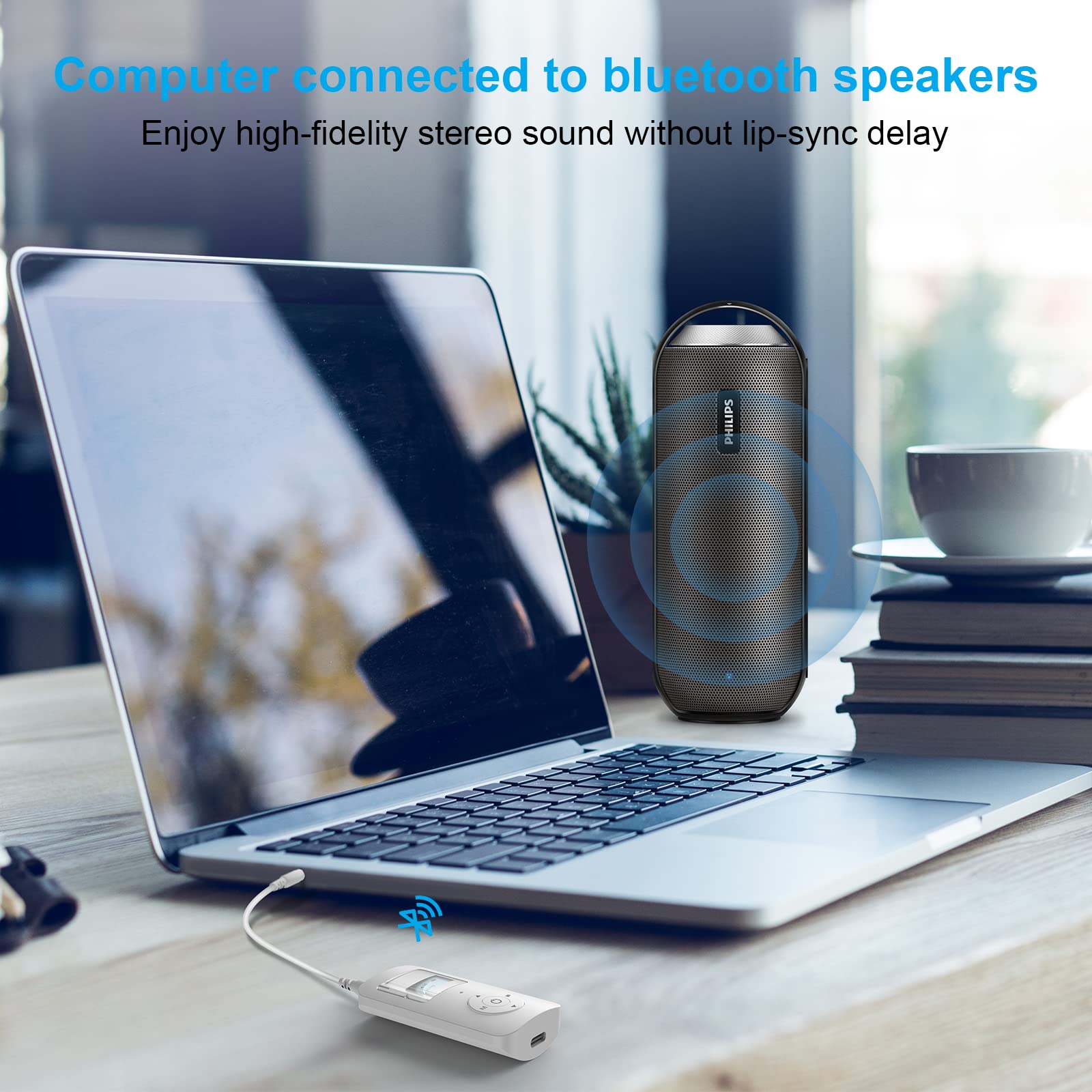
Figure 5: Connecting to a PC in Transmitter Mode
Dual Device Connection (TX Mode)
The device supports connecting to two Bluetooth receiving devices simultaneously in Transmitter mode. After successfully pairing with the first device, put the second Bluetooth device into pairing mode and follow the pairing steps again. The LCD will show both connected devices.
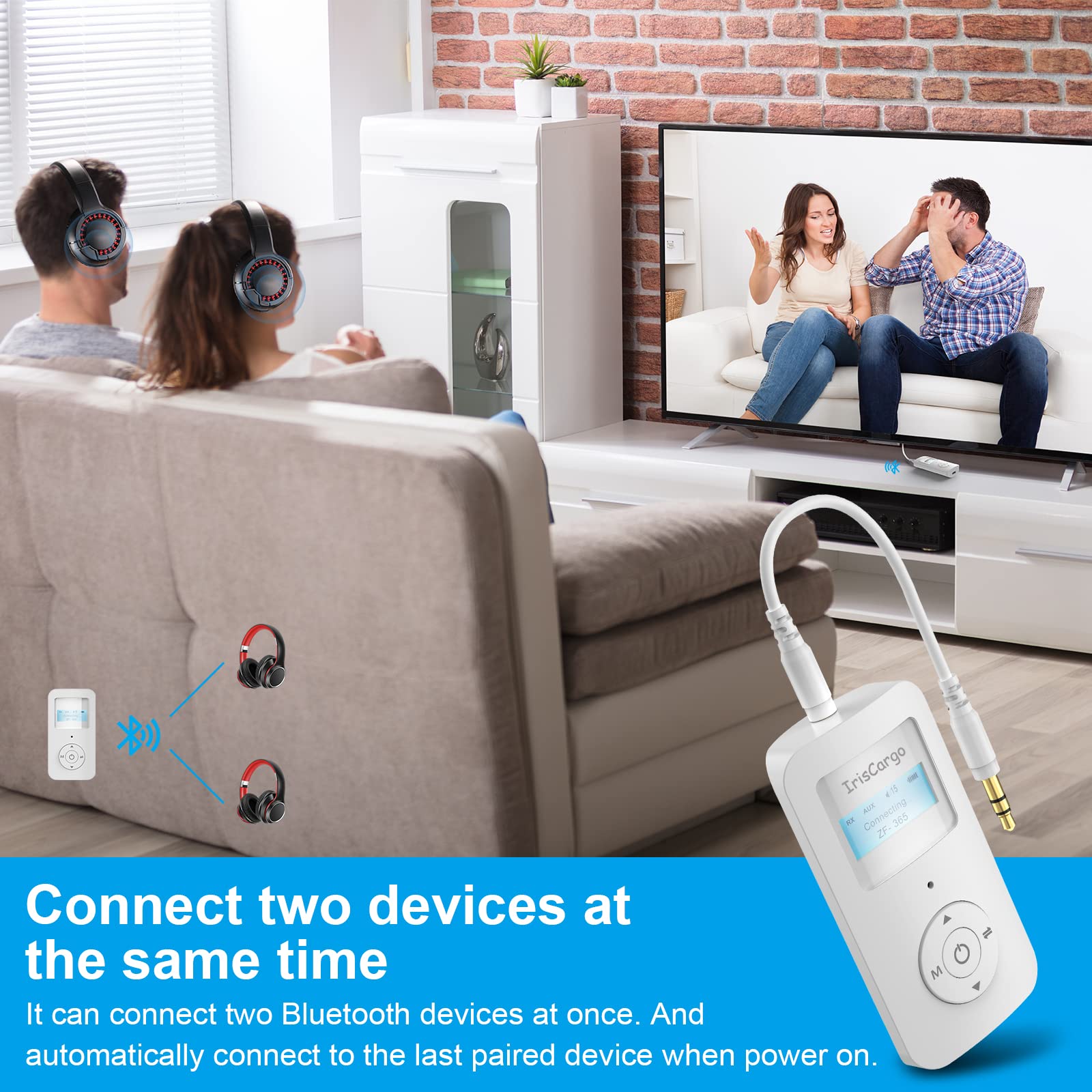
Figure 6: Dual Device Connection in Transmitter Mode
5.2 Receiver Mode (RX)
In Receiver mode, the device receives audio wirelessly from a Bluetooth-enabled source (e.g., smartphone, tablet) and outputs it to a non-Bluetooth audio system (e.g., wired headphones, car stereo, home speakers).
- Ensure the device is in RX mode (double-click 'M' button if needed).
- Connect the IrisCargo adapter to your audio output device (wired headphones, car AUX input, speakers) using the 3.5mm audio cable.
- On your Bluetooth audio source (smartphone, tablet), search for "ZF-365" or the device name displayed on the LCD and connect.
- Once connected, audio from your Bluetooth source will play through your wired audio system.
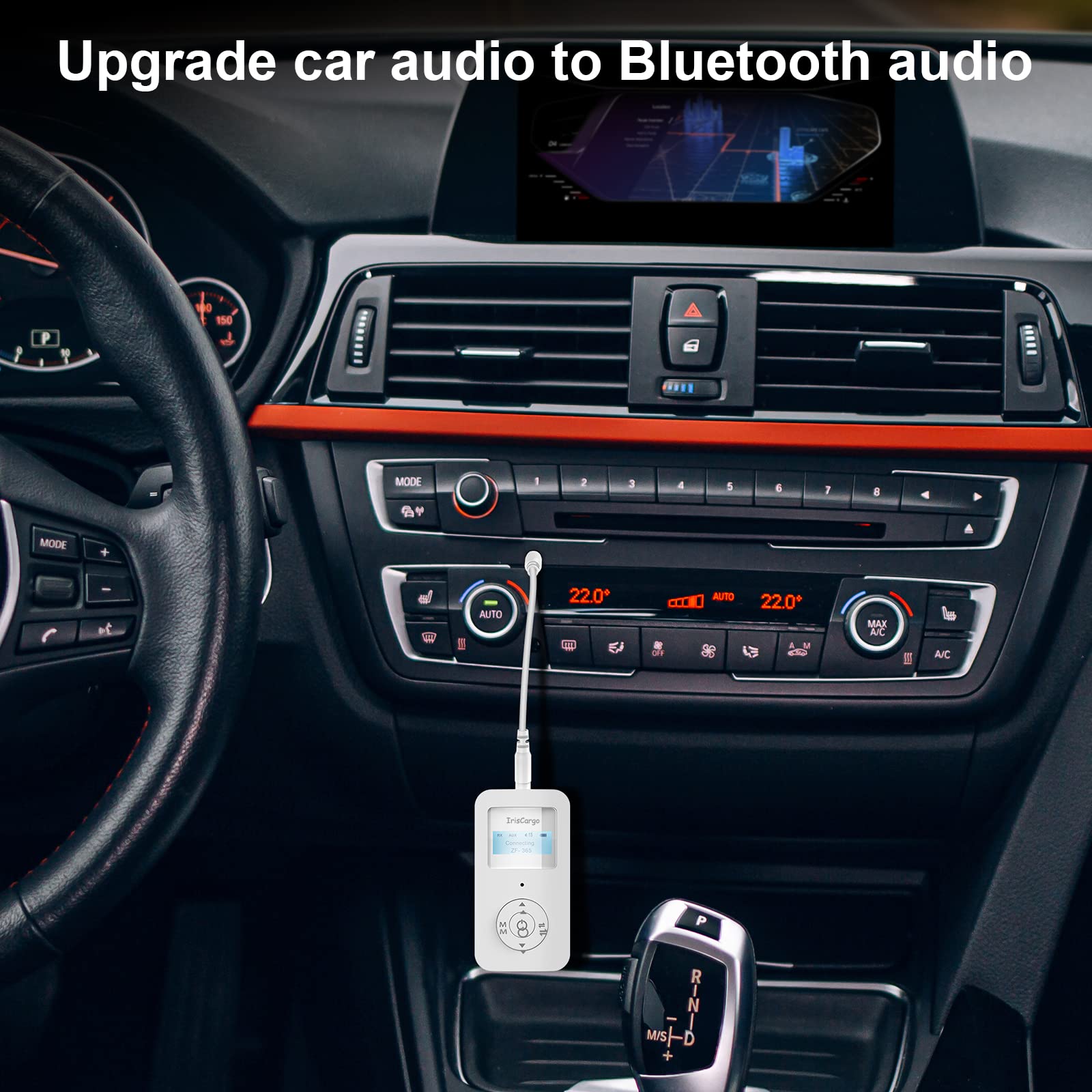
Figure 7: Upgrading Car Audio to Bluetooth
Voice Calls (RX Mode)
When in Receiver mode and connected to a smartphone, the built-in microphone allows you to answer and make voice calls through the connected audio system.
6. Maintenance and Care
- Keep the device dry. Avoid exposure to moisture or liquids.
- Do not attempt to disassemble or modify the device.
- Clean the device with a soft, dry cloth. Do not use harsh chemicals or abrasive cleaners.
- Store the device in a cool, dry place when not in use.
- Recharge the battery regularly to maintain its lifespan, even if not used frequently.
7. Troubleshooting
- Q: The device does not power on.
- A: Ensure the device is fully charged. Connect it to a power source using the Type-C cable and try again after a few minutes.
- Q: Cannot pair with my Bluetooth device.
- A: Make sure both the IrisCargo adapter and your target Bluetooth device are in pairing mode. Ensure they are within 10 meters (33 feet) of each other. Double-click the Power button on the adapter to re-initiate searching. Check the LCD screen for available devices.
- Q: No audio output/input.
- A: Verify that the IrisCargo adapter is in the correct mode (TX for transmitting, RX for receiving). Check all cable connections (3.5mm audio cable, Type-C cable for PC audio). Ensure the volume on both the adapter and the connected audio devices is turned up.
- Q: Audio quality is poor or intermittent.
- A: Reduce the distance between the IrisCargo adapter and the connected Bluetooth device. Avoid obstacles that may interfere with the signal. Ensure there are no other strong wireless signals nearby causing interference.
8. Specifications
| Feature | Detail |
|---|---|
| Model | ZF-365 |
| Bluetooth Version | 5.0 |
| Connectivity Technology | Auxiliary, Bluetooth |
| Operating Modes | Transmitter (TX), Receiver (RX) |
| Display | LCD Screen |
| Battery Type | Lithium Polymer (included) |
| Battery Life (RX Mode) | Approx. 9 hours |
| Battery Life (TX Mode) | Approx. 10 hours |
| Wireless Range | Up to 10 meters (33 feet) |
| Charging Port | Type-C |
| Audio Output | 3.5mm AUX Stereo |
| Dimensions | 70mm x 37mm x 16.5mm |
| Weight | 2.08 ounces |
9. Warranty and Support
For warranty information and technical support, please refer to the documentation provided at the time of purchase or contact your retailer. You may also visit the official IrisCargo website for further assistance.
Manufacturer: IrisCargo
Date First Available: October 7, 2021