
Introduction
This manual provides comprehensive instructions for the setup, operation, and maintenance of your Logitech MX Master 3S Wireless Mouse. Please read this manual thoroughly to ensure proper use and to maximize the performance of your device.
The Logitech MX Master 3S is a high-performance wireless mouse designed for precision, comfort, and efficiency across multiple devices and operating systems. It features advanced tracking, quiet clicks, and ultra-fast scrolling capabilities.
Product Overview
The Logitech MX Master 3S mouse is engineered for advanced users, offering a blend of ergonomic design and cutting-edge technology.
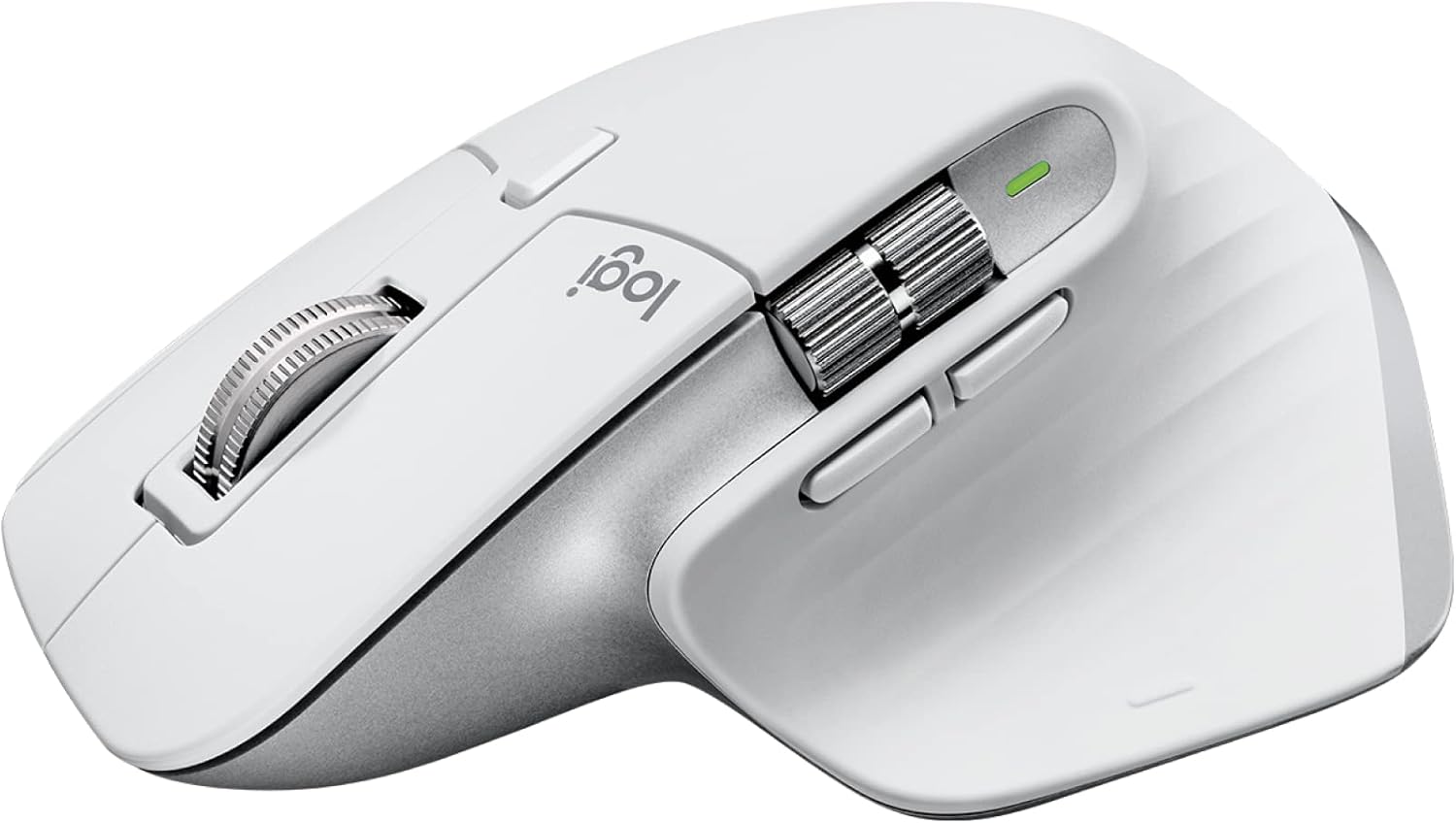
Image: Logitech MX Master 3S Wireless Mouse in Pale Grey, showcasing its ergonomic design and multiple buttons.
Key Features:
- 8K DPI Any-Surface Tracking: Precision tracking on virtually any surface, including glass.
- Quiet Clicks: Reduced click noise for a quieter work environment.
- MagSpeed Scrolling: Ultra-fast and precise electromagnetic scrolling.
- Ergonomic Design: Sculpted shape for comfortable hand posture.
- Customizable Buttons: Seven programmable buttons for enhanced workflow.
- FLOW Cross-Computer Control: Seamlessly switch between multiple computers and operating systems.
- Multi-Device Connectivity: Connects via Logi Bolt USB receiver or Bluetooth.
- Rechargeable Battery: Long-lasting Li-Po battery (500 mAh) with USB-C charging.
Package Contents:

Image: Contents of the MX Master 3S package, including the mouse, Logi Bolt USB receiver, and USB-C charging cable.
- Logitech MX Master 3S Wireless Mouse
- Logi Bolt USB Receiver
- USB-C Charging Cable (USB-A to USB-C)
Component Identification:

Image: Labeled diagram showing the key components of the MX Master 3S mouse, including the Quiet Click buttons, MagSpeed wheel, Thumb wheel, 8K track-anywhere sensor, customizable buttons, and Easy Switch buttons. Also indicates compatibility with Windows, macOS, Chrome OS, Linux, iPadOS, Android, and connectivity options (USB receiver, Bluetooth).
- Quiet Click (Left/Right-click)
- MagSpeed Wheel (Main scroll wheel)
- Thumb Wheel (Horizontal scroll)
- 8K Track-Anywhere Sensor
- Customizable Buttons (Forward/Back, App-Switch, Middle click)
- Easy Switch Buttons (Bottom of mouse for device switching)
Setup
1. Initial Charging
Before first use, it is recommended to fully charge your MX Master 3S mouse. Connect the included USB-C charging cable to the mouse's USB-C port and the other end to a USB-A port on your computer or a USB power adapter.
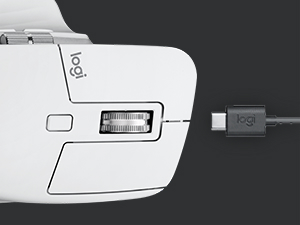
Image: Close-up of the MX Master 3S mouse with a USB-C cable connected for charging.
2. Connecting Your Mouse
The MX Master 3S offers two primary connection methods: Logi Bolt USB Receiver or Bluetooth.
Connecting via Logi Bolt USB Receiver:
- Insert the Logi Bolt USB receiver into an available USB-A port on your computer.
- Turn on the mouse using the power switch located on the bottom.
- The mouse should automatically connect to the receiver. The LED indicator on the mouse will turn solid green.
Connecting via Bluetooth:
- Turn on the mouse using the power switch located on the bottom.
- Press and hold one of the Easy-Switch buttons (1, 2, or 3) on the bottom of the mouse for three seconds until the LED indicator for that channel starts blinking rapidly. This indicates the mouse is in pairing mode.
- On your computer or device, open Bluetooth settings.
- Select "MX Master 3S" from the list of available devices and follow the on-screen prompts to complete pairing.
- Once connected, the LED indicator will glow solid for 5 seconds.
3. Installing Logi Options+ Software (Recommended)
To unlock the full potential of your MX Master 3S, including button customization, application-specific settings, and FLOW cross-computer control, download and install the free Logi Options+ software from the official Logitech website (www.logitech.com/optionsplus).

Image: A computer screen displaying the Logi Options+ application interface, showing options for customizing mouse buttons and creating app-specific profiles.
Operating Instructions
MagSpeed Electromagnetic Scrolling
The MX Master 3S features a MagSpeed electromagnetic scroll wheel that offers two modes:
- Ratcheted Mode: Provides precise, line-by-line scrolling, ideal for detailed work.
- Hyper-fast Mode: Automatically switches to free-spinning mode for rapid scrolling through long documents or web pages. This mode can scroll 1,000 lines per second.

Image: A close-up view of the MagSpeed scroll wheel on the MX Master 3S mouse, highlighting its metallic finish and precision engineering.
You can manually switch between modes by pressing the mode-shift button located behind the scroll wheel, or configure it to switch automatically based on scrolling speed via Logi Options+.
Quiet Clicks
The MX Master 3S is designed with Quiet Clicks, reducing audible click noise by 90% compared to previous models, providing a quieter user experience without compromising tactile feedback.

Image: A person working at a desk, using the MX Master 3S mouse, illustrating the quiet click feature in a typical office or home setting.
8K DPI Any-Surface Tracking
The advanced Darkfield High Precision sensor allows the MX Master 3S to track on virtually any surface, including glass (minimum 4mm thickness), with an 8000 DPI sensor for precise control.

Image: A hand operating the MX Master 3S mouse on a clear glass surface, demonstrating its ability to track on challenging materials.
Customizable Buttons and App-Specific Profiles
Utilize the Logi Options+ software to customize the seven programmable buttons (Left/Right-click, Back/Forward, App-Switch, Wheel mode-shift, Middle click) to perform specific actions or shortcuts. You can also create application-specific profiles, allowing the mouse buttons to behave differently depending on the active application.
FLOW Cross-Computer Control
Logitech FLOW enables seamless control of multiple computers with a single MX Master 3S mouse. You can move your cursor, text, and files between up to three computers, even across different operating systems (Windows and macOS), by simply moving your cursor to the edge of the screen. This feature requires Logi Options+ to be installed on all connected computers.

Image: A setup showing a laptop and a desktop monitor, with an arrow indicating the seamless transfer of cursor, text, and files between them using Logitech FLOW.
Multi-Device Switching
The Easy-Switch buttons on the bottom of the mouse allow you to quickly switch between up to three paired devices (via Logi Bolt or Bluetooth) with a single press.
Maintenance
Cleaning Your Mouse
To maintain optimal performance and hygiene, regularly clean your MX Master 3S mouse:
- Use a soft, lint-free cloth slightly dampened with water or an alcohol-based cleaner (e.g., isopropyl alcohol).
- Avoid harsh chemicals, abrasive materials, or excessive moisture.
- Gently wipe the surface of the mouse, paying attention to areas that come into frequent contact with your hand.
- For the optical sensor, use a dry cotton swab or compressed air to remove any dust or debris.
Battery Care
The MX Master 3S uses a rechargeable Li-Po battery. Follow these guidelines for optimal battery life:
- Charge the mouse using the provided USB-C cable.
- Avoid extreme temperatures, as they can affect battery performance.
- If storing the mouse for an extended period, charge it to about 50% before storage.
Troubleshooting
| Problem | Possible Solution |
|---|---|
| Mouse not responding or connecting. |
|
| Cursor movement is erratic or imprecise. |
|
| MagSpeed scrolling not working as expected. |
|
| Custom buttons not functioning. |
|
Specifications
| Feature | Detail |
|---|---|
| Model Number | 910-006558 |
| Dimensions (LxWxH) | 4.9 x 3.3 x 2.0 inches (124.9 x 84.3 x 51 mm) |
| Weight | 4.97 oz (141 g) |
| Sensor Technology | Darkfield High Precision |
| DPI Range | 200 to 8000 DPI (adjustable in 50 DPI increments) |
| Buttons | 7 buttons (Left/Right-click, Back/Forward, App-Switch, Wheel mode-shift, Middle click) |
| Scroll Wheels | MagSpeed electromagnetic scroll wheel, Thumbwheel |
| Wireless Operating Distance | Up to 33 ft (10 m) |
| Battery Type | Rechargeable Li-Po (500 mAh) |
| Battery Life | Up to 70 days on a single full charge (may vary based on usage) |
| Connectivity | Logi Bolt USB Receiver, Bluetooth Low Energy Technology |
| Compatibility | Windows, macOS, Linux, Chrome OS, iPadOS, Android |
| Recycled Plastic Content | 27% certified post-consumer recycled plastic (Graphite and Black models) |
Warranty and Support
For detailed warranty information and technical support, please refer to the official Logitech support website or contact Logitech customer service directly.
Logitech Support Website: support.logi.com
Please retain your proof of purchase for warranty claims.

