
1. Introduction
This manual provides essential information for the safe and effective use of your Canon XF605 4K UHD Pro Camcorder. Please read this manual thoroughly before using the camcorder and retain it for future reference. The Canon XF605 is a professional camcorder designed for high-quality video production, featuring advanced imaging capabilities and robust functionality.

Figure 1.1: Front three-quarter view of the Canon XF605 4K UHD Pro Camcorder.
Key Features:
- 1.0-inch 4K UHD CMOS Sensor for exceptional image quality.
- Independent 3-Density ND Filter for versatile exposure control.
- 4K UHD 59.94P 4:2:2 10-bit Recording in XF-AVC and MP4 formats.
- 15x Optical 4K UHD L Zoom Lens with 5-Axis Optical Image Stabilization.
- Advanced Dual Pixel CMOS AF with Eye Detection, Face, and Head Tracking.
2. Setup
2.1 Unpacking and Checking Contents
Carefully unpack all items from the box. Ensure the following components are present:
- Canon XF605 US BODY
- Lens Cap
- Lens Hood with Lens Barrier
- Microphone Holder Unit and Screws
- Eye Cup
- Compact Power Adapter CA-CP200 L
- AC Cable (US)
- Battery Charger CG-A20 OTH
- BP-A30 Battery Pack
- Printed Matter Unit (Documentation)
- Packaging Unit
2.2 Battery Installation and Charging
Insert the BP-A30 battery pack into the battery slot on the rear of the camcorder. Ensure it clicks securely into place. To charge the battery, connect the battery charger to a power outlet and attach the battery. The charging indicator will show the charging status.
2.3 Attaching the Lens Hood and Microphone Holder
Attach the lens hood to the front of the lens by aligning the marks and twisting until it locks. The lens hood helps prevent flare and protects the lens. Secure the microphone holder unit to the camcorder's handle using the provided screws.

Figure 2.1: Front view of the Canon XF605 with the lens hood attached.
2.4 Inserting Memory Cards
The XF605 supports dual SD card slots. Open the memory card slot cover and insert SD cards with the label facing the correct direction until they click into place. Close the cover securely.
3. Operating the Camcorder
3.1 Power On/Off
To power on the camcorder, slide the POWER switch to the ON position. To power off, slide it to the OFF position. Ensure the camcorder is off before removing the battery or memory cards.
3.2 Recording Modes and Quality
The XF605 supports 4K UHD recording at up to 59.94P with 4:2:2 10-bit color depth. You can choose between XF-AVC and MP4 recording formats. Access these settings through the menu system on the LCD screen.

Figure 3.1: The Canon XF605 supports 4K UHD 59.94P 4:2:2 10-bit recording.
3.3 Sensor and Image Processor
The camcorder is equipped with a 1.0-inch 4K UHD CMOS Sensor, providing excellent low-light performance and shallow depth of field. The DIGIC DV 7 Image Processor ensures high-speed processing and superior image quality.

Figure 3.2: The 1.0-inch 4K UHD CMOS Sensor for high-resolution capture.
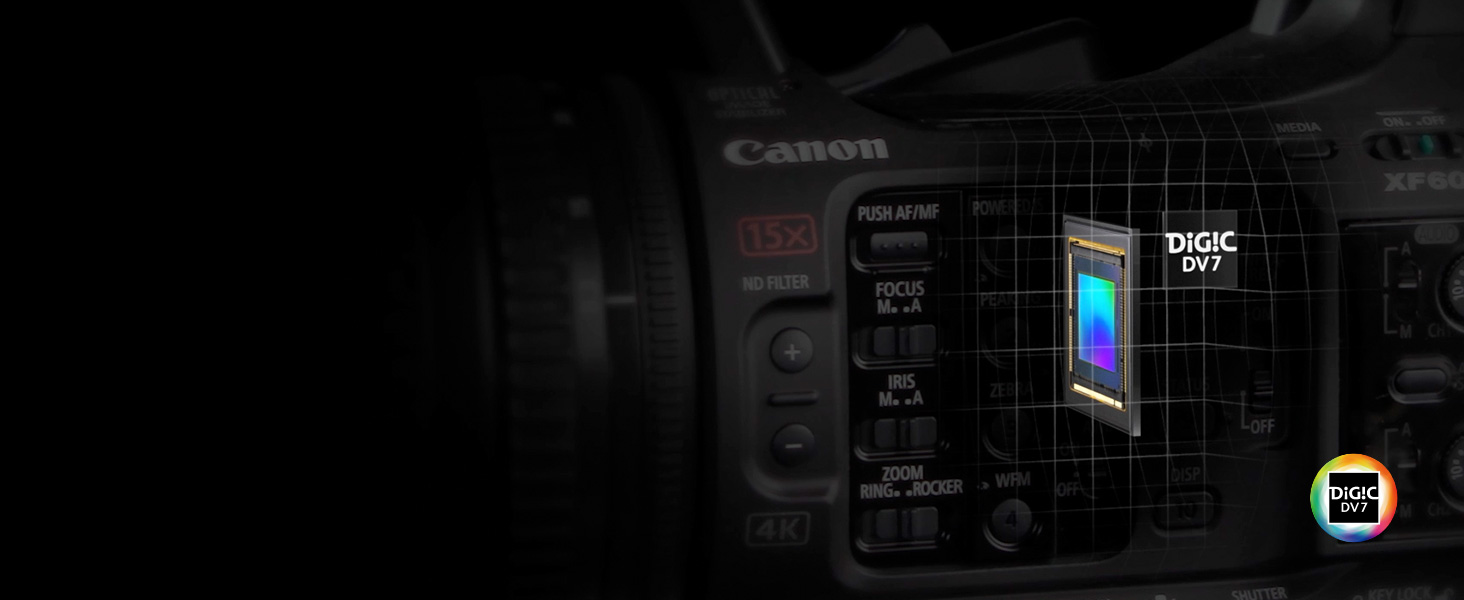
Figure 3.3: The DIGIC DV 7 Image Processor for advanced image processing.
3.4 Lens and Zoom
The integrated 15x Optical 4K UHD L Zoom Lens offers a versatile focal range. Use the zoom rocker on the handle or the zoom ring on the lens for precise control.

Figure 3.4: The 15x optical zoom lens provides a wide focal range.
3.5 Image Stabilization
The 5-Axis Optical Image Stabilization system minimizes camera shake, ensuring stable footage even when shooting handheld. Various stabilization modes can be selected via the menu.
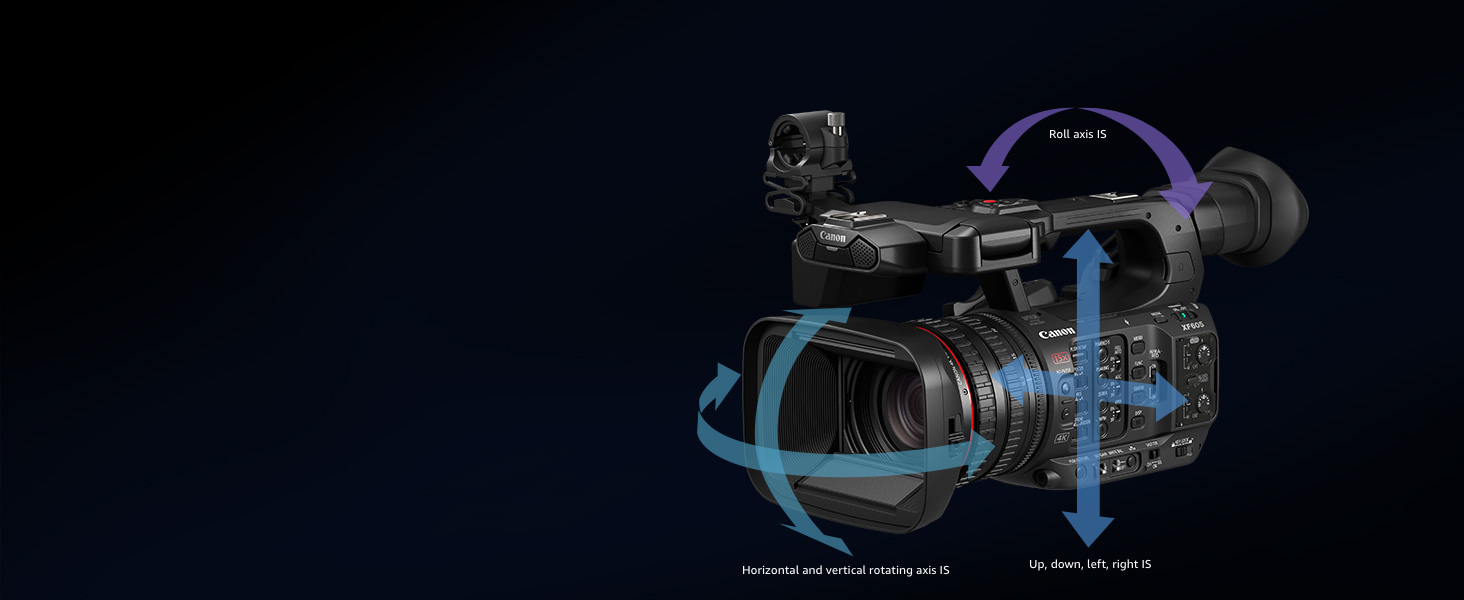
Figure 3.5: Diagram showing the 5-Axis Optical Image Stabilization system.
3.6 ND Filter
The independent 3-density ND filter (1/4, 1/16, 1/64) allows you to control the amount of light entering the lens, useful in bright conditions to maintain desired aperture and shutter speed settings.

Figure 3.6: Controls and mechanism for the 3-Density ND Filter.
3.7 Autofocus System
The Dual Pixel CMOS AF system provides fast and accurate autofocus. It includes Eye Detection AF, as well as improved face and head detection, for reliable subject tracking.

Figure 3.7: The autofocus system with eye detection in action.
3.8 Exposure Control and Gamma
The XF605 supports HDR recording, Canon Log 3, and Wide DR Gamma for extended dynamic range and flexible post-production workflows.

Figure 3.8: Example of HDR recording output.

Figure 3.9: Comparison of Canon Log 3 footage before and after grading.
3.9 Slow and Fast Motion
Utilize the slow and fast motion recording modes to achieve creative effects, capturing action at various frame rates.

Figure 3.10: Example footage demonstrating slow motion capabilities.
3.10 Display and Viewfinder
The camcorder features a 4.3-inch touch panel LCD monitor and a 1.56 million dot OLED color electronic viewfinder (EVF) for flexible monitoring and control.

Figure 3.11: The touch panel LCD and electronic viewfinder provide clear monitoring.
3.11 Audio Inputs and Connectivity
The XF605 offers flexible audio inputs, including two XLR terminals, for professional audio recording. Various other terminals such as USB, HDMI, and SDI are available for connectivity.

Figure 3.12: Rear view showing audio inputs and control panel.
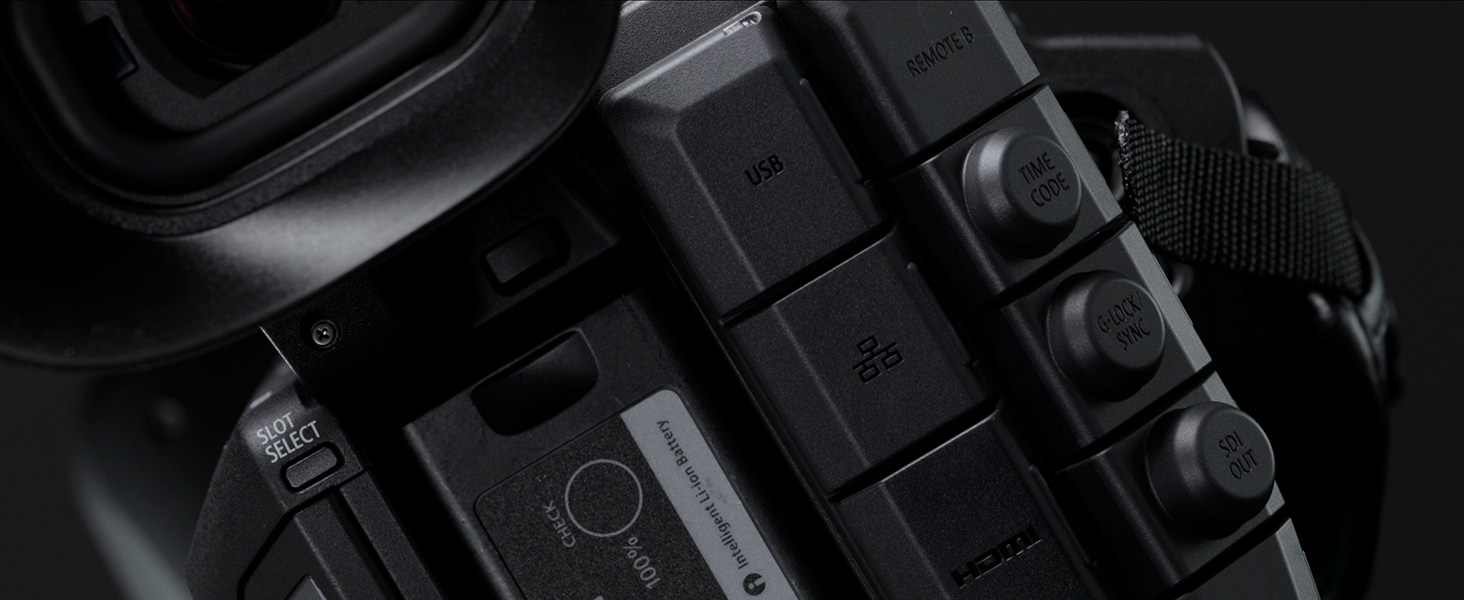
Figure 3.13: Detailed view of the camcorder's connectivity terminals.
3.12 Multi-Function Shoe and Remote Control
The multi-function shoe allows for attachment of compatible accessories. The CTM iPhone App enables remote control and file transfer functionalities.

Figure 3.14: The Multi-Function Shoe for accessory attachment.

Figure 3.15: The CTM iPhone App interface for remote control.
4. Maintenance
4.1 Cleaning the Camcorder
Regularly clean the camcorder body with a soft, dry cloth. For the lens, use a specialized lens cleaning cloth and solution. Avoid using abrasive cleaners or solvents. Keep the sensor area free from dust by using a blower brush.
4.2 Battery Care
To prolong battery life, avoid fully discharging the battery frequently. Store batteries in a cool, dry place when not in use. Charge batteries fully before extended storage and periodically recharge them if stored for long periods.
4.3 Storage
When storing the camcorder, ensure it is powered off and the battery is removed. Store it in a protective case in a dry, dust-free environment away from extreme temperatures and direct sunlight.
5. Troubleshooting
This section addresses common issues you might encounter. For more complex problems, refer to the detailed troubleshooting guide on the Canon support website or contact customer service.
5.1 Power Issues
- Camcorder does not power on: Ensure the battery is fully charged and correctly inserted. Check if the power adapter is properly connected when using AC power.
- Battery drains quickly: Reduce screen brightness, turn off unused features (e.g., Wi-Fi), and ensure the battery is not old or damaged.
5.2 Recording Problems
- Cannot record: Check if a memory card is inserted and has sufficient free space. Ensure the recording mode is correctly selected.
- Poor image quality: Verify lens cleanliness. Adjust exposure settings (aperture, shutter speed, ISO, ND filter) for current lighting conditions. Check focus settings.
5.3 Focus Issues
- Autofocus is slow or inaccurate: Ensure there is sufficient light on the subject. Clean the lens. If shooting in challenging conditions, consider switching to manual focus.
6. Specifications
Below are the key technical specifications for the Canon XF605 4K UHD Pro Camcorder:
| Feature | Specification |
|---|---|
| Brand | Canon |
| Model Name | XF605 |
| Model Number | 5076C002 |
| Photo Sensor Technology | CMOS |
| Photo Sensor Size | 1-inch |
| Video Capture Resolution | 4K UHD (3840 Pixels) |
| Optical Zoom | 15x |
| Image Stabilization | 5-Axis Optical |
| Flash Memory Type | SD (Dual Slots) |
| Video Capture Format | MP4, XF-AVC |
| Supported Audio Format | Linear PCM |
| Screen Size | 4.3 Inches (Touch Panel LCD) |
| Connectivity Technology | USB, HDMI, SDI |
| Focus Type | Auto Focus, Manual Focus |
| Features | Anti-Shake, Night Vision, Time Lapse, HDR Recording, Canon Log 3 |
| Item Dimensions (D x W x H) | 5.71"D x 7.28"W x 4.13"H |
| UPC | 013803340433 |
7. Warranty and Support
7.1 Manufacturer's Warranty
The Canon XF605 4K UHD Pro Camcorder comes with a 1-year manufacturer's warranty. This warranty covers defects in materials and workmanship under normal use. Please retain your proof of purchase for warranty claims.
7.2 Customer Support
For technical assistance, service, or further information regarding your camcorder, please contact Canon customer support. You can find contact details and additional resources on the official Canon website.