Product Overview
The ASUS ROG Strix GS-AX3000 is a high-performance WiFi 6 gaming router designed to provide fast and stable network connections for gaming and general use. It features advanced technologies to optimize network performance and enhance security.

Figure 1: ASUS ROG Strix GS-AX3000 WiFi 6 Gaming Router
Key Features:
- New-generation WiFi 6: Ultrafast speeds up to 3000 Mbps with 160 MHz WiFi 6 channels.
- Fully optimized gaming: Mobile Game Mode, dedicated Gaming Port, and Gear Accelerator for optimized gaming on mobile, console or PC.
- VPN Fusion: Run a VPN and an ordinary internet connection simultaneously for maximum speed.
- Instant Guard: Secure public WiFi connections globally with a single click.
- Commercial-grade Security: AiProtection Pro, powered by Trend Micro, protects your home network.
- Easy Extendable Network: Seamless roaming with any AiMesh-compatible router.
Package Contents
Before proceeding with the setup, please ensure all items listed below are present in your package:
- GS-AX3000 Router
- RJ-45 cable
- Power adapter
- Warranty card
- Quick start guide
Setup Guide
1. Hardware Connections
Follow these steps to connect your router:
- Connect the power adapter to the router's Power (DC-IN) port and plug it into a power outlet.
- Connect one end of the RJ-45 cable to your modem's Ethernet port and the other end to the router's WAN Port.
- For wired devices, connect an Ethernet cable from your computer or gaming console to any of the router's LAN Ports (LAN 1-3). The Gaming Port (LAN 1) is recommended for primary gaming devices.
- Press the Power Switch to turn on the router.

Figure 2: Rear view of the GS-AX3000 router showing all ports and buttons.
2. Initial Configuration
Once the hardware is connected, configure your router using the ASUSWRT web interface:
- Open a web browser on a computer connected to the router (either wired or wirelessly using the default Wi-Fi name and password found on the router's label).
- Type http://router.asus.com or http://192.168.50.1 into the address bar and press Enter.
- Follow the on-screen instructions of the Quick Internet Setup (QIS) wizard to set up your internet connection, Wi-Fi network name (SSID), and password.
- It is highly recommended to change the default login username and password for the router's administration page for security purposes.
Operating Instructions
Gaming Features
The ROG Strix GS-AX3000 is optimized for gaming performance:
- Gaming Port (LAN 1): Connect your primary gaming device (PC, console) to this port for prioritized network traffic.
- Mobile Game Mode: Activate this feature via the ASUS Router app to prioritize mobile gaming traffic.
- Gear Accelerator: Use the web interface to prioritize specific devices for gaming.

Figure 3: Accelerate Your Gaming Device with the GS-AX3000.
Network Security and Privacy
Enhance your network security and privacy with these built-in features:
- AiProtection Pro: Provides commercial-grade network security, including intrusion prevention, malicious site blocking, and infected device detection. Access and configure this feature through the ASUSWRT interface.
- VPN Fusion: Allows you to run a VPN connection alongside a regular internet connection. This is useful for specific applications that require VPN while others use direct internet access.
- Instant Guard: Create a secure VPN connection to your home network when you are away, protecting your data on public Wi-Fi. This feature is accessible via the ASUS Router mobile app.

Figure 4: Overview of security and privacy features.
AiMesh System
The GS-AX3000 is AiMesh compatible, allowing you to create a whole-home mesh Wi-Fi system by adding other AiMesh-compatible ASUS routers. This extends Wi-Fi coverage and eliminates dead zones.
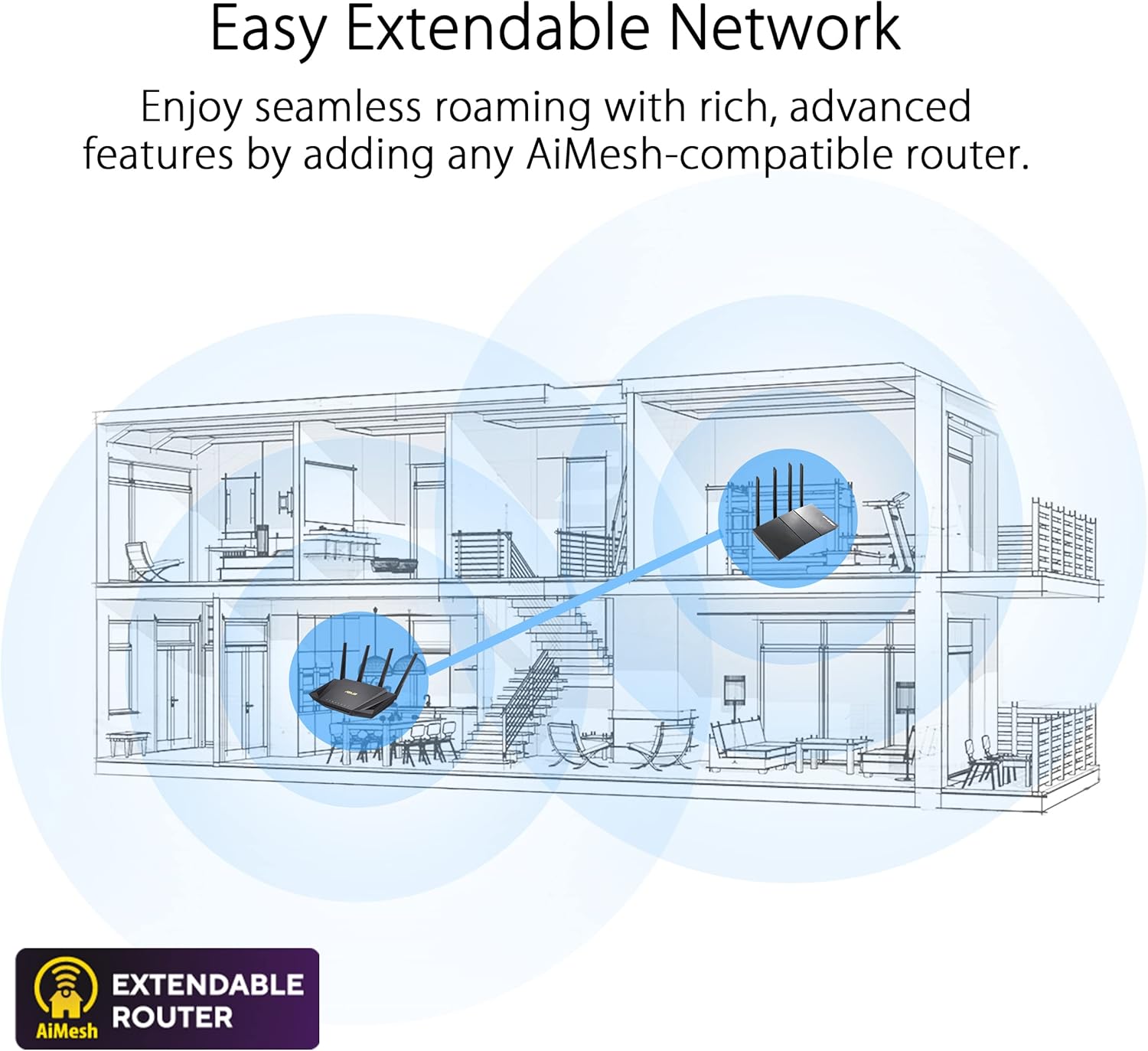
Figure 5: AiMesh system extending network coverage.
Maintenance
Regular maintenance ensures optimal performance and security for your router:
- Firmware Updates: Periodically check for and install the latest firmware updates via the ASUSWRT interface. Firmware updates often include performance improvements, bug fixes, and security enhancements.
- Regular Reboot: Rebooting the router every few days or once a week can help clear its memory and resolve minor performance issues.
- Physical Cleaning: Keep the router free from dust. Use a soft, dry cloth to clean the exterior. Ensure ventilation holes are not obstructed to prevent overheating.
- Password Management: Regularly change your Wi-Fi and router administration passwords to strong, unique combinations.
Troubleshooting
This section addresses common issues you might encounter:
| Problem | Possible Cause | Solution |
|---|---|---|
| No Internet Connection | Incorrect cable connections, modem issue, ISP outage. |
|
| Slow Wi-Fi Speed | Interference, too many devices, outdated firmware, router placement. |
|
| Cannot Access Router Settings Page | Incorrect IP address, network issue, browser cache. |
|
| Wi-Fi Disconnections | Channel interference, signal strength, device compatibility. |
|
For more detailed troubleshooting, refer to the online support resources or contact ASUS customer support.
Specifications
| Feature | Detail |
|---|---|
| Brand | ASUS |
| Series | ROG STRIX |
| Model Number | GS-AX3000 |
| Wireless Type | 802.11ax (WiFi 6) |
| Frequency Band Class | Dual-Band |
| Frequency | 160 MHz |
| Operating System | ASUSWRT |
| Item Weight | 1.55 pounds |
| Product Dimensions (LxWxH) | 10.56 x 7.08 x 6.53 inches |
| Color | BLACK |
| Voltage | 240 Volts (AC) |
| Special Features | AiMesh, QoS, WPS |
| Connectivity Technology | Bluetooth, Wi-Fi, Ethernet |
Warranty and Support
Warranty Information
This product comes with a warranty. Please refer to the included Warranty card in your package for detailed terms and conditions, including warranty period and coverage.
Legal Disclaimer
Actual data throughput and WiFi coverage will vary from network conditions and environmental factors, including the volume of network traffic, building material and construction, and network overhead, resulting in lower actual data throughput and wireless coverage.
Customer Support
For technical assistance, product inquiries, or warranty claims, please contact ASUS customer support. You can find contact information on the ASUS official website or in the quick start guide included with your product.
Online resources and FAQs are also available on the ASUS support website to help you with common issues and advanced configurations.


