
1. Introduction
The Canon PIXMA TR4720 is a versatile All-in-One Wireless Inkjet Printer designed for both home and office use. This compact device offers comprehensive 4-in-1 functionality, including printing, copying, scanning, and faxing. With its built-in wireless connectivity and compatibility with Canon mobile applications, managing your documents and photos is streamlined and efficient. The printer features a hybrid ink system for sharp text and vibrant colors, automatic two-sided printing, and an auto document feeder for enhanced productivity.

Image 1: Canon PIXMA TR4720 highlighting key features such as Wireless, Mobile Printing, ADF, and Auto 2-Sided Printing.
2. What's in the Box
Upon unboxing your Canon PIXMA TR4720, you should find the following components:
- Canon PIXMA TR4720 Wireless All-in-One Printer
- Starter Black Ink Cartridge (PG-275)
- Starter Color Ink Cartridge (CL-276)
- Power Cord
- RJ11 Telephone/Modem Cable
- Documentation (User Manual, Setup Instructions)

Image 2: Visual representation of the Canon PIXMA TR4720 printer and its included accessories: printer unit, starter ink cartridges, power cord, RJ11 cable, and documentation.
3. Product Overview and Key Features
The PIXMA TR4720 is engineered for efficiency and ease of use, integrating multiple office functions into a single, compact device. Its design prioritizes user convenience and high-quality output.
Key Features:
- 4-in-1 Functionality: Print, Copy, Scan, and Fax capabilities.
- High-Resolution Printing: Up to 4800 x 1200 dpi for detailed color and black & white prints.
- Wireless Connectivity: Built-in Wi-Fi (802.11b/g/n 2.4GHz) for printing from PCs and mobile devices.
- Automatic Document Feeder (ADF): 20-sheet capacity for efficient scanning and copying of multi-page documents.
- Auto Duplex Printing: Automatic two-sided printing for letter-size documents, saving paper.
- Hybrid Ink System: Utilizes PG-275 (Black) and CL-276 (Color) cartridges for sharp text and vibrant images.
- 2-Line LCD Display: Simple interface for navigating printer functions and settings.
- Canon PRINT Inkjet/SELPHY App: Enables easy setup, printing, and scanning directly from smartphones or tablets.
- Compact Design: Dimensions of 11.7"D x 17.2"W x 7.5"H, ideal for various spaces.

Image 3: An overhead view of the Canon PIXMA TR4720, labeling its key components such as the Auto Document Feeder, 2-Line LCD Display, and 100-Sheet Front Paper Tray.

Image 4: The Canon PIXMA TR4720 showcasing its compact dimensions (7.5"H x 17.2"W x 11.7"D), emphasizing its space-saving design.
4. Setup Instructions
Initial Setup:
- Unpack the Printer: Remove all packaging materials and protective tapes from the printer.
- Install Ink Cartridges: Open the front cover to access the ink cartridge slots. Insert the PG-275 Black and CL-276 Color starter cartridges into their respective slots until they click into place.
- Load Paper: Open the front paper tray and load plain paper (Letter or A4 size). Adjust the paper guides to fit the paper snugly.
- Connect Power: Plug the power cord into the printer and then into a wall outlet.
- Power On: Press the power button to turn on the printer. Follow the on-screen instructions on the 2-Line LCD display for initial setup.
Wireless Connectivity:
The Canon PIXMA TR4720 supports wireless connection for printing from various devices.
- Download Canon PRINT Inkjet/SELPHY App: For smartphone or tablet setup, download the Canon PRINT Inkjet/SELPHY app from your device's app store.
- Follow App Instructions: The app provides simple, step-by-step guidance for connecting your printer to your Wi-Fi network.
- Manual Wi-Fi Setup: Alternatively, use the printer's 2-Line LCD display to navigate to the Wi-Fi setup menu and connect to your network manually.
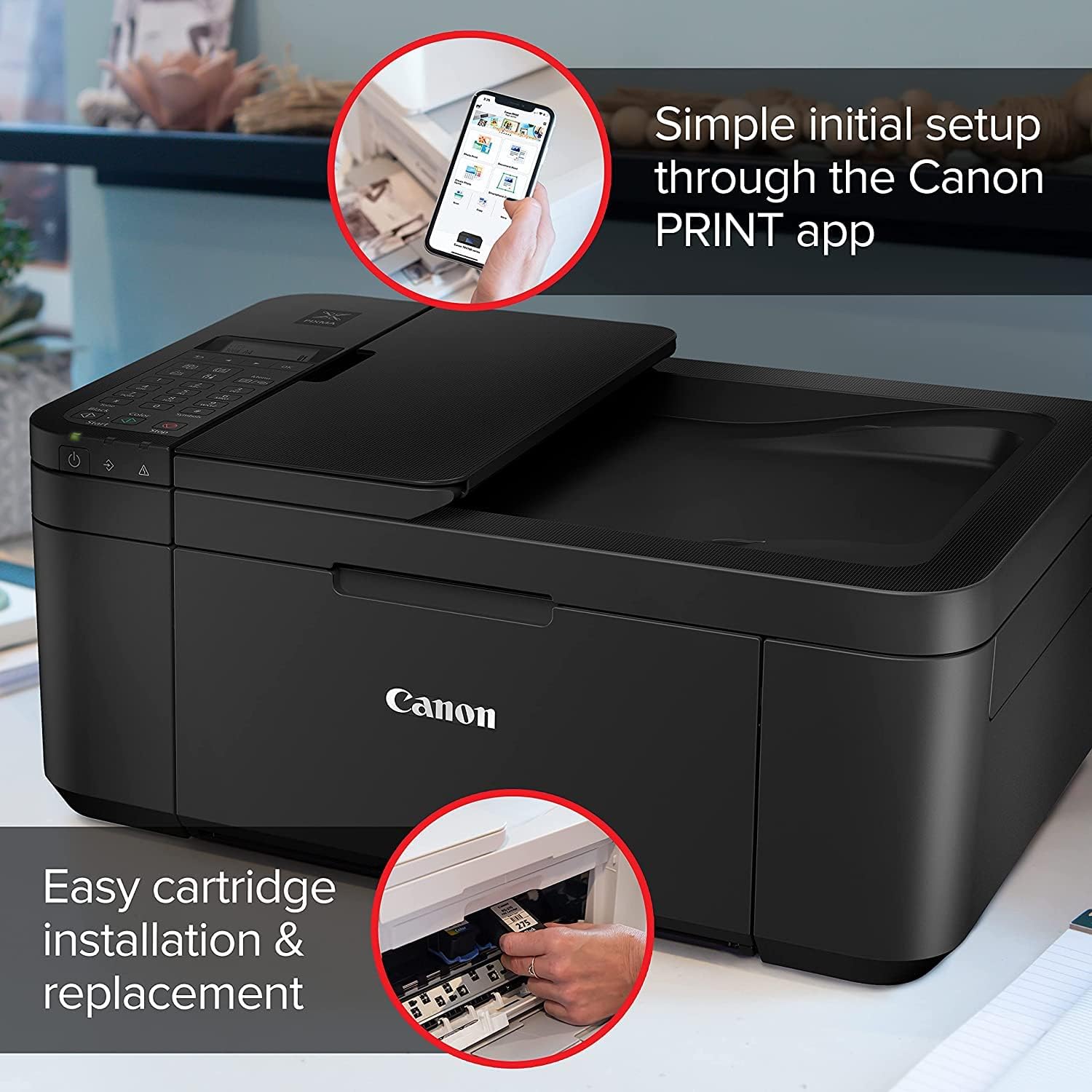
Image 5: A close-up view demonstrating the easy cartridge installation and replacement process for the Canon PIXMA TR4720 printer.

Image 6: A smartphone displaying the Canon PRINT Inkjet/SELPHY app interface, illustrating how users can conveniently print, copy, or scan directly from their mobile device.
5. Operating Instructions
The Canon PIXMA TR4720 offers intuitive controls for all its functions.
Control Panel:
The printer features a 2-Line LCD display and a numeric keypad for easy navigation and input. Use the arrow keys to scroll through menus and the OK button to confirm selections. Dedicated buttons for Black and Color start/stop functions are also available.

Image 7: A detailed view of the Canon PIXMA TR4720's control panel, showing the 2-Line LCD display, numeric keypad, and function buttons for easy operation.
Printing:
- From a Computer: Ensure the printer drivers are installed. Select 'Print' from your document or image application, choose the TR4720, and adjust settings as needed.
- From a Mobile Device: Use the Canon PRINT Inkjet/SELPHY app. Select the document or photo, choose print settings (e.g., paper size, color mode), and tap 'Print'.
- Borderless Printing: Supported for photos from 4" x 6" to 8.5" x 11".
- Auto Duplex Printing: Enable this option in your print settings for automatic two-sided printing.
Scanning:
- Using the Flatbed: Place the document face-down on the scanner glass. Close the lid. Select 'Scan' from the printer's control panel or the Canon PRINT app.
- Using the ADF: For multiple pages, load them face-up into the Auto Document Feeder. Select 'Scan' and choose ADF as the source.
Copying:
- Place Document: Place the document on the flatbed or in the ADF.
- Select Copy: On the control panel, select 'Copy'.
- Adjust Settings: Choose the number of copies, color/black & white, and other options.
- Start Copying: Press the Black or Color start button.
Faxing:
- Connect RJ11 Cable: Ensure the RJ11 telephone/modem cable is connected to the printer and a telephone line.
- Load Document: Place the document on the flatbed or in the ADF.
- Enter Fax Number: Use the numeric keypad on the control panel to enter the recipient's fax number.
- Send Fax: Press the Black or Color start button to send the fax.
6. Maintenance
Ink Cartridge Replacement:
When an ink cartridge runs low or is empty, the printer's LCD display will indicate which cartridge needs replacement. Always use genuine Canon PG-275 (Black) and CL-276 (Color) ink cartridges for optimal performance.
- Ensure the printer is powered on.
- Open the front cover of the printer. The print head holder will move to the replacement position.
- Remove the empty cartridge by pressing the tab and lifting it out.
- Unpack the new cartridge and remove the protective tape.
- Insert the new cartridge firmly into its corresponding slot until it clicks.
- Close the front cover. The printer will perform an initialization process.
Cleaning:
Regular cleaning helps maintain print quality and prevent paper jams. Refer to the detailed documentation for specific cleaning procedures for print heads, rollers, and the scanner glass.
7. Troubleshooting
If you encounter issues with your Canon PIXMA TR4720, consider the following common troubleshooting steps:
- Printer Not Responding: Check power connections and ensure the printer is turned on. Verify Wi-Fi connectivity or USB cable connection.
- Poor Print Quality: Check ink levels and replace any empty cartridges. Perform a print head cleaning or alignment from the printer's maintenance menu. Ensure you are using the correct paper type for your print settings.
- Paper Jams: Carefully remove any jammed paper from the paper tray, output slot, or inside the printer. Refer to the printer's documentation for specific jam clearance instructions.
- Slow Printing: Ensure the printer is connected to a stable network. Printing high-resolution images or documents with complex graphics may naturally take longer.
- Connectivity Issues: Restart your router, printer, and device. Re-run the Wi-Fi setup process via the Canon PRINT app or the printer's control panel.
- Document Removal Reminder: The printer will alert you if an original document is left on the scanner platen after scanning or copying.
For more detailed troubleshooting, consult the full user manual or visit the official Canon support website.
8. Specifications
| Feature | Specification |
|---|---|
| Model Name | PIXMA TR4720 |
| Functions | Print, Copy, Scan, Fax |
| Printing Technology | Inkjet |
| Max Color Print Resolution | 4800 x 1200 dpi |
| Max Black & White Print Resolution | 4800 x 1200 dpi |
| Print Speed (Black) | Approx. 8.8 ipm |
| Print Speed (Color) | Approx. 4.4 ipm |
| Connectivity Technology | USB, Wi-Fi (802.11b/g/n 2.4GHz), Wireless Direct Connection, Bluetooth |
| Compatible Devices | PC, Smartphones (Android, iOS) |
| Scanner Type | Flatbed |
| Max Input Sheet Capacity | 100 sheets |
| Auto Document Feeder (ADF) | 20 sheets |
| Duplex Printing | Automatic (for letter-size documents) |
| Display | 2-Line LCD |
| Product Dimensions | 11.7"D x 17.2"W x 7.5"H |
| Item Weight | 12.7 pounds |
| Ink Type | PG-275 Black, CL-276 Color |
| Energy Star Certified | Yes |
9. Warranty & Support
The Canon PIXMA TR4720 comes with a Limited Warranty. For specific terms and conditions, please refer to the warranty information included in your product documentation.
For technical support, driver downloads, or additional assistance, please visit the official Canon support website or contact Canon customer service. Ensure you have your printer's model number (TR4720) and serial number ready when seeking support.
10. Product Videos
No official seller videos are available for embedding at this time. Please refer to the images and text instructions for guidance.


