
1. Introduction
Thank you for choosing the EpicToys 54-Key Electronic Musical Piano Keyboard Model 5468. This instrument is designed to provide a rich musical experience for users of all ages, from beginners to those looking to explore musical creativity. This manual provides essential information for the safe and effective use of your new keyboard.
2. Safety Information
- Keep the keyboard away from water and moisture to prevent electric shock or damage.
- Do not expose the keyboard to direct sunlight or high temperatures.
- Use only the provided charging cable or a compatible DC/AC adapter.
- Ensure batteries (6xAA, not included) are inserted with correct polarity. Remove batteries if the keyboard will not be used for an extended period.
- Supervise young children during use to ensure safe operation.
- Do not attempt to disassemble or repair the keyboard yourself. Contact customer support for assistance.
3. Package Contents
Please verify that all items listed below are included in your package:
- EpicToys 54-Key Electronic Musical Piano Keyboard
- Microphone
- USB Charging Cable

Image 3.1: The EpicToys 54-Key Electronic Musical Piano Keyboard, including the microphone and USB charging cable.
4. Product Overview
Familiarize yourself with the main components of your keyboard:
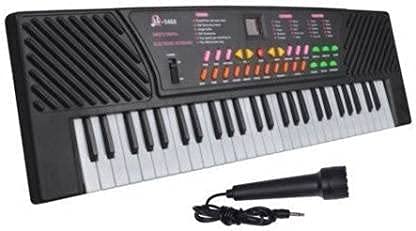
Image 4.1: Top view of the keyboard, highlighting the 54 keys, control panel with various buttons, and integrated speaker grilles.
- 54 Keys: Standard piano-style keys for playing melodies and chords.
- Control Panel: Located above the keys, featuring buttons for power, volume, tempo, tones, rhythms, recording, playback, and special effects.
- Speaker Grilles: Integrated speakers for audio output.
- Microphone Input: A dedicated port for connecting the included microphone.
- Power Input: Port for connecting the USB charging cable or DC/AC adapter.
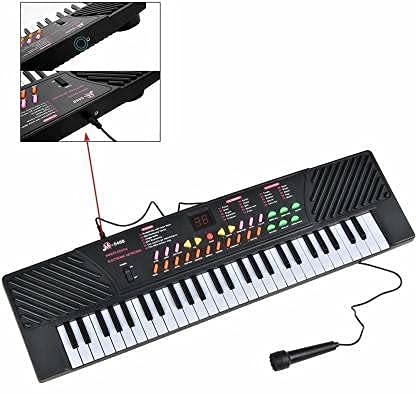
Image 4.2: Detail view of the keyboard's side, illustrating the microphone input jack for connecting the external microphone.
5. Setup
5.1 Powering the Keyboard
Your keyboard can be powered in two ways:
- Using Batteries: Insert 6 AA batteries (not included) into the battery compartment located on the underside of the keyboard. Ensure correct polarity.
- Using the USB Charging Cable: Connect the small end of the USB charging cable to the power input port on the keyboard. Connect the larger end to a compatible USB power adapter (not included) or a USB port on a computer.
5.2 Connecting the Microphone
Plug the microphone's jack into the dedicated microphone input port on the keyboard. The microphone is ready for use once connected.
6. Operating Instructions
6.1 Basic Operation
- Power On/Off: Press the 'POWER' button on the control panel to turn the keyboard on or off.
- Volume Control: Use the 'VOLUME' buttons (usually '+' and '-') to adjust the overall sound level. There are 16 levels of volume control.
- Tempo Control: Use the 'TEMPO' buttons (usually '+' and '-') to adjust the speed of rhythms and demo songs. There are 32 levels of tempo control.
6.2 Tones and Rhythms
- Selecting Tones: Press the 'TONE' button and then use the number keys or dedicated tone selection buttons to choose from 10 different instrument tones (e.g., Piano, Organ, Violin).
- Selecting Rhythms: Press the 'RHYTHM' button and then use the number keys or dedicated rhythm selection buttons to choose from 10 different rhythm styles (e.g., Rock, Disco, Waltz).
- Starting/Stopping Rhythms: Press the 'START/STOP' button to begin or end the selected rhythm.
6.3 Recording and Playback
- Record: Press the 'RECORD' button to begin recording your playing. Play your desired melody or chords.
- Playback: After recording, press the 'PLAYBACK' button to listen to your recorded performance.
6.4 Special Functions
- Vibrato/Sustain: Activate these effects using their respective buttons to add expressive qualities to your sound.
- Demo Songs: Press the 'DEMO' button to cycle through the pre-programmed demo songs.
- Microphone Use: Once connected, speak or sing into the microphone. The sound will be amplified through the keyboard's speakers.
7. Maintenance
- Cleaning: Wipe the keyboard with a soft, dry cloth. Do not use liquid cleaners or abrasive materials.
- Storage: Store the keyboard in a cool, dry place away from direct sunlight and extreme temperatures.
- Battery Care: Remove batteries if the keyboard is not used for extended periods to prevent leakage.
8. Troubleshooting
| Problem | Possible Cause | Solution |
|---|---|---|
| No power | Batteries are dead or incorrectly inserted; power cable not connected. | Replace batteries, check polarity, or ensure power cable is securely connected. |
| No sound | Volume is too low; keyboard is muted. | Increase volume using the '+' button. Ensure no mute function is active. |
| Microphone not working | Microphone not properly connected. | Ensure microphone jack is fully inserted into the input port. |
| Keys not responding | Low battery power; internal malfunction. | Replace batteries or connect to power. If problem persists, contact support. |
9. Specifications
- Model: 5468
- Number of Keys: 54
- Power Source: 6x AA Batteries (not included) or USB Charging Cable
- Tones: 10
- Rhythms: 10
- Volume Control: 16 levels
- Tempo Control: 32 levels
- Special Features: Vibrato, Sustain, Chord Record, Playback, Microphone Input
- Recommended Age: 36 months - 15 years
- Manufacturer: Gleam Trade Enterprises
10. Warranty and Support
For warranty information or technical support, please refer to the purchase documentation or contact your retailer. Keep your proof of purchase for any warranty claims.