Introduction
This manual provides instructions for the Media Cover Market 3-in-1 accessory set, designed for compatibility with the Saiyell International M-WORKS MW-WPC02 8.9-inch device. The set includes an optical mouse, a gel wrist rest mouse pad, and a free-cut silicone keyboard cover. Please read these instructions carefully before use to ensure proper installation and optimal performance.

Image 1: The complete 3-in-1 accessory set, featuring an optical mouse, a gel wrist rest mouse pad, and a silicone keyboard cover.
Setup
1. Optical Mouse Setup
- Locate an available USB port on your M-WORKS MW-WPC02 device.
- Insert the USB connector of the optical mouse into the USB port.
- The device should automatically detect and install the necessary drivers. No additional software is typically required.
- Test the mouse functionality by moving the cursor and clicking the left, right, and scroll wheel buttons.

Image 2: The compact optical mouse with its USB connector, ready for connection.
2. Gel Wrist Rest Mouse Pad Placement
- Choose a flat, clean surface on your desk where you typically use your mouse.
- Place the gel wrist rest mouse pad on the chosen surface. The underside of the mouse pad features a self-adhesive silicone material designed to prevent slipping.
- Ensure the wrist rest portion is positioned comfortably to support your wrist during mouse operation.
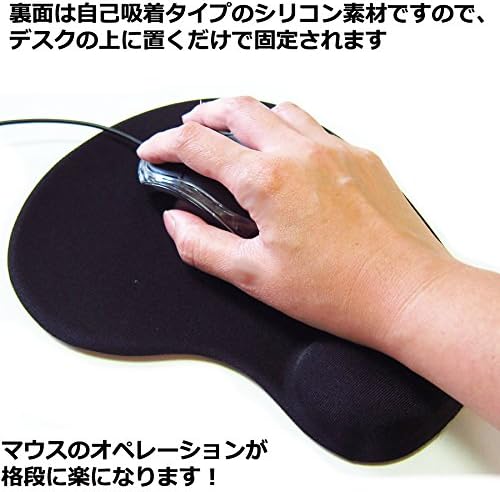
Image 3: A hand demonstrating the comfortable ergonomic support provided by the gel wrist rest mouse pad.
3. Silicone Keyboard Cover Installation
The silicone keyboard cover is a free-cut type, allowing customization to fit your specific keyboard layout.
- Measure and Cut: Carefully measure the dimensions of your M-WORKS MW-WPC02 keyboard area. The cover measures approximately 345 x 145 mm. Use scissors to cut the silicone sheet to match your keyboard's shape, ensuring it covers only the key area and not the touchpad or other components.
- Clean Surface: Ensure the keyboard surface is clean and free of dust or debris before application.
- Apply Cover: Gently place the cut silicone cover over the keyboard. The cover has a micro-adhesive property that helps it stay in place.
- Secure (Optional): For a more secure fit, use the included double-sided tape to adhere the cover more firmly to the keyboard edges, if desired.

Image 4: The free-cut silicone keyboard cover, demonstrating how it can be trimmed to fit various keyboard layouts.

Image 5: A silicone keyboard cover correctly applied to a laptop, covering only the key area.
Operating Instructions
Optical Mouse
- Movement: Move the mouse across the mouse pad to control the cursor on your screen.
- Left Click: Press the left button for primary selection and activation.
- Right Click: Press the right button to access contextual menus.
- Scroll Wheel: Rotate the scroll wheel to navigate vertically through documents and web pages. The scroll wheel also functions as a clickable button for additional actions depending on software settings.
Gel Wrist Rest Mouse Pad
- The mouse pad provides a smooth surface for precise mouse tracking.
- The integrated gel wrist rest is designed to support your wrist in a neutral position, reducing strain and fatigue during extended use.

Image 6: A close-up view of the soft gel material used in the wrist rest, highlighting its ergonomic design.
Silicone Keyboard Cover
- The keyboard cover acts as a protective barrier against dust, spills, and dirt, helping to maintain the cleanliness and longevity of your keyboard.
- Its thin design (0.3mm) ensures that key touch and typing experience are minimally affected.
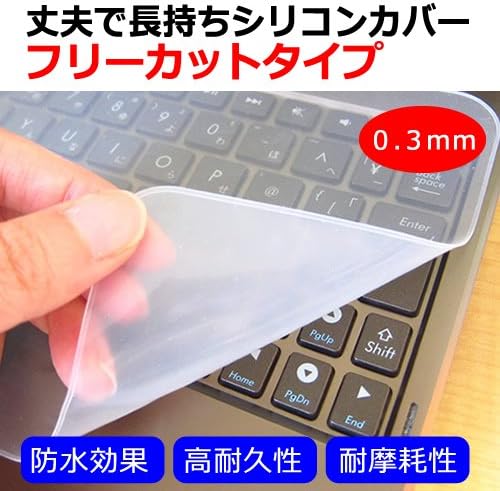
Image 7: The silicone keyboard cover demonstrating its thin profile and flexible material, designed for durability and protection.
Maintenance
Optical Mouse
- Clean the mouse regularly with a soft, dry cloth.
- If the optical sensor accumulates dust, gently clean it with a cotton swab.
Gel Wrist Rest Mouse Pad
- Wipe the surface with a damp cloth and mild soap if necessary. Avoid harsh chemicals.
- Allow to air dry completely before reuse.
Silicone Keyboard Cover
- The silicone cover is washable. Remove it from the keyboard and rinse with water.
- Use a mild detergent if needed.
- Ensure the cover is completely dry before placing it back on the keyboard to prevent moisture damage to your device.
Troubleshooting
Mouse Not Responding
- Ensure the USB connector is securely plugged into the device's USB port.
- Try plugging the mouse into a different USB port.
- Restart your M-WORKS MW-WPC02 device.
- Test the mouse on another computer to determine if the issue is with the mouse or the device.
Keyboard Cover Not Staying in Place
- Ensure the keyboard surface is clean and dry before applying the cover.
- If the micro-adhesive property is insufficient, use the included double-sided tape for a more secure fit.
Specifications
| Brand | Media Cover Market |
| Model Compatibility | Saiyell International M-WORKS MW-WPC02 (8.9 inch) |
| Manufacturer Reference | keymousep-R-K0001371746 |
| Item Weight (Total) | 200 g |
| Package Dimensions | 32.3 x 23.3 x 4 cm |
| Keyboard Cover Material | Silicone |
| Keyboard Cover Thickness | 0.3 mm |
| Keyboard Cover Dimensions | 345 x 145 mm (Free-cut type) |
| Mouse Type | Optical, 3-button (Left, Right, Scroll Wheel) |
| Mouse Pad Material | Gel (wrist rest), Smooth fabric surface, Silicone (underside) |
Warranty and Support
This product is an accessory set. For specific warranty information, please refer to the documentation provided at the time of purchase or contact the seller directly. General support for installation and usage can be found within this manual.
For further assistance, please contact Media Cover Market customer service through the platform where the product was purchased.